
Transparency note: This article contains no affiliate links, and no company paid for or reviewed it. I pay for most of the AI tools I use myself.
I used to lose whole evenings to PowerPoint. Not designing — staring. Blank slide, blinking cursor, no idea how to turn a messy pile of thoughts into a story that flows. A 12-slide deck could eat three hours before I’d written a single real sentence.
ChatGPT cut that to about 40 minutes. Not by designing the slides — it can’t do that well — but by handling the part I actually dreaded: the structure, the wording, and the speaker notes. The design I still do in PowerPoint, faster, because I finally know what goes where.
Here’s exactly how to use ChatGPT for PowerPoint: the prompts that build your outline, write tight slide copy, and draft speaker notes — plus the one thing you should never expect it to do.
What ChatGPT can and can’t do for a PowerPoint
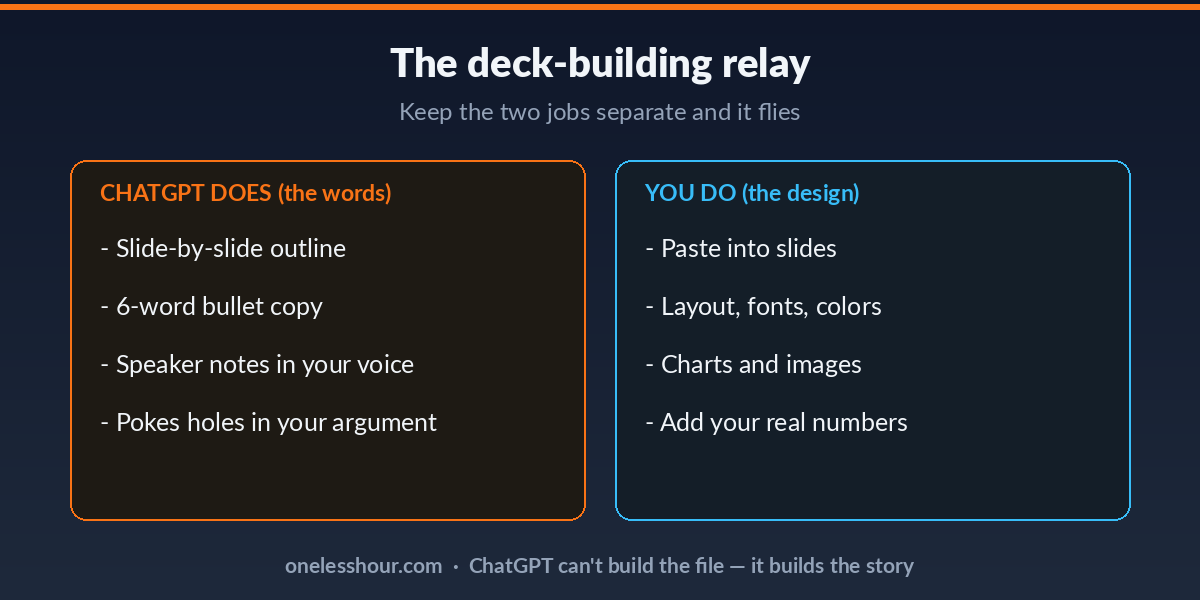
Let’s set expectations, because this is where people get frustrated. ChatGPT writes text. It does not open PowerPoint, drag boxes, or pick colors. Anyone promising a finished deck from one prompt is selling something.
What it’s brilliant at is the thinking layer: turning your raw notes into a logical flow, cutting your rambling bullet into six punchy words, and writing what you’ll actually say out loud. That’s 80% of the pain and 100% of the part that makes a deck good or bad.
So the workflow is a relay. ChatGPT drafts the words, you paste them into slides and design. Keep those jobs separate and it’s a huge time-saver. If you want a tool that builds the actual slides, that’s a different category — I compared some in my roundup of AI presentation makers.
Pro tip: The free version handles all of this. You don’t need a paid plan to write a deck.
Step 1: Build the outline before you touch a slide
The number one deck mistake is opening PowerPoint first. You end up decorating before you know what you’re saying. Start with the story instead.
I need a [X]-slide presentation for [audience] about [topic]. The goal is [what you want them to do or believe by the end]. Give me a slide-by-slide outline: a title for each slide and one sentence on what it should cover. Keep it to one clear idea per slide.
Naming the audience and the goal is what makes this work. A pitch to investors and an update to your team need completely different structures, and ChatGPT only knows which if you tell it. The “one idea per slide” rule alone will fix most cluttered decks.
Try this now: Read the outline and delete any slide that doesn’t serve the goal. It’s easier to cut a line here than a finished slide later.
Step 2: Turn each slide into tight, readable copy
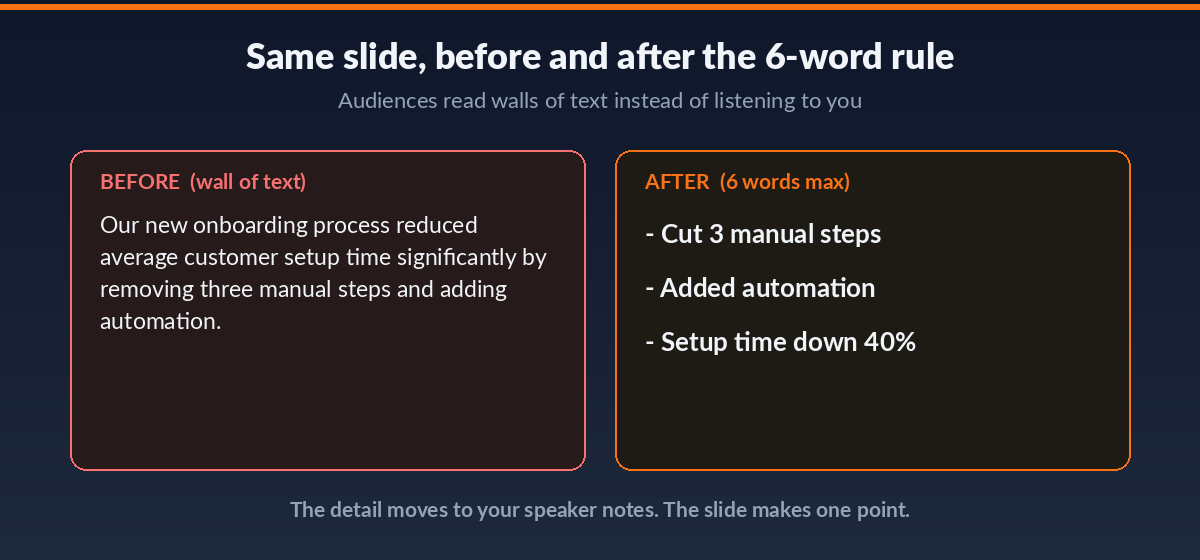
Now the words that go on the slides. The trap here is that ChatGPT loves full sentences, and slides need fragments. Tell it the limit.
For each slide in the outline, write the on-slide text as 3-4 bullet points, max 6 words each. No full sentences. Then, separately, note one supporting stat or example I should find to back it up. Here’s the outline: [paste].
The six-word cap is the secret to slides people can actually read. If a bullet needs more, it belongs in your mouth, not on the screen. And that “stat I should find” prompt quietly builds your research to-do list as you go.
Pro tip: If the bullets sound generic, paste in your real numbers and say “rewrite using these specifics.” Vague slides are forgettable; concrete ones land.
Step 3: Write the speaker notes (the part everyone skips)
Slides are the headline. The speaker notes are what you actually say — and writing them is what turns a nervous read-off into a confident talk. ChatGPT drafts these fast.
For each slide, write speaker notes of 2-3 sentences in a natural, spoken tone — how I’d actually say it out loud, not formal writing. Include a smooth transition into the next slide. Keep my voice conversational, not corporate.
Those transitions are underrated. “So that’s the problem — here’s what we did about it” is the glue that makes a deck feel like a story instead of a slideshow. Read the notes out loud and tweak anything you wouldn’t really say.
Try this now: Rehearse just the first three slides using the notes. You’ll instantly hear which lines are yours and which need rewording.
Step 4: Pressure-test the whole thing
Before you design, have ChatGPT poke holes in the argument. This two-minute step has saved me from more than one deck that fell apart under the first tough question.
Read this whole deck outline as a skeptical [audience member]. What’s the weakest slide? What obvious question am I not answering? Where does the logic jump? Be blunt. Deck: [paste].
What this won’t do: it can’t know your specific room or the politics in it. But it catches the generic gaps — the missing “why now,” the claim with no proof — while they’re still easy to fix.
The mistakes that made my ChatGPT decks worse
Three I learned the hard way.
I pasted its full sentences straight onto slides. Wall of text, audience reading instead of listening. Always enforce the word cap and move the detail to your notes.
I let it invent statistics. It’ll happily write “73% of companies report” with no source. If you didn’t provide the number, don’t use it — that’s how you get caught mid-presentation.
I asked for too many slides. More slides feels thorough; it’s actually exhausting to sit through. Ask for the fewest slides that make the point, then cut two more. If you build a lot of decks, my ChatGPT productivity workflows show how to template this.
Frequently asked questions
Can ChatGPT make a PowerPoint presentation?
It can’t build the actual slide file, but it writes everything that goes into one: the outline, the on-slide bullets, and the speaker notes. You paste that into PowerPoint and design. For auto-generating slides, you’d need a dedicated AI presentation tool instead.
How do I get ChatGPT text into PowerPoint fast?
PowerPoint’s Outline View lets you paste a structured outline and it creates slides automatically — each top line becomes a title, indented lines become bullets. Ask ChatGPT to format its output that way and you skip a lot of copy-pasting.
Will my presentation sound AI-generated?
Only if you leave it untouched. Tell ChatGPT to write speaker notes in a conversational tone, then read them aloud and swap in your own phrasing. The words on the slides are just fragments, so those rarely give it away — the speaking is where your voice comes through.
How many slides should a presentation have?
Fewer than you think. A rough guide is one slide per minute of talk time, but the real rule is one idea per slide and no slide that doesn’t move the story forward. When in doubt, cut.
Where to start today
Next deck you have to build, don’t open PowerPoint. Open ChatGPT and run Step 1 — give it your audience, topic, and goal, and let it hand you a slide-by-slide outline. Starting from a structure instead of a blank slide is the whole game.
Then work the four steps, keep every number honest, and do your design pass last. You’ll turn a lost evening into about 40 minutes. For more office tasks worth handing to AI, here’s my guide to using ChatGPT for Excel.