
LAST VERIFIED: October 19, 2026
Transparency note: This article contains no affiliate links. It’s research-based: I wrote it from OpenAI’s official help pages and pricing page and didn’t test every feature hands-on. I pay for most of the AI tools I use myself. See how I test.
ChatGPT projects are the closest thing ChatGPT has to a folder with a brain. You put related chats, files and instructions in one place, and every new chat inside that project starts with the same background, so you stop pasting the same context again and again.
Projects have changed a lot in 2026. They now work on every plan, including Free, you can share them with other people, and you can choose whether a project remembers the rest of your ChatGPT history or keeps to itself. This guide covers how ChatGPT projects work, how to set one up, the limits on each plan, and when a custom GPT is the better choice. Everything here comes from OpenAI’s own documentation as of October 19, 2026, and the sources are listed at the end.
What I Found
- Projects are included on every ChatGPT plan, Free included, and cost nothing extra. You can create as many as you like.
- The real limit is files: 5 per project on Free, 25 on Go and Plus, 40 on Pro, Business, Enterprise and Edu. You can upload 10 at a time.
- Project instructions override your normal custom instructions, but only inside that project.
- Sharing works on all plans. Free projects can have up to 5 collaborators, Go and Plus up to 10, Pro up to 100.
- If you set a project to project-only memory (shared projects always are), ChatGPT Work, the tool that used to be called agent mode, isn’t available in it.
What are ChatGPT projects?
A project is a workspace inside ChatGPT for one ongoing piece of work. OpenAI describes it as a place that “keeps related chats, files, and instructions together” so ChatGPT can use the same context every time. Think of a client account, a thesis, a house move or a weekly report.
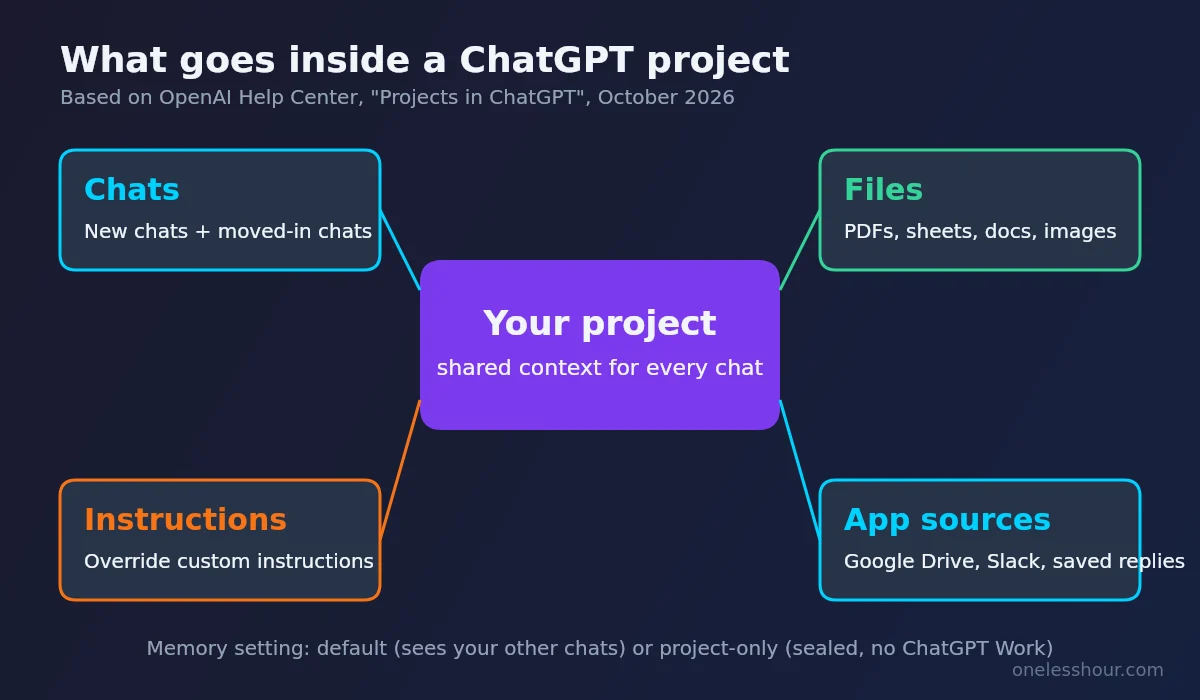
Each project holds four things:
- Chats. Any conversation you start inside the project, plus older chats you move in.
- Files. PDFs, spreadsheets, docs, images or pasted text that ChatGPT can read when it answers.
- Instructions. Standing rules for that project only, such as tone, format or the role you want ChatGPT to play.
- Sources from apps. Links to Google Drive files or folders and Slack channels, plus responses you saved from earlier chats.
The point is continuity. A normal chat forgets the details you gave it last week unless memory happens to pick them up. A project keeps the material in front of ChatGPT on purpose.
How do ChatGPT projects work?
When you ask a question inside a project, ChatGPT draws on the project’s files, its instructions and, depending on the memory setting, other chats in the same project. OpenAI says that for Plus and Pro users, “when you ask a question in a project, ChatGPT prioritizes the project chats and files.”
Three rules decide what ChatGPT can see:
- Project instructions win. They apply only inside the project and override your global custom instructions.
- Files are shared across every chat in the project. Upload a style guide once and every new chat can use it.
- Memory depends on the setting you pick. Default memory or project-only memory, explained below.
You keep the normal ChatGPT tools inside a project: Canvas, image generation, voice, web search and connected apps. Paid plans can also use deep research and ChatGPT Work there. The one exception OpenAI lists is study mode, which doesn’t apply to project chats.
Default memory vs project-only memory
This is the setting most people miss, and it matters.
- Default memory: your saved memories still apply, and on personal plans and Business, chats in the project can reference conversations outside it (and be referenced from outside).
- Project-only memory: the project is sealed. Your saved memories aren’t used, chats can only reference other chats in the same project, and nothing from the project leaks into your other chats. ChatGPT Work isn’t available in these projects.
You can switch an unshared project between the two under the three-dot menu, then Project settings then Memory. OpenAI notes the change can take a few hours. Shared projects are always project-only and can’t be switched back. On Enterprise and Edu, project chats stay inside the project even on default memory.
My rule of thumb: pick project-only for anything sensitive or anything you’d hate to see bleed into another chat (client work, health, money). Pick default memory when you want ChatGPT to know you across everything and you plan to use ChatGPT Work inside the project.
How to use ChatGPT projects: step by step
- Create it. Select New project in the sidebar, give it a name, and choose an icon and colour.
- Pick the memory setting. Choose default or project-only when you create it. You can change it later for unshared projects.
- Add instructions. Open the three-dot menu, then Project settings and write the rules. OpenAI’s own example: “Act like my marketing mentor. Be concise. Use bullet points. Ask clarifying questions.”
- Add files. Upload PDFs, spreadsheets, docs or images, or paste text. Up to 10 files go up at once.
- Link app sources if you use them. In the sources area, paste a Google Drive file or folder link, or a Slack channel link, and approve access.
- Move old chats in. Drag a chat onto the project, or open its menu and choose Move to project. It picks up the project’s instructions and files.
- Save good answers. When ChatGPT writes a summary or decision note you’ll want again, use the message menu to save it to the project’s sources.
Two small catches from the help article. Chats that were started with a custom GPT can’t be moved into a project. And a temporary chat can’t go into a project unless you save it first, which turns it into a regular chat.
Instructions worth copying
Good project instructions are short and specific. A few starting points you can adapt:
- Client project: “You are helping me with work for [client]. Use the brand guide in this project. Write in British English, short sentences, no jargon. Ask before inventing numbers.”
- Study project: “Use only the lecture notes in this project. When I ask a question, answer, then give me one practice question on the same topic.”
- Weekly report: “Each week I’ll paste raw notes. Turn them into a report using the template file in this project. Flag anything that changed since last week’s report.”
If you’re new to ChatGPT in general, my ChatGPT for beginners guide covers the basics first, and how to use ChatGPT for productivity has more prompt patterns that fit well inside a project.
The ChatGPT projects feature by plan
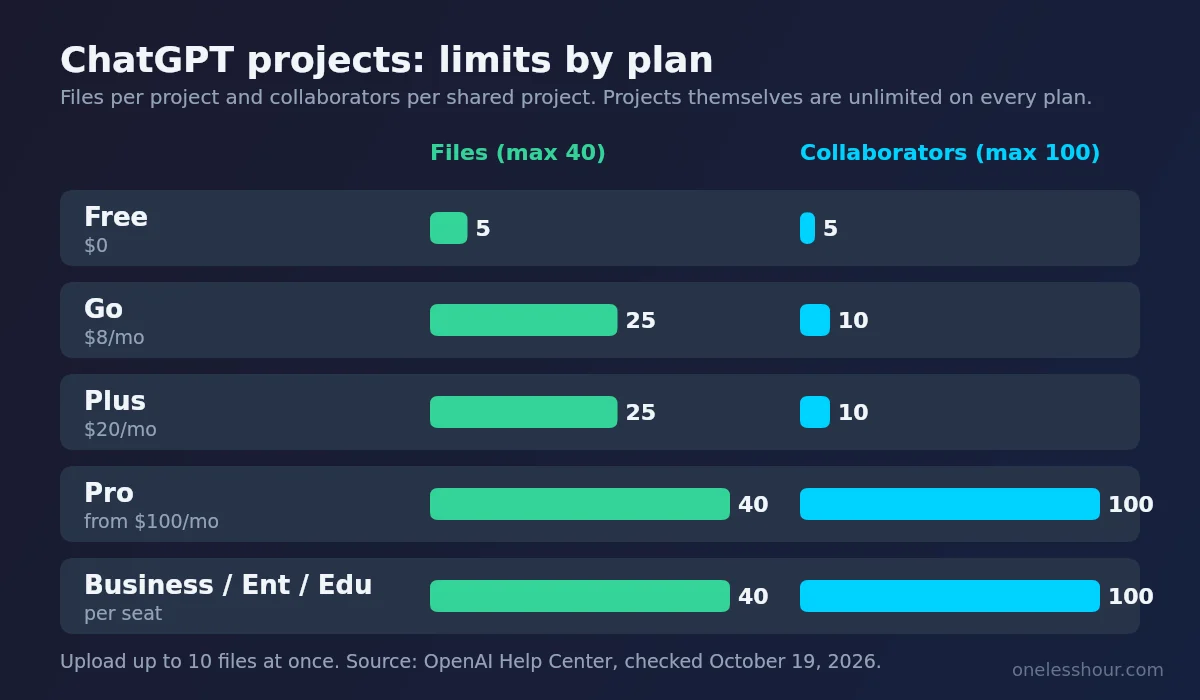
Projects themselves don’t cost extra. OpenAI’s help page says access “is included with every qualifying ChatGPT plan”, and any usage charges for models or tools apply in projects the same way they do in normal chats. What changes by plan is how much you can put in and how many people you can bring.
| Plan | Projects | Files per project | Collaborators per shared project |
|---|---|---|---|
| Free | Unlimited | 5 | 5 |
| Go ($8/mo) | Unlimited | 25 | 10 |
| Plus ($20/mo) | Unlimited | 25 | 10 |
| Pro (from $100/mo) | Unlimited | 40 | 100 |
| Business, Enterprise, Edu | Unlimited | 40 | 100 |
Other limits still apply on top. Each file can be up to 512 MB (documents) or 20 MB (images), text files are capped at 2 million tokens, and Free users can upload only 3 files a day. Paid users can upload up to 80 files every 3 hours, and OpenAI may lower that at busy times.
Sharing a project with other people
Project sharing is now on every plan, on web and mobile. Select Share, then invite people by email or switch the project to “Anyone with a link” (any signed-in ChatGPT user with the link can join). Each person gets one of two access levels:
- Edit: can change instructions, add or remove files and invite others, but can’t remove members.
- Chat: can see and use the project’s chats, files and instructions, but can’t invite anyone.
Members can start new chats and branch existing ones, but two people can’t type into the same chat at once. Everyone in the project can see and download its files. If someone leaves, they can take a copy of their own chats with them.
One privacy detail to know: on personal accounts, shared project data is only used to train OpenAI’s models if the owner and every contributor have “Improve the model for everyone” switched on. Business, Enterprise and Edu content isn’t used for training by default.
ChatGPT projects vs custom GPTs
Both bring your own context into ChatGPT, so people mix them up. OpenAI’s own comparison is the clearest way to think about it.
| Project | Custom GPT | |
|---|---|---|
| Best for | Ongoing work that changes over time | A reusable assistant for one repeatable job |
| Who uses it | You, or a group of collaborators | Anyone you share it with, one person per chat |
| Content | Grows as people add chats, files and notes | Fixed knowledge set by its builder (up to 10 files) |
| Example | “Q4 planning hub” | “HR benefits helper” |
You can also use both together. A custom GPT works inside an existing project chat. The catch is that if the very first message of a chat uses a GPT, that chat starts outside the project.
Claude projects vs ChatGPT projects
Claude has projects too, and the idea is the same: a knowledge base plus instructions shared across chats. The differences, going by Anthropic’s help pages and pricing page in October 2026:
- Free plans: Claude Free allows up to 5 projects. ChatGPT Free allows unlimited projects but only 5 files in each.
- Large knowledge bases: on paid Claude plans, when project knowledge nears the context limit Claude switches to a retrieval mode that Anthropic says expands capacity by up to 10x. ChatGPT caps you by file count instead.
- Memory across chats: Anthropic says context isn’t shared across chats in a Claude project unless it’s in the project knowledge. ChatGPT projects can reference other chats in the same project.
- Sharing: ChatGPT lets you share projects on personal plans. Claude’s pricing table lists project sharing for its business plans, not Free, Pro or Max.
If you’re still choosing between the two assistants overall, my ChatGPT vs Claude comparison goes wider than projects.
ChatGPT projects disappeared? What to check
“ChatGPT projects disappeared” is a common search. OpenAI doesn’t have a troubleshooting page for it, so these are the checks that follow from how projects work:
- Right account or workspace? Projects belong to the account or workspace where you made them. If you have a personal account and a work workspace, switch between them.
- Search for it. The chat search covers project chats too.
- Was it shared with you? If the owner removed you or deleted the project, it’s gone from your sidebar. Deleting a project can’t be undone, and its chats and project-only files go with it (files saved in Library stay).
- Workspace permissions. On Business, Enterprise and Edu, admins can control who can create or share projects.
- Status page. If everything else looks right, check status.openai.com for an outage before assuming the worst.
Where projects and ChatGPT Work meet
ChatGPT Work is the tool that takes actions for you, and OpenAI’s pricing page now lists it on every plan (limited on the desktop app for Free and Go, full on desktop, web and mobile for Plus and Pro). Some older help pages still call it agent mode. It works in projects that use default memory, which makes a project a good home for repeat tasks: the files and instructions are already there when Work starts. It isn’t available in project-only or shared projects. My guide to ChatGPT’s agent mode explains how it works in more depth.
Frequently Asked Questions
Are ChatGPT projects free?
Yes. Projects are included on every ChatGPT plan, including Free, at no extra cost. Free projects can hold up to 5 files and up to 5 collaborators.
How many files can I add to a ChatGPT project?
5 on Free, 25 on Go and Plus, and 40 on Pro, Business, Enterprise and Edu. You can upload up to 10 files at a time.
What is the difference between ChatGPT projects and custom GPTs?
A project is a workspace for ongoing work that grows as you add chats and files, and it can be shared with collaborators. A custom GPT is a reusable assistant with fixed instructions and up to 10 knowledge files, built for one repeatable job.
Can other people see my ChatGPT project?
Only if you share it. Shared project members can see its chats, files and member list. Sharing a single chat from a private project shows only that chat, not the rest of the project.
Do ChatGPT project instructions replace my custom instructions?
Inside the project, yes. Project instructions override your global custom instructions, but only for chats in that project.
Can I use ChatGPT Work inside a project?
Yes, in projects that use default memory. ChatGPT Work is not available in projects set to project-only memory, which includes every shared project.
What happens when I delete a ChatGPT project?
Its chats, instructions and any files stored only in the project are permanently removed, and members lose access. Files saved separately in Library are kept. It can’t be undone.
Where to start this week
Pick one piece of work you keep explaining to ChatGPT from scratch. Make a project for it, write three lines of instructions, upload the two or three files you always end up pasting, and move your last few chats on that topic into it. That alone saves the “here’s the background again” step every time you open a new chat.
Sources (all checked October 19, 2026): OpenAI Help Center, Projects in ChatGPT; OpenAI Help Center, Uploading files and audio to ChatGPT; OpenAI Help Center, ChatGPT release notes; ChatGPT pricing; OpenAI Academy, Using projects in ChatGPT; Anthropic, How can I create and manage projects?, RAG for projects and Claude pricing.