
Transparency note: This article contains no affiliate links, and no company paid for or reviewed it. I pay for most of the AI tools I use myself — see how I test.
Everyone keeps telling you to “try ChatGPT.” You’ve maybe opened it once, typed “hello,” gotten a response, and thought… “okay, now what?”
You’re busy. You don’t have time for a 4-hour YouTube tutorial or a course about “prompt engineering.” You just want to know: what can this thing actually do for me, right now, in practical terms?
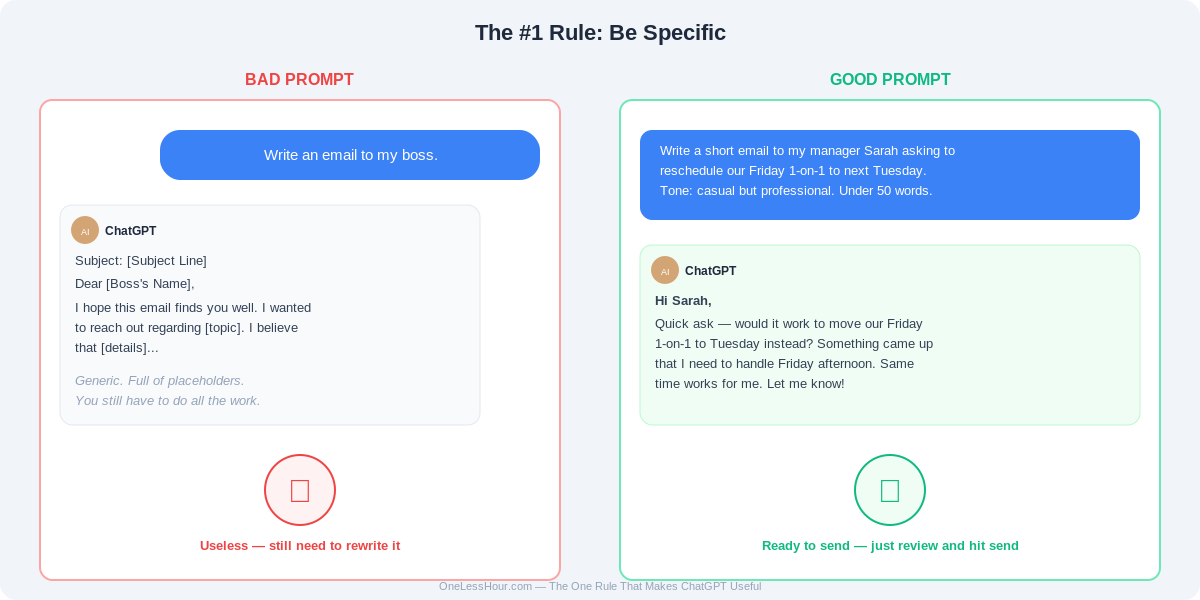
This guide gives you 10 specific things to try with ChatGPT in the next 60 minutes. Each one takes under 5 minutes. By the end, you’ll know exactly how to use it in your daily routine — no AI expertise required.
What you need: A free ChatGPT account at chat.openai.com. That’s it.
Before We Start: The One Rule That Makes ChatGPT Actually Useful
Most people type vague things like “write me an email” and get vague results. Then they think AI is overhyped.
The secret is being specific. The more context you give, the better the output. Think of ChatGPT like a very fast intern who’s smart but doesn’t know your situation. You need to brief it.
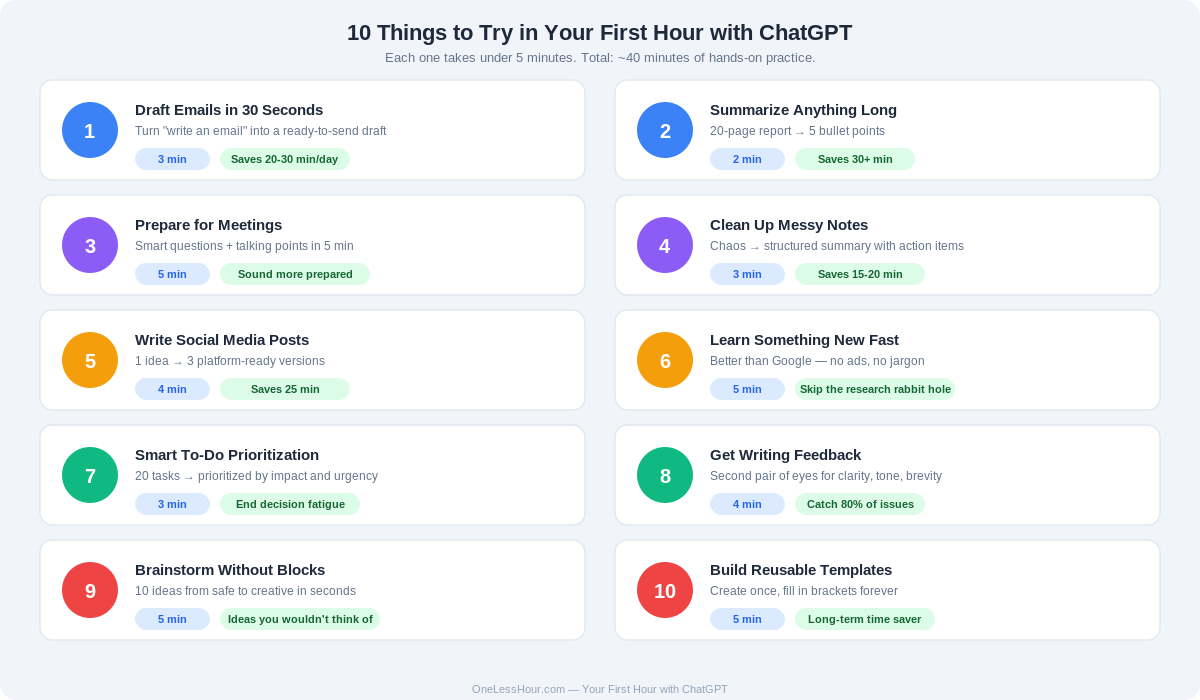
Bad prompt: “Write an email to my boss.”
Good prompt: “Write a short email to my manager Sarah asking to reschedule our Friday 1-on-1 to next Tuesday. Tone: casual but professional. Keep it under 50 words.”
See the difference? The second one gives ChatGPT everything it needs to give you exactly what you want. Keep this in mind for everything below.
Pro tip: The formula is: [task] + [context] + [tone] + [length]. Use this structure for every prompt and your results will improve dramatically.
Thing 1: Draft Emails in 30 Seconds (Time: 3 minutes)
This is the single most useful thing ChatGPT does for busy people. If you only learn one thing from this guide, make it this.
Try this now: Think of an email you need to send. Paste this into ChatGPT and fill in the brackets:
“Write a professional email to [who]. The purpose is [what you need]. Tone should be [casual/formal/friendly]. Keep it under [number] words.”
Example: “Write a professional email to a client named James. The purpose is to let him know the project deadline is moving from Friday to next Wednesday due to a vendor delay. Tone should be apologetic but confident. Keep it under 100 words.”
What you’ll get: A ready-to-send email that you just review and tweak. This alone will save you 20-30 minutes a day if you send more than a few emails.
Pro tip: For recurring emails (weekly updates, follow-ups), save your best prompts in a notes app. Next time, just swap out the details. This is the foundation of building an AI-powered email workflow.
Thing 2: Summarize Anything Long (Time: 2 minutes)
Got a long article, report, or document you don’t have time to read? ChatGPT handles this instantly.
Try this now: Find any long article or document. Copy the text. Paste it into ChatGPT and add:
“Summarize this in 5 bullet points. Focus on the most important takeaways and any action items.”
Pro tip: You can also say “Summarize this like I’m in a rush and only have 30 seconds to understand the key points.” ChatGPT adjusts its style based on how you frame the request. For even longer documents, try Claude which has a larger context window.
Thing 3: Prepare for a Meeting in 5 Minutes (Time: 5 minutes)
Walking into a meeting unprepared feels terrible. ChatGPT can help you get ready in minutes, even for topics outside your expertise.
Try this now:
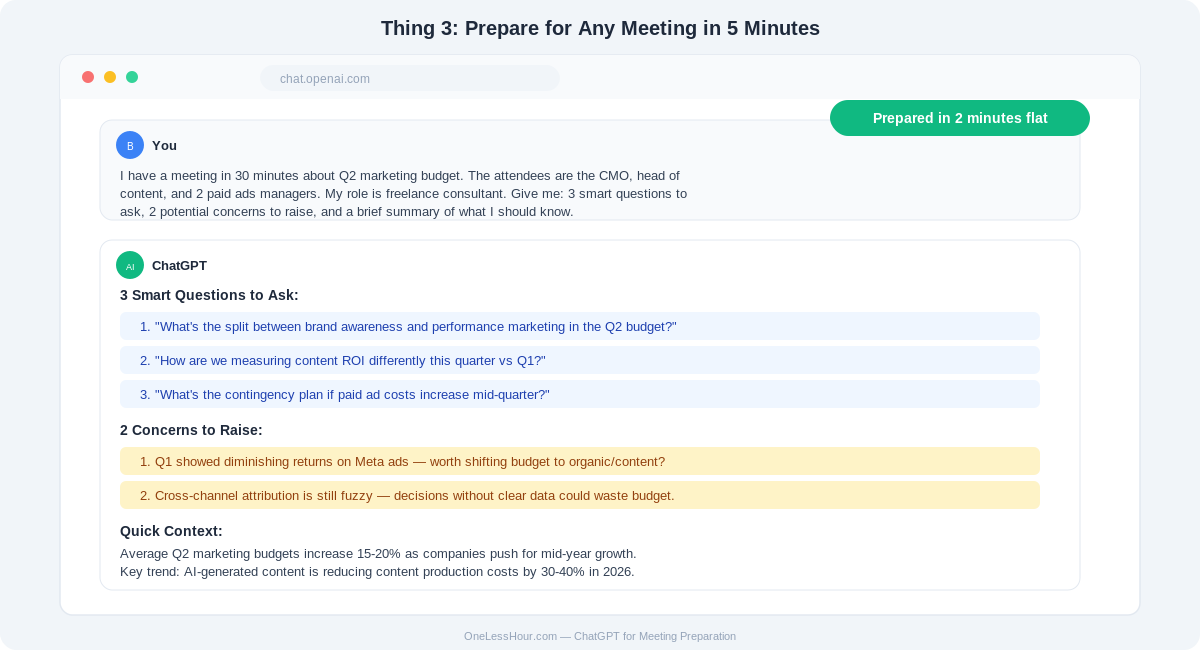
“I have a meeting in 30 minutes about [topic]. The attendees are [who]. My role is [your role]. Give me: 3 smart questions to ask, 2 potential concerns to raise, and a brief summary of what I should know about this topic.”
This works especially well for: Meetings about topics outside your core expertise, client calls where you need to sound informed, and job interviews where you want thoughtful questions ready.
Pro tip: Combine this with Otter.ai (free tier available) to auto-transcribe the meeting itself. You’ll walk in prepared and walk out with automatic notes.
Thing 4: Turn Messy Notes into Something Useful (Time: 3 minutes)
After a meeting, your notes probably look like chaos — half-sentences, abbreviations, random bullet points. ChatGPT turns chaos into clarity.
Try this now: Take your messiest meeting notes or brain dump and paste them in with:
“Here are my rough meeting notes. Turn them into a clean summary with: key decisions made, action items with owners (if mentioned), and open questions that need follow-up.”
What happens: You get a professional summary in seconds that you can share with your team or reference later. This is one of the best ChatGPT tips for work that almost nobody talks about.
Pro tip: Ask for the output in a specific format: “Format as a Slack message” or “Format as an email I can send to my manager.” It adapts.
Thing 5: Write Social Media Posts Without Overthinking (Time: 4 minutes)
You know you should post more on LinkedIn or Twitter/X but staring at a blank text box is painful.
Try this now:
“I want to share this insight on LinkedIn: [your idea in one sentence]. Write 3 different versions — one that tells a story, one that asks a question, and one that shares a contrarian take. Keep each under 150 words.”
Example: “I want to share this insight on LinkedIn: Most meetings could be emails. Write 3 different versions — one that tells a story, one that asks a question, and one that shares a contrarian take. Keep each under 150 words.”
Pick the one you like most, edit it to sound like you (important!), and post. Done in 5 minutes instead of 30.
Pro tip: Never post AI output without editing it. Add a personal detail, change a phrase, make it sound like you. Authenticity is what gets engagement. For more on this, check out our guide to saving 3 hours a day with free AI tools.
Thing 6: Learn Something New Fast (Time: 5 minutes)
Need to understand a new concept, industry term, or tool quickly? ChatGPT is better than Googling because it gives you a direct answer without ads or jargon.
Try this now:
“Explain [topic] to me like I’m a smart professional who knows nothing about this specific area. Keep it to 3 paragraphs. Include one real-world example.”
Example: “Explain blockchain to me like I’m a smart professional who knows nothing about this specific area. Keep it to 3 paragraphs. Include one real-world example.”
Why this is better than Google: No ads, no clicking through 5 articles, no jargon-filled Wikipedia pages. Just a clear explanation tailored to your level. For research that needs to be fact-checked with sources, try Perplexity which includes citations.
Pro tip: Follow up with “Now give me the 3 things most people get wrong about this.” It gives you instant nuance that makes you sound like an expert.
Thing 7: Create a To-Do List That Actually Makes Sense (Time: 3 minutes)
When you have 20 things to do and can’t figure out where to start, AI can help prioritize. This is one of the most underrated ChatGPT practical uses.
Try this now: List everything on your plate and add:
“Here’s my task list for today. I have [number] hours available. Prioritize these by impact and urgency. Group them into: do now, do today, and can wait until tomorrow. Flag anything I should delegate or skip.”
What’s great about this: It forces structure onto your chaos without you having to do the mental sorting yourself. For ongoing calendar management, consider Reclaim.ai which automates this daily.
Thing 8: Get Feedback on Your Writing (Time: 4 minutes)
Whether it’s a report, proposal, or important message, getting a second set of eyes helps. ChatGPT can be that instant reviewer.
Try this now: Paste something you’ve written and add:
“Review this for: clarity (is it easy to understand?), tone (does it sound professional?), and brevity (can anything be cut without losing meaning?). Give me specific suggestions, not vague advice.”
Important: This doesn’t replace feedback from a real person for high-stakes documents. But for everyday writing, it catches 80% of issues in 10 seconds. For a more polished solution, Grammarly does this automatically as you type.
Thing 9: Brainstorm Ideas Without Staring at a Wall (Time: 5 minutes)
Need gift ideas, project names, blog topics, marketing angles, or solutions to a problem? ChatGPT is a surprisingly good brainstorming partner because it doesn’t have the same mental blocks you do.
Try this now:
“I need ideas for [what you need]. Context: [relevant details]. Give me 10 options ranging from safe/conventional to creative/unexpected.”
Example: “I need ideas for a team offsite activity. Context: 12 people, mixed ages, some aren’t physically active, budget is $500 total, half-day event. Give me 10 options ranging from safe/conventional to creative/unexpected.”
Why it works: AI doesn’t have the same biases and mental blocks you do. It’ll suggest things you wouldn’t think of.
Pro tip: After getting initial ideas, say “Now combine the best elements from options 3 and 7 into something new.” This is where AI brainstorming really shines.
Thing 10: Build Templates You’ll Reuse Forever (Time: 5 minutes)
This is where ChatGPT becomes a long-term time saver. Create templates for things you do repeatedly.
Try this now:
“Create a template for [recurring task]. Include placeholders in [brackets] that I can fill in each time. Make it professional and concise.”
Examples of templates worth creating: weekly status update email to your manager, client project update, meeting agenda, social media post structure, and invoice follow-up email.
Save these templates somewhere easy to access — Notion, Apple Notes, or even a Google Doc works. Next time you need one, just fill in the brackets and you’re done in 60 seconds.
Once you have a few chats on the same topic, move them into a ChatGPT project so you stop re-explaining the background.
Pro tip: Build a “prompt library” — a document with your best templates and prompts organized by category. This becomes your personal AI playbook that gets more valuable over time.
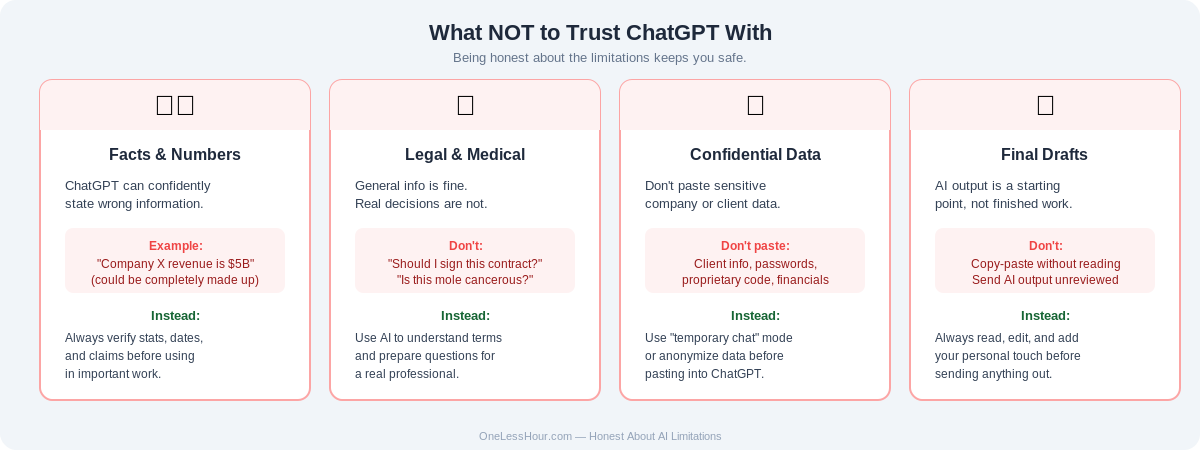
What NOT to Trust ChatGPT With
Being honest about the limitations — because using AI responsibly is part of using it effectively:
- Specific facts and numbers. ChatGPT can confidently state wrong information. Always verify statistics, dates, and claims before using them in important work. For factual research, Perplexity is better because it cites sources.
- Legal or medical advice. It can give you general information, but don’t make real decisions based on it. Consult real professionals.
- Confidential information. Don’t paste sensitive company data, client information, or passwords into ChatGPT. Use the “temporary chat” mode or be mindful of what you share.
- Final drafts without review. Always read what it generates. It’s a starting point, not a finished product.
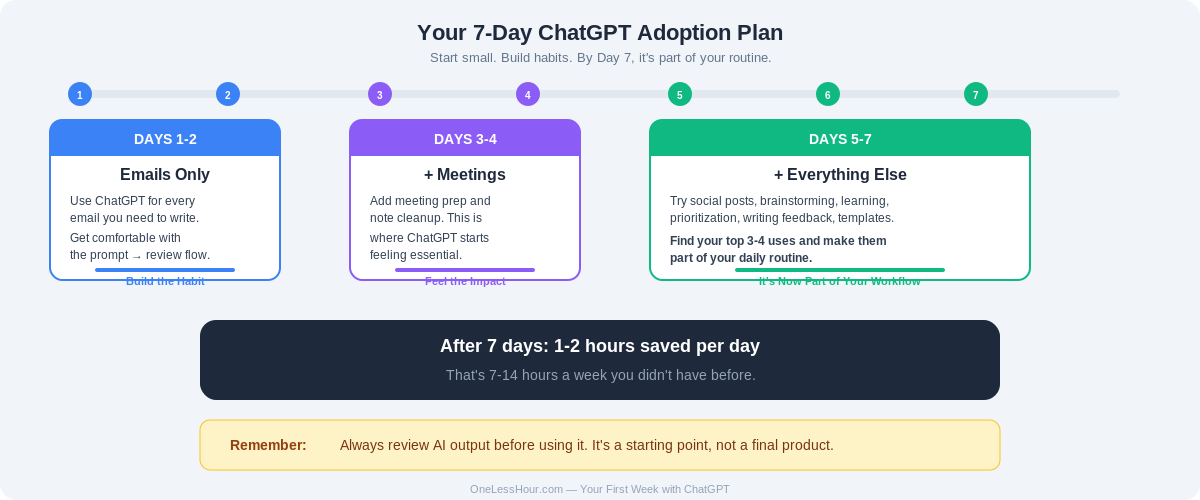
Your Next 7 Days
Here’s the adoption plan that worked for me:
Day 1-2: Use ChatGPT only for emails. Get comfortable with the flow of prompting, reviewing, and sending.
Day 3-4: Add meeting prep and note cleanup. This is where it starts feeling essential.
Day 5-7: Try the other things on this list. Find which 3-4 uses save you the most time and make those part of your routine.
By the end of the week, you’ll wonder how you managed without it. And once you’re comfortable, check out AI tools under $10/month that are actually worth paying for — because free gets you far, but a small investment takes it further.
FAQ
Is ChatGPT free? Yes. ChatGPT has a free tier that’s plenty for everything in this guide. The paid plan ($20/month) gives you faster responses and access to GPT-4, but you don’t need it to start.
Is ChatGPT safe to use for work? For general tasks like drafting emails and brainstorming, yes. Avoid pasting confidential company data, client information, or passwords. Use “temporary chat” mode for sensitive topics.
How is ChatGPT different from Claude or Gemini? All three are AI assistants. ChatGPT (by OpenAI) has the largest user base. Claude (by Anthropic) is great for long documents and nuanced writing. Gemini (by Google) integrates with Google Workspace. Try all three — they’re all free — and see which fits your workflow.
Will AI replace my job? No — but someone who uses AI might work faster than someone who doesn’t. Think of it as a power tool, not a replacement. The tasks in this guide automate the boring parts so you can focus on work that actually requires your judgment and creativity.
How much time will I actually save? Based on my experience: 1-2 hours per day once you’ve built the habit (after the first week). The email drafting and meeting prep alone typically save most people 45-60 minutes daily.
Written by the OneLessHour team — freelancers who started using AI tools to survive packed schedules and ended up getting 3 hours back every day. We test everything we write about. More about us →
This guide is part of the OneLessHour series — practical AI guides for people who don’t have time for fluff. We test everything ourselves and only share what actually works.
Next up: AI Tools Under $10/Month That Are Actually Worth It — because free is great, but sometimes paying a little gets you a lot more.
Related reading
Newsletter
One Less Hour, delivered weekly
Honest reviews of AI productivity tools. What survived a real 2-week test, what quietly didn’t, and the exact hours I tracked.
One email per week. Unsubscribe in one click.