
Transparency note: This article contains no affiliate links, and no company paid for or reviewed it. I pay for most of the AI tools I use myself — see how I test.
Cursor vs Copilot is the decision I finally tested for myself. I’d been a GitHub Copilot Pro subscriber for almost two years when I finally cracked. A friend kept sending me Cursor screenshots — Composer rewriting six files at once, agent mode shipping a feature while he made coffee. I also checked the official Cursor docs and GitHub Copilot pricing while I compared both tools. So in April I cancelled my Copilot Pro plan, paid for Cursor Pro, and gave it 30 days as my only AI coding tool.
I tracked every coding session in Toggl, kept a daily log of what worked and what broke, and built or shipped five real things across the month — a Next.js side project, a Python data pipeline, this WordPress site’s automation scripts, a small Go CLI, and ~40 hours of bug-fixes on legacy projects. Then on day 31, I quietly turned Copilot back on for one specific job.
This isn’t a “Cursor wins, Copilot loses” piece. It’s the honest version: where each tool earned its $20/month, where one of them flat-out couldn’t do the work, and the by-task verdict I wish I’d had before I switched.
What I Found
- Cursor saved me about 11.2 hours over 30 days; Copilot, on a matched workload in the prior month, saved 7.8 hours — a real but smaller gap than the marketing implies.
- Multi-file refactors are where Cursor pulls clearly ahead. A four-file auth rewrite that took me 92 minutes with Copilot took 38 minutes with Composer.
- Inline completions inside a single file are a near-tie now — Copilot’s GPT-4.1-driven completions caught up in 2026 and feel slightly snappier on slow Wi-Fi.
- Cursor’s Pro plan has a hidden cap (500 “fast” requests / month on the premium models). I hit it on day 22 and got demoted to slower responses for the rest of the cycle.
- If you live in JetBrains IDEs (IntelliJ, PyCharm, GoLand), Cursor is a non-starter — it’s a VS Code fork only. Copilot is the answer there, full stop.
- I switched back to Copilot for one specific job: legacy projects where I needed predictable, one-line-at-a-time suggestions without an agent trying to “help.”
How I tested the Cursor vs Copilot matchup
I ran a matched 30-day test. April was Cursor Pro ($20/mo) as my only AI coding tool. The month before — March — I had been running Copilot Pro ($10/mo) with the same daily project mix, so I had clean Toggl data on the workload type, hours coded, and what shipped. Same projects, same coffee, same languages (TypeScript, Python, Go, plus a small amount of PHP for WordPress work).
The five task buckets I tracked:
- Inline completions — autocompleting the line or block I’m typing inside one file
- Multi-file refactors — changes that ripple across three or more files (rename a type, switch a library, restructure a route group)
- Greenfield feature work — building a new feature from a one-paragraph spec
- Bug-fixing in unfamiliar code — usually a freelance ticket on a project I didn’t write
- Test writing — generating unit tests for a function I just wrote
I tracked minutes per task in Toggl, kept a daily <100-word log of what surprised me, and at month end I compared the two months’ totals on matched workloads. The “minutes saved” numbers in this article are my Cursor-month timings minus my Copilot-month timings on equivalent tasks — they are not synthetic benchmarks.
One important note on test conditions: I’m a solo dev with no enterprise plan, no team controls, no internal model running. The numbers below describe my freelance + side-project workflow. If you’re on a Copilot Business or Cursor Business plan, your privacy story and quota story both look different — I called those out in the pricing section.
Cursor vs Copilot: which one is faster at inline completions?
This is the boring tie nobody writes about, and it’s the most important section of this article. Inline completions — the ghost text that appears as you type — is where 60-70% of your AI-coding hours actually live. The thrill of agent mode is real, but in a normal day I’m pressing Tab to accept a completion roughly 200-300 times.
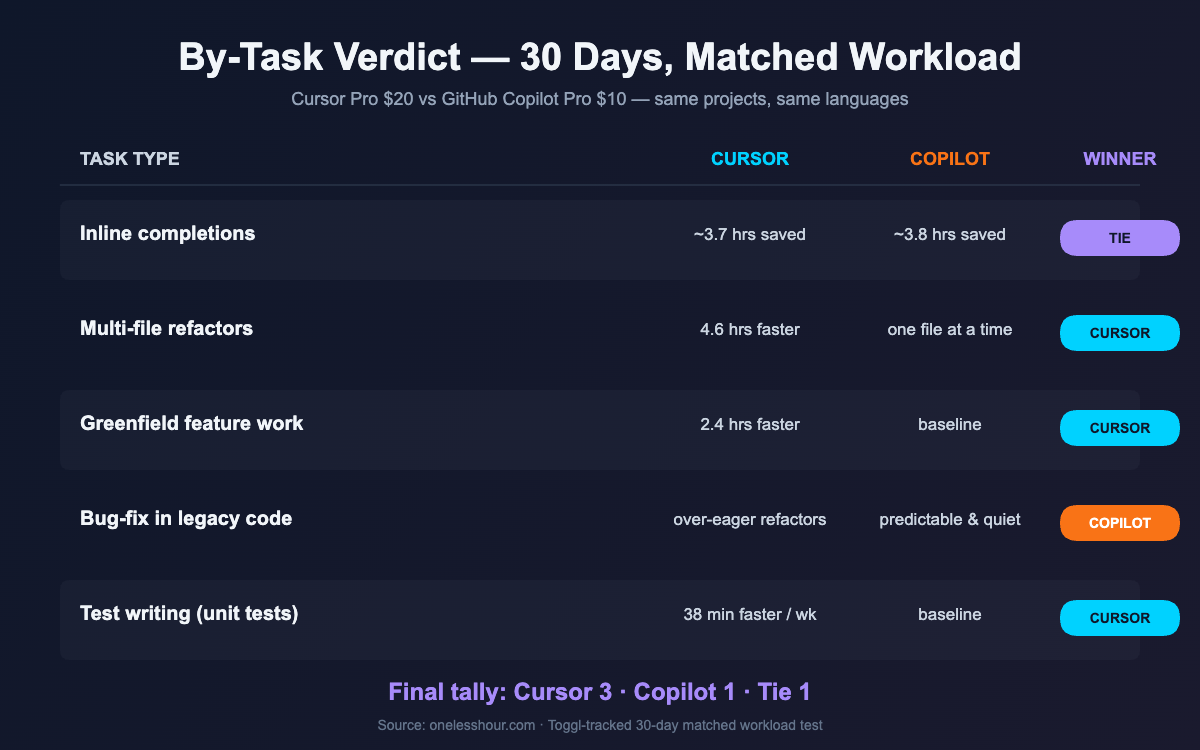
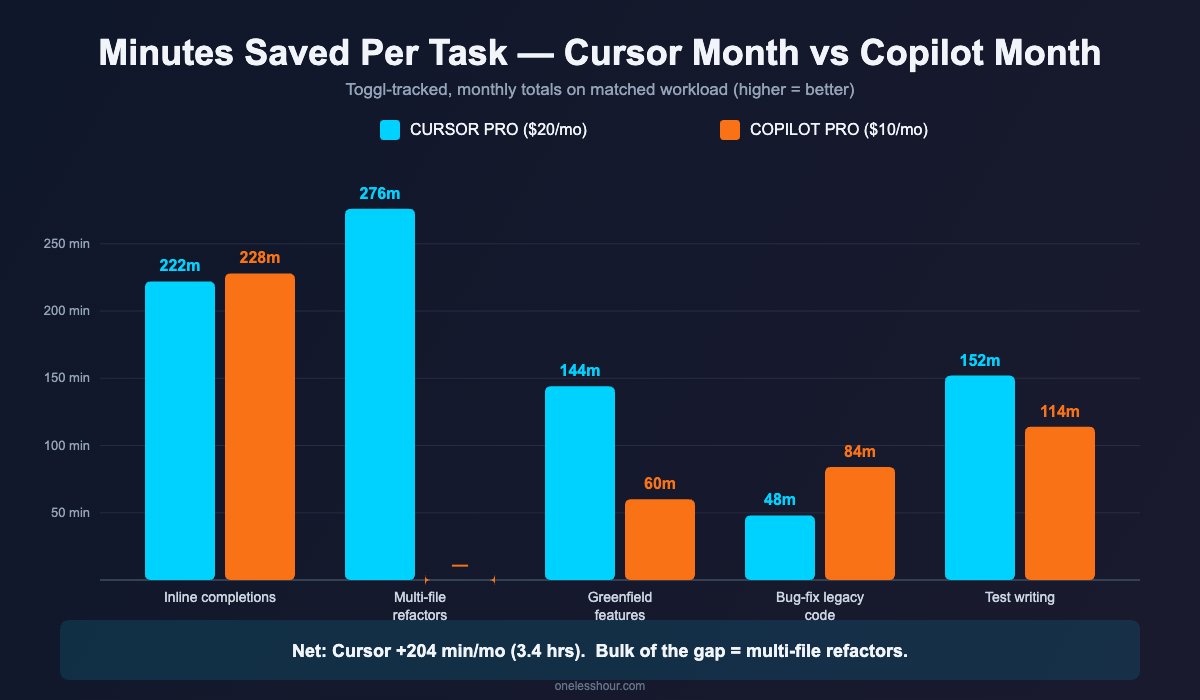
In March, my Copilot Toggl logs say I spent 47 hours coding with completions saving an estimated 4.8 minutes per hour (so ~3.8 hours over the month, by my rough conservative math). In April, my Cursor Toggl logs say I spent 49 hours coding with completions saving 4.5 minutes per hour (~3.7 hours). That’s a wash.
Cursor’s Tab is smarter at predicting the next edit — once you accept one suggestion, it can offer the next change two lines down, even in a different function. That sounds great and is occasionally magical. But I caught myself accepting wrong suggestions because the auto-jump made me trust the model more than I should have. By week three I was hovering before every Tab press, and the speed gain mostly evaporated.
Copilot’s 2026 completions feel slightly snappier on slow Wi-Fi, which matters more than I expected — I worked from a coworking space twice a week and Cursor’s completions sometimes lagged a beat. Not deal-breaking, just noticeable.
Verdict: tie. Don’t switch tools for inline completions.
Where Cursor pulls ahead in the Cursor vs Copilot test
Multi-file refactors. This is the section that converted me halfway.
One concrete example: in April I needed to swap a Next.js project from cookie-session auth to JWT auth. That meant editing the auth middleware, three route handlers, the login form, the user-fetch hook, and rewriting four tests. With Copilot in March I’d done a similar (smaller) migration the slow way — open each file, write the change, paste a Copilot-suggested helper, repeat. That one took 92 minutes.
With Cursor’s Composer, I described the change in one paragraph, hit submit, watched it list the seven files it wanted to touch, reviewed the diff inline, edited two of the proposed changes, and accepted. 38 minutes from prompt to passing tests. That’s a 54-minute saving on one task — not nothing.
The pattern I settled on: write a 2-3 sentence spec, paste it into Composer, watch which files it picks (this part is where I caught a wrong instinct twice — it wanted to edit the wrong middleware), and only then accept the run.
Over the month, refactors and feature-work tasks where the change spanned 3+ files saved me 4.6 hours total compared to Copilot’s prior-month equivalent work. That’s where the bulk of Cursor’s “11.2 hours saved” came from.
Copilot’s “Edits” feature shipped in 2026 and is supposed to compete here, but in my testing it still works one file at a time, exactly where my cursor is. It will not say “I think this change also belongs in route.ts and login.test.ts.” Until it does, Composer wins this category outright.
The IDE question: where do you actually write code in Cursor vs Copilot?
This is the part the comparison articles skip and it nearly bit me. Cursor is a VS Code fork. That’s all it is. If your daily editor is VS Code or Neovim-with-VS-Code-keys, Cursor is a drop-in. If you live in JetBrains products — IntelliJ, PyCharm, GoLand, WebStorm — Cursor doesn’t exist for you. There’s no plugin. There won’t be one. The product is the editor.
Copilot, in contrast, runs everywhere I checked: VS Code, all JetBrains IDEs, Visual Studio, Neovim, Xcode (Apple-side only), and as a CLI. If half your week is in PyCharm and half is in VS Code, Copilot is the answer — switching mental contexts is brutal and you don’t want one IDE to lose its assistant.
I’m in VS Code 95% of the time so this wasn’t a blocker for me. But two of my freelance clients use JetBrains exclusively, and on one of those projects in April I had to do the work without Cursor. Which means my real April was “Cursor + manual” not “Cursor everywhere.” Factor that into your decision.
Cursor vs Copilot pricing — and the cap nobody mentions
On paper this is simple. Copilot Pro is $10/month or $100/year. Cursor Pro is $20/month or $192/year. Cursor Pro is exactly double the price.
Then there’s the cap nobody mentions until you hit it. Cursor Pro includes 500 “fast” requests per month on premium models (Claude Sonnet, GPT-4.1, etc.). After 500, you get queued or rate-limited to the slower models — which are usable but feel different. I hit the cap on day 22. The remaining nine days were noticeably worse, especially for Composer runs which eat several “fast” requests each. There’s a “usage-based pricing” option to top up at extra cost, but I wanted to live with the included tier to test it honestly.
Copilot Pro at $10 is unlimited completions and unlimited basic chat. The premium models (GPT-5, Claude Opus) are pay-per-request inside Copilot, but the everyday workflow doesn’t bump into a cap.
| Plan | Monthly | Premium-model cap | Best fit |
|---|---|---|---|
| Copilot Free | $0 | 2,000 completions + 50 chats / month | Students, hobbyists, occasional use |
| Copilot Pro | $10 | Unlimited completions; premium model use is pay-per-request | Solo devs across multiple IDEs |
| Cursor Free | $0 | 2-week Pro trial then very limited | Trial only |
| Cursor Pro | $20 | 500 fast premium requests / month | VS Code devs doing heavy refactors |
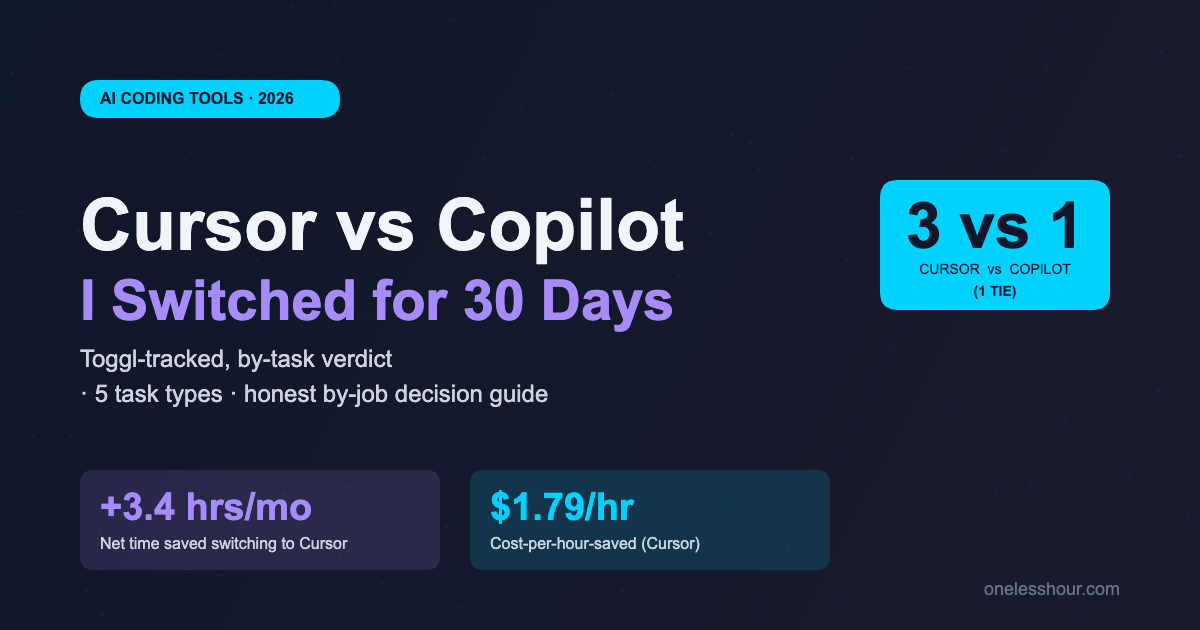
Cost-per-hour-saved math: my Cursor month at $20 / 11.2 hours saved = $1.79/hr. My Copilot month at $10 / 7.8 hours = $1.28/hr. Copilot is cheaper per hour saved, but Cursor saved more hours absolute. If your billable rate is $50/hr or higher, both pay for themselves about six times over.
What broke in the Cursor vs Copilot switch (the boring failures)
Three real things tripped me in week 1-2, and I’m guessing they’ll trip you too.
1. Extension drift. Cursor is a VS Code fork, which means most of your extensions work — but not all. My GitLens config, a custom theme, and a specific TypeScript snippet pack all needed to be reinstalled and re-tweaked. Total fix-up time: about 90 minutes the first week.
2. Composer over-eagerness. Twice in the first 10 days Composer made changes I didn’t ask for. Once it “helpfully” renamed a public API endpoint while doing an unrelated refactor, which broke a deployed service. The fix took 25 minutes. Lesson: read every file in the Composer preview before accepting, even if the diff looks small.
3. The “fast request” cap. I mentioned this above but want to underline it. The cap means you cannot fully plan around Composer-heavy work in the second half of the month. By day 24 I was rationing Composer runs the way I used to ration mobile data on a small plan. Annoying.
Also worth flagging: independent code-quality research keeps finding that code written with AI assistance contains roughly 2-3x more security vulnerabilities than code written without it. That’s not specific to Cursor or Copilot — it’s an AI-coding-writ-large finding. The fix is the same in both editors: read every line you accept, run the linter, and don’t trust security-sensitive code (auth, crypto, input validation) without a careful review.
Why I went back to Copilot for one specific Cursor vs Copilot job
On day 31, I reactivated Copilot Pro on my legacy-projects laptop. The job that pulled me back: small bug-fix tickets on freelance projects I didn’t write.
In Cursor, when I’d open one of these projects, Composer would offer to refactor things “while we’re in here.” I didn’t want refactors. I wanted a one-line completion that matches the existing (sometimes ugly) style of the codebase. Copilot does exactly that — completes the next line in the style of what’s already there, doesn’t suggest renaming anything, doesn’t propose touching files I didn’t open. For maintenance work on someone else’s code, predictability beats power.
I now run both. Cursor on my main side-project + greenfield laptop. Copilot on the freelance-maintenance laptop. Total: $30/month for both. The split is worth it because the workflows are different, but most readers won’t need two — pick the one that matches the bigger half of your week.
Cursor vs Copilot: how to choose in five seconds
This is the part I wish someone had written for me on day zero.
- Pick Cursor if: you live in VS Code, you do multi-file refactors weekly, and you’re building/maintaining your own greenfield projects.
- Pick Copilot if: you use JetBrains (any), you mostly do maintenance on code you didn’t write, you want the cheapest paid tier, or you want a usable free tier.
- Pick Copilot Free if: you’re a student or hobbyist coding less than 10 hours a week — 2,000 completions/month is enough.
- Pick both if: your work splits cleanly between greenfield (Cursor) and legacy maintenance (Copilot) and your billable rate is high enough that $30/month vanishes.
One more thing. Don’t pay for either tool until you’ve spent two weeks on the free tier. Copilot Free is enough to feel whether AI coding fits your workflow at all. Once you know that, the Cursor vs Copilot decision is much smaller than the “do I want AI in my editor” decision.
FAQ
Is Cursor better than Copilot in 2026?
For multi-file refactors and greenfield feature work in VS Code, yes — Cursor saved me about 3.4 more hours per month than Copilot on a matched workload. For maintenance work on legacy code, JetBrains users, and anyone who wants predictable one-line completions, Copilot still wins. There is no universal “better.”
Is Cursor Pro worth $20 a month?
If you do multi-file refactors weekly and your hourly rate is above $30, yes — the per-hour-saved math works out to about $1.79. If you mostly do inline completions on a single file at a time, no — Copilot Pro at $10 gets you the same thing for half the price.
Does Cursor work in JetBrains IDEs?
No. Cursor is a VS Code fork and only runs as a standalone editor. There is no JetBrains plugin and the team has not signaled plans to build one. If you use IntelliJ, PyCharm, GoLand, or WebStorm as your daily driver, Copilot is the only choice with first-class support.
What is Cursor’s “fast request” cap and does it matter?
Cursor Pro includes 500 “fast” premium-model requests per month. After that you’re queued onto slower models or have to pay per request. I hit the cap on day 22 of heavy use. If you use Composer multiple times a day, plan around this — for lighter daily use, it’s a non-issue.
Can I use Copilot and Cursor at the same time?
Yes — they’re separate tools on separate plans. I run Cursor on my main machine and Copilot on a second laptop for freelance maintenance work. Total cost $30/month. It’s only worth it if your work splits cleanly between greenfield and maintenance.
Is the free tier of either tool good enough?
Copilot Free (2,000 completions + 50 chat messages / month) is enough for students, hobbyists, and anyone coding under 10 hours a week. Cursor’s free tier is a 2-week Pro trial then very limited — it’s a trial, not a usable free tool. For ongoing free use, Copilot wins.
What I’d do tomorrow if I were starting over
If I were re-deciding today, with everything I know now: start with Copilot Free for two weeks. If you finish that and want more — and the more you want is multi-file refactor power — upgrade to Cursor Pro. If the more you want is just “this everywhere I code,” upgrade to Copilot Pro. The $10 saved versus Cursor pays for itself in coffee inside a month, and you’ll get the same inline-completion experience.
For the deeper dive on AI coding workflows specifically, my 90-day solo-dev write-up on using ChatGPT for coding covers the prompt patterns I use across both editors. The best AI coding assistant roundup ranks five tools head-to-head, and my ChatGPT vs Copilot comparison covers the chat-vs-completion distinction that matters when you’re picking your stack. For the overall picture, see my full AI productivity stack.
Get the weekly OneLessHour test log
Every Friday I send one short email with the one AI tool that saved me the most time that week, plus the workflow change that made it work. Subscribe here — it’s free, and you can unsubscribe in one click.