
Transparency note: This article contains no affiliate links, and no company paid for or reviewed it. I pay for most of the AI tools I use myself — see how I test.
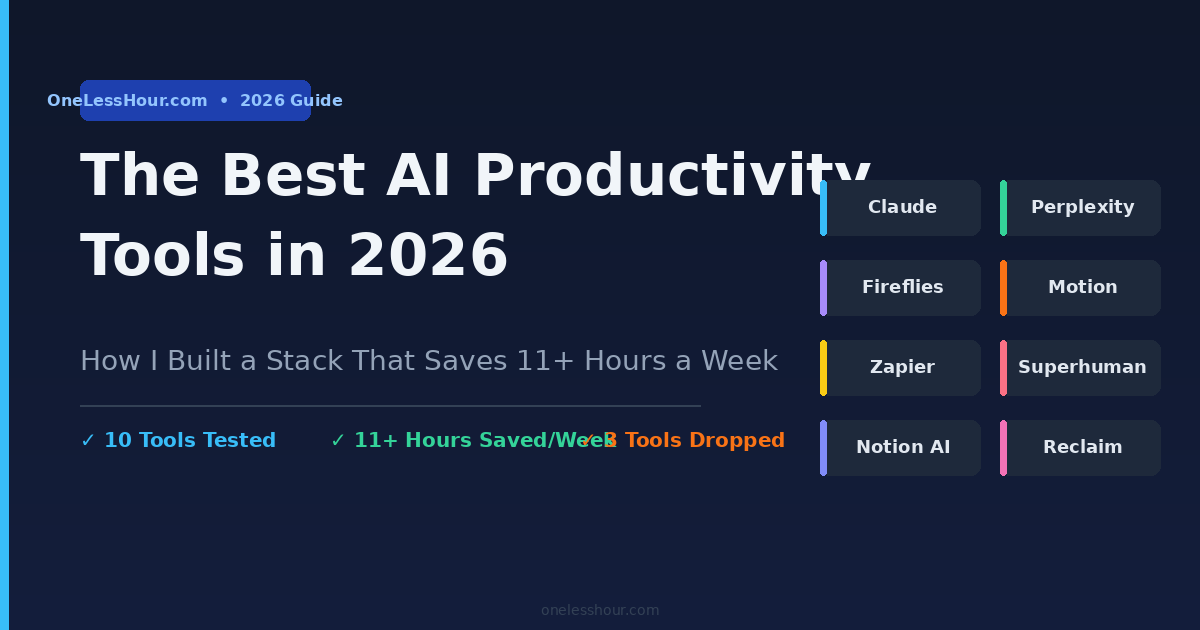
I spent 60 days running every AI productivity tool I could get my hands on through my actual work: writing, emails, meetings, research, scheduling. I kept a spreadsheet tracking exactly how much time each one saved me per week. Some tools disappeared from my dock within days. Others are now things I’d pay for even if they doubled in price.
The problem with most “best AI tools” lists is they read like a product catalog — here’s what it does, here’s the price, here’s a screenshot. Nobody tells you which tools actually work together, which ones duplicate each other, or which ones fall apart the moment you use them on real work outside a perfect demo scenario.
So here’s what I found: you don’t need 20 AI productivity tools. You need the right 5 to 10, each doing a specific job, none of them stepping on each other. This is how I built my current stack — what I kept, what I cut, and what I’d do differently starting over.
What I Found
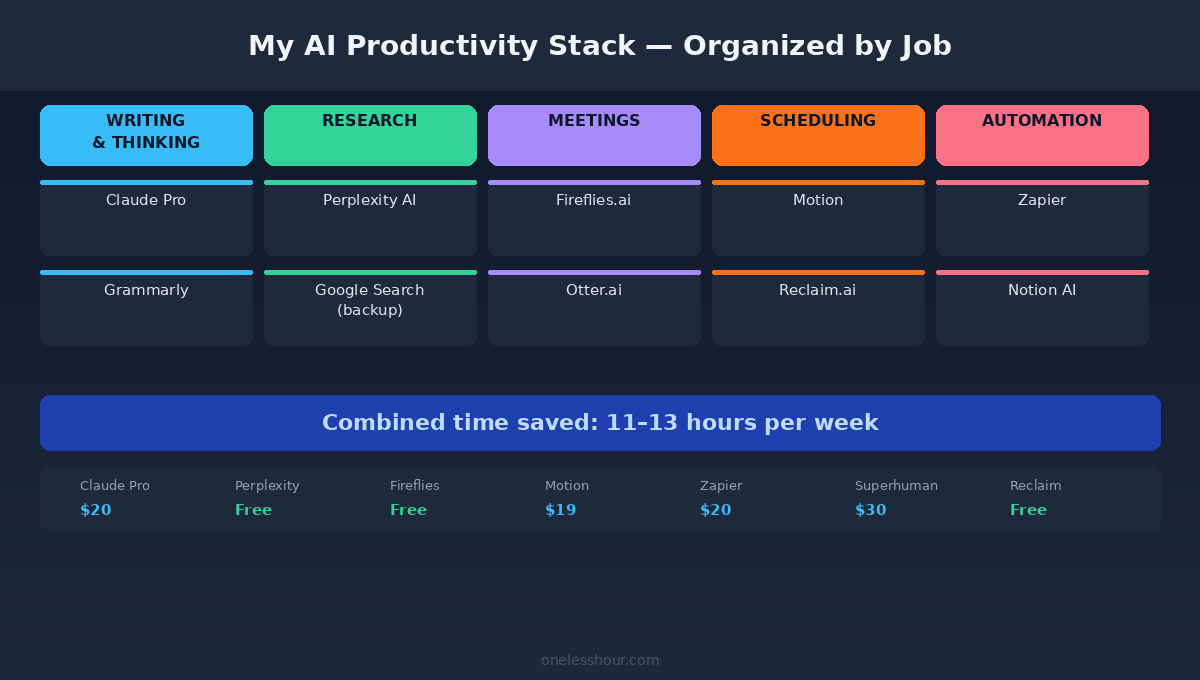
- The 10 tools in my current stack save me roughly 11–13 hours per week combined — but just 4 of them account for over 80% of those savings.
- Most people waste money on tools that overlap. Notion AI and Claude do similar things for most workflows — you rarely need both at full price.
- Free tiers have gotten worse. Almost every tool has moved its most useful features behind a paywall since 2025.
- The biggest time sink isn’t learning AI tools — it’s the switching cost between them. Stack integration matters more than raw capability.
- 3 tools I tested had impressive demos but fell apart the moment I used them on real, complex work.
Why “Just Use ChatGPT” Isn’t Actually a Productivity Strategy
ChatGPT is remarkable. It’s also not enough on its own — at least not for the kind of time savings that actually change how your workday feels. I use an AI assistant every day, but it handles maybe 25% of the tasks where AI can genuinely help me. The rest require tools built for specific jobs: scheduling, meeting capture, email triage, research with live sources.
The shift in 2026 isn’t that new AI tools appeared — it’s that the category finally matured. Tools that were clunky prototypes in 2024 now feel like finished products. The UX caught up with the intelligence. And that means stacking them actually works now, where before you’d spend more time fighting the tools than benefiting from them.
Here’s the framework I use: every tool in my stack has to pass a “job to be done” test. What specific, repeatable task does it replace or accelerate? If the answer is vague — “it helps me think” — the tool probably doesn’t belong in the stack. And if two tools do the same job, one of them has to go.
The 10 Best AI Productivity Tools in My Current Stack
1. Claude — For Writing, Analysis, and Deep Thinking
Claude is where I start every writing project. First draft of an article, restructuring a messy report, working through a complex decision — Claude handles these better than anything else I’ve tested. The key difference from other AI assistants is how it handles nuance. When I ask it to analyze something with real tradeoffs, it gives me actual tradeoffs, not a hedged non-answer.
Task management is the one slot I keep re-testing, since the right pick depends heavily on budget. My current picks by price tier are here.
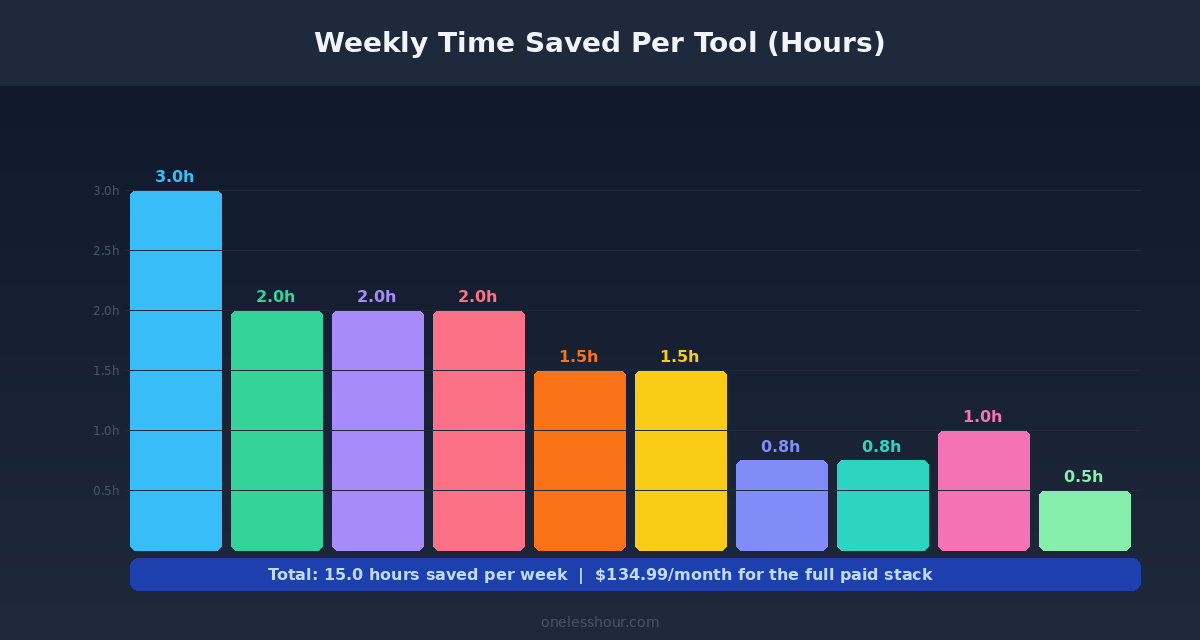
Time saved per week: ~3 hours (writing, editing, analysis tasks)
Plan I use: Claude Pro ($20/month)
Best for: Anyone whose work involves significant writing, research synthesis, or complex reasoning
One workflow that pays for itself: I paste in a messy collection of notes or research and ask Claude to identify the 3 strongest arguments and the 2 biggest counterarguments. What used to take me 90 minutes now takes 10. The free tier is decent for occasional use but too limited if you rely on it daily.
2. Perplexity — For Research That Needs Sources
Perplexity is my search engine replacement for anything where accuracy matters. It pulls from live web sources, cites everything, and doesn’t hallucinate the way standalone LLMs do when answering factual questions. I use it for competitive research, fact-checking claims I’ve written, and getting a fast overview of any topic I need to understand quickly.
Time saved per week: ~2 hours (research tasks that previously required manual browsing through multiple tabs)
Plan I use: Free tier (Perplexity Pro at $20/month for power researchers)
Best for: Writers, analysts, anyone spending significant time verifying information online
The practical test I run on every new research tool: ask it something with a known, specific answer that requires a recent source. Perplexity passes consistently. Most AI assistants don’t, because they’re working from training data, not the live web.
3. Fireflies.ai — For Meeting Notes I Actually Use
Before Fireflies, my meeting notes were either nonexistent or a mess of bullet points I’d never look at again. Now every meeting I join gets automatically recorded, transcribed, and summarized with action items pulled out. The AI identifies who said what, highlights decisions made, and sends me a summary within minutes of the call ending.
Time saved per week: ~2 hours (note-taking, follow-up emails, action item tracking)
Plan I use: Free tier handles up to 800 minutes/month — enough for most professionals
Best for: Anyone with 4+ meetings per week who currently takes manual notes
The feature I use most that nobody talks about: searching across transcripts. I can search “what did we decide about the Q1 campaign?” across every meeting from the last 6 months and get the exact moment with context. This alone has saved me from re-litigating three decisions that everyone had apparently forgotten we already made.
4. Motion — For Scheduling That Happens Automatically
Is Motion actually worth the adjustment period?
Yes — but the adjustment period is real. Motion looks at your tasks, deadlines, and calendar, then builds your daily schedule automatically. When something new comes in, it reshuffles everything. When a meeting runs long, it adjusts. When a deadline moves, your whole week adapts. It took me about two weeks to stop fighting its suggestions and start trusting them. The ROI shows up on week three.
Time saved per week: ~1.5 hours (manual planning, daily prioritization, task rescheduling)
Plan I use: Individual plan ($19/month)
Best for: Anyone managing 10+ tasks per week across multiple projects with shifting deadlines
5. Zapier — For Automating the Connective Tissue
Zapier isn’t new, but its AI-assisted workflow builder in 2026 is meaningfully better. I can describe what I want in plain English — “when someone fills out my contact form, add them to my CRM, notify my team in Slack, and create a follow-up task in Motion” — and it builds the automation. What used to take an hour of setup now takes five minutes to configure and test.
Time saved per week: ~1.5 hours (repetitive cross-app tasks that don’t require human judgment)
Plan I use: Starter plan ($19.99/month)
Best for: Anyone whose work involves moving data between apps or triggering actions across multiple tools
6. Notion AI — For Knowledge Management With Team Context
If you’re already a Notion user, the AI add-on ($10/month) is worth it specifically for one feature: answering questions about your workspace. I can ask “what did we decide about the product roadmap last quarter?” and it finds the relevant pages, extracts the decision, and gives me a sourced answer with links. This is genuinely different from what any standalone AI assistant can do because it has context about your specific work history.
Time saved per week: ~45 minutes (searching through docs, summarizing old meeting notes)
Plan I use: Plus + AI add-on ($26/month combined)
Best for: Teams that already live in Notion — less useful if you don’t use Notion as your primary workspace
7. Superhuman — For Email That Doesn’t Eat Your Day
Is Superhuman worth $30/month?
If you spend 2+ hours a day in email, yes. The math works: if Superhuman cuts your email time by 40%, that’s 6+ hours a week back. At any reasonable hourly rate, $30/month is a steal. The AI features I use most: instant reply drafts written in my voice after reading my email history, smart thread prioritization, and the split inbox that keeps client emails separated from newsletters and notifications.
Time saved per week: ~2 hours (email drafting, triage, follow-up tracking)
Plan I use: Superhuman ($30/month)
Best for: Professionals spending 2+ hours daily in email — probably not worth it if you’re below that threshold
8. Otter.ai — For Voice-to-Text Capture On the Go
I use Otter differently than most: not for meetings (that’s Fireflies’ job), but for capturing ideas when I’m not at a desk. I’ll dictate a rough outline for an article while walking, or talk through a problem I’m stuck on, and Otter gives me a clean transcript I can paste into Claude for structuring. The free tier gives 300 minutes/month, which is plenty for this use case.
Time saved per week: ~45 minutes (captures ideas and rough thinking that would otherwise get lost)
Plan I use: Free tier
Best for: Anyone whose best thinking happens away from a keyboard
9. Grammarly — For the Final Pass Before Anything Goes Out
Grammarly has evolved well past spell-check. The AI rewrite suggestions in 2026 are actually useful — not just cosmetic edits but structural improvements that catch things you miss after staring at a draft for too long. I run every piece of professional writing through it before it leaves my screen. At $15/month annually, it’s one of the cheapest things in my stack for what it prevents.
Time saved per week: ~30 minutes (editing passes, catching errors before they’re embarrassing)
Plan I use: Business plan ($15/month billed annually)
Best for: Writers, marketers, anyone sending professional communications regularly
10. Reclaim.ai — For Protecting Focus Time
Reclaim integrates with your calendar and automatically schedules “habits” — protected blocks for deep work, lunch, exercise, or whatever recurring time you need. It moves these blocks around meetings to ensure they actually happen rather than getting squeezed out by ad-hoc scheduling. I use it specifically to protect 2-hour morning focus blocks that would otherwise disappear.
Time saved per week: ~1 hour (prevents meeting creep from eliminating deep work time)
Plan I use: Free tier handles basic habit scheduling
Best for: Anyone whose calendar regularly gets hijacked by meetings before they realize it’s happened
Comparison: What Each Tool Actually Does and What It Costs
| Tool | Primary Job | Time Saved/Week | Free Tier? | Paid Plan |
|---|---|---|---|---|
| Claude | Writing, analysis, reasoning | ~3 hrs | Yes (limited) | $20/mo |
| Perplexity | Research with live sources | ~2 hrs | Yes (generous) | $20/mo |
| Fireflies.ai | Meeting transcription + search | ~2 hrs | Yes (800 min/mo) | $10/mo |
| Motion | Automated scheduling | ~1.5 hrs | No | $19/mo |
| Zapier | Cross-app automation | ~1.5 hrs | Yes (limited) | $19.99/mo |
| Notion AI | Workspace knowledge search | ~45 min | No (add-on) | $10/mo add-on |
| Superhuman | AI-powered email | ~2 hrs | No | $30/mo |
| Otter.ai | Voice capture + transcription | ~45 min | Yes (300 min/mo) | $10/mo |
| Grammarly | Writing quality check | ~30 min | Yes (basic) | $15/mo |
| Reclaim.ai | Focus time protection | ~1 hr | Yes (solid) | $8/mo |
The 3 AI Productivity Tools I Dropped — And Why
Here are three tools I tested seriously and eventually removed. Not because they’re bad, but because they either duplicated something I already had or broke down under real workload conditions.
If you are running actual projects rather than a personal task list, these six are ranked by hours saved per week.
ChatGPT Plus ($20/month): I dropped this after committing to Claude Pro. For my specific use cases — writing, analysis, complex reasoning — Claude consistently performs better. The only thing I missed was image generation, which I replaced with free Canva AI for the rare times I need it. If you’re a lighter user, ChatGPT’s free tier is solid. But paying $20/month for both is redundant for most workflows.
Jasper ($49/month): In 2023, Jasper made sense. In 2026, the gap between Jasper and simply prompting Claude well has closed almost completely. The templates are convenient — but not $49-worth of convenient. I moved everything to Claude and saved $49/month with no meaningful loss in output quality.
Clockwise (free tier): Great concept, but it kept creating focus blocks during times I actually needed available for meetings. After week three of manually overriding its suggestions, I realized the tool was costing me more time than it was saving. I switched to Reclaim.ai, which has better conflict resolution logic. Clockwise may work better in team environments where everyone uses it together — that’s likely where it shines.
What I’d Do Differently Building This Stack From Scratch
Start with one tool per category, not two running in parallel. I wasted two weeks running side-by-side tests on meeting tools (Fireflies vs. Otter) and scheduling tools (Motion vs. Clockwise) before realizing the comparison was creating more overhead than either tool could offset. Pick one, use it for a full month on real work, then decide if you want to switch. The switching cost is higher than you expect.
Start with free tiers wherever they exist. Most of the best tools here have genuinely useful free plans. The only tools I’d pay for from day one: Claude Pro (the free tier is too limited for serious daily use) and Superhuman if email is a primary bottleneck for you. Everything else — start free, upgrade when you hit the limits.
Don’t automate everything at once. I built seven Zapier automations in week one and spent three weeks debugging them. Start with your single most repetitive task — the thing you do manually that makes you think “a computer should be doing this.” Build one automation, let it run reliably for two weeks, then add another.
Frequently Asked Questions About AI Productivity Tools
What are the best free AI productivity tools in 2026?
The strongest free options right now: Perplexity (research with live sources), Fireflies.ai (up to 800 minutes/month of meeting transcription), Otter.ai (300 minutes/month of voice transcription), and Reclaim.ai (basic focus time scheduling). Claude and ChatGPT both have usable free tiers for light AI assistant tasks. Grammarly’s free tier handles basic grammar and spelling. For most people starting out, these free tools alone can save 3–5 hours per week.
How many AI productivity tools do I actually need?
Most people get 80% of the value from 3–4 tools: an AI assistant for writing and thinking (Claude or ChatGPT), a research tool (Perplexity), a meeting recorder (Fireflies or Otter), and either an email tool or a scheduling tool depending on where your biggest time drain is. Starting with more than four tools at once creates context-switching overhead that often cancels out the time savings.
Is it worth paying for AI productivity tools when so much is free?
Run the math on each one individually. If a tool saves you 2 hours per week and your time is worth $50/hour, that’s $400/month in recovered time. A $20/month subscription that delivers that is an obvious buy. Where it gets tricky is when tools overlap or when you’re paying for capability you don’t actually use. The tools most worth paying for in my experience: Claude Pro, Superhuman (if you live in email), and Motion (if you manage a complex task list).
What’s the difference between AI productivity tools and regular productivity apps?
Traditional productivity apps (Todoist, Calendly, Evernote) organize information and reduce friction by making manual tasks easier. AI productivity tools actively generate content, make decisions, or adapt to your behavior over time. A regular scheduling tool shows you your calendar and lets you arrange things; an AI scheduling tool like Motion builds your schedule for you based on priorities, deadlines, and energy levels. The difference is passive assistance versus active generation.
Which AI productivity tools work best together?
The combination that creates the least overlap and most coverage: Claude (writing and analysis) + Perplexity (research) + Fireflies (meetings) + Motion (scheduling) + Zapier (connecting everything). These five cover the main categories of knowledge work — creation, research, communication, planning, and automation — with minimal duplication. Add Superhuman if email is your biggest time sink. That six-tool stack runs about $110/month and, in my experience, reliably saves 10+ hours per week.
Start With One Tool This Week
If you’re not using any AI productivity tools yet, start with Perplexity. Free, instant to set up, and it immediately replaces one of the worst time sinks in most knowledge workers’ days: manual research across multiple browser tabs. Use it for one week. Notice how much faster your research gets. Then layer in a meeting transcription tool. Then an AI writing assistant. Build the stack one tool at a time — that’s how it actually sticks.
For more depth on specific tools in this stack, I’ve tested each category in detail: see my breakdown of the best AI meeting assistants, my hour-by-hour walkthrough of how I actually use AI at work, and the free AI tools system that saves me 3 hours a day.
Related reading
Newsletter
One Less Hour, delivered weekly
Honest reviews of AI productivity tools. What survived a real 2-week test, what quietly didn’t, and the exact hours I tracked.
One email per week. Unsubscribe in one click.