

Transparency note: This article contains no affiliate links, and no company paid for or reviewed it. I pay for most of the AI tools I use myself.
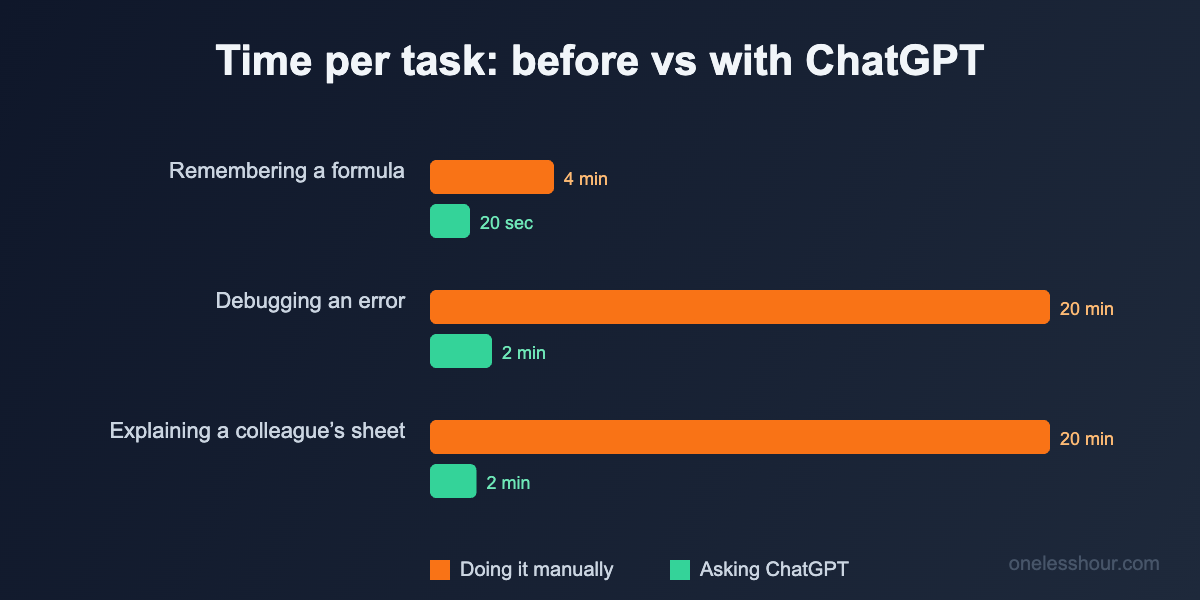
Last Tuesday I spent four minutes staring at a spreadsheet trying to remember whether it was INDEX/MATCH or XLOOKUP I needed. Four minutes. For a formula I’ve written a hundred times.
Then I remembered I don’t have to hold any of that in my head anymore. I pasted my column headers into ChatGPT, described what I wanted in plain English, and had a working formula back before my coffee cooled. That’s the whole pitch of using ChatGPT for Excel: you stop memorizing syntax and start describing outcomes.
I’ve been leaning on this daily for about eight months now, across budgets, client trackers, and one truly cursed inventory sheet. Here’s exactly how I use ChatGPT for Excel, the prompts I copy-paste, and the moments it falls flat so you don’t waste time trusting it blindly.
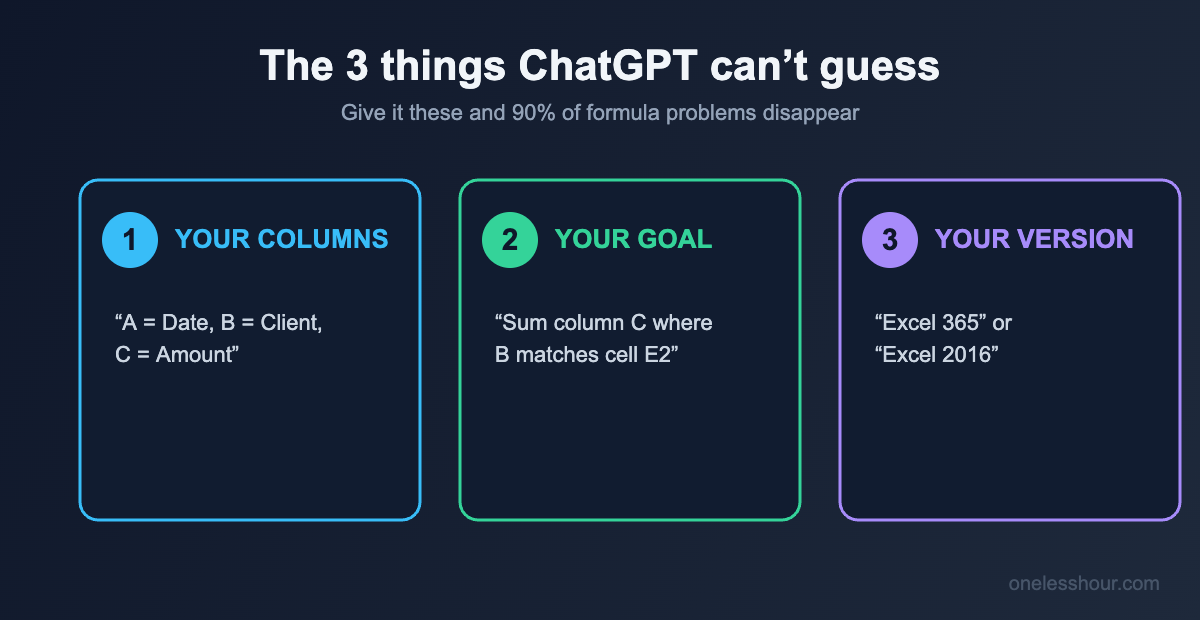
The one prompt structure that fixes 90% of formula problems
Most people type “how do I add a column in Excel” and get a vague answer. The trick is giving ChatGPT the three things it can’t guess: your columns, your goal, and your Excel version. Here’s the template I keep in a sticky note.
I’m using Excel [version]. My data has these columns: [list them with letters, e.g. A = Date, B = Client, C = Amount]. I want a formula that [describe the result in plain words]. Give me the formula and explain what each part does.
That last sentence matters. Asking it to explain each part means you can spot when it’s wrong, and you slowly learn the syntax instead of staying dependent forever. I’ve picked up more Excel in eight months this way than in the previous five years.
Pro tip: Always tell it your version. A formula that works in Microsoft 365 (like XLOOKUP) will throw a #NAME? error in Excel 2016. If ChatGPT doesn’t know your version, it guesses the newest one.
Five things I use ChatGPT for in Excel every week
Writing formulas is the obvious one, but it’s honestly the least interesting. Here’s where it saves me the most time.
1. Writing and fixing formulas
The bread and butter. I describe what I need and paste my headers. For a client sheet where I wanted total invoiced per client, I typed: “Column B is client name, column C is amount. Sum column C for every row where B equals the client in cell E2.” It handed back a clean SUMIF and I was done in under a minute.
Fixing is even better. When Excel spits out a #VALUE! or #REF! error, I paste the exact formula and the error, and ask what’s wrong. It catches mismatched ranges and stray spaces faster than I ever could by squinting.
2. Explaining a formula someone else wrote
You inherit a spreadsheet with a nested IF statement seven layers deep. Instead of reverse-engineering it, paste the whole thing and ask “explain this in plain English, step by step.” Saves ~20 minutes every time I open a colleague’s file.
3. Cleaning messy data
Names in ALL CAPS, phone numbers with random dashes, dates as text. I describe the mess and ask for a formula or a step-by-step Power Query approach. For splitting “Firstname Lastname” into two columns, it’ll give you the exact Text-to-Columns steps or a TEXTSPLIT formula depending on your version.
4. Building a formula I don’t know exists
This is the sneaky-good one. I don’t know what I don’t know. So I describe the outcome, and half the time it introduces me to a function I’d never heard of. That’s how I finally learned LAMBDA and dynamic arrays, not from a course, from just asking for results.
5. Generating sample data for testing
Need 50 rows of fake sales data to test a pivot table? Ask for it as a table you can paste straight in. Beats typing dummy rows by hand.
Try this now: Open your messiest sheet, copy the header row, paste it into ChatGPT, and ask for one formula you’ve been meaning to figure out. That single round trip is the whole workflow.
Copy-paste prompts that work
Steal these directly. Swap in your columns and you’re set.
| What you need | Prompt to paste |
|---|---|
| A lookup | “Excel 365. A = product ID, B = price. In another sheet I have product IDs in column A. Write a formula to pull the matching price. Explain each part.” |
| Conditional count | “Count how many rows in column D say ‘Complete’. Give me the formula.” |
| Fix an error | “This formula returns #REF!. Here it is: [paste]. What’s wrong and how do I fix it?” |
| Nested logic | “If C2 is over 1000, return ‘High’. Between 500 and 1000, ‘Medium’. Below, ‘Low’. Write the IF formula.” |
| Clean data | “Column A has names like ‘ john SMITH ‘. Write a formula to fix the capitalization and trim spaces.” |
Do you need to pay for ChatGPT to do this?
No. The free tier of ChatGPT writes Excel formulas perfectly well. Formula help is text in, text out, which is exactly what the free model is good at. I ran two months of formula help entirely on free before I upgraded for unrelated reasons.
The paid tier ($20/month) adds one thing that matters here: you can upload the actual spreadsheet file and it will analyze the data inside, not just the formula. If you’re regularly handing it whole files to summarize or chart, that’s worth it. For pure formula writing, save your money. If you want a broader breakdown, I went deep on this in my guide to using ChatGPT for productivity.
Free alternative worth knowing: Google Sheets now has Gemini built in that does the same describe-a-formula trick natively, and Microsoft’s own Copilot lives inside Excel if your workplace pays for it.
Where ChatGPT gets Excel wrong (read this before you trust it)
Here’s the honest part. ChatGPT is confidently wrong often enough that you cannot paste-and-pray on anything important.
The three failures I hit most:
- Version mismatch. It loves XLOOKUP and TEXTSPLIT, which don’t exist in older Excel. Tell it your version or you’ll get #NAME? errors.
- Made-up cell references. On complex requests it sometimes invents a range like G:G that doesn’t match your layout. Always read the formula before hitting enter.
- Overcomplicating. Ask for a simple sum and it occasionally builds a monster nested array formula. If it looks absurd, say “simpler please” and it usually gives you the clean version.
What this won’t do: It can’t see your live spreadsheet on the free tier. It’s working from your description, so a vague description gets a vague formula. Garbage in, garbage out still applies.
Pro tip: For anything touching money or a formula you’ll reuse, test it on three rows where you already know the answer before trusting it on 3,000. Thirty seconds of checking has saved me from sending clients wrong numbers more than once.
What I’d do differently if I started today
I wasted my first month copying formulas without reading the explanations, so I stayed dependent and kept asking for the same VLOOKUP over and over. Read the “explain each part” answer. It compounds.
I also used to open a fresh chat every time. Don’t. Keep one ongoing chat for a given spreadsheet so it remembers your column layout and you stop re-explaining. Small thing, saves real minutes across a week. Speaking of which, a lot of my best shortcuts live in my ChatGPT prompting techniques post.
Frequently asked questions
Can ChatGPT write Excel formulas for free?
Yes. The free tier handles formula writing, fixing, and explaining without issue. You only need the paid plan if you want to upload actual spreadsheet files for it to analyze the data directly.
Will ChatGPT connect directly to my Excel file?
Not on the free web version. It works from the columns and goal you describe. Paid ChatGPT and Microsoft Copilot can work inside or with the file itself, but for most formula help you just paste your headers into the chat.
Is it safe to paste my spreadsheet data into ChatGPT?
Paste column headers and structure freely. Avoid pasting sensitive rows like customer records, salaries, or anything confidential. You rarely need the real data anyway, the layout is enough to get the formula.
Why does the formula ChatGPT gave me not work?
Almost always a version mismatch or a cell reference that doesn’t match your layout. Paste the formula back with the exact error message and your Excel version, and ask it to fix it. It usually nails the second attempt.
Can it build a whole spreadsheet, not just formulas?
It can lay out a structure, suggest columns, and generate sample data you paste in. For a budget or tracker, ask it to “design the columns and give me the formulas” and you’ll have a working skeleton in a couple of minutes.
The one habit that makes this stick
Start today with the messiest formula you’ve been avoiding. Paste your headers, describe the result, and ask for the explanation. You’ll have your answer in a minute and you’ll have learned something that saves you the next ten times.
Then keep that chat open. Next time the same sheet fights you, it already knows your layout. That’s how a five-minute annoyance becomes a thirty-second fix. If you want to push this further, my breakdown of AI tools for data analysis covers what to reach for when a spreadsheet outgrows Excel entirely.