
LAST VERIFIED: October 10, 2026
Transparency note: This article contains no affiliate links. It’s research-based: I wrote it from OpenAI’s official documentation and announcements and didn’t test the feature hands-on. I pay for most of the AI tools I use myself. See how I test.
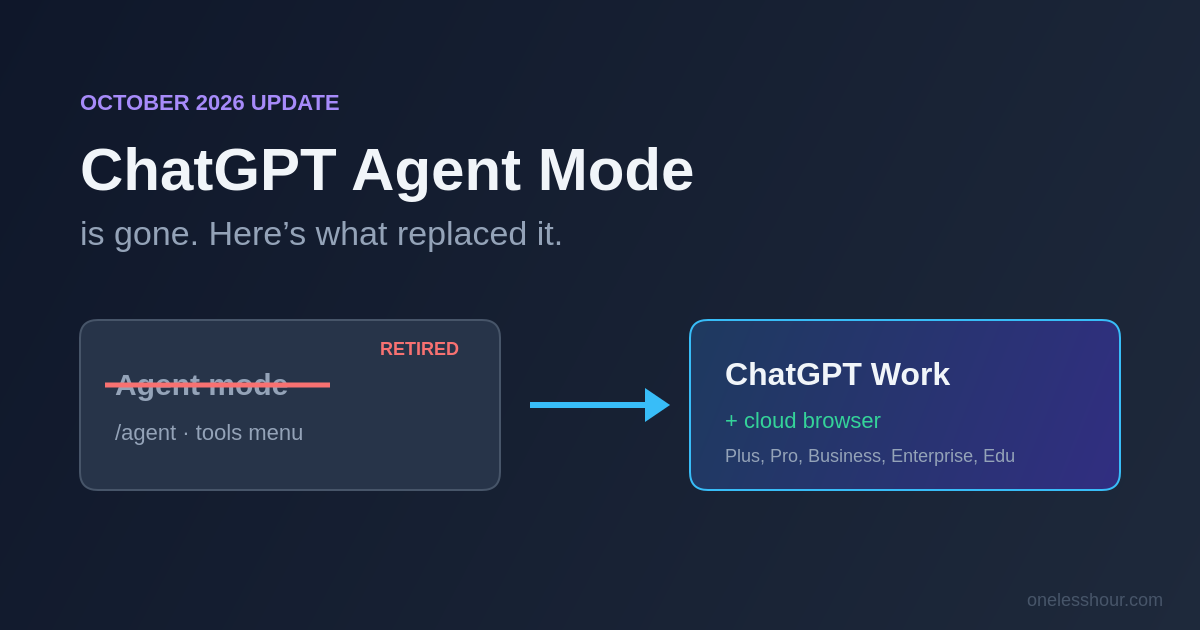
If you typed /agent into ChatGPT this month and nothing happened, your account isn’t broken. Agent mode is gone.
OpenAI’s own help page for ChatGPT agent now opens with one line: “ChatGPT agent is no longer available.” It points you to two replacements instead: ChatGPT Work for longer, multi-step jobs, and the cloud browser for tasks that need to click through websites. Most guides still ranking for “chatgpt agent mode” predate that switch, which is why so many people are hunting for a button that no longer exists.
What this article covers
I want to be upfront about what this article is. I haven’t put ChatGPT Work through one of my two-week time-tracked tests yet, so you won’t find hours-saved numbers here. What you will find is everything OpenAI documents as of October 10, 2026: what agent mode was, what replaced it, which plans get it, how to switch it on, and how it asks for permission before it does anything you can’t undo. Every fact links back to OpenAI’s own pages at the end.
What I Found
- ChatGPT agent mode has been retired. OpenAI’s help page says it is “no longer available” and that page was last updated in mid-September 2026.
- Its replacement, ChatGPT Work, launched on July 9, 2026. You reach it with a Chat/Work toggle, not a
/agentcommand. - Work on the web and mobile, plus the cloud browser that does the actual clicking, needs a paid plan: Plus ($20/month) or higher. Free and Go are excluded.
- The old fixed cap of 40 agent messages a month on Plus is gone too. Work draws on a shared Work and Codex allowance that varies with how much each task does.
- By default the cloud browser asks before it visits any new website, and it asks again before bookings, payments or anything else that creates a real commitment.
If you run the same kind of task often, set it up inside a ChatGPT project so Work starts with your files and instructions already loaded.
Is ChatGPT agent mode still available?
No. OpenAI’s help article for ChatGPT agent still exists, but its overview now reads: “ChatGPT agent is no longer available. Use ChatGPT Work for longer, multi-step tasks and finished deliverables.” The rest of that page, including the /agent command, the tools-menu option and the monthly limits, describes a product you can no longer open.
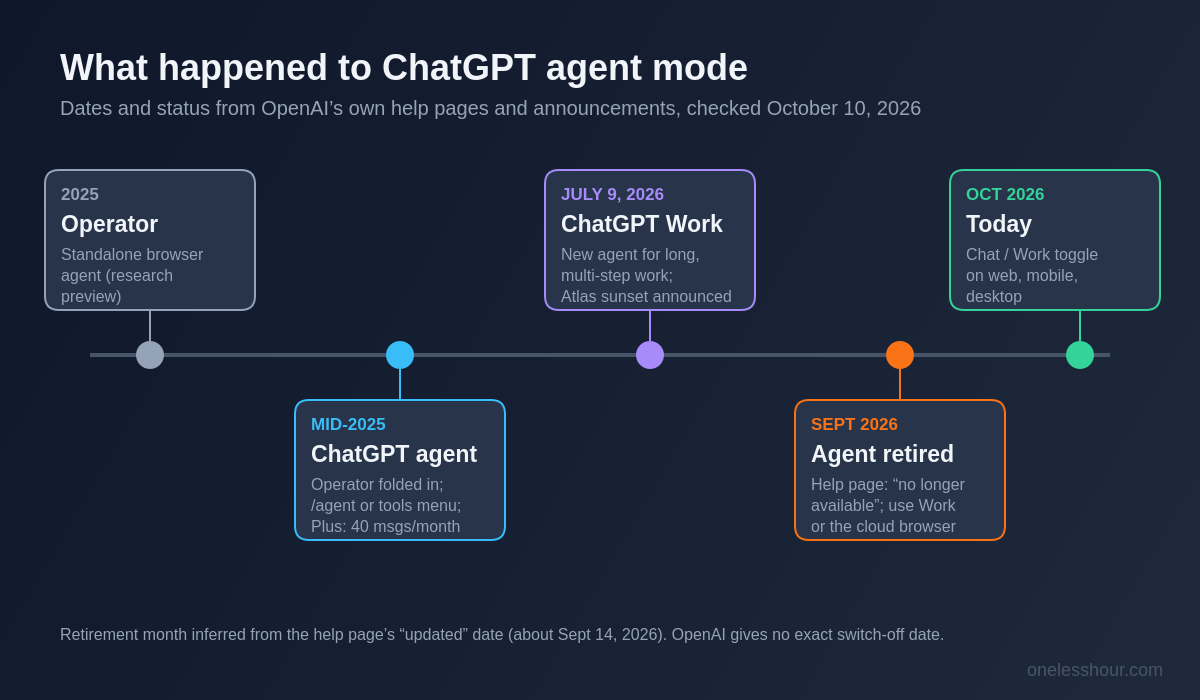
OpenAI doesn’t give a public switch-off date. The help page showed “Updated 26 days ago” when I checked it on October 10, which puts the change at around mid-September 2026. On OpenAI’s community forum, a Pro subscriber reported the “+” menu item and the /agent command missing on every platform. The reply pointed to the updated help page: the button is gone because the product is gone, not because of an account problem.
What to do instead: switch to Work (steps below). If you had scheduled agent tasks, check what’s left at chatgpt.com/schedules. OpenAI doesn’t say what happened to them.
What was ChatGPT agent mode?
Agent mode came built into ChatGPT itself. You switched it on from the tools menu or by typing /agent, described a task, and ChatGPT worked through it in its own virtual browser. It did research across public sites, uploaded files and connected apps, and took actions like filling in forms and editing spreadsheets. It took over the job of OpenAI’s earlier Operator tool, whose standalone site OpenAI also shut down.
Only paid plans could use it. Plus and Business got 40 agent messages a month and Pro got 400. Only the request that started a task counted against that cap, not the clarifications in between. It also had safety features that carried over to its replacement: it asked you to confirm high-impact actions, it had a “watch mode” that required you to supervise it on certain sites, and you took over the browser yourself to type passwords.
That’s the short answer to “what is ChatGPT agent mode”: it was the version of ChatGPT that did things instead of only telling you how. That idea didn’t go away. It moved.
What replaced it: ChatGPT Work and the cloud browser
OpenAI introduced ChatGPT Work on July 9, 2026 and describes it as “an agent that can take action across your apps and files, stay with a project for hours if needed, and turn a goal into finished work.” OpenAI has now split ChatGPT into two modes: Chat, the regular conversation you already know, and Work, which researches, analyses and produces finished documents, spreadsheets, presentations, reports and Sites (shareable web pages and small web apps). Codex sits alongside them for software work.
The part of agent mode that clicked around websites for you now lives in the cloud browser, a browser Work runs on a separate computer in the cloud. You don’t pick it. Work decides when a task needs it, and it uses a connected app instead when one can do the job directly. The task keeps running after you close your laptop and pauses whenever it needs a sign-in, an answer or a confirmation.
Where each feature lives now
| Old agent mode | Where it lives now |
|---|---|
/agent or tools menu | Chat/Work toggle at the top of ChatGPT |
| Virtual browser | Cloud browser inside Work (web and mobile) |
| Research across sites, files and apps | Work, using plugins (Slack, Teams, Google Drive, SharePoint, email, calendars and more) |
| Repeat a task daily, weekly or monthly | Scheduled Tasks in Work, which can also fire on events like a new Gmail message |
| Take over browser for logins | Secure sign-in form, plus a take-over link when the agent gets stuck |
| 40 messages/month on Plus | Shared Work and Codex allowance that varies by task |
If you used OpenAI’s Atlas browser for agent tasks, that changed too. The Work launch post said OpenAI would start sunsetting Atlas, with its features moving into the ChatGPT desktop app’s built-in browser and a ChatGPT sidebar in Chrome. I covered what that did to the AI browser market in my AI browser roundup.
Which ChatGPT plans include Work, and what do they cost?
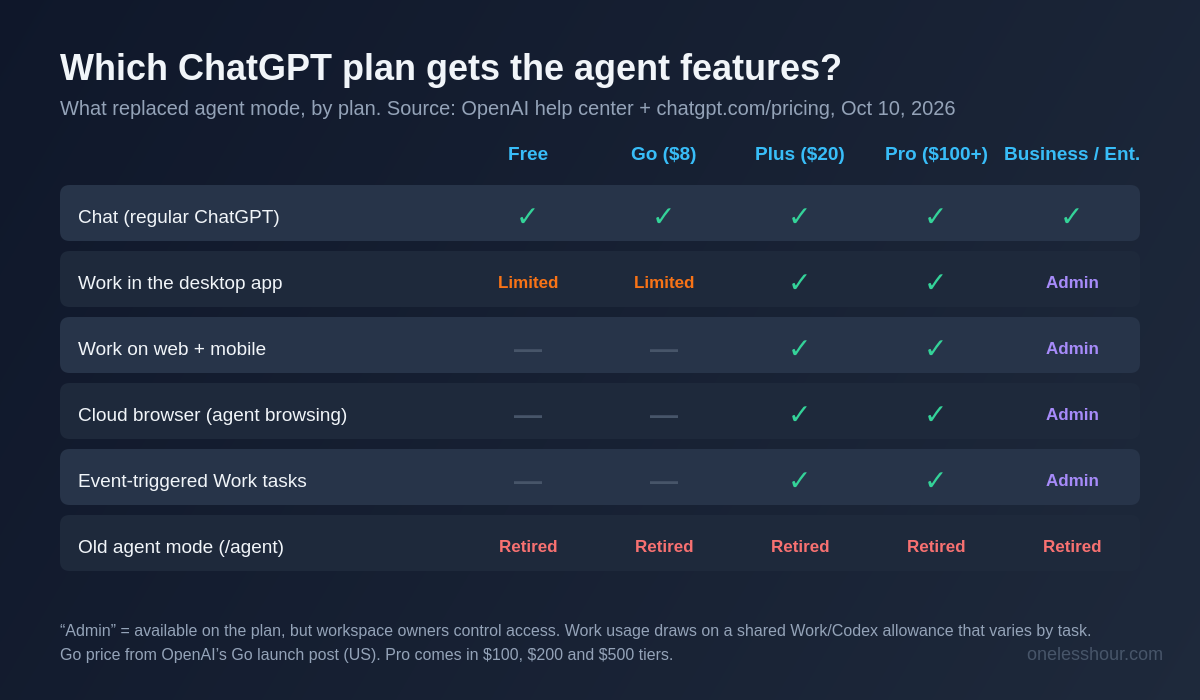
Here’s what OpenAI’s pricing page and help center say as of October 10, 2026. Prices are US monthly prices. OpenAI doesn’t offer annual billing on Go, Plus or Pro.
| Plan | Price (US) | Work | Cloud browser |
|---|---|---|---|
| Free | $0 | Limited, desktop app only | No |
| Go | $8/month | Limited, desktop app only | No |
| Plus | $20/month | Web, mobile and desktop | Yes |
| Pro | $100, $200 or $500/month | Web, mobile and desktop, more usage | Yes |
| Business, Enterprise, Edu | Per user (Business from 2 users) | Yes, if the admin allows it | Yes, if the admin allows it (no website sign-in on Enterprise/Edu) |
For most readers of this site the decision is simple. Agent-style tasks start at ChatGPT Plus, $20 a month. Go at $8 gets you more chat, but OpenAI explicitly excludes it from the cloud browser and from event-triggered tasks. The three Pro tiers mostly differ in how much Work and Codex usage they include, and only the $500 tier gets the faster “Ultrafast” option.
How do I turn on agent mode in ChatGPT now?
There’s no agent switch any more. You switch from Chat to Work. These are the steps OpenAI documents for each app.
On the web or in the mobile app:
- Open ChatGPT and select Work. On mobile it’s in the dropdown at the top of the screen.
- Start a new chat, or open an existing Project so Work can use its files and instructions.
- Attach any files it needs, then describe the result you want: the website, the details and any limits.
- Approve website access if it asks, and sign in through the secure form if a site needs your account.
- Watch progress in the chat, answer its questions and approve any important action.
- Check the result and its sources before you rely on it.
In the ChatGPT desktop app (Mac or Windows): choose ChatGPT from the top-left menu, then pick Work from the toggle at the top of the page. On desktop, Work can also use local files and apps you give it permission for, and it has a built-in browser you can follow along in.
Don’t see Work? OpenAI says it rolled out gradually and that workspace admins control it on Business, Enterprise and Edu. On a personal plan, update the app first. On a work account, ask whoever runs your workspace.
What can ChatGPT Work do, and what can’t it?
OpenAI’s examples for the cloud browser are deliberately ordinary: check restaurant availability or ask businesses for quotes, find flights that match your plans, track a package using details from your connected email, find a DMV appointment and prepare the booking for your approval, sign in to a utility account and compare plans, save apartment listings that meet your criteria, and reconcile invoices in accounting software.
Beyond browsing, Work builds things. OpenAI’s launch examples include analysing a month-end budget variance, turning research into a campaign brief, and preparing for a sales meeting. It can also run on a schedule or when an event happens, like a new Gmail message, a new Slack message or GitHub pull request activity. Event-triggered tasks are on Plus, Pro, Business, Enterprise and Edu, not Free or Go.
OpenAI documents the limits just as clearly:
- Websites can block it. Some sites refuse automated browsers even though they work fine for you. That’s the site’s choice, and OpenAI suggests trying another site or opening the page yourself.
- It won’t always finish. A site may not support a sign-in or payment step, and you may have to take over or do the last step yourself.
- It doesn’t use your browser. The cloud browser never sees your open tabs, history, saved passwords, cookies or extensions. You sign in separately.
- No local files on web or mobile. Only the desktop app can open files on your computer.
- Workplace rules apply. On Enterprise and Edu, website sign-in through the cloud browser isn’t available, and admins can switch browsing off.
Does it ask before it books or pays for anything?
Yes, and this is the part I’d read twice before handing it anything with your card attached. OpenAI says it designed the cloud browser to ask for confirmation in the chat before actions that are hard to reverse or create “a financial, legal, account, or other real-world commitment, such as confirming a booking or making a payment.”
Website access is a separate layer. In Settings → Cloud browser you pick one of three defaults:
- Always ask: you approve every new website yourself. This is the default.
- Auto approve: ChatGPT checks the address and only stops to ask if a site looks unsafe.
- Always allow: it can visit any site. OpenAI’s own wording is “This is not recommended.”
Allowing a website doesn’t approve everything on it. The confirmation step for payments and bookings still applies. When a site needs your login, a separate review model first checks the request for signs of phishing and shows you the address and a preview of the form. Your username and password go straight to the remote browser and, according to OpenAI, aren’t visible to the model or stored. The signed-in session does stick around for future tasks until it expires or you clear it in Settings → Cloud browser → Browser data.
OpenAI is also clear that none of this is airtight. It tests for prompt injection (instructions hidden in a web page that try to hijack the agent), phishing and unintended actions, and says those safeguards “do not eliminate every risk.” Its own advice: use a connected app instead of the browser when one exists, never paste passwords, codes or card numbers into the chat, and stop the task if it opens the wrong site.
How much can you use it? The old limits vs Work
Agent mode had a number you could plan around: 40 tasks a month on Plus, 400 on Pro. Work doesn’t. OpenAI says Work “follows the same usage structure as Codex,” so usage depends on how much a task actually does, and bigger, longer jobs use more of your plan’s included allowance. You can see what’s left, and when it resets, under Settings → Usage.
A few specifics OpenAI does publish. The Pro $100, $200 and $500 plans currently have no five-hour usage limit in Work and Codex, though they still have an included allowance. Plus includes only limited use of the top GPT-6 Astra model in Work, and you can buy credits after that. If you’re on Plus, assume a long research-and-build task costs noticeably more than a quick web lookup, and keep an eye on that usage page in your first week.
Which ChatGPT model is best for agent-style tasks?
For Work, the honest answer is “leave it on Default” until you have a reason not to. Work has its own model picker. Default combines model choice and reasoning level on a single slider, or you can pick a specific model: GPT-6.1 Sol, GPT-6 Sol or GPT-6 Luna. OpenAI says those three are Work and Codex models and aren’t available in regular Chat. GPT-6 Astra, which also powers GPT-6 Pro, gets full use on Pro and limited use on Plus, and OpenAI warns it can use up your allowance faster.
OpenAI doesn’t publish a ranking of which model is best for which kind of task, and I’m not going to invent one. My rule for Plus: start on Default, switch to Astra only for a job where the result really matters, and check Settings → Usage afterwards to see what it cost you.
Three starter prompts for ChatGPT Work
OpenAI’s best tip is to give Work “a task you already know well,” so you can judge the result. These three follow the shape its documentation asks for: the outcome, the website or source, and the limits. They’re templates to adapt, not results I’ve measured.
Research, no commitments: “Find three dentists within 5 miles of [ZIP] that take [insurance] and have a weekday appointment after 5pm in the next two weeks. Put name, address, first available slot and booking link in a table. Don’t book anything.”
Compare, then stop: “Sign in to my [utility] account, compare my current plan with the other plans offered to my address, and show the yearly cost of each based on my last 12 months of usage. Stop before changing anything.”
Recurring report: “Every Monday at 8am, check [three competitor pricing pages], list any price or plan changes since last week, and send me a five-bullet summary. If nothing changed, say so in one line.”
“Don’t book anything” and “stop before changing anything” are doing real work in those prompts. OpenAI’s own guidance warns against vague, open-ended requests like “check my email and handle everything.” If you want more on writing prompts that hold up, my ChatGPT prompting techniques guide covers the structure I use every day.
Mistakes to avoid with ChatGPT Work
- Chasing the old button. Old tutorials and screenshots show
/agentand an “Agent mode” menu item. They’re out of date. Look for the Chat/Work toggle instead. - Switching to “Always allow” on day one. It removes the website review entirely. Keep the default for your first few weeks, and allow individual sites you trust.
- Pasting passwords into the chat. Use the secure sign-in form every time. The chat is the one place OpenAI tells you never to type credentials.
- Using the browser when an app would do. If you connect Gmail, Drive or Slack, Work can use the app directly, which OpenAI recommends as the safer route.
- Trusting the output without checking it. OpenAI’s last step in its own instructions is “check the result and its sources before relying on it.” Treat it like a capable assistant’s first draft.
If you’re new to agents generally, AI agents for beginners explains the one rule that decides whether an agent saves you an hour or wastes one. If you’re weighing ChatGPT against xAI’s chatbot, my plain-English Grok guide covers what Grok does well.
Frequently Asked Questions
What happened to ChatGPT agent mode?
OpenAI retired it. Its help page now says “ChatGPT agent is no longer available” and points to ChatGPT Work for multi-step tasks and to the cloud browser for website tasks. The page was updated in mid-September 2026, and OpenAI hasn’t published an exact shutdown date.
Is ChatGPT Work the same as agent mode?
It’s the replacement, and it covers more ground. Work does what agent mode did, including research, browsing and filling in forms through its cloud browser. It also creates finished documents, spreadsheets, slides and Sites, works across connected apps, and runs on a schedule or when an event happens. You turn it on with the Chat/Work toggle rather than /agent.
Is ChatGPT agent mode free?
No. Agent mode was always paid-only, and its replacement mostly is too. Free and Go users get limited Work access in the desktop app only. Work on the web and mobile, and the cloud browser, need a paid plan starting with ChatGPT Plus at $20 a month.
Can ChatGPT Work buy things or make bookings for me?
It can get you to the final step, but it’s designed to ask for your confirmation in the chat before payments, bookings or other actions that create a financial, legal or account commitment. Some sites don’t support automated checkout at all, in which case you finish the last step yourself.
Does ChatGPT Work run on my phone?
Yes. Work runs in the cloud on web and mobile, so a task you start on your phone keeps going after you lock it and pauses when it needs you. Cloud Work chats sync across web, mobile and the desktop app. Only the desktop app can use files stored on your computer.
Where to start this week
Pick one research task you’d normally do by hand, like the dentist search above, and run it in Work with website access left on Always ask. Read every permission request it shows you. Twenty minutes of that will teach you more about how far to trust it than any guide, this one included. Then check Settings → Usage to see what the task cost your allowance.
I’ll run Work through a proper two-week test and update this page with real numbers. Until then, everything above comes from OpenAI’s own pages, checked on October 10, 2026.
Sources (all checked October 10, 2026): OpenAI Help Center, ChatGPT agent, ChatGPT Work and Codex, Using cloud browser in ChatGPT, About ChatGPT Pro tiers, What is ChatGPT Plus?, What is ChatGPT Go?, ChatGPT agent release notes; OpenAI, “ChatGPT is now a partner for your most ambitious work” (July 9, 2026) and “Introducing ChatGPT Go”; chatgpt.com/pricing; ChatGPT Learn: Work overview.
Related reading
Get the next test in your inbox
Every week I write up one AI tool honestly: what it costs, what it’s good at and where it falls short. Subscribe here and skip the trial-and-error.