
Transparency note: This article contains no affiliate links, and no company paid for or reviewed it. I pay for most of the AI tools I use myself — see how I test.
I’m busy. Like, genuinely don’t-have-time-to-read-a-long-intro busy. If you’re reading this, you probably are too.
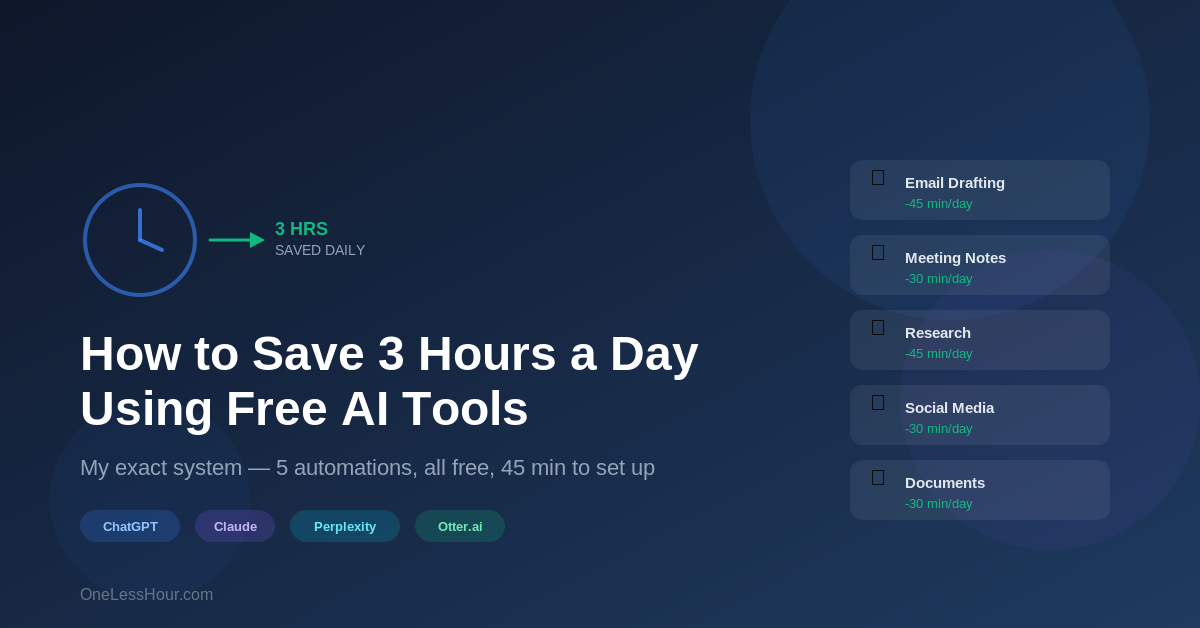
So here’s the deal: six months ago I started using AI tools to automate repetitive tasks in my day. Not to replace my thinking — just to stop wasting time on things that don’t need my brain. The result? I get back roughly 3 hours every single day. All using free time-saving AI apps.
This isn’t theory. This is my actual daily system. I’ll walk you through each piece, including exactly how long it takes to set up and how much time it saves.
Total setup time: About 45 minutes (one-time)
Daily time saved: 3+ hours
The Core Idea: Automate the Boring, Keep the Interesting
Before we get into specific tools, here’s the AI productivity workflow principle that makes this work: most of your day is split between creative work (thinking, deciding, creating) and mechanical work (formatting, organizing, responding to routine messages).
AI handles the mechanical stuff beautifully. It’s terrible at making judgment calls about your life or business. So we let it do what it’s good at and free you up for what you’re good at.
Automation 1: Email Drafting — Save 45 Minutes/Day
The problem: You spend 30-60 minutes every day writing emails that follow predictable patterns. Status updates, meeting follow-ups, polite declines, introductions.
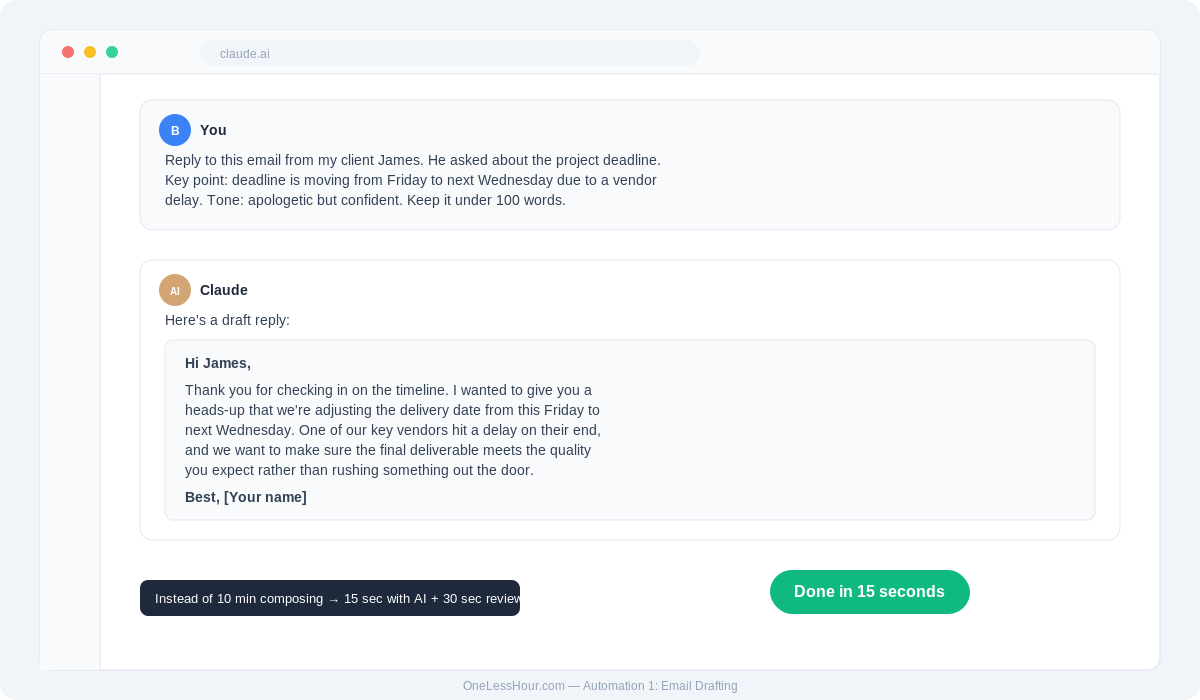
The fix: Batch your emails. Twice a day (morning and afternoon), scan your inbox and flag everything that needs a response. Then open ChatGPT or Claude (both have free tiers) and process them all at once.
How I do it: I copy the email I need to respond to, paste it into Claude, and write something like: “Reply to this email. Tone: professional but warm. Key point: I’m available Thursday but not Friday. Keep it under 100 words.”
The AI drafts it in 5 seconds. I read it, make a small tweak if needed, and send.
Setup time: 0 minutes. Just open ChatGPT or Claude in your browser.
Time saved per day: ~45 minutes
The key insight: Batching is what makes this work. Don’t respond to emails one at a time throughout the day. Process them in two focused sessions. This alone saves time before AI even enters the picture.
Pro tip: When the AI drafts something that’s off-tone (happens about 1 in 10 times), don’t rewrite from scratch. Tell it what’s wrong: “This sounds too formal. Make it friendlier and shorter.” It’ll fix it in 3 seconds. Learning to give feedback to AI is faster than learning to prompt perfectly the first time.
Automation 2: Meeting Notes and Action Items — Save 30 Minutes/Day
The problem: After every meeting, you spend 15-20 minutes writing up notes and figuring out next steps. If you have 2-3 meetings a day, that’s an hour gone.
The fix: Let AI take your meeting notes automatically.
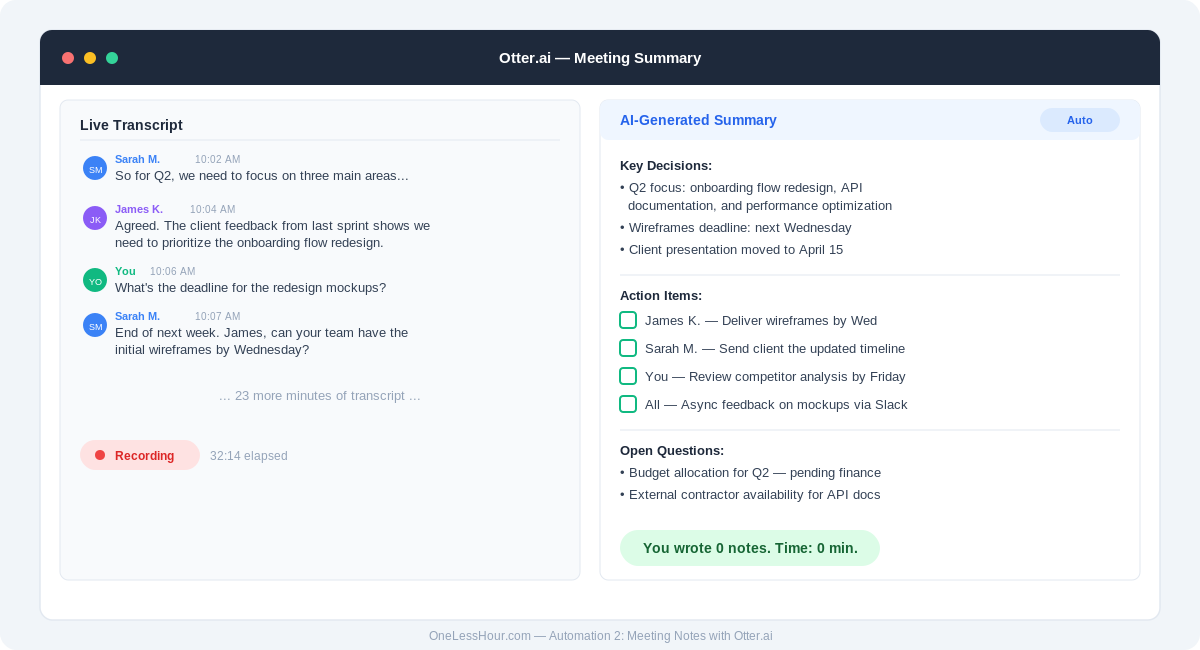
How I do it: I use Otter.ai (free for 300 minutes per month — plenty for most people). It joins my Zoom and Google Meet calls, records everything, and produces a summary with action items.
After the meeting, I copy Otter’s summary into Claude and say: “Turn this into a follow-up email with clear action items for each person.” Done in 60 seconds.
Setup time: 5 minutes to create an Otter.ai account and connect your calendar.
Time saved per day: ~30 minutes
Pro tip: Even if you don’t use Otter, you can just jot quick bullet points during a meeting and ask Claude to “turn these rough notes into a professional meeting summary with action items.” It takes 30 seconds instead of 15 minutes of writing. I did this for a month before switching to Otter, and it was still a massive time saver.
What to watch for: Otter occasionally misattributes who said what in meetings with more than 4-5 people. Always scan the summary before forwarding to make sure the action items are assigned to the right people.
Automation 3: Research and Learning — Save 45 Minutes/Day
The problem: You need to research a topic, understand a new tool, or learn something for work. Normally this means opening 15 browser tabs, skimming articles, and trying to piece together an answer.
The fix: Use Perplexity AI. It’s like Google but it actually gives you the answer instead of a list of links.
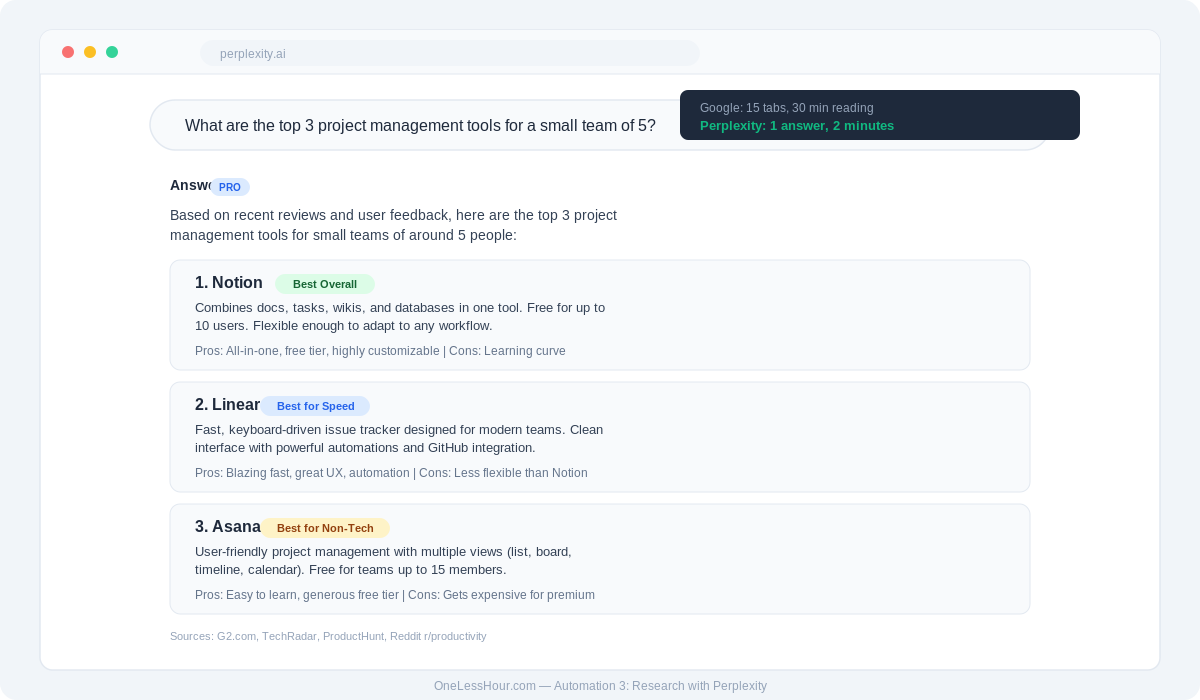
How I do it: Instead of Googling “best project management tools for small teams 2026” and reading 8 comparison articles, I ask Perplexity: “What are the top 3 project management tools for a small team of 5 people, with pros and cons for each?”
It searches the web, reads the articles for me, synthesizes the information, and gives me a clear answer with citations. What would take 30-45 minutes of browsing takes 2 minutes.
Setup time: 0 minutes. Go to perplexity.ai. No account needed.
Time saved per day: ~45 minutes (varies — some days more, some less)
When to use Perplexity vs. ChatGPT: Perplexity is better for facts and current information (it searches the web in real-time). ChatGPT/Claude are better for writing, brainstorming, and working with your own content.
Pro tip: For complex research, use Perplexity’s “Focus” mode — you can tell it to search only academic papers, Reddit discussions, or YouTube videos. Searching only Reddit gives you real human opinions, which is gold for product research.
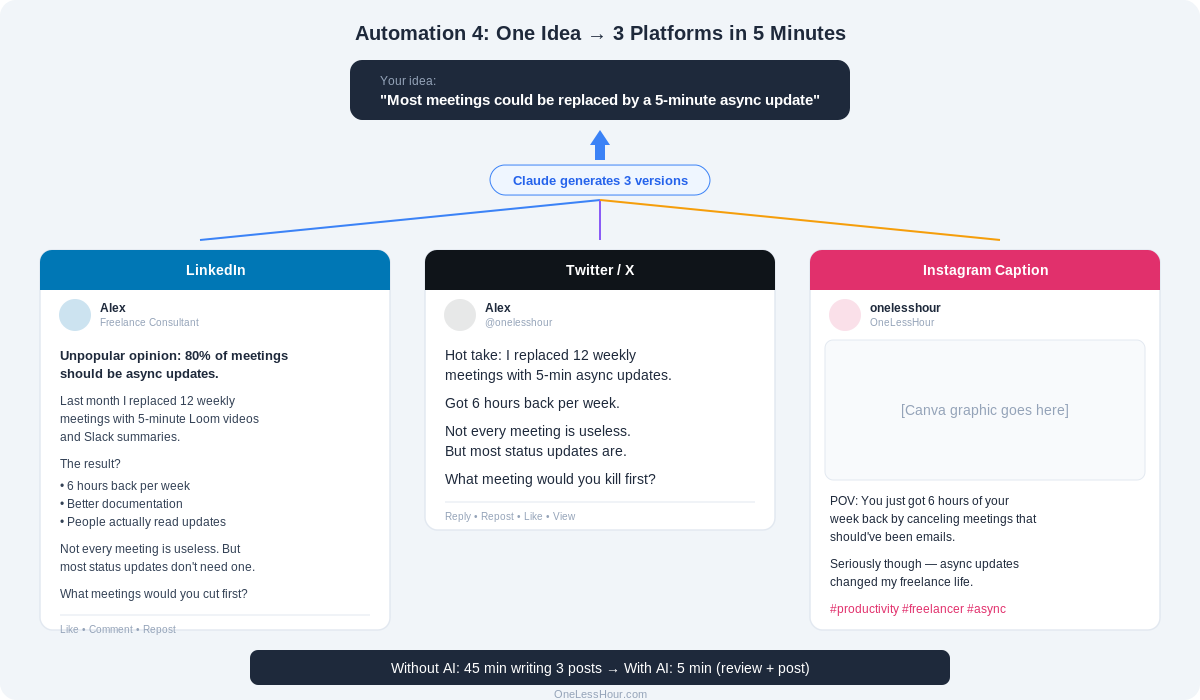
Automation 4: Social Media Content — Save 30 Minutes/Day
The problem: You know you should post on social media for your business or personal brand, but creating posts takes forever and feels like a chore.
The fix: Give AI your main idea and let it generate multiple versions.
How I do it: Whenever I publish a blog post, have an interesting thought, or want to share something, I tell Claude: “Turn this into 3 social media posts — one for LinkedIn (professional), one for Twitter/X (punchy and short), and one for Instagram (casual with a hook).”
I pick the best one, tweak it to sound like me, and post. Total time: 5 minutes instead of 30.
Setup time: 0 minutes.
Time saved per day: ~30 minutes
Important: Don’t post AI-generated content without reading it and adding your voice. The whole point is to keep your authentic perspective — AI just gets you 80% of the way there so you can focus on the final 20% that makes it yours.
Pro tip: Save your best-performing prompts. Once you find a prompt format that consistently produces good social posts, reuse it. I have a “LinkedIn prompt” and a “Twitter prompt” saved in my notes that I’ve refined over weeks. They work every time now.
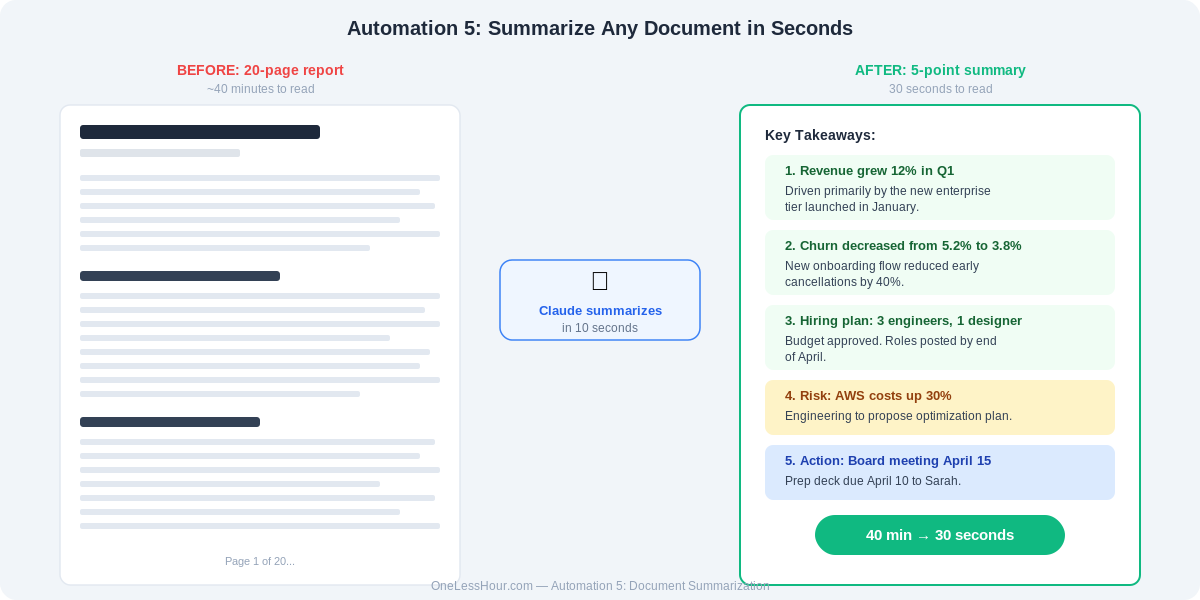
Automation 5: Document Formatting and Summarizing — Save 30 Minutes/Day
The problem: You receive long documents, reports, or articles that you need to understand quickly. Or you need to format your own writing into different structures.
The fix: AI can summarize a 20-page document in 10 seconds and reformat your writing instantly.
How I do it: For summarizing: I paste the document into Claude and say “Summarize this in 5 bullet points. Focus on action items and decisions.”
For reformatting: “Turn this rough draft into a professional proposal with an executive summary, key points, and next steps.”
Setup time: 0 minutes.
Time saved per day: ~30 minutes
Where this really shines: If you’re in a role where people send you long reports, contracts, or research papers. Instead of reading 40 pages, get the 5-sentence summary first, then only deep-read the sections that matter.
Pro tip: For really important documents (contracts, legal, financial), never rely only on the AI summary. Use it as a guide to know where to focus your reading, but read the critical sections yourself. AI can miss nuance that matters.
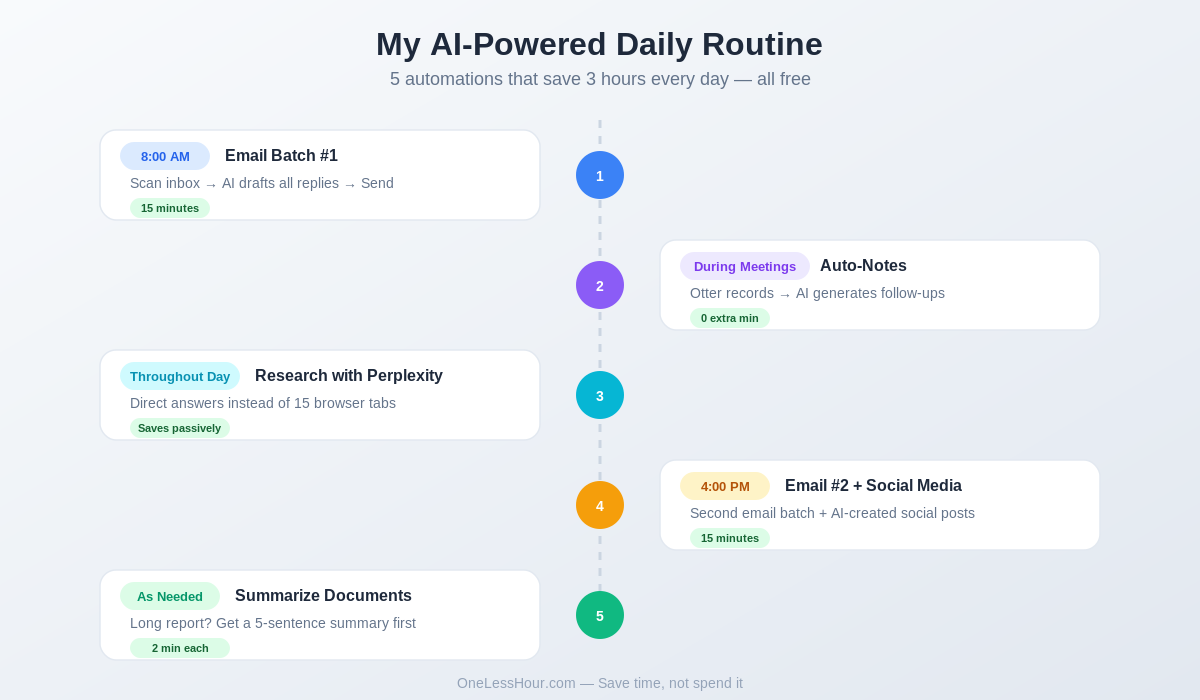
My Daily Routine: The Full System
Here’s how all five automations fit together in practice:
- 8:00 AM — Email batch #1 (15 min): Scan inbox, flag emails needing responses, draft all replies using AI, send.
- During meetings — Otter records automatically (0 extra min): After each meeting, copy summary and create follow-ups with AI (2 min per meeting).
- Throughout the day — Research with Perplexity (saves time passively): Instead of falling down Google rabbit holes, get direct answers in seconds.
- 4:00 PM — Email batch #2 + social media (15 min): Second email batch, create and schedule social media posts using AI.
- As needed — Summarize documents (2 min each): Long report? Summarize first, then decide what deserves a full read.
What This Won’t Do (Honest Limits)
I want to be straightforward about where this system falls short:
- AI won’t make decisions for you. It gives you information faster, but you still need to decide what to do with it.
- AI makes mistakes. Always read what it drafts before sending. I catch errors maybe 1 in 10 times — not huge, but enough that you shouldn’t blindly trust it.
- The time savings take a week to feel natural. The first few days you’ll be slower as you learn the tools. By day 5, it’s automatic.
- Not every task is worth automating. If you enjoy writing emails, keep writing them. Automate the stuff that feels like a chore, not the stuff that feels meaningful.
- Privacy matters. Don’t paste confidential client data or sensitive company information into any AI tool without checking your company’s policy first. Use “temporary chat” modes when available.
The Math: Why This Actually Matters
| Automation | Daily Time Saved | Weekly Total |
|---|---|---|
| Email drafting | 45 minutes | 3 hr 45 min |
| Meeting notes | 30 minutes | 2 hr 30 min |
| Research | 45 minutes | 3 hr 45 min |
| Social media | 30 minutes | 2 hr 30 min |
| Documents | 30 minutes | 2 hr 30 min |
| Total | 3 hours/day | 15 hours/week |
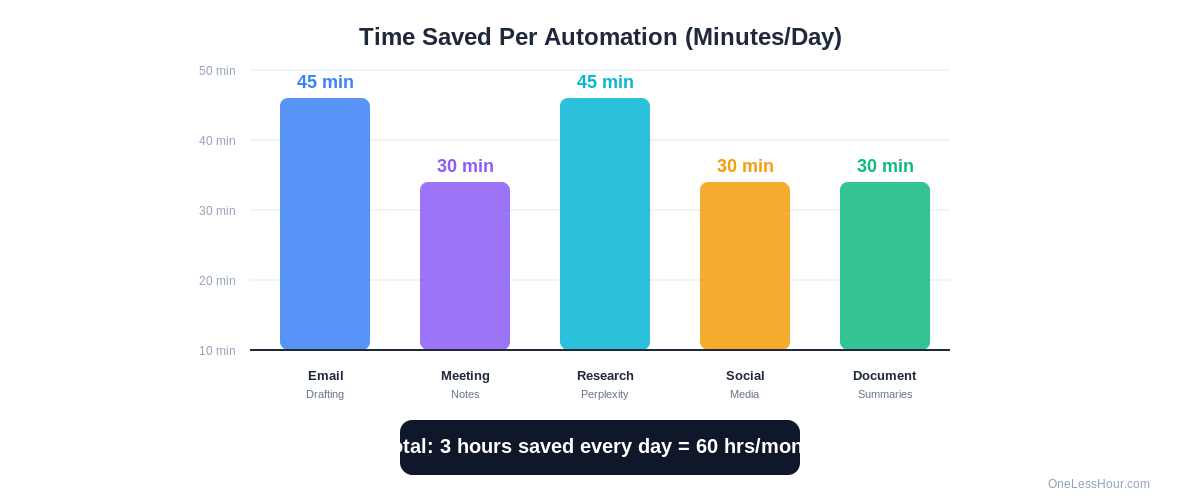
That’s 60 extra hours a month you can spend on work that actually grows your career or business — or on your family, your hobbies, yourself.
And the cost? Every tool I mentioned has a free tier. Total investment: $0.
Start Here (Don’t Try Everything at Once)
If this feels like a lot, just pick one automation. Start with email batching — it’s the easiest to set up and gives you the fastest payoff.
Once that feels natural (give it 3-5 days), add the next one. Within two weeks, you’ll have the full AI productivity workflow running without thinking about it.
Frequently Asked Questions
Do I need any technical skills to set this up? No. If you can copy and paste text, you can do everything in this article. None of these tools require coding or technical knowledge.
Will this work if I’m not in a tech job? Absolutely. Email, meetings, research, and document work exist in every profession. Teachers, real estate agents, lawyers, freelancers — the workflow adapts to any role.
Is my data safe when I use these AI tools? All the tools mentioned have privacy policies and enterprise-grade security. However, avoid pasting highly sensitive information (client financials, personal medical data) into free tiers. Check your employer’s AI policy if you’re using these at work.
What if I only have 5 minutes a day? Start with just Perplexity for research. It requires zero setup, and the time savings are immediate. One tool, five minutes to learn, and you’ll start saving 30+ minutes on research from day one.
Can I use these tools on my phone? Yes — ChatGPT, Claude, Perplexity, and Otter.ai all have mobile apps. I do my morning email batch on my phone during breakfast.
What would you do with an extra 3 hours every day? Drop a comment below — I read every one.
This article is part of the OneLessHour system: practical, tested time-saving strategies for people who are too busy to waste time on fluff. Next read: The Busy Person’s Guide to ChatGPT: 10 Things to Try in Your First Hour
Related reading
Newsletter
One Less Hour, delivered weekly
Honest reviews of AI productivity tools. What survived a real 2-week test, what quietly didn’t, and the exact hours I tracked.
One email per week. Unsubscribe in one click.