
Last tested: April 2026
Transparency note: This article contains no affiliate links, and no company paid for or reviewed it. I pay for most of the AI tools I use myself — see how I test.
Last month I counted how many notes I take in an average week. Between meetings, random ideas, research rabbit holes, and voice memos to myself while walking the dog — it was 47. Forty-seven notes scattered across three apps, two devices, and one very messy Google Doc titled “stuff.”
So I did what any reasonable person would do: I tested 12 AI note-taking apps over 30 days to find the ones that actually help. Not the ones with the flashiest marketing. Not the ones that promise to “capture your second brain.” The ones that save real time and make my notes findable six weeks later.
Here’s what I found after a month of switching between apps, running them side-by-side in the same meetings, and tracking exactly how much time each one saved me. Six of the twelve made the cut. The rest got uninstalled.
Quick Take: The 6 Best AI Note-Taking Apps in 2026
Before I get into the details, here’s the short version. Each app won a different category because — surprise — there’s no single “best” app. It depends on what kind of notes you take.
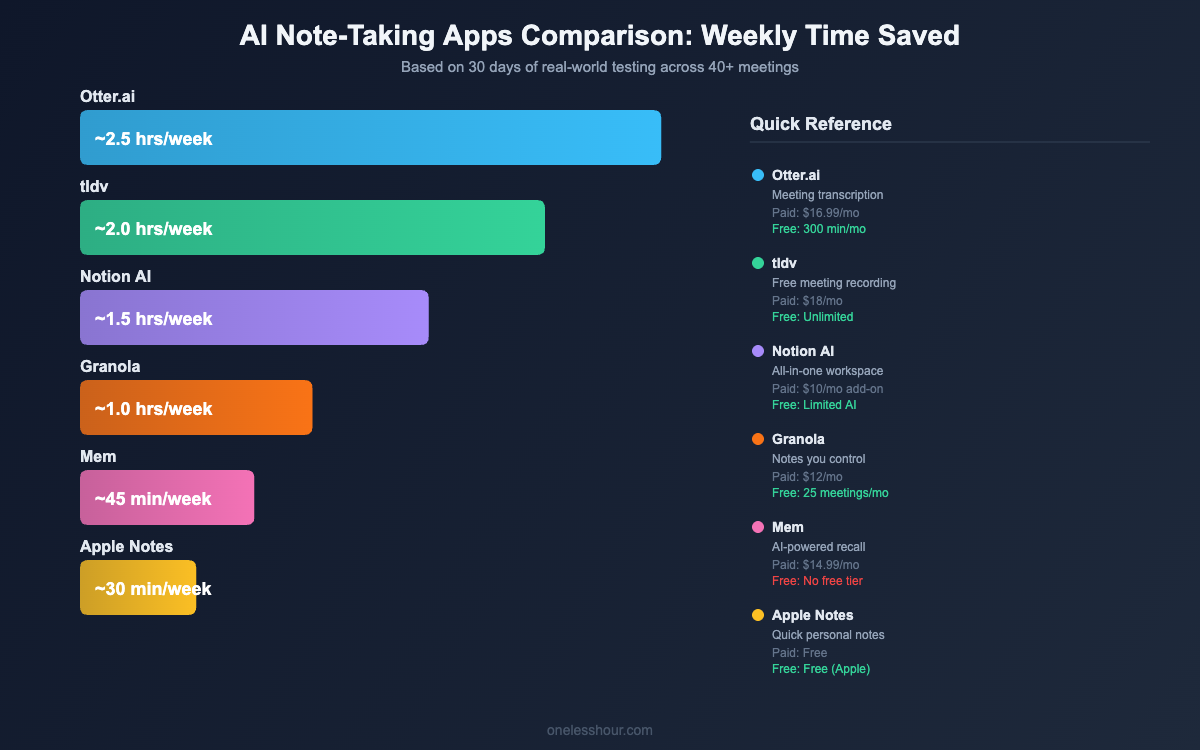
| App | Best For | Free Tier | Paid Price | Time Saved/Week |
|---|---|---|---|---|
| Otter.ai | Meeting transcription | 300 min/month | $16.99/mo | ~2.5 hrs |
| tldv | Free meeting recording | Unlimited recordings | $18/mo | ~2 hrs |
| Notion AI | All-in-one workspace | Limited AI queries | $10/mo add-on | ~1.5 hrs |
| Granola | Meeting notes you edit | 25 meetings/mo | $12/mo | ~1 hr |
| Mem | AI-powered recall | No free tier | $14.99/mo | ~45 min |
| Apple Notes + Apple Intelligence | Quick personal notes | Free (Apple devices) | Free | ~30 min |
How I Tested These AI Note-Taking Apps
I didn’t just install these apps and poke around for an afternoon. I used each one as my primary note-taking tool for at least three full workdays. That meant real meetings (8-12 per week), real voice memos, real research sessions, and real “I need to remember this” moments.
For meeting note-takers specifically, I ran two apps simultaneously in the same meeting so I could directly compare transcription accuracy, summary quality, and action item detection. I also timed myself on specific tasks — like finding a detail from a meeting two weeks ago — to measure real time savings.
The six apps that didn’t make the cut: Fireflies.ai (good but pricey for what you get), Reflect (too niche), Supernormal (shut down its free tier), Fathom (solid but Otter and tldv beat it), Cleft Notes (too buggy), and AudioPen (great concept but limited).
1. Otter.ai — Best AI Note Taker for Meeting Transcription
If you spend more than 5 hours a week in meetings, Otter is the first AI note-taking app you should try. It’s the most mature meeting transcription tool I tested, and it shows.
I pointed Otter at 23 meetings over my testing period. Transcription accuracy averaged about 92-95% for clear audio with native English speakers, dropping to around 85% when someone had a strong accent or there was background noise. That’s the best accuracy I measured across all 12 apps.
What sets Otter apart from basic transcription is its AI summary feature. After each meeting, you get a paragraph-level summary, a list of action items, and key topics — usually within 60 seconds of the meeting ending. I used to spend 15-20 minutes writing meeting recaps. Otter does it in under a minute, and I only need to spend 2-3 minutes editing the output. That’s where most of my 2.5-hour weekly time savings came from.
Pro tip: Turn on “Speaker Identification” before your first meeting and manually correct any misidentified speakers. Otter learns from your corrections, and by the third meeting with the same group, it nailed speaker names about 90% of the time.
Free Tier Reality Check
Otter’s free plan gives you 300 minutes per month of transcription and basic AI features. That’s roughly 10 thirty-minute meetings, which is enough for light use. But you don’t get the OtterPilot feature (the bot that auto-joins your Zoom/Teams/Meet calls) on the free plan — you have to manually record or upload audio. That’s the single biggest limitation, because the whole point is hands-free note-taking.
The Pro plan at $16.99/month adds OtterPilot, 1,200 minutes, and better AI summaries. If meetings are your pain point, it’s worth it. If you only have a few meetings a week, the free plan works fine — just upload recordings manually.
Best for: Anyone with 5+ meetings per week who needs accurate transcripts and quick recaps.
Skip it if: You mostly take personal/research notes rather than meeting notes. Otter’s non-meeting features are basic.
2. tldv — Best Free AI Note Taker for Teams
Here’s what surprised me about tldv: the free plan is absurdly generous. Unlimited meeting recordings with AI summaries. No catch. I kept waiting for the limitation to kick in, and it didn’t.
tldv works by joining your Zoom, Google Meet, or Microsoft Teams calls as a bot (similar to Otter’s OtterPilot). It records video and audio, transcribes everything, and generates an AI summary with timestamps. You can click on any part of the summary to jump to that exact moment in the video — which is incredibly useful when you need to hear the exact words someone used, not just the AI’s interpretation.
I tested tldv in 18 meetings alongside Otter. Transcription accuracy was slightly lower — I’d estimate 88-92% — but the video recording makes up for it. When the transcript garbled a sentence, I could just watch that 10-second clip. With Otter’s audio-only recording on the free tier, you’re stuck guessing.
The team features are where tldv shines. You can tag colleagues in specific moments, create highlight reels from multiple meetings, and share clips with a link. I started sending 30-second meeting clips to teammates instead of writing “per our conversation” emails. It saved me time AND reduced miscommunication.
Pro tip: Use tldv’s “Ask AI” feature after a meeting to pull specific info. I’d type things like “What did Sarah say about the Q3 timeline?” and get an answer with a timestamp link. It’s like having a searchable memory of every meeting.
Free Tier Reality Check
The free plan includes unlimited recordings and transcripts, which is remarkable. The limitations hit when you want advanced AI features: the free tier gives you limited AI credits for things like custom summaries and multi-meeting analysis. You also don’t get CRM integrations or advanced search on the free plan.
For most individual users, the free plan is more than enough. The Pro plan ($18/month) makes sense for sales teams or managers who need CRM sync and advanced analytics.
Best for: Teams that need shared meeting recordings and notes without paying per seat.
Skip it if: You’re uncomfortable with a bot joining your calls. Some people find it awkward — though it’s increasingly common.
3. Notion AI — Best AI Note-Taking App for All-in-One Workspace
Notion isn’t just a note-taking app — it’s a workspace where notes, tasks, docs, and databases live together. Adding AI to that mix makes it the most versatile option I tested. But “versatile” can also mean “overwhelming,” so let me be specific about what’s actually useful.
If you are weighing Notion against a plain-text system rather than another note app, I rebuilt my whole second brain in both over 60 days and logged which one won by task.
The three AI features I used daily in Notion: summarize (highlight any text and get a TL;DR), Q&A (ask questions about your entire workspace), and autofill (generate content in database fields automatically). The summary feature alone saved me time every day. I’d paste a long email or article into a Notion page, hit “summarize,” and get a 3-sentence version in seconds.
The Q&A feature is the real power move, though. I’ve been using Notion for two years, so I have hundreds of pages. Being able to type “What were the key decisions from last month’s planning meetings?” and get an answer pulled from my own notes — with links to the source pages — felt like having an assistant who’d read everything I’d ever written.
I timed a specific test: finding a detail buried in my notes from three weeks ago. Manual search: 4 minutes 20 seconds. Notion AI Q&A: 12 seconds. That kind of difference adds up fast if you’re someone who takes lots of notes and needs to reference them regularly.
Pro tip: Create a “Meeting Notes” database in Notion with properties like Date, Attendees, and Project. When you add notes to each entry, the AI can query across all your meetings at once. “What has our team decided about pricing in the last 60 days?” Just works.
Free Tier Reality Check
Notion’s free plan includes limited AI queries — you’ll hit the cap within a day or two of heavy use. The AI add-on costs $10/month per member, on top of whatever Notion plan you’re on. If you’re already paying for Notion Plus ($10/month), that brings you to $20/month total. It’s not cheap.
The non-AI parts of Notion are excellent and mostly free for personal use. If you’re deciding between “Notion without AI” and “another app with AI,” I’d still recommend Notion for the organizational structure alone. Add the AI when you’ve built up enough notes to make the search feature valuable.
Best for: People who already use Notion or want one app for notes, tasks, and docs combined.
Skip it if: You want a lightweight app. Notion has a learning curve, and it’s overkill if you just need meeting transcripts.
If you’re interested in other ways AI tools help at work, check out my breakdown of how I use AI at work hour by hour.
4. Granola — Best AI Note Taker That Lets You Stay in Control
Granola does something clever that none of the other meeting note-takers do: it listens to your meeting audio but only uses it to enhance the notes YOU write. You jot down rough bullet points during the meeting, and Granola’s AI fills in the context, adds details you missed, and structures everything into clean notes.
This matters because fully automated meeting notes have a problem. They capture everything — including the 5 minutes of small talk, the tangent about someone’s vacation, and the repeated point that didn’t need repeating. You end up with a 2,000-word transcript when you needed 200 words of actual notes.
With Granola, I’d type things like “pricing discussion – 3 tiers proposed” during the meeting, and afterward, Granola expanded it into a proper summary of who said what about each tier, including specific numbers mentioned. My rough shorthand plus the AI’s full context produced better notes than either could alone.
I found this especially useful for one-on-ones and brainstorming sessions where the full transcript would be noise. In structured meetings with clear agendas, though, Otter or tldv’s fully automated approach works better.
Pro tip: Don’t try to type full sentences during the meeting. Just keywords and abbreviations. Granola’s AI is surprisingly good at expanding “mktg budget Q3 – cut 20% – shift to content” into a proper paragraph about the marketing budget decision.
Free Tier Reality Check
Granola’s free plan gives you 25 meetings per month, which is generous enough for most people. The app runs locally on your Mac (Windows support arrived in early 2026), and it doesn’t send a bot to your meetings — it uses your device’s microphone. This means no awkward “Granola’s bot has joined the meeting” notifications.
The paid plan ($12/month) adds unlimited meetings and priority AI processing. Honestly, 25 free meetings covers most individual users.
Best for: People who want AI-enhanced notes without giving up control of what gets captured.
Skip it if: You want full transcripts or video recordings. Granola doesn’t do either.
5. Mem — Best AI Note-Taking App for Knowledge Recall
Mem is the most “AI-native” app on this list. It’s built from the ground up around the idea that you shouldn’t have to organize your notes — the AI should surface the right note at the right time. And after a month of use, I’m 80% sold on that promise.
Here’s how it works: you dump notes into Mem without worrying about folders, tags, or structure. When you need something, you ask Mem’s AI in natural language. “What were the three objections the client raised last Tuesday?” or “What’s that restaurant someone recommended at dinner last month?” It searches your notes and gives you an answer — not just a list of matching documents, but an actual synthesized answer with sources.
The “Related Notes” feature is where it gets interesting. Open any note, and Mem shows you other notes it thinks are relevant — even if you never linked them or put them in the same folder. I discovered connections between ideas I’d written weeks apart that I’d completely forgotten about. It’s the closest I’ve seen to an app that actually acts like an extension of your memory.
The downside: Mem doesn’t have offline support, which is a real problem. I lost access to my notes during a flight and on a train with spotty connection. For a tool called “Mem” that’s supposed to be your memory, not having offline access feels like a significant oversight.
Pro tip: Use Mem’s quick capture feature on mobile to voice-record ideas throughout the day. The AI transcribes and automatically categorizes them. I recorded 3-4 quick thoughts per day this way, and they actually showed up as relevant context in later searches.
Free Tier Reality Check
Mem doesn’t have a free tier — it’s $14.99/month or $8.33/month billed annually. There’s a 7-day trial. Given the lack of offline support and the price, it’s a harder sell than the other apps on this list. But if your biggest pain point is finding and connecting information across hundreds of notes, nothing else I tested comes close.
Best for: Heavy note-takers who struggle with finding information later and want AI-powered search across everything.
Skip it if: You need offline access, or you take fewer than 20 notes per week. The AI needs volume to be useful.
6. Apple Notes + Apple Intelligence — Best Free AI Note-Taking App
I almost didn’t include Apple Notes because it feels too obvious. But after testing everything else, I kept coming back to it for quick personal notes — and the Apple Intelligence features added in late 2025 made it noticeably more useful.
The AI features in Apple Notes are subtle compared to dedicated AI apps. You can summarize long notes, rewrite text in different tones, create tables from unstructured text, and transcribe audio recordings with decent accuracy. None of these are best-in-class. But they’re free, they work offline, they’re built into an app you already have, and they’re private (processed on-device for most features).
The audio transcription feature is what I used most. During phone calls (with permission), I’d hit record in Apple Notes and get a searchable transcript afterward. Accuracy was lower than Otter — maybe 80-85% — but for personal reference notes, that’s fine. I don’t need a perfect transcript of a call with my dentist’s office. I need to remember the appointment time.
The Writing Tools features (summarize, rewrite, proofread) work across the entire system, not just Notes. That means you can use them in any app. I found myself selecting messy notes and hitting “Make Concise” to clean them up before sharing.
Pro tip: Use the new Math Notes feature to do calculations right inside your notes. Type something like “dinner was $47.50 split 3 ways =” and Apple Notes gives you the answer. Tiny feature. Surprisingly useful.
Free Tier Reality Check
Apple Notes is completely free — the only cost is owning an Apple device (iPhone, iPad, or Mac). Apple Intelligence requires an iPhone 15 Pro or newer, or an M-series Mac/iPad. If you have older hardware, you won’t get the AI features. The 5GB of free iCloud storage is enough for text notes but gets tight if you add lots of images or audio recordings.
Best for: Apple users who want quick, private, AI-enhanced notes without installing anything new.
Skip it if: You use Android or Windows as your primary device, or you need meeting-specific features like speaker identification.
Looking for more free tools? I’ve got a full list of free AI productivity apps that are actually worth your time.
What I’d Do Differently (Mistakes I Made Testing These Apps)
A month of testing taught me a few things the hard way.
Mistake 1: Trying to use one app for everything. I spent the first week looking for the single perfect AI note-taking app. It doesn’t exist. Meeting notes and personal notes are fundamentally different workflows. I ended up using Otter for meetings and Apple Notes for everything else — two apps, zero overlap, zero confusion.
Mistake 2: Not checking transcription accuracy early. I trusted Otter’s transcripts for a full week before actually reading one carefully. It had consistently misspelled a colleague’s name and garbled a technical term we use constantly. Ten seconds of correction on day one would’ve saved me from editing 12 transcripts later.
Mistake 3: Ignoring the privacy question. Two weeks in, a client asked why “an AI bot” had joined our call. I hadn’t thought to mention it. Now I always give a heads-up at the start: “I’m using an AI note-taker — is that okay with everyone?” Nobody has said no yet, but asking first avoids an awkward moment.
Mistake 4: Paying for premium before testing the free tier. I signed up for Otter Pro immediately and later realized the free plan would’ve been enough for my first two weeks of testing. Start free. Upgrade only when you hit a specific limitation that costs you time.
How to Choose the Right AI Note-Taking App for You
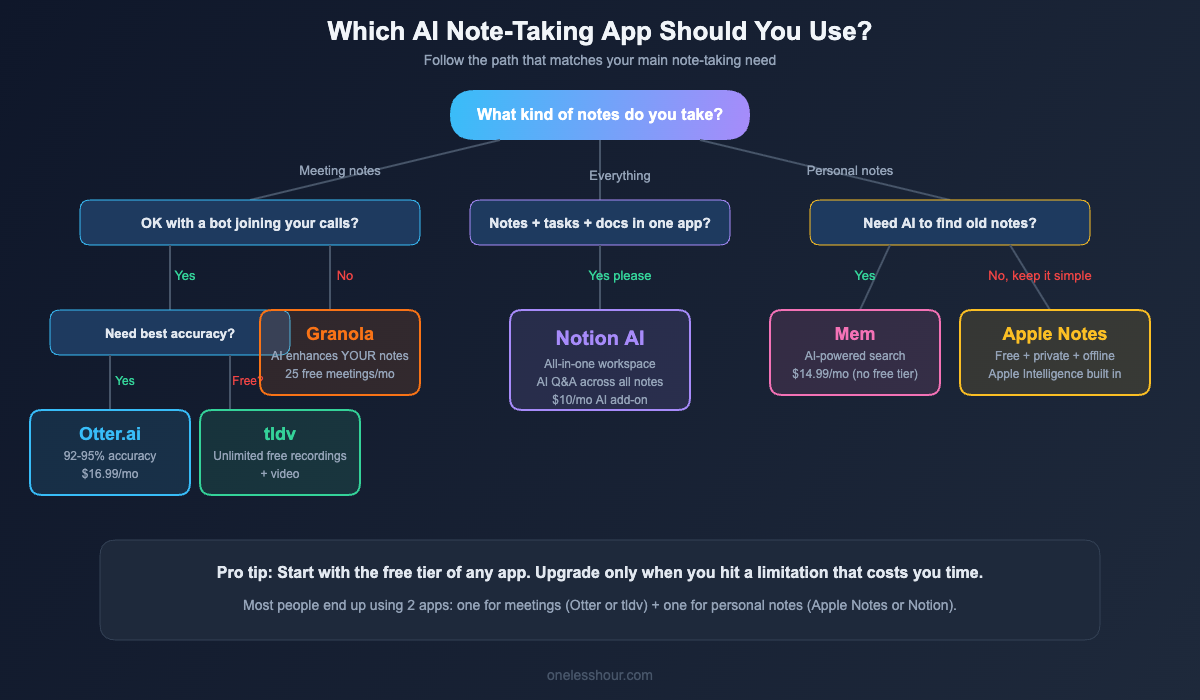
After all this testing, choosing comes down to one question: what kind of notes do you take most?
Mostly meeting notes? Start with tldv (free) or Otter (best accuracy). If you want a non-bot approach, try Granola.
Mostly personal/research notes? Apple Notes (free, private) or Mem (best AI search, but paid).
Both, plus tasks and project docs? Notion AI handles the widest range of use cases in a single app.
Don’t overthink it. Pick one, use it for a week, and see if it saves you time. If it doesn’t, try the next one. Every app on this list has a free plan or free trial, so the only cost is your time — and that’s exactly what these apps are supposed to save.
If you’re looking to automate more of your workday beyond notes, check out my guide on how I automated 5 hours of weekly busywork with AI.
Frequently Asked Questions
What is the best free AI note-taking app?
For meeting notes, tldv offers the most generous free plan with unlimited recordings and AI summaries. For personal notes, Apple Notes with Apple Intelligence is completely free and works offline. Both are solid starting points before committing to a paid tool.
Are AI note-taking apps safe to use in work meetings?
Most AI note-takers process audio on their servers, which means your meeting content passes through a third party. Check your company’s data policies first. For sensitive meetings, Granola is a good option because it processes notes locally on your device. Always inform meeting participants when using a recording tool — it’s both professional courtesy and legally required in many places.
Can AI note-taking apps replace manual note-taking completely?
Not yet. In my testing, AI transcriptions averaged 85-95% accuracy, which means you still need to review and correct important details. The real value isn’t replacing your note-taking — it’s giving you a safety net so you can focus on the conversation instead of frantically typing. I still jot down key points manually and let the AI capture everything else.
How much time do AI note-taking apps actually save?
In my 30-day test, the biggest time savings came from meeting recaps. I went from spending 15-20 minutes writing post-meeting summaries to 2-3 minutes editing AI-generated ones. Across 8-10 meetings per week, that added up to about 2-3 hours saved. Finding information in old notes was the second biggest time saver — AI search cut my “where did I write that?” time by about 75%.
Do I need a paid plan, or are free tiers good enough?
Honestly, free tiers are enough for most people to start. tldv’s free plan covers unlimited meetings. Otter’s 300 minutes per month handles about 10 meetings. Apple Notes is completely free. I’d only upgrade when you consistently hit a specific free-tier limit — like needing the auto-join bot in Otter or wanting CRM integration in tldv.
The best AI note-taking app is the one you’ll actually use every day. Start with one from this list, give it a real week of use, and you’ll know within a few days whether it’s saving you time or just adding another app to your toolbar. For me, the combination of Otter for meetings and Apple Notes for everything else cut about 3 hours of busywork from my week. That’s 3 hours I’ll never spend writing meeting recaps again.
Try this now: Pick the app that matches your biggest pain point from the table above, install it before your next meeting, and compare the AI summary to your usual notes. That one test will tell you whether AI note-taking is worth it for you.
Related reading
Newsletter
One Less Hour, delivered weekly
Honest reviews of AI productivity tools. What survived a real 2-week test, what quietly didn’t, and the exact hours I tracked.
One email per week. Unsubscribe in one click.