
Last tested: April 2026
Transparency note: This article contains no affiliate links, and no company paid for or reviewed it. I pay for most of the AI tools I use myself — see how I test.
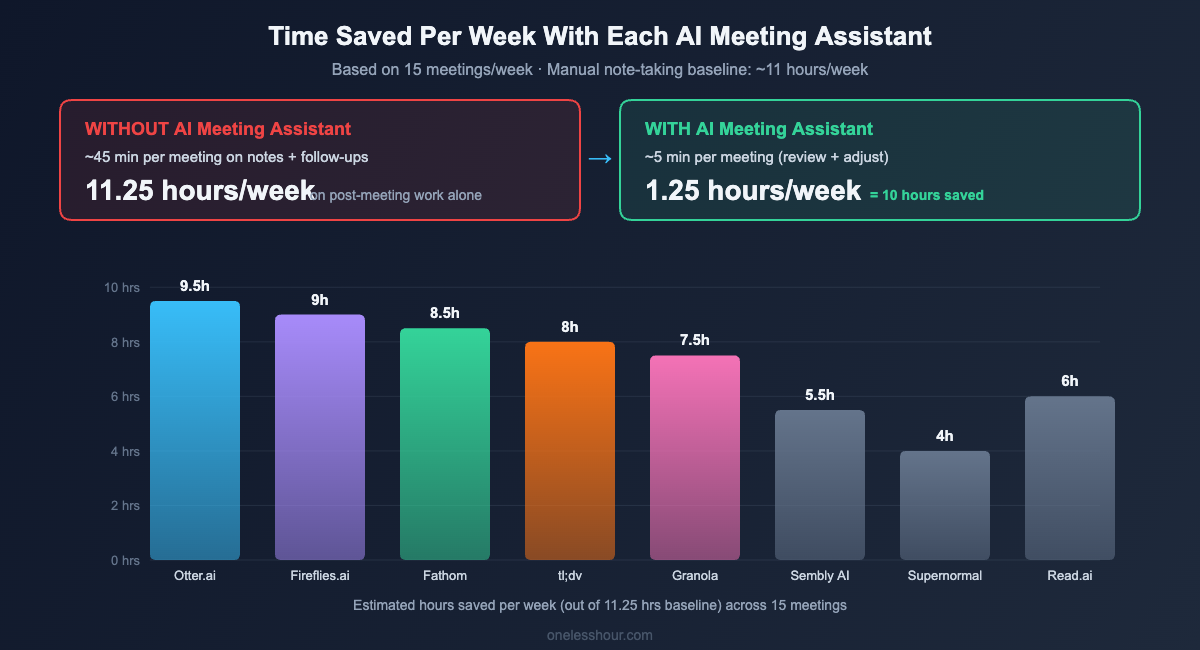
Last month I counted how many meetings I had in a single week. Seventeen. Some were useful. Most could’ve been emails. But the real problem wasn’t the meetings themselves — it was the 45 minutes I spent after each one writing up notes, pulling out action items, and sending follow-ups nobody reads.
So I did what any reasonable person would do: I let AI handle it. I tested 8 of the most popular AI meeting assistants over 30 days, across 60+ real meetings — team standups, client calls, one-on-ones, and those “quick syncs” that always run long.
Here’s what I found: some of these tools cut my post-meeting work from 45 minutes to under 5. Others were more annoying than helpful. I’ll walk you through exactly which ones earned a permanent spot in my workflow and which ones I uninstalled after week two.
How I Tested These AI Meeting Assistants
Before I get into individual tools, here’s my setup. I run most meetings on Google Meet, with a few on Zoom. I tested each tool on at least 6-8 real meetings over 2+ weeks. No staged demos. No scripted calls.
For each one, I tracked three things:
Transcription accuracy: I compared AI-generated transcripts against my manual notes for key decisions and names. Summary quality: Did it capture the actual action items, or just regurgitate filler? Time saved per meeting: I timed my old manual workflow vs. the AI-assisted one.
I also stress-tested free tiers hard. Every tool markets a free plan — I wanted to see what you actually get before hitting a paywall.
Pro tip: Don’t judge an AI meeting assistant by its first meeting. Accuracy and summary quality improve once the tool learns your meeting patterns. Give any tool at least 3-4 meetings before deciding.
The 5 Best AI Meeting Assistants That Actually Earned Their Spot
1. Otter.ai — Best Overall for Most People
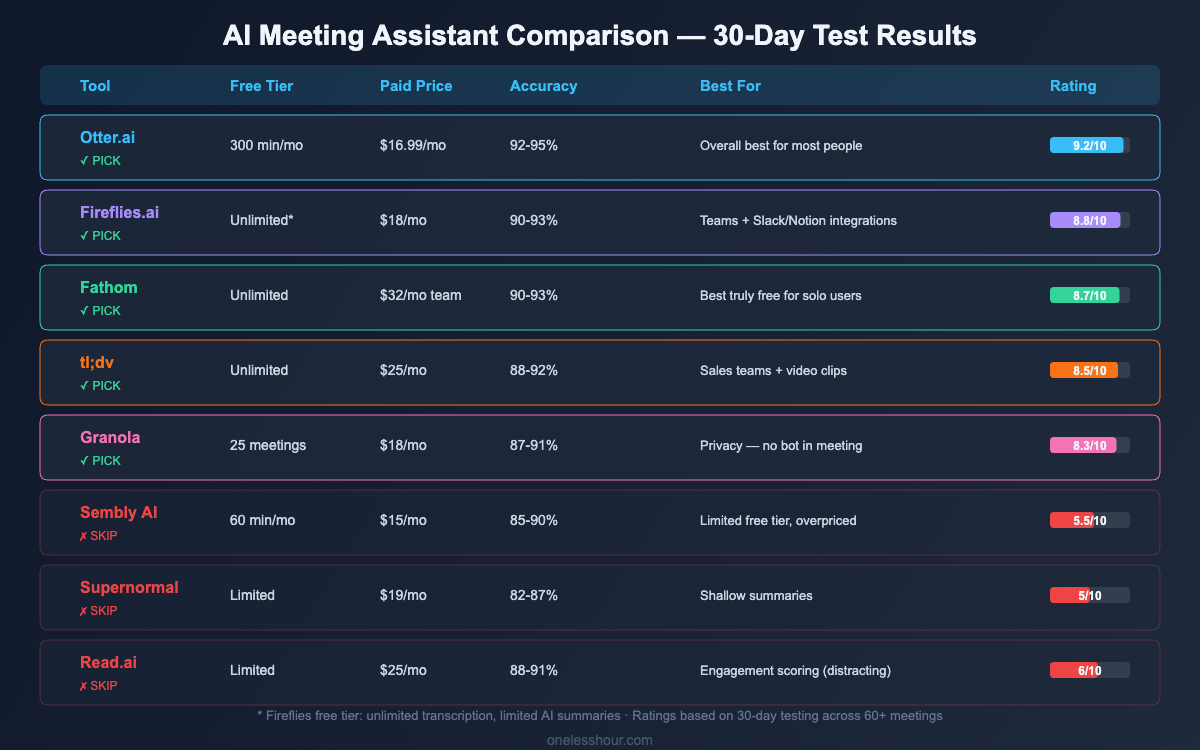
Otter was the first tool I tested, and it set a high bar. The transcription accuracy was around 92-95% on clear audio — better than anything else I tried. It catches speaker names after the first few meetings and separates conversations cleanly.
What sold me: the AI-generated summary doesn’t just list what was said. It pulls out action items with assigned names and deadlines. After a 30-minute team standup, I’d get a summary I could forward directly to the team. That alone saved me ~20 minutes per meeting.
Price: Free tier gives you 300 transcription minutes/month and AI summaries. Pro is $16.99/month for 1,200 minutes. Best for: Individuals and small teams who need reliable transcription + summaries. The downside: The free tier’s 300 minutes sounds generous until you realize a single hour-long meeting eats 60 of them. If you have 5+ meetings a week, you’ll hit the limit by week three.
Pro tip: Set Otter to only record meetings you organize (not every calendar event). This stretches your free minutes dramatically — I went from burning through 300 minutes in two weeks to making them last the full month.
2. Fireflies.ai — Best for Teams Who Live in Slack and Notion
If your team uses Slack, Notion, HubSpot, or Salesforce, Fireflies is the pick. It doesn’t just transcribe — it pushes meeting summaries directly into the tools you already use. I set it up to drop action items into a Notion database after every meeting. Took about 10 minutes to configure, and it’s been running hands-free since.
The search feature is what sets Fireflies apart. I could search “What did we decide about the pricing change?” across all my meetings from the past month and get the exact moment with a timestamp. Try doing that with your memory alone.
Price: Free tier includes unlimited transcription with limited AI summaries. Pro is $18/month per seat. Best for: Teams of 3+ who need meeting notes flowing into their existing tools. The downside: The bot joins meetings with a visible “Fireflies.ai Notetaker” label. Several of my external clients asked about it. Not a dealbreaker, but something to be aware of for client-facing calls.
Pro tip: Use the “Smart Search” with filters like speaker name + topic keyword. Instead of scrolling through a full transcript, you’ll find the exact 30-second clip you need.
3. Fathom — Best Truly Free Option (No Catch)
Most “free” AI meeting tools give you a taste then hit you with limits. Fathom is different. The free plan includes unlimited recording, transcription, and AI summaries. I used it for 25+ meetings without paying a cent or hitting any paywall.
The catch? There isn’t one for individual use. Fathom’s business model charges for team features — shared meeting libraries, CRM integrations, and team analytics. If you’re a solo user or freelancer, the free tier is legitimately all you need.
Transcription accuracy was solid at around 90-93%. Slightly below Otter on messy audio, but the summaries were surprisingly good. It breaks things into “Key Topics,” “Action Items,” and “Decisions Made” — clean enough to paste into a follow-up email.
Price: Free for individuals (unlimited). Team plans start at $32/seat/month. Best for: Freelancers, solopreneurs, and anyone who doesn’t want to think about billing. The downside: Zoom and Google Meet only. If your company uses Microsoft Teams, Fathom won’t work for you (yet).
Pro tip: Use the “highlight” button during live meetings to flag important moments. The AI summary is good on its own, but highlighted sections get extra detail in the output.
4. tl;dv — Best for Sales Teams and Video Clips
Here’s what tl;dv does that nobody else does well: video clips. You can highlight a moment during a meeting and share a 30-second clip with a link — your manager or teammate sees exactly what was said, with full context. I used this to share client feedback clips with our product team, and it completely replaced my “let me summarize what the client said” messages.
Sales teams love this because you can clip objection-handling moments, send them to your team Slack, and build a library of real customer conversations. It’s Gong-lite at a fraction of the cost.
Price: Free tier includes unlimited recordings + transcripts. Pro is $25/month for AI features and CRM sync. Best for: Sales teams, customer research, and anyone who needs to share meeting moments (not just text). The downside: The AI summaries are decent but not as polished as Otter’s. You’ll sometimes need to edit action items manually.
Pro tip: Create a “customer insights” folder in tl;dv and clip every moment where a customer describes a pain point. After a month, you’ll have a goldmine of real customer language for marketing copy and product decisions.
5. Granola — Best When You Don’t Want a Bot in the Meeting
Every other tool on this list works by joining your meeting as a visible bot participant. Granola takes a completely different approach — it runs locally on your Mac, listens through your system audio, and never joins the call. Nobody knows it’s there.
For client-facing calls where a recording bot feels awkward, this is a lifesaver. I used it for sensitive HR conversations and external partner calls where asking “mind if I record?” would’ve changed the whole dynamic.
You jot quick notes during the meeting (just bullet points or keywords), and Granola combines your notes with the audio to produce a detailed, structured summary. It’s the closest thing to having a human assistant in the room.
Price: Free tier includes 25 meetings/month. Pro is $18/month for unlimited. Best for: Consultants, therapists, coaches, and anyone doing client-facing or sensitive meetings. The downside: Mac only right now. Windows support is “coming soon” but has been for a while. Also, since it doesn’t join the call, it can’t identify individual speakers as reliably.
Pro tip: Don’t try to take detailed notes while Granola records. Just jot 3-5 keywords per topic. The AI fills in everything else from the audio. Fighting the urge to type everything is the hardest part.
3 AI Meeting Assistants I Tested and Wouldn’t Recommend
Not every tool made the cut. Here are three that sounded great in marketing but fell short in practice.
Sembly AI: Decent transcription, but the free tier limits you to just 60 minutes per month — that’s one meeting. The jump to paid ($15/month) gets you features most other tools offer for free. Skip it if you’re budget-conscious.
Supernormal: The summaries were consistently shallow. After a 45-minute strategy call, I got a 3-sentence summary that missed two of the three decisions we made. I tried tweaking the settings for two weeks and never got it where I needed it.
Read.ai: Interesting concept — it rates meeting engagement and gives you a “meeting score.” But I found myself worrying about the score instead of focusing on the conversation. The AI summaries were fine, nothing special. The engagement scoring felt more distracting than useful for my workflow.
What I’d Do Differently (Mistakes I Made During Testing)
After a month of testing, here’s what I wish I’d known upfront:
I should’ve tested on my messiest meetings first. I started with clean one-on-one calls. Every tool performs well there. The real test is a 6-person call with people talking over each other. That’s where Otter and Fireflies pulled ahead and the weaker tools fell apart.
I underestimated the “bot awkwardness” factor. Three different clients mentioned the recording bot unprompted. One asked me to remove it. If you do a lot of external calls, seriously consider Granola or at least customize your bot’s display name.
I wasted time comparing free tiers. After testing everything, here’s the honest truth — if you have more than 8-10 meetings a week, you’ll outgrow every free tier except Fathom’s. Budget $15-20/month and save yourself the hassle of tier-hopping.
I forgot to check recording consent laws. Some states and countries require all-party consent for recording. Most AI meeting tools add a visible notice, but Granola (which records silently) doesn’t. I had to go back and verbally notify people for a few calls. Check your local laws before recording anything.
Which AI Meeting Assistant Should You Pick?
| If you need… | Go with | Monthly cost |
|---|---|---|
| Best all-around for most people | Otter.ai | Free / $16.99 |
| Best for teams + integrations | Fireflies.ai | Free / $18 |
| Best truly free (solo users) | Fathom | Free |
| Best for sales teams / video clips | tl;dv | Free / $25 |
| Best for privacy / no bot | Granola | Free / $18 |
If I had to pick just one? Otter.ai for most people. The transcription quality is the best I tested, the summaries are useful, and the free tier gives you enough to decide if it’s worth paying for.
But here’s the thing most “best of” articles won’t tell you: the best AI meeting assistant is the one that fits your existing workflow. If your team lives in Notion, Fireflies wins. If you’re a freelancer who doesn’t want to pay, Fathom wins. If your meetings are sensitive, Granola wins. There’s no single “best” — only best for your situation.
If you want to see what other AI tools I use daily beyond meetings, check out my full breakdown of how I actually use AI at work — it covers my hour-by-hour system for saving 3+ hours a day.
Frequently Asked Questions
Are AI meeting assistants safe to use for confidential meetings?
It depends on the tool and your company’s policies. Most cloud-based assistants (Otter, Fireflies, Fathom) process audio on their servers. If confidentiality is critical, Granola is the safest bet — it processes everything locally on your Mac. Always check your company’s recording policy and local consent laws before using any tool.
Do AI meeting assistants work with Microsoft Teams?
Otter.ai, Fireflies.ai, and tl;dv all support Microsoft Teams. Fathom currently only works with Zoom and Google Meet. Granola works with any platform since it captures system audio rather than joining the call. If Teams is your primary platform, Fireflies has the best Teams integration I tested.
What’s the best free AI meeting assistant?
Fathom, hands down. It’s the only tool I tested that offers truly unlimited free recording, transcription, and AI summaries for individual users. Every other “free” tier has minute caps or feature restrictions that push you toward paid plans within a few weeks of regular use.
Will meeting participants know I’m using an AI assistant?
With most tools (Otter, Fireflies, tl;dv, Fathom), yes — they join as a visible bot participant. Participants see a notification that the meeting is being recorded. Granola is the exception — it runs silently through your system audio and doesn’t join the call. But even with Granola, you should tell participants you’re recording. It’s both legally required in many places and just the right thing to do.
How much time do AI meeting assistants actually save?
In my testing, I saved 25-40 minutes per meeting on post-meeting work (writing summaries, pulling action items, sending follow-ups). Across 15 meetings a week, that’s roughly 6-10 hours saved weekly. The biggest time save isn’t the transcription — it’s never having to write “per our discussion” emails again. For more ways I save time with AI, here’s my exact system for saving 3 hours a day with free AI tools.
The easiest way to start? Pick Fathom (it’s free), use it for your next 5 meetings, and see if the AI summaries are good enough to replace your manual notes. If they are, you’ve just found 2+ extra hours every week. If you want more power, upgrade to Otter or Fireflies after the trial. Either way, you’ll never go back to typing meeting notes by hand.
Looking for more ways to automate your workday? Check out how I automated 5 hours of weekly busywork using AI — meetings are just the beginning.
Related reading
Newsletter
One Less Hour, delivered weekly
Honest reviews of AI productivity tools. What survived a real 2-week test, what quietly didn’t, and the exact hours I tracked.
One email per week. Unsubscribe in one click.