
Last tested: April 2026
If you’re searching for the best AI presentation maker, here’s the scenario that sold me: last month I had a client check-in deck due at 9 AM. I remembered at 8:15. Forty-five minutes, blank slide, mild panic.
I opened Gamma, typed two sentences about the project, hit generate, and had a 12-slide draft in under 90 seconds. I spent 15 minutes editing it. Made the meeting with four minutes to spare.
That’s not a fluke — that’s what the best AI presentation maker actually does when you use it right. But several of these tools are glorified template pickers with an AI label slapped on. I’ve spent the last few months testing all the major options to find out which ones are worth your time. Here’s my honest breakdown, plus the exact workflow I use every time.
Quick note before we start: If you’re still planning to test Tome, stop. Tome shut down its presentation product in March 2025 and pivoted entirely to sales AI. Several “best of” lists still include it — don’t waste your time.
My 20-Minute AI Presentation Workflow
Before I get into the tool comparisons, here’s the workflow I use regardless of which tool I’m in. The steps are the same — only the interface changes.
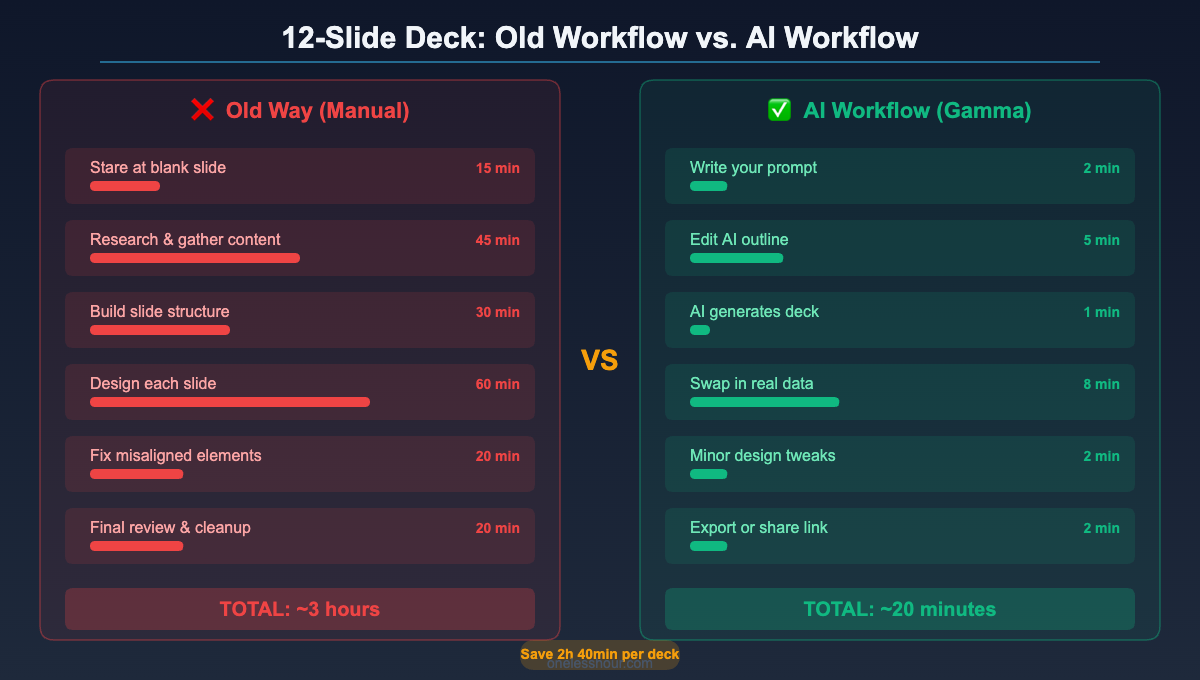
Step 1 — Write a one-paragraph prompt (2 minutes). Don’t just type “make me a sales deck.” That’s how you get generic garbage. I give the AI four things: the audience, the goal, the key message, and any structure I want. Example: “Create a 10-slide pitch deck for a SaaS startup targeting HR managers. Goal: get a demo booked. Key message: we cut manual onboarding work by 60%. Include: problem, solution, how it works, pricing, and social proof slides.”
Prompt template I use every time:
Create a [number]-slide [deck type] for [audience]. Goal: [outcome]. Key message: [one sentence]. Include these sections: [comma-separated list].
Step 2 — Edit the outline before it builds (5 minutes). Every tool I use shows you a slide-by-slide outline before generating the full deck. This is the most important step people skip. Editing text in an outline takes 10 seconds per slide. Editing a fully designed slide takes 3 minutes. Fix structure here, not later.
Pro tip: If a slide in the outline doesn’t have a clear one-sentence purpose, delete it before generating. Vague slides in the outline become vague slides in the deck.
Step 3 — Let it build (1 minute). Hit generate, grab coffee. The AI handles layout, design, and content simultaneously. Gamma does this in about 45 seconds. Beautiful.ai takes a bit longer but produces more structured output.
Step 4 — Edit design and swap any placeholder data (10 minutes). This is where most of your time goes. Replace any generic stats with real numbers, fix any slides where the AI got the tone wrong, and drop in actual logos or screenshots if needed. Pro tip: only edit slides you’ll actually show. If a slide isn’t earning its place in the deck, delete it instead of fixing it.
Step 5 — Export or share (2 minutes). If you’re presenting live, use the tool’s built-in present mode — it’s cleaner than downloading and reopening. If you need a PPTX file for a client or colleague, check the export section below first. Some tools handle this better than others. Pro tip: Share a live link instead of a file whenever possible. The recipient gets the formatted version with no download, no version confusion, and no “your fonts look weird on my machine” emails.
Total: about 20 minutes for a polished, 10–12 slide deck. Before I started using the best AI presentation maker for this, the same deck took me 2–3 hours. That’s not an exaggeration — I tracked it.
The 6 Best AI Presentation Makers (Ranked Honestly)
1. Gamma — Best Overall (Free to Start)
Gamma is the tool I reach for first. The output quality is consistently better than anything else I’ve tested at this price point, and the workflow feels designed by someone who actually makes presentations, not just engineers who think they know how presentations work.
You type your prompt, review a text outline, and Gamma generates the full deck — design, layout, and content — in under 60 seconds. The slides look professional without any design work on your end. You can regenerate individual slides, change themes, or ask the AI to rewrite specific sections directly in the editor.
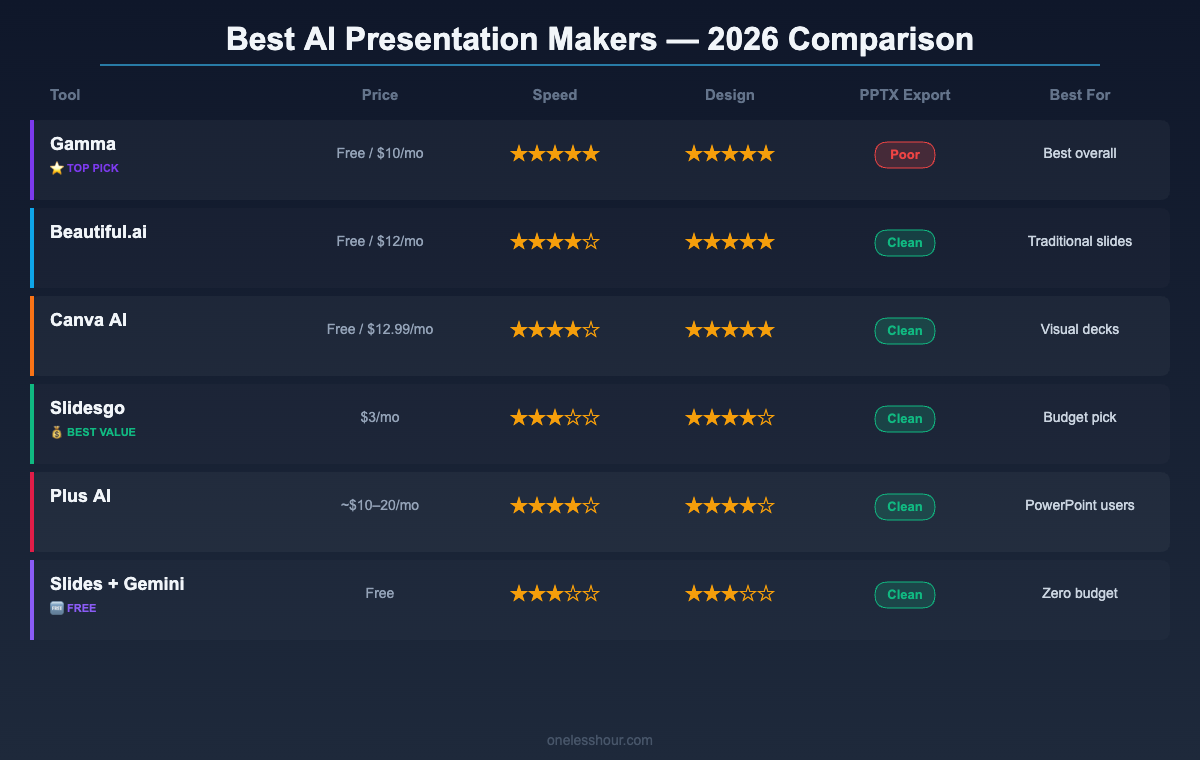
Free tier reality check: Gamma gives you 400 AI credits on the free plan. That sounds like a lot until you realize one full deck uses 40–80 credits depending on length. You’re looking at 5–10 presentations before you hit the wall — and the credits don’t refresh. After that, it’s $10/month for unlimited. That’s a reasonable price for what you get, but go in knowing the free tier is a trial, not a forever plan.
The PPTX trap: Gamma exports to PDF or shares as a link. The PowerPoint export exists but produces a flattened file — it doesn’t come back as a clean, editable PPTX with proper text boxes. If you need to hand a file to a client who’ll edit it in PowerPoint, Gamma is the wrong tool. Use Plus AI or Beautiful.ai instead.
Best for: Internal presentations, client-facing decks you’ll present yourself, and anyone who doesn’t need to hand off a PPTX file.
Price: Free (400 credits, one-time) / $10/month Pro
Skip if: Your workflow requires editable PPTX output.
2. Beautiful.ai — Best for Traditional Slide Decks
Beautiful.ai takes a different approach from Gamma. Instead of a free-form generation style, it uses a “smart slide” system where every element follows layout rules automatically. Resize a text box and the rest of the slide rebalances itself. Add a bullet point and the font scales to fit. Once you get used to it, you’ll wonder why regular slide tools don’t work this way.
The AI generation is solid — not quite as fast or polished as Gamma’s first drafts, but the output lives in a traditional slide format that’s familiar to anyone who’s used PowerPoint. The editing experience feels more like working in a real presentation tool.
Free tier reality check: Beautiful.ai has a free plan, but it’s limited to 60 slides total and watermarks your exports. For serious use, you need the Pro plan at $12/month (billed annually, so $144/year). There’s no monthly billing option on the affordable tier.
Best for: Teams who need brand consistency, anyone who wants traditional slides with clean PowerPoint-compatible output.
Price: Free (limited) / $12/month Pro (annual only)
Skip if: You want the most generous free tier or the fastest generation speed.
3. Canva AI — Best If You Already Use Canva
If you’re already a Canva user, the AI presentation features are worth exploring — but they’re not a standalone reason to switch tools. Canva’s AI generation (called “Magic Design”) produces decent-looking starting points, but the content quality is thinner than Gamma’s. You get more of a styled template with your topic sprinkled in than a properly structured argument.
Where Canva wins is the design library. Thousands of templates, access to brand kits, and the ability to drop in graphics from their stock library all in one place. If you’re making a presentation that needs heavy visual design work rather than content depth, Canva is the fastest path there.
Free tier reality check: The free plan gives you 10 Magic Design uses per month. That’s actually enough for occasional users. Canva Pro at $12.99/month unlocks unlimited AI features plus the full template library and brand kit tools.
Best for: Marketing decks, visual-heavy presentations, anyone already paying for Canva Pro.
Price: Free (10 AI uses/month) / Canva Pro $12.99/month
Skip if: You need deep content generation rather than design polish.
4. Slidesgo — Best Budget Option ($3/Month)
Slidesgo doesn’t generate slides from a prompt the way Gamma does. It’s more of an AI-enhanced template library that outputs directly to Google Slides or PowerPoint. You pick a style, describe what you need, and get a fully formatted template populated with your topic — then customize it from there.
The AI generation is more basic than the other tools here, but the template quality is exceptional — these look like professionally designed slides, not AI filler. And at $3/month for unlimited access, the value-to-cost ratio is hard to beat.
Best for: Anyone on a tight budget who wants polished templates and works in Google Slides or PowerPoint.
Price: Free (limited) / Premium $3/month
Skip if: You want true AI content generation rather than AI-assisted templates.
5. Plus AI — Best for PowerPoint Users
Plus AI lives inside PowerPoint and Google Slides as an add-in, which is either a feature or a limitation depending on your workflow — which makes it a fundamentally different kind of best AI presentation maker. If you’re stuck in a company where everything lives in PowerPoint, this is the most practical AI tool you’ll find. It generates complete presentations from a prompt, but the output stays inside PowerPoint — fully editable, properly formatted, no weird export behavior.
I used Plus AI for a quarterly review deck that needed to match our company’s exact PowerPoint template. It handled that requirement better than anything else I tested. You can even point it at an existing deck and ask it to reformat or expand specific slides.
Best for: Corporate environments where PowerPoint is non-negotiable, anyone handing off editable files.
Price: Free trial / ~$10–20/month (varies by plan)
Skip if: You don’t need PowerPoint compatibility.
6. Google Slides + Gemini — Best Truly Free Option
If you have a Google Workspace account (or a free Gmail account with Gemini access), you already have a decent AI presentation tool. Gemini inside Google Slides can generate outlines, write slide content, and suggest layouts — all without spending a dollar.
It’s not as polished as Gamma and the design automation isn’t as smart as Beautiful.ai. But for someone making occasional presentations who doesn’t want another subscription, it works well enough that you won’t feel like you’re missing out. The output lives natively in Google Slides, so collaboration and sharing are effortless.
Best for: Occasional presenters, anyone already on Google Workspace, people who refuse to add another monthly subscription.
Price: Free with Google account / Gemini Advanced $19.99/month
Skip if: You need high-quality AI generation for regular use.
When AI Presentation Tools Won’t Save You
These best AI presentation maker tools save real time in most situations — but there are specific cases where they’ll slow you down rather than speed you up. Know the limits before you commit.
Complex data visualizations. If your deck needs custom charts from a live spreadsheet, pivot tables, or data that updates automatically, AI presentation tools aren’t designed for this. Use Google Slides + Sheets or PowerPoint + Excel for that workflow. AI tools shine on narrative and structure, not on live data pipelines.
Strict brand guidelines. Gamma’s templates are beautiful, but they’re Gamma’s templates. If your company has a locked brand kit with specific fonts, colors, and logo placement rules, you’ll spend more time undoing the AI’s design choices than building from scratch. Beautiful.ai and Plus AI handle this better, but it’s still friction.
Board-level or investor decks. The stakes are too high to hand to AI and lightly edit. Use AI for the first draft structure, but plan on rebuilding individual slides from scratch with real data, real quotes, and real precision. These decks require a human review level that goes beyond what a quick AI edit provides.
That said — even for high-stakes decks, I still start with an AI outline. Getting the structure right in 2 minutes beats staring at a blank slide for 30.
Mistakes I Made When I First Started Using These Tools
Using AI presentation tools well took me a few weeks of bad outputs before I figured out what actually works. Here’s what I’d do differently from day one.
I wrote terrible prompts at first. “Make me a marketing presentation” is not a prompt. The AI has no idea who the audience is, what the goal is, or what you want them to do after. Weak prompts produce generic decks. The prompt template I shared above is the result of about two months of trial and error — use it.
I skipped the outline review step. Every tool gives you a chance to review the structure before generating. I used to skip it to save time. That always backfired — fixing structure inside a designed slide is 3x harder than fixing it in an outline. Get this right and every best AI presentation maker performs noticeably better.
I tried to make Gamma work for PPTX handoffs. Wasted an hour trying to clean up a Gamma export before a client deadline. The PPTX export is functional for archiving, not for professional handoffs. If a client needs an editable file, use Plus AI or Beautiful.ai from the start.
I kept slides the AI wasn’t confident about. You can tell when an AI is guessing — the slide is vague, uses placeholder-style language, or repeats a point from two slides back. Delete those. A 9-slide deck with strong, specific content beats a 14-slide deck padded with AI filler every time.
Which Tool Should You Start With?
| Your situation | Start here | Price |
|---|---|---|
| You want the best overall tool | Gamma | Free → $10/mo |
| You need editable PPTX output | Plus AI or Beautiful.ai | $10–12/mo |
| You already use Canva | Canva AI (Magic Design) | Free or $12.99/mo |
| You’re on a tight budget | Slidesgo | $3/mo |
| You want completely free | Google Slides + Gemini | Free |
| You work in a PowerPoint shop | Plus AI | ~$10–20/mo |
My default recommendation for most people: start with Gamma’s free tier, build 3–4 presentations, and see if the workflow clicks. If you hit the credit wall and like it, $10/month is easy to justify once you’ve saved 2 hours on a single deck.
If you’re also losing time in meetings, check out my roundup of the best AI meeting assistants — cutting prep and follow-up time on both ends adds up fast.
Frequently Asked Questions
What is the best free AI presentation maker?
Gamma offers the most generous free tier with 400 AI credits — enough for 5–10 complete decks. After that, credits don’t refresh without upgrading to $10/month. If you want something permanently free with no credit limits, Google Slides with Gemini is the closest option, though the AI quality is more basic.
Can AI presentation tools export to PowerPoint?
Most can, but quality varies significantly. Gamma’s PPTX export is flattened and not cleanly editable in PowerPoint. Beautiful.ai and Plus AI produce proper PowerPoint files with editable elements. If PPTX compatibility is important to your workflow, use one of those two instead of Gamma.
How long does it take to build a presentation with AI?
For a standard 10–12 slide deck: 2 minutes for the prompt, 5 minutes editing the outline, 1 minute for generation, 10 minutes for edits, and 2 minutes to export. Total: about 20 minutes. More complex decks with heavy custom data take longer, but the structure and design work is still handled by AI.
Is Tome still a good AI presentation tool?
No. Tome shut down its presentation product in March 2025 and pivoted to sales AI. Many review articles still list it, but the slides product is gone. Don’t plan your workflow around it.
Do I need design skills to use AI presentation tools?
No. That’s the whole point. Tools like Gamma and Beautiful.ai handle layout, typography, and color automatically. Your job is to write a good prompt, review the outline, and swap in real data where needed. The design happens without you touching it.
Start With One Deck
The best way to know if the best AI presentation maker workflow works for you is to use it once on a real presentation. Pick something low-stakes — an internal update, a team briefing, a project recap — open Gamma’s free tier, and run through the five steps above. If you save an hour, you’ll never go back to building from a blank slide.
Once you settle on the best AI presentation maker for your style, apply the same thinking to your other tools. And if you’re trying to cut time across more of your work, the same AI-first approach applies to your calendar. My breakdown of the best AI scheduling assistants covers the same idea for your schedule.
Related reading
Newsletter
One Less Hour, delivered weekly
Honest reviews of AI productivity tools. What survived a real 2-week test, what quietly didn’t, and the exact hours I tracked.
One email per week. Unsubscribe in one click.