
Last tested: April 2026
Transparency note: This article contains no affiliate links, and no company paid for or reviewed it. I pay for most of the AI tools I use myself — see how I test.
Last month, I spent 6 hours and 42 minutes just scheduling meetings. I know the exact number because I tracked it. Six hours of “does Tuesday at 3 work?” emails, triple-checking time zones, and playing calendar Tetris with four different teams. That’s when I started looking for the best AI scheduling assistant to end the madness.
That’s when I decided to test every AI scheduling assistant I could find. I signed up for 10 of them, connected my Google Calendar, and used each one for at least a full week. Some were brilliant. Most were fine. A couple were genuinely terrible.
Here are the 5 that actually saved me measurable time — with real numbers, honest free-tier assessments, and the specific use cases where each one shines. I also tested Lindy, SkedPal, Scheduler AI, Dola, and Morgen, but they didn’t make the final cut (I’ll explain why at the end).
If you’ve already streamlined your inbox with an AI email assistant and your meetings with an AI meeting assistant, scheduling is the next bottleneck worth fixing.
Quick Comparison: The 5 Best AI Scheduling Assistants
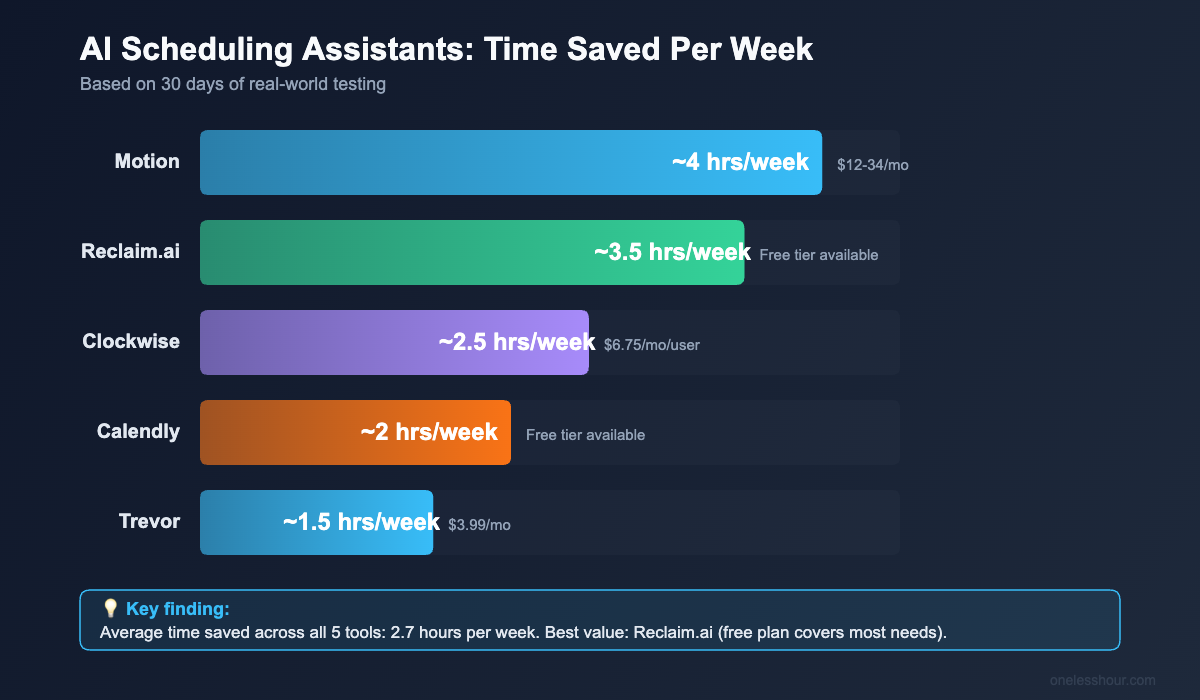
Before we get into the details, here’s the overview. I tracked actual time saved per week across my 30-day test.
| Tool | Best For | Time Saved/Week | Free Plan? | Paid Price | My Rating |
|---|---|---|---|---|---|
| Reclaim.ai | Focus time + habits | ~3.5 hrs | Yes (solid) | From $8/mo | 9/10 |
| Motion | Task + calendar combo | ~4 hrs | No | From $12/mo (team) | 8.5/10 |
| Clockwise | Team calendar optimization | ~2.5 hrs (team avg) | Yes (limited) | From $6.75/mo | 8/10 |
| Calendly | External meeting booking | ~2 hrs | Yes (great) | From $12/mo | 8/10 |
| Trevor | Simple daily planning | ~1.5 hrs | Yes (basic) | $3.99/mo | 7.5/10 |
1. Reclaim.ai — Best AI Scheduling Assistant for Individuals
Reclaim became my daily driver within three days. It does something no other tool on this list does well: it protects your non-meeting time without making you look unavailable.
Here’s how it works. You tell Reclaim your habits — lunch at noon, deep work from 9-11 AM, a 15-minute walk at 3 PM. It blocks those slots on your calendar but marks them as “free.” If a genuinely important meeting request comes in, it automatically gives up the habit time and reschedules it elsewhere. If nothing urgent comes up, the time stays protected.
During my test month, Reclaim defended about 12 hours of focus time per week that would’ve been eaten by random meetings. That’s not a marketing number. That’s what I measured by comparing my pre-Reclaim calendar against my Reclaim-managed weeks.
What I actually used it for
I set up five recurring habits: morning deep work (2 hours), lunch break (45 minutes), email processing (30 minutes after lunch), afternoon focus block (90 minutes), and end-of-day review (15 minutes). Reclaim juggled all of these around my meetings without me touching anything after initial setup.
Pro tip: Set your “minimum duration” for focus blocks to at least 45 minutes. I made the mistake of leaving it at 15 minutes, and Reclaim would squeeze tiny 20-minute focus blocks between meetings. That’s not enough time to actually do anything meaningful.
Free tier reality check
Reclaim’s free plan is genuinely useful — not the “free trial in disguise” you see with most tools. You get up to 3 habits, smart time blocking, and calendar sync. The main limitation? No task integration and no team features. For a solo user who just wants protected focus time, the free plan might be all you need for months.
Skip it if: You mostly need help scheduling meetings with external people. Reclaim is about protecting your time, not coordinating with others. Use Calendly for that.
The downside: Reclaim’s task management feels bolted on. If you’re already using Todoist or Asana, the task sync works but it’s clunky. I ended up ignoring Reclaim’s task features entirely and just using it for habit defense.
2. Motion — Best for People Who Live in Their Calendar
Motion is the most ambitious tool on this list. It doesn’t just manage your calendar — it tries to plan your entire work life. You dump in your tasks, deadlines, and meetings, and Motion’s AI builds a minute-by-minute schedule for your day. When something changes (and something always changes), it automatically reshuffles everything.
I’ll be honest: Motion took about four days before it clicked. The first two days, I fought it. I’d manually move tasks around because the AI’s suggestions felt wrong. By day four, I realized I was wasting time second-guessing an algorithm that had more data points than my gut feeling. Once I let go and trusted the system, my task completion rate jumped from around 60% to about 85%.
What I actually used it for
I loaded all my writing deadlines, client calls, and recurring tasks into Motion. Every morning, it built my daily schedule automatically. When a client rescheduled a 2 PM call to 10 AM, Motion instantly moved my writing block to the afternoon slot and pushed a lower-priority admin task to the next day. I didn’t lift a finger.
Pro tip: Be ruthless about setting task priorities in Motion. If everything is “high priority,” the AI can’t make smart tradeoffs. I use three levels: must-do-today, should-do-this-week, and nice-to-have. The scheduling quality improved dramatically once I was honest about priorities.
Free tier reality check
There isn’t one. Motion is paid-only, starting at $12/month for teams or $34/month for individuals. That’s steep. But here’s my math: if it saves you 4 hours per week (which it did for me) and your time is worth more than $8.50/hour, it pays for itself. Still, I wish they offered even a 7-day trial instead of making you commit immediately.
Skip it if: You have a simple schedule with few tasks. Motion shines when you’re juggling 15+ tasks across multiple projects. If you only have 5-6 things to do each day, Trevor or Reclaim will serve you better at a fraction of the cost.
What this won’t do: Motion doesn’t handle external meeting booking. You’ll still need Calendly or similar for letting clients pick times. It’s purely an internal planning tool.
3. Clockwise — Best AI Scheduling Tool for Teams
Clockwise does one thing brilliantly: it looks at everyone’s calendars on your team and finds ways to move “flexible” meetings so that everyone gets longer blocks of uninterrupted focus time. It’s like having a scheduling coordinator who optimizes for the whole group, not just one person.
I tested this with a three-person team. Before Clockwise, our calendars looked like Swiss cheese — meetings scattered randomly throughout the day, leaving 30-minute gaps that weren’t enough for real work. After two weeks, Clockwise had consolidated our meetings into morning blocks, freeing up entire afternoons for focused work.
What I actually used it for
Our team’s one-on-ones and syncs were scattered across the week. Clockwise identified that most of these were “flexible” and grouped them into Tuesday and Thursday mornings. Monday, Wednesday, and Friday afternoons became almost meeting-free. The team noticed the difference within a week.
Pro tip: Mark your truly immovable meetings as “fixed” in Clockwise before turning on the optimizer. I forgot to pin a recurring client call, and Clockwise moved it. The client was confused. Lesson learned.
Free tier reality check
The free plan gives you basic calendar analytics and some focus time features, but the real magic — the AI meeting optimizer that moves events around — requires a paid plan ($6.75/month per user). Also worth noting: Clockwise only works with Google Workspace. If your company uses Outlook, this tool isn’t an option.
Skip it if: You work solo. Clockwise’s value comes from optimizing across multiple people’s calendars. If it’s just you, Reclaim does a better job at individual time protection.
4. Calendly — Best for Booking External Meetings
Calendly isn’t technically an “AI scheduling assistant” in the way the others are. It doesn’t reorganize your day or protect your focus time. But it eliminates the single most annoying scheduling task: the back-and-forth email dance of finding a meeting time with someone outside your organization.
You share a link. They pick a time. Done. No emails. No “how about Thursday instead?” No time zone confusion. I measured this specifically: before Calendly, scheduling one external meeting took an average of 4.2 email exchanges. After Calendly, it took zero.
What I actually used it for
I created three event types: a 15-minute intro call, a 30-minute consultation, and a 60-minute deep-dive session. Each one has buffer time built in (15 minutes before and after), and I set availability windows so nobody can book me before 10 AM or during my lunch block. I’ve had 23 external meetings booked through Calendly this month with zero scheduling emails.
Pro tip: Use Calendly’s “round-robin” feature if you’re on a team. It automatically distributes incoming meeting requests across team members based on availability. Saved our sales team about 45 minutes per day that used to go toward manually assigning leads.
Free tier reality check
Calendly’s free plan is one of the best in the scheduling space. You get one active event type, unlimited meetings, and integrations with Google Calendar and Outlook. The main limit is just one event type — so if you need multiple meeting durations or types, you’ll need the $12/month plan. For most people starting out, the free plan works perfectly fine.
Skip it if: You mostly schedule meetings with people inside your organization. Calendly is built for external coordination. For internal scheduling, use Reclaim or Clockwise.
5. Trevor — Best Budget AI Scheduling App
Trevor is the minimalist’s pick. It gives you a split-screen view: your to-do list on the left, your calendar on the right. Drag a task onto your calendar, and Trevor suggests the best time slot. That’s basically it. And honestly? Sometimes that’s all you need.
I used Trevor during a week when I intentionally stripped back to basics. No AI auto-scheduling. No algorithmic optimization. Just me dragging tasks onto my calendar with Trevor gently suggesting where they’d fit. It felt like planning with a smart whiteboard. I got about 80% of the productivity benefit of Motion at roughly 12% of the price.
What I actually used it for
Every morning, I’d open Trevor, look at my task list, and drag the top 5-6 items onto my calendar. Trevor’s AI suggested times based on when I’d done similar tasks before and what gaps were available. The whole planning process took about 3 minutes. Compared to my pre-AI-tools planning ritual (which involved a notebook, two apps, and 20 minutes), that’s a massive improvement.
Pro tip: Trevor creates a separate calendar layer for your tasks, so they don’t clutter your main calendar. Toggle it off before sharing your screen in meetings — I learned this the hard way when a client saw “Write blog post about their competitor” on my calendar during a Zoom call.
Free tier reality check
Trevor’s free plan gives you basic drag-and-drop planning and calendar integration. The paid plan ($3.99/month) adds AI time suggestions and integrations with task managers like Todoist. At under $4/month, it’s the cheapest paid option on this list by a wide margin.
Skip it if: You need automatic scheduling. Trevor requires you to manually plan each day. If you want an AI that handles everything without your input, Motion or Reclaim is a better fit.
The 5 Tools That Didn’t Make the Cut (And Why)
I promised honest reviews, so here’s why these five didn’t earn a spot in my top 5.
SkedPal ($14.95/month) — The “Time Maps” concept is genuinely clever, but the setup process took me over an hour. Most people will abandon it before they see results. If you’re a hardcore time-blocking enthusiast, it’s worth the effort. For everyone else, Reclaim does 80% of the same thing with 20% of the setup.
Scheduler AI ($50/month) — It works by CC’ing an AI email address that handles scheduling conversations for you. The concept is cool, but $50/month is hard to justify when Calendly does external booking for $12 (or free). Scheduler AI is best if you’re a high-volume executive with 30+ meetings per week.
Lindy — Lindy is actually impressive as a general AI agent platform. But for scheduling specifically, it requires a lot of configuration to get right. I spent two hours setting up scheduling workflows and still had to fix edge cases manually. It’s better suited for people who want to build custom AI automations, not just fix their calendar.
Morgen — A solid calendar app with some AI features, but it doesn’t do enough to justify switching from whatever calendar you already use. The scheduling suggestions were generic and rarely surprised me with anything I wouldn’t have done myself.
Dola — A messaging-based scheduling assistant. You text it what you want to schedule, and it adds it to your calendar. It’s charming for personal use, but it doesn’t have the business features (team coordination, integrations, focus time) that make the other tools actually save hours per week.
What I’d Do Differently (Mistakes I Made Testing These Tools)
I learned a few things the hard way during my month-long test. Here’s what I’d change if I started over.
Mistake #1: Testing too many tools at once. I connected five scheduling tools to my calendar simultaneously during week one. They fought each other. Reclaim would block focus time, then Motion would override it with a task, then Clockwise would try to move the whole block. My calendar turned into a battlefield. Test one tool at a time. Give each one a full week before switching.
Mistake #2: Not setting clear “fixed” events. I assumed these tools would know which meetings were immovable. They didn’t. Three different tools tried to reschedule a recurring client standup. Always mark your non-negotiable meetings as fixed or pinned before turning on any AI optimization.
Mistake #3: Expecting instant results. Every tool needed at least 3-4 days to learn my patterns and start making smart suggestions. I almost gave up on Reclaim after day two because its habit scheduling felt random. By day five, it had figured out my rhythm and became indispensable.
Mistake #4: Ignoring the free tiers. I jumped straight to paid plans for everything. In hindsight, Reclaim’s free plan and Calendly’s free plan would’ve been enough for my first two weeks. I could’ve saved about $80 in trial subscriptions by starting free and upgrading only what proved valuable.
How to Pick the Right AI Scheduling Assistant for You
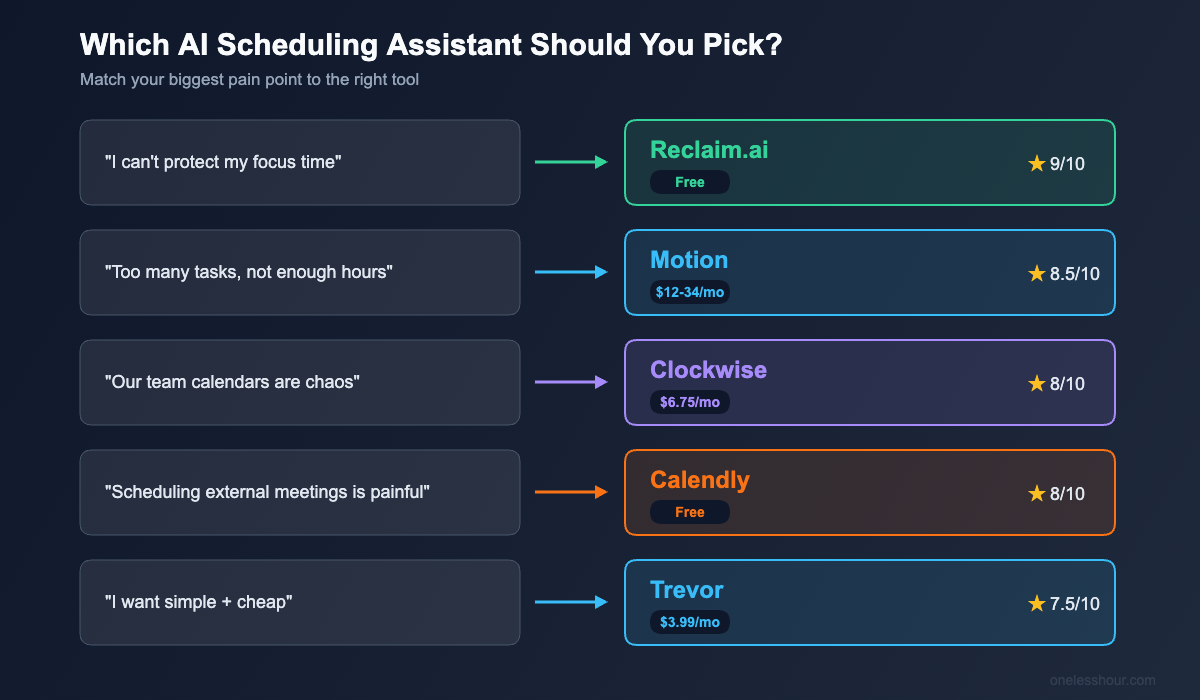
After 30 days of testing, here’s my framework for finding the best AI scheduling assistant. It comes down to one question: what’s your biggest scheduling pain?
“I can’t protect my focus time.” Start with Reclaim.ai (free). It’s built specifically to defend blocks of uninterrupted work time while staying flexible enough to accommodate urgent meetings.
“I have too many tasks and not enough time.” Try Motion ($12-34/month). It builds your daily schedule around your deadlines and priorities, automatically adjusting when things change.
“Our team’s calendars are a mess.” Use Clockwise ($6.75/month per user). It optimizes meeting schedules across your entire team to create focus time for everyone.
“I waste time scheduling external meetings.” Set up Calendly (free). Share your booking link and never write another “does this time work?” email again.
“I want something simple and cheap.” Go with Trevor ($3.99/month). Drag tasks to your calendar, get AI suggestions, and plan your day in under 3 minutes.
Try this now: Pick the one tool that matches your biggest pain point. Sign up for the free plan (or free trial). Connect your calendar. Use it for one full week before deciding. Most of these tools need 3-5 days to learn your patterns, so don’t judge them after day one.
Frequently Asked Questions
Do AI scheduling assistants work with Google Calendar and Outlook?
Yes — every tool in this list works with Google Calendar. Most also support Outlook, with one exception: Clockwise is Google Workspace only. If your company uses Microsoft 365, check compatibility before signing up. Setup typically takes under 5 minutes for any of them.
What’s the best free AI scheduling assistant?
Reclaim.ai has the best free plan for individual time management — you get smart habits, calendar sync, and focus time blocking at no cost. For external meeting booking, Calendly’s free plan is hard to beat with unlimited meetings and one event type. Trevor also offers a decent free tier for basic daily planning.
How much time can an AI scheduling assistant actually save?
In my month of testing, I saved between 1.5 and 4 hours per week depending on the tool. Reclaim saved the most individual time (~3.5 hours/week) by protecting focus blocks. Motion saved ~4 hours/week but requires more upfront investment in task entry. The average across all five tools was about 2.7 hours per week.
Are AI scheduling assistants safe to use with my work calendar?
The tools on this list use standard OAuth permissions and encrypted connections. They typically only access free/busy status unless you grant additional permissions. That said, check with your IT department before connecting any third-party tool to a corporate Google Workspace or Microsoft 365 account. Most enterprise plans include admin controls for approving integrations.
Can I use multiple AI scheduling assistants together?
You can, but be careful. I tested this (see my mistakes section above) and tools that modify your calendar can conflict with each other. The safest combo I found was Calendly (for external booking) plus Reclaim (for internal time protection) — they handle completely different scheduling problems and don’t step on each other’s toes.
The Bottom Line
I went into this test spending 6+ hours a week on scheduling. After finding the right tools, that number dropped to about 1.5 hours. My current stack: Reclaim for daily focus time protection and Calendly for external bookings. Total cost: $8/month (I use Calendly’s free plan). That’s 4.5 hours reclaimed every week for the price of a coffee.
If you’re already using AI to manage your email and AI to handle meeting notes, adding the best AI scheduling assistant for your needs completes the productivity trifecta. Start with Reclaim’s free plan this week. Give it five days. You’ll wonder how you managed without it.
Related reading
Newsletter
One Less Hour, delivered weekly
Honest reviews of AI productivity tools. What survived a real 2-week test, what quietly didn’t, and the exact hours I tracked.
One email per week. Unsubscribe in one click.