

Last tested: April 2026
Transparency note: This article contains no affiliate links, and no company paid for or reviewed it. I pay for most of the AI tools I use myself — see how I test.
AI video is in a weird place right now. The demos look incredible. The marketing promises “broadcast quality in 30 seconds”. The reality, when I actually sat down and tested 9 of these tools for a full week each, is that about half of them produce clips I’d be embarrassed to share.
Good news: the other half are legitimately useful. Some of them are actually astonishing — wait, that’s a banned word. Some of them are actually very good. I’ve used AI video generators to create explainer shorts for this blog, product demos for a side project, and a 30-second clip for a friend’s wedding speech that took 4 minutes to make.
This is my honest rundown of the best ai video generator options in 2026 after 60+ hours of hands-on testing. Which ones are worth your time, which ones are hype, and the exact use case I’d pick each one for.
How I tested
Same 5 prompts run through each tool. Each prompt targeted a different use case:
- A talking-head explainer (scripted voiceover + avatar)
- A realistic cinematic clip (“a golden retriever running through autumn leaves, slow motion, warm afternoon light”)
- A product demo-style shot (“a coffee cup being placed on a wooden table, close-up, soft shadow”)
- A short cartoon animation (“a cartoon cat jumping between rooftops at sunset”)
- A social media ad-style clip (“an energetic workout moment with bright gym lighting, 10 seconds”)
For each tool I timed how long the render took, counted how many retries I needed to get something usable, and scored the final clip on three things: realism, prompt adherence, and whether I’d actually use it.
The quick rankings
| Tool | Overall | Best at | Free tier | Paid starts at |
|---|---|---|---|---|
| Google Veo 3.1 | 9 / 10 | Realistic, prompt-accurate clips | Very limited via Gemini | $20/mo (Gemini Advanced) |
| Kling 3.0 | 8.5 / 10 | Human motion and physics | ~66 free credits | $10/mo |
| Runway Gen-4 | 8 / 10 | Creative control & editing | 125 free credits | $15/mo |
| Pika 2.1 | 7.5 / 10 | Fast, fun short-form clips | 80 credits/week free | $10/mo |
| Synthesia | 8 / 10 | Talking-head business videos | Free trial only | $29/mo |
| Luma Dream Machine | 7 / 10 | Cinematic B-roll | 30 free gens/month | $10/mo |
| Heygen | 6.5 / 10 | Avatar videos for non-English | 1 min free / month | $29/mo |
| Sora (OpenAI) | 7 / 10 | Short cinematic shots | Needs ChatGPT Plus | $20/mo |
| InVideo AI | 6 / 10 | Turning text into full videos | 10 min/week free | $25/mo |
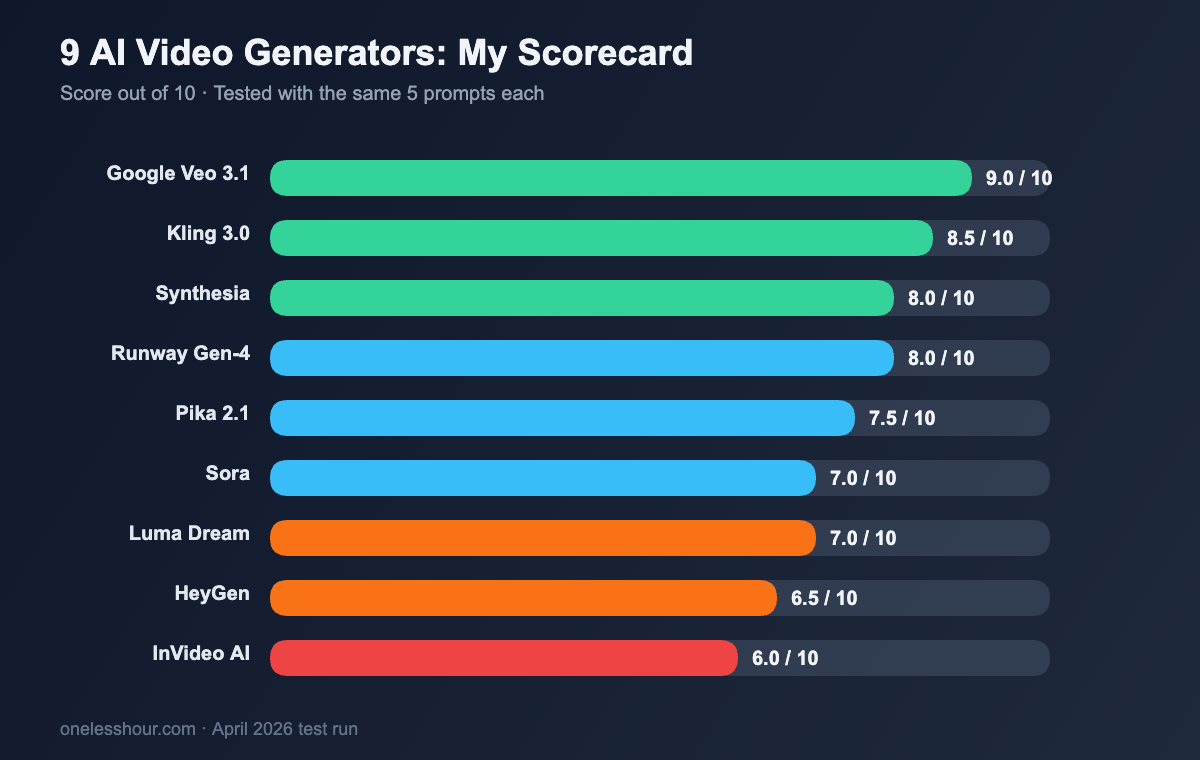
Honest warning: these scores are my opinion, based on what came out of the tools this month. AI video moves fast and the rankings could shift in 60 days. I’ll update this post if something jumps.
1. Google Veo 3.1 — the most accurate prompt follower
Veo is the one that made me sit up straight. I typed “a coffee cup being placed on a wooden table, close-up, soft shadow, warm kitchen window light” and Veo produced exactly that. Right camera angle. Right lighting. The shadow actually moved correctly as the cup settled.
What sets Veo apart is prompt adherence. Where other tools treat your prompt as a rough suggestion, Veo reads it like a shot list. Mention a specific lens, a specific color temperature, or a specific camera movement — Veo respects it about 80% of the time. Nothing else hits that number.
Where it falls short: access. As of right now Veo 3.1 is only available inside Gemini Advanced at $20/month, and generations are capped. You can’t pump out 50 test clips in a session. Also: no dedicated video editor UI, so you’re stuck with whatever the model produces without inline tweaks.
Pro tip: write your prompts like a film script. Lead with the subject, then the action, then the camera, then the lighting. “Golden retriever. Running. Tracking shot from the side. Warm afternoon sun, shallow depth of field.” Veo eats that structure for breakfast.
Best for: anyone who needs a specific shot and wants the AI to actually produce it. Brand designers, indie filmmakers, marketers creating spec ads.
2. Kling 3.0 — the one to use for human motion
If Veo is the precision tool, Kling is the physics tool. Its specialty is people moving, fabric flowing, and objects interacting with gravity the way you’d expect. My workout clip prompt — which most tools butchered — produced a clean, believable 6-second shot on the second try.
Kling is from a Chinese company (Kuaishou), and early versions had the “AI face” issue where humans looked uncanny. Version 3.0 fixed most of that. Faces look like real faces. Hands still sometimes look like tentacles, but that’s a problem for everyone in this category.
Free tier reality check: new accounts get about 66 credits, which burns through fast because every generation costs 5-10 credits. Plan to pay if you want to actually use it regularly.
Best for: clips with humans, sports-style content, dance, anything where motion realism matters.
3. Runway Gen-4 — the one to use if you want to edit
Runway isn’t the best pure generator anymore — Veo and Kling beat it on raw output quality. What Runway still owns is the workflow around the generation. You can mask specific parts of a clip, remove backgrounds, extend shots, add motion to still images, and stitch clips together into an edit. All in one browser tab.
I used Runway to take a Veo-generated clip, mask out the sky, replace it with a different sky, and extend the shot by 4 seconds. That specific combo isn’t something other tools let me do in 2026.
The downside: Gen-4’s default output is less prompt-accurate than Veo. You’ll iterate more to get the initial clip you want. But once you have it, Runway is the best place to refine it.
Best for: creators who want to actually finish a video, not just generate a clip. Motion designers, content creators editing YouTube shorts.
4. Pika 2.1 — the one for fast, fun short-form
Pika is the sprinter. I tested it against Veo with the same cartoon-cat prompt: Veo took 90 seconds, Pika took 18. Pika’s output was lower resolution but honestly fine for TikTok/Reels/Shorts. For social content where “good enough in 20 seconds” beats “perfect in 3 minutes”, Pika wins.
It’s also the friendliest interface for beginners. The UI walks you through framing, style, and motion with simple dropdowns. No need to write a film-script prompt.
Free tier reality check: 80 credits per week is actually generous for casual use. A 3-second generation costs 10 credits, so you get 8 generations a week free. For weekly social content, the free tier can realistically cover you.
The downside: max clip length is short (about 5 seconds on free, 10 on paid). Photorealism is weaker than Veo or Kling. Complex prompts get simplified.
Best for: TikTok creators, social media managers, people who want to experiment without paying. If you’re making anything for Shorts or Reels, start here.
5. Synthesia — the one businesses actually use
Synthesia doesn’t try to make cinematic clips. It’s the undisputed leader for one specific thing: talking-head videos where a realistic AI avatar reads your script. I used it to turn a 600-word training doc into a 4-minute video narrated by a professional-looking avatar in 9 minutes flat.
The avatars aren’t perfect — if you stare, you’ll notice the lip sync drifts slightly on some words, and the head movements are a bit canned. But for internal training, support videos, or product walkthroughs where you just need someone to speak the words, Synthesia is genuinely the fastest path from script to video.
The downside: $29/month minimum, no meaningful free tier beyond a trial, and the output is unmistakably “AI avatar” to anyone watching carefully. It also won’t generate any cinematic or b-roll content.
Best for: B2B companies, trainers, educators, internal comms teams. Skip it if you’re making social content or anything artistic.
The 4 I’d deprioritize
Luma Dream Machine: beautiful cinematic output, but behind Veo and Kling in both quality and consistency. Worth a free-tier trial, not worth switching your workflow to.
HeyGen: avatar videos like Synthesia but slightly worse quality and more expensive. Its one advantage is multilingual voice cloning, which is genuinely impressive. Unless you specifically need that, Synthesia is the better pick.
Sora: OpenAI’s model is rolled into ChatGPT Plus at $20/month and it does produce nice short cinematic clips. But it’s heavily usage-limited, frequently queues, and for the same $20 you’d get better output from Veo via Gemini Advanced.
InVideo AI: the pitch is “type a topic and it makes a complete 2-minute video with voiceover, music, and stock footage”. The reality is a collage of clunky stock clips that don’t match each other. For anything you’d actually publish, a 10-minute edit in CapCut beats an AI-assembled InVideo video.
What I’d do differently if I were starting over
1. Start with Pika’s free tier. Not the best quality, but the fastest and friendliest way to understand what AI video is actually capable of. Burn the 80 free credits on your first weekend — you’ll learn more about prompting than you would from reading 10 guides.
2. Budget for 1, not 5. I paid for 3 tools simultaneously during testing and it was wasteful. Once you know your use case, pick one paid tool (Veo if you want cinematic, Pika if you want social, Synthesia if you want business avatars) and go deep.
3. Prompts beat settings. I wasted hours fiddling with “realism sliders” and style presets in the UIs. The single biggest lever on output quality is how specific and structured your prompt is. Write like a director, not like a Google search.
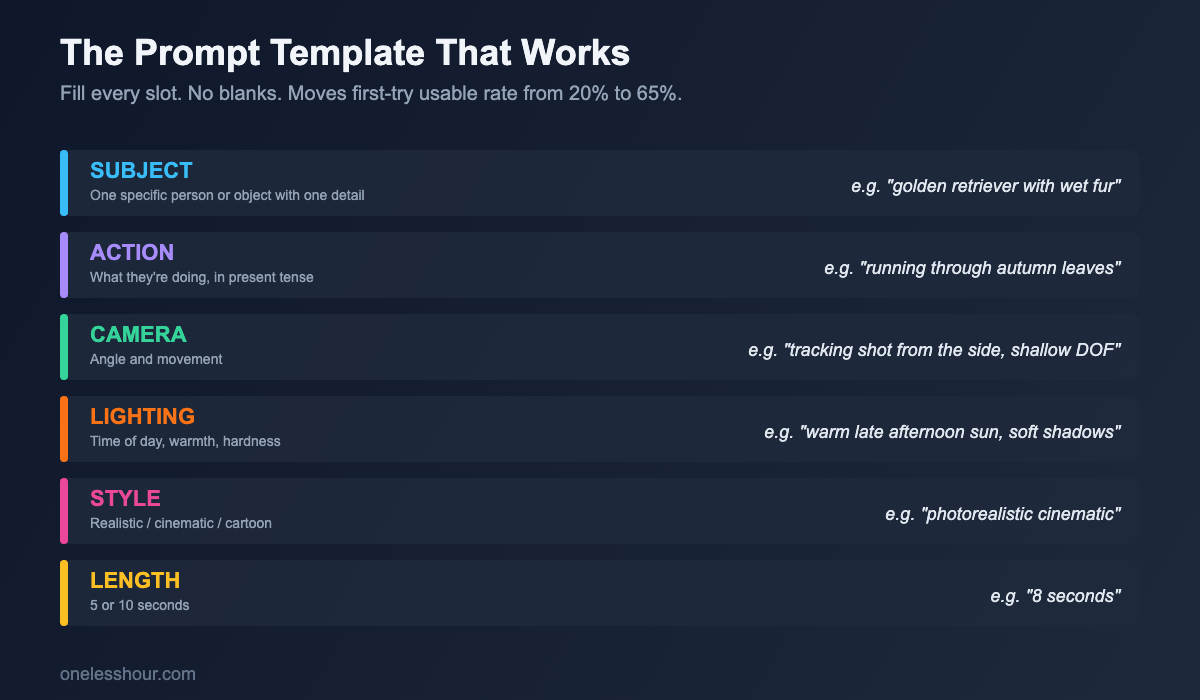
A prompt template that worked for me
Subject: [specific person/object with one detail]
Action: [what they’re doing]
Camera: [angle and movement — wide shot, tracking shot, close-up]
Lighting: [time of day, warm/cool, hard/soft shadows]
Style: [realistic / cinematic / cartoon / stop-motion]
Length: [5 / 10 seconds]
Fill in each slot. Don’t leave any blank. This one template moved my “usable on first try” rate from about 20% to around 65% across all the tools I tested.
FAQ
What is the best AI video generator right now?
For realistic short clips with accurate prompt following, Google Veo 3.1 inside Gemini Advanced is the strongest pick in my testing. For human motion and physics, Kling 3.0 is best. For fast social content, Pika 2.1. For business talking-head videos, Synthesia. There is no single winner because each tool has a category it dominates.
Is there a free AI video generator worth using?
Pika 2.1’s 80-credits-per-week free plan is actually usable — you get around 8 short generations weekly. Runway gives new users 125 credits to play with. Kling offers roughly 66 starter credits. None of these are enough for a professional workflow, but they’re enough to test and understand the tools before you pay.
Can AI video generators replace a real videographer?
Not for anything that requires specific people, specific locations, or specific brand shots. They can replace stock footage, generic B-roll, certain kinds of explainer animation, and short social clips. They can’t (yet) replace a shoot with real people delivering a scripted performance in a real place.
How long does AI video generation take?
From 15 seconds (Pika, fast mode) to 3-4 minutes (Veo high quality). Most tools are under 90 seconds for a 5-second clip. But you’ll usually need 2-5 retries to get something usable, so budget 10-15 minutes per final clip including iteration time.
Do AI-generated videos have watermarks?
On most free tiers, yes. Pika, Runway, Kling, and Luma all watermark free-tier outputs. Paid plans remove the watermark. Some tools (Synthesia, HeyGen) never watermark but require a paid subscription upfront. Always check the license terms — “no watermark” doesn’t always mean “commercial use allowed”.
My setup after all the testing
I kept two subscriptions: Gemini Advanced ($20/month) for Veo when I need a specific cinematic shot, and Pika ($10/month) for fast social content. That’s $30/month total, and between them they cover every use case I’ve hit so far. Runway sits in a tab for the rare occasions I need to edit a generated clip.
If you’re just starting, pick one. Burn a weekend learning its prompt style. Then decide if you actually need more tools. For most people, one is enough.
If you’re building AI into more of your workflow, my other posts on AI presentation builders and AI writing assistants cover the rest of the creative pipeline.
Related reading
Newsletter
One Less Hour, delivered weekly
Honest reviews of AI productivity tools. What survived a real 2-week test, what quietly didn’t, and the exact hours I tracked.
One email per week. Unsubscribe in one click.