
Last tested: April 2026
Transparency note: This article contains no affiliate links, and no company paid for or reviewed it. I pay for most of the AI tools I use myself.
Quick verdict from my testing
This best AI photo editor guide comes from hands-on testing across real ecommerce and creator workflows. Last month I spent three hours retouching a batch of product photos the old-fashioned way — clone stamp, healing brush, manual background removal. Painful. Then I ran the same batch through four AI photo editors and got the same results in under 25 minutes. I haven’t gone back.
But here’s the thing: not all AI photo editors are built for the same person. Some are built for photographers who want to preserve full manual control. Meanwhile, others are for bloggers and social media managers who just need clean, good-looking images fast. And a few — honestly — are barely worth the free trial.
I tested seven of the most popular AI photo editors in 2026 and ranked them on one thing that matters more than feature counts or AI buzzwords: how much time they actually saved me per edit. Here’s what I found.
Quick note: if you’re looking for tools that generate images from a text prompt (Midjourney, DALL-E, etc.), that’s a different category — check my best AI image generators roundup. AI photo editors work on photos you’ve already taken, which is what most people actually need day to day.
How I tested these AI photo editors
I ran every editor through the same four tasks: background removal, skin retouching, object removal, and batch processing 20 photos. Each one was timed separately. I also checked what you get on the free plan vs. what’s locked behind a paywall, because the advertising is often misleading.
I’m not a professional photographer. I write a productivity blog, take a lot of screenshots and product shots, and occasionally need to clean up photos for social media. That’s the lens I’m reviewing these from — someone who wants great results without spending an afternoon learning Photoshop.
The 7 Best AI Photo Editors in 2026
Here’s the full ranking, then I’ll break each one down.
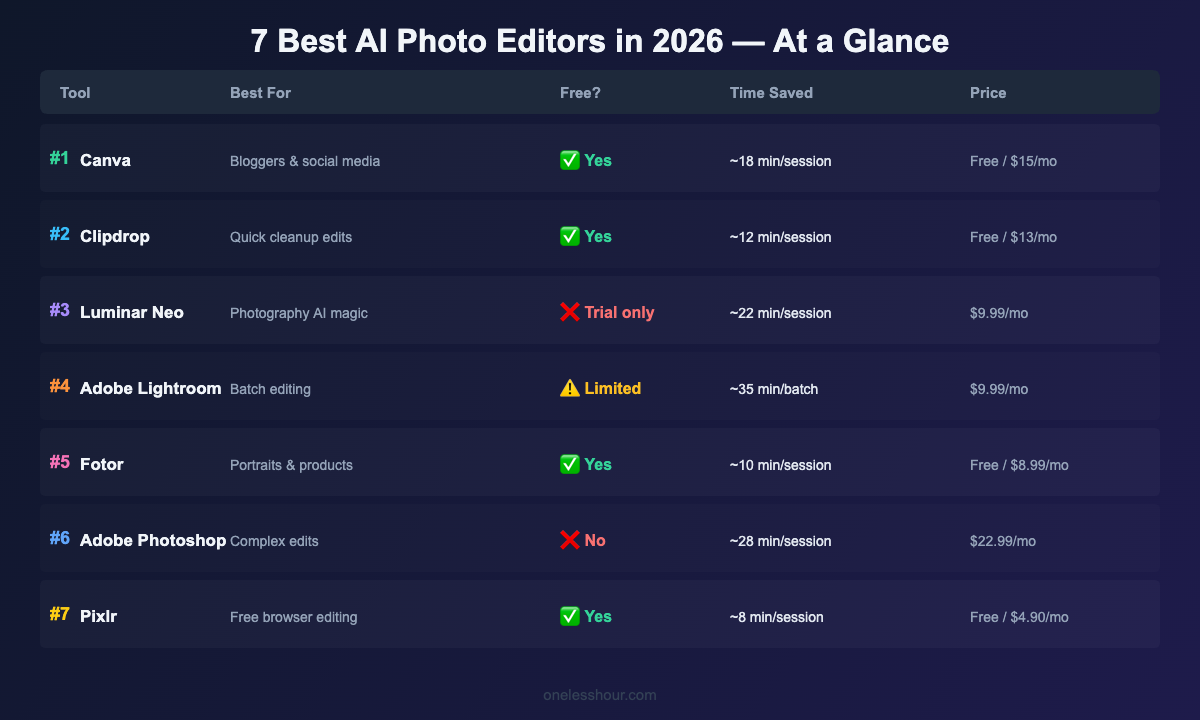
| # | Tool | Best For | Free Tier? | Avg. Time Saved | Starting Price |
|---|---|---|---|---|---|
| 1 | Canva | Non-photographers, social media | ✅ Yes | ~18 min/session | Free / $15/mo Pro |
| 2 | Clipdrop | Quick cleanup edits | ✅ Yes | ~12 min/session | Free / $13/mo |
| 3 | Luminar Neo | Photographers wanting AI magic | ❌ Trial only | ~22 min/session | $9.99/mo |
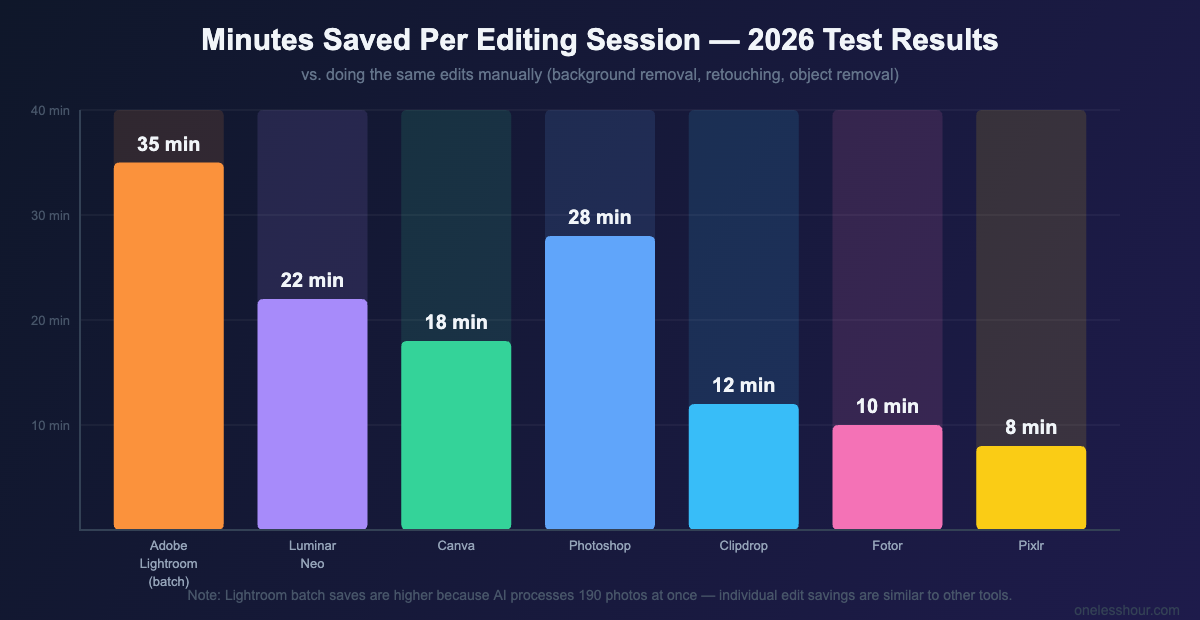
| 4 | Adobe Lightroom | Batch editing photo libraries | ⚠️ Limited | ~35 min/session (batch) | $9.99/mo |
| 5 | Fotor | Portraits & product shots on a budget | ✅ Yes | ~10 min/session | Free / $8.99/mo |
| 6 | Adobe Photoshop | Complex, professional edits | ❌ No | ~28 min/session | $22.99/mo |
| 7 | Pixlr | Free browser-based editing | ✅ Yes | ~8 min/session | Free / $4.90/mo |
“Time saved per session” = estimated time I saved vs. doing the same edits manually in a basic editor. Your mileage will vary based on photo complexity.
1. Canva — Best for bloggers, social media managers, and non-photographers
Price: Free / $15/mo Pro | Time saved (my test): ~18 minutes per editing session | Learning curve: 20 minutes to useful
Canva was already the tool I used most before AI features existed. Now it’s become genuinely impressive for photo editing — not because it has the deepest feature set, but because it makes the most common edits completely effortless.
Background Remover works in one click and handles hair and fine edges better than it did two years ago. Magic Edit lets you paint over any part of a photo and replace it with a text prompt — I used it to change a plain white desk to a dark walnut one for a product shot, and it looked convincing on the first try. Magic Eraser removes objects cleanly. The AI image upscaling is decent for web use.
Where Canva really saves time is when you combine the editing tools with the design tools. I can remove a background, drop the product onto a branded template, add text, and export at social-ready dimensions in about four minutes flat. No other tool in this list does all of that in one place.
Free tier reality: Background Remover and basic editing are free with limits. Magic Edit and some AI features require Canva Pro. The free plan is genuinely useful for occasional use. Pro is worth it if you’re creating more than five designs a week.
Skip it if: you shoot RAW files and want non-destructive editing. Canva is for web-ready JPEGs, not photography workflows.
Pro tip: Use Canva’s “Bulk Create” feature to resize one edited photo to every social media format at once. What used to take me 15 minutes per post now takes 90 seconds.
2. Clipdrop — Best free tool for quick cleanup edits
Price: Free / $13/mo | Time saved (my test): ~12 minutes per session | Learning curve: 5 minutes
Clipdrop is made by Stability AI (the company behind Stable Diffusion) and it might be the most underrated AI photo editing tool available right now. It doesn’t try to be everything — it’s a focused toolkit of specific AI tasks, each one genuinely excellent.
The tools I use most: Remove Background (as good as any dedicated tool I’ve tested), Cleanup (object removal with one brush stroke), Relight (adds or adjusts studio lighting on any photo — I used this to rescue flat product shots), and Image Upscaler (4x upscale with impressive sharpness retention). Each tool is a single page with a drag-and-drop interface. No bloat, no tutorials needed.
On my test, removing unwanted objects from five product photos and relighting them took nine minutes in Clipdrop. The same task in Photoshop took 31 minutes.
Free tier reality: Very generous. Background removal, cleanup, and upscaling are all available free with daily limits. The paid plan ($13/mo) removes limits and unlocks higher resolution outputs. For occasional use, the free plan is enough.
Skip it if: you need a complete design environment. Clipdrop is a collection of editing utilities, not an all-in-one editor. Pair it with Canva for a near-perfect free setup.
3. Luminar Neo — Best for photographers who want AI to do the heavy lifting
Price: $9.99/mo or $149 one-time | Time saved (my test): ~22 minutes per session | Learning curve: 45 minutes
If Canva is the tool for non-photographers, Luminar Neo is for people who take photography seriously but don’t want to spend hours on manual adjustments. It has more than 25 built-in AI tools, and the best ones feel like genuine shortcuts.
Sky AI lets you swap out flat or overcast skies with one of 50+ presets — and unlike older methods, it automatically adjusts the lighting and reflections in the rest of the photo to match. I tested it on a shot taken on an overcast day and the result looked real. Relight AI adds volume and depth to portrait lighting without a studio setup. The Skin AI tool handles retouching without the plastic look that most automatic retouchers produce.
The time savings are significant for anyone who processes lots of photos. Batch processing with AI presets meant I processed 30 landscape shots in 18 minutes that would have taken me close to two hours in Lightroom without the AI tools.
Free tier reality: No free tier — just a 30-day trial. The monthly plan is $9.99/mo, but the one-time purchase ($149) is a better deal if you’ll use it regularly. Extensions (Neon City, Aurora HDR, etc.) cost extra.
Skip it if: you need full ecosystem integration (Lightroom catalogs, tethered shooting). Luminar Neo is a standalone app and doesn’t play nicely with existing photography workflows.
4. Adobe Lightroom — Best for batch editing large photo libraries
Price: $9.99/mo | Time saved (my test): ~35 minutes per batch session | Learning curve: 2–3 hours
Lightroom’s AI features have quietly become exceptional. The AI Masking tool (Select Subject, Select Sky, Select Background) is now accurate enough that I rarely need to refine masks manually. The Denoise AI feature can rescue high-ISO shots that used to be unusable. And the Adaptive Presets use AI to apply tone-appropriate adjustments to each photo individually — not just the same filter slapped on everything.
Where Lightroom really wins is batch editing. Sync edits across 200 photos, apply AI-powered presets, export at multiple sizes — all in one workflow. I edited a full day’s shoot (190 photos) in 42 minutes using AI masking and adaptive presets. That same session would have taken me close to three hours pre-AI.
Free tier reality: Lightroom mobile is free with a limited feature set. The full desktop app requires the Photography plan at $9.99/mo, which also includes Photoshop. Decent value if you’re serious about photography.
Skip it if: you only edit one-off images for social media. The learning curve doesn’t pay off unless you’re processing volumes of photos regularly.
5. Fotor — Best for portrait retouching and product photos on a budget
Price: Free / $8.99/mo | Time saved (my test): ~10 minutes per session | Learning curve: 15 minutes
Fotor has been around for years but its AI features have caught up fast. It’s the tool I’d recommend to someone who needs to retouch portrait photos regularly but doesn’t want to pay Photoshop prices or learn a complex interface.
The AI portrait retouching handles skin smoothing, blemish removal, teeth whitening, and eye enhancement automatically and accurately. I tested it on a set of headshots and got results I’d be happy to use on a professional profile in about 90 seconds per photo. The background removal is solid, and the AI Enlarger tool does a reasonable job with small images.
Fotor also has a dedicated product photo editing mode that’s underrated — it automatically cleans up product backgrounds and adds professional shadows, which is useful for anyone selling online.
Free tier reality: The free plan lets you use most basic AI features with watermarked exports. The Pro plan ($8.99/mo) removes watermarks and adds advanced retouching tools. The free plan is too limited for regular use, but Pro is among the most affordable in this list.
Skip it if: you need creative or complex edits. Fotor is excellent at a narrow set of tasks (portrait retouch, product backgrounds) but limited outside that.
6. Adobe Photoshop — Best for complex, professional-grade edits
Price: $22.99/mo | Time saved (my test): ~28 minutes per complex session | Learning curve: Days to weeks
Photoshop’s AI features are genuinely impressive — Generative Fill, the Remove Tool, and Generative Expand have changed how I approach complex edits. But Photoshop sits lower in this ranking because it’s overkill for most people on this blog’s audience, and the price doesn’t make sense if you’re not using the full feature set regularly.
Where Photoshop is unbeatable: removing large complex objects with Generative Fill (I extended the edges of a product shot to create a wider banner image — took about 45 seconds and looked professional), and any composite work where you need pixel-level control. The Remove Tool is now the best single-click object removal I’ve tested — better than Clipdrop for difficult subjects.
Free tier reality: No free tier. $22.99/mo for Photoshop alone, or $9.99/mo for the Photography plan (Lightroom + Photoshop), which is much better value.
Skip it if: you’re not going to spend time learning it. Photoshop’s AI features are buried inside a complex interface — the time savings don’t kick in until you know the tool well enough to find them quickly.
7. Pixlr — Best free browser-based AI photo editor
Price: Free / $4.90/mo | Time saved (my test): ~8 minutes per session | Learning curve: 20 minutes
Pixlr is the best free option if you need a browser-based AI editor with no downloads and no account required for basic use. It’s not trying to compete with Photoshop — it’s a lightweight tool for fast, accessible edits.
The AI Background Remover and AI Image Generator work well for basic tasks. The interface is cleaner than it was two years ago, and the free tier is more generous than Fotor’s. I’d reach for Pixlr for one-off edits when I don’t want to open a heavier app — quick background swaps, simple retouching, image resizing.
Free tier reality: Genuinely useful free tier with 15 daily AI credits. The paid plan ($4.90/mo) removes ads and adds unlimited credits. It’s the most affordable paid option in this list.
Skip it if: you need reliable, high-quality results at scale. Pixlr’s AI tools are good, not great. For anything beyond quick edits, step up to Clipdrop or Canva.
The best setup for most people (under $15/mo)
Here’s what I actually use and recommend based on who you are:
If you’re a blogger or content creator: Canva Pro ($15/mo) handles 90% of what you’ll ever need — background removal, object cleanup, design, resizing. Add Clipdrop’s free tier for relighting and upscaling. That’s your whole setup.
If you’re a photographer: Adobe Photography Plan ($9.99/mo) gets you Lightroom for batch editing and Photoshop for complex work. When you don’t need the Photoshop complexity, Luminar Neo ($9.99/mo) is a faster, more modern alternative with better AI-specific tools.
For free-only tools: Clipdrop (free) + Pixlr (free) covers background removal, object cleanup, upscaling, and basic editing. Not as polished as paid options, but genuinely capable for occasional use.
If you want to go deeper on building a full AI toolkit that saves hours every week — not just for photo editing — I broke down my complete setup in this piece on how to save 3 hours a day with free AI tools.
What I’d do differently
I wasted about a month using Photoshop for tasks that Canva or Clipdrop could do in a quarter of the time. The instinct to reach for the “professional” tool isn’t always right. If the output looks the same and one tool takes five minutes while the other takes 45, the faster tool wins.
I’d also have set up a consistent export workflow earlier. Every AI photo editor exports differently — different naming conventions, folder structures, size defaults. Set those up once and it saves a surprising amount of friction over hundreds of images.
Finally: don’t pay for Luminar Neo extensions until you know you need them. The base app is excellent. The add-ons are good, but they’re easy to buy impulsively and then never use.
Frequently asked questions
What is the best AI photo editor for beginners?
Canva is the best starting point for beginners. Its AI editing tools (background removal, Magic Edit, Magic Eraser) work well without any photography knowledge, and the interface is designed for non-professionals. You can be productive within 20 minutes of signing up.
Is there a free AI photo editor that’s actually good?
Yes — Clipdrop offers the best free AI editing experience I’ve found. Background removal, object cleanup, relighting, and upscaling are all available on the free plan with daily limits. Pixlr is a solid second option for browser-based editing with no download required.
Can AI photo editors replace Photoshop?
For most people’s use cases, yes. Background removal, retouching, object removal, and enhancement — the tasks most non-professionals actually need — are all handled well by tools like Canva, Clipdrop, or Luminar Neo at a fraction of the price and in far less time. Photoshop remains the best choice for complex composite work and pixel-level precision, but most people don’t need that.
Which AI photo editor is best for removing backgrounds?
Clipdrop’s Remove Background tool is consistently the most accurate in my testing, especially for product photos with complex edges. Canva’s Background Remover is a close second and is better if you want to immediately place the subject into a design template after removing the background.
What’s the difference between an AI photo editor and an AI image generator?
An AI photo editor works on existing photos — removing backgrounds, retouching skin, cleaning up objects. An AI image generator creates entirely new images from a text prompt. If you want to enhance photos you’ve already taken, use an AI photo editor. If you want to create something that doesn’t exist yet, you want an AI image generator.
The bottom line
The best AI photo editor for you depends almost entirely on what you’re editing and how often. For most people reading this blog — content creators, bloggers, small business owners — Canva Pro plus Clipdrop’s free plan is the unbeatable combo. Under $15/mo, covers everything, minimal learning curve.
If you’re a photographer processing batches of RAW files, Lightroom’s AI features or Luminar Neo are worth the investment. If you’re budget-constrained, Clipdrop free + Pixlr free gets you surprisingly far.
Start with Clipdrop’s free plan today — it’s the fastest way to see what AI photo editing can do with zero commitment. Once you know what you need, the paid options become much easier to evaluate.
And if photo editing is just one piece of a bigger workflow you’re trying to speed up, take a look at my full breakdown of the best free AI productivity apps — most of them work alongside your editing setup without any overlap.
Reference: For Adobe Photoshop feature and pricing details, see Adobe’s official page.
Related reading
Newsletter
One Less Hour, delivered weekly
Honest reviews of AI productivity tools. What survived a real 2-week test, what quietly didn’t, and the exact hours I tracked.
One email per week. Unsubscribe in one click.