
Transparency note: This article contains no affiliate links, and no company paid for or reviewed it. I pay for most of the AI tools I use myself — see how I test.
I’ve been using Notion AI every single workday for the past 8 months. Not the “I tried it twice and wrote a review” kind of use — the “it’s open in a browser tab right now and I used it three times in the last hour” kind.
Most how-to guides on this topic just list every feature the marketing page mentions. That isn’t useful, because half of those features are either broken, redundant, or stuff you’ll never touch. What you actually want to know is: which 10 or 12 things is this tool genuinely good at, and what are the exact prompts that make them work?
That’s what this guide is. How to use Notion AI the way I actually use it, with the 12 features that earn their keep, the 4 I stopped bothering with, and the exact prompts I type for each one. Total time saved this month: around 14 hours.
First, the one-minute setup
Notion AI isn’t a separate app. It’s baked into every page of your Notion workspace. Here’s how to actually open it:
- On any page: press
spaceon an empty line. The AI block appears instantly. - On selected text: highlight a paragraph and click “Ask AI” in the floating toolbar.
- From anywhere: keyboard shortcut
Cmd + J(Mac) orCtrl + J(Windows) opens the Notion AI chat sidebar.
Free tier reality check: Notion gives everyone a small number of AI responses free as a trial (roughly 20 per member). After that, full Notion AI comes with the Business plan (about $20 per member per month billed yearly) or Enterprise. Notion no longer sells AI as a separate add-on. If you’re on the free plan, you’ll hit the cap fast — I did by day three.
The 12 features I actually use (ranked by how often)
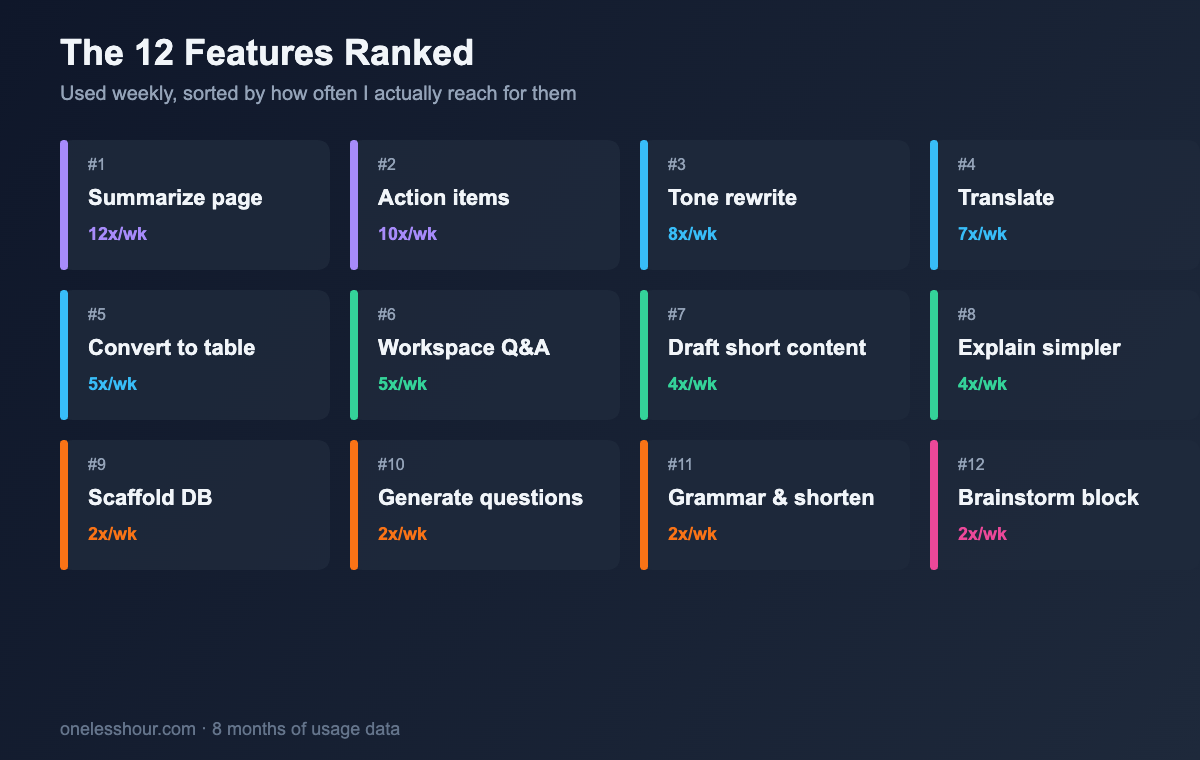
1. Summarize any page (used ~12 times a week)
This is the feature that justifies the whole subscription for me. I have project pages with 50+ updates, meeting notes, and random links dumped in over months. When I come back to a project I haven’t touched in 3 weeks, I can’t re-read the whole thing.
Instead, I hit space at the top of the page, pick “Summarize”, and 4 seconds later I have a 3-paragraph overview with the current status, the open questions, and the next steps.
Exact prompt I use: “Summarize this page in 3 sections — what we’ve decided, what’s still open, and what the next 3 action items are. Keep it under 200 words.”
Time saved per use: about 8 minutes of re-reading. Pro tip: add a /toggle block at the top of long pages called “AI summary” and paste the output there. Update it weekly.
2. Extract action items from meeting notes
Paste raw meeting notes into a Notion page. Highlight them. Click “Ask AI” and type /action items. Notion AI pulls out every task, assigns them to whoever was mentioned, and drops them as a checklist block.
The accuracy here is better than I expected. Out of 30 meetings where I used this, it correctly identified the action items 27 times. The 3 misses were all cases where someone said “I’ll follow up on X” and the AI wasn’t sure who “I” referred to because names weren’t in the notes.
Exact prompt: “Pull all action items from the text above into a checklist. Format each one as: [Owner] — [Task] — [Due date if mentioned].”
3. Rewrite in a different tone
I write my first drafts fast, which means they’re often harsh. Before I send an email, I select the paragraph and pick “Change tone → Friendly”. Notion AI rewrites it keeping the substance but softening the delivery.
The available tones are: Professional, Casual, Friendly, Confident, Straightforward. I mostly use Friendly and Professional. Straightforward is great when marketing copy is getting too flowery.
Pro tip: don’t blindly accept the rewrite. I edit it by 20-30% after. The AI tends to add filler words like “truly” and “just wanted to” that I strip back out.
4. Translate between languages
Notion AI handles translation for 14+ languages. I use it weekly for Spanish and Mongolian since my family sends me notes in both. The quality is noticeably better than Google Translate for anything over a few sentences because it keeps context across the whole text.
Select text → Ask AI → “Translate to [language]”. Takes about 3 seconds.
5. Turn a rough draft into a table
This one’s magic. I type a list of 8 tools with a few notes each. I select the whole thing and ask AI to “convert to table with columns: Tool, Price, Best for, Rating”. Notion AI creates a proper Notion table block with all my text parsed into the right cells.
Exact prompt: “Convert this text into a Notion table. Columns: [Column 1], [Column 2], [Column 3]. If a cell’s info isn’t in the text, put ‘n/a’.”
Saves me 5-10 minutes every time vs manually building the table.
6. Q&A across your whole workspace
This is Notion AI’s differentiator. Hit Cmd+J, and in the chat panel you can ask questions about any page across your entire workspace. “What did we decide about the Q2 pricing change?” “Who owns the landing page redesign?” It searches, finds, and quotes the source page.
For this to work well, your pages need decent structure and clear headings. If your workspace is chaos, the answers will be chaos too. I spent 2 hours cleaning up page titles before this started giving me useful answers. That cleanup was worth it.
Pro tip: always end your question with “cite the page you pulled this from”. Then you can click through and verify. I caught one wrong answer this way — the AI had pulled from an old page that was out of date.
7. Generate first-draft content (with heavy editing after)
Notion AI is fine at drafting short content — tweets, LinkedIn posts, short emails, meeting agendas. It is not good at long-form blog drafts. I tried, and the output reads like every generic AI article: empty phrases, no specifics, “game-changer” on loop.
The trick is to give it extremely specific inputs. “Write a LinkedIn post about X” will get you garbage. “Write a LinkedIn post about X where the first line is a surprising stat, the second paragraph is one personal example, and the close is a question to the reader” will get you something usable.
8. Explain something in simpler terms
I paste a dense paragraph from a research paper or a technical doc and ask AI to explain it “like I’m a smart 10th grader”. The output is almost always clearer than the original. Especially useful for reading legal, medical, or financial documents quickly.
9. Build a database template from a description
One I discovered by accident. In an empty page I typed “Build me a CRM database with columns for company, contact, status, last touched, and notes” and Notion AI scaffolded a full inline database with properties and a kanban view. Saved at least 15 minutes of clicking.
10. Generate questions from content
Useful for writers, teachers, and anyone preparing a talk. Paste your text, highlight it, ask “Generate 10 questions a reader might have about this”. Notion AI comes back with questions that are often better than the ones I’d have thought of myself.
11. Fix grammar and shorten wordy sentences
Select text → “Fix spelling and grammar” or “Make shorter”. These are my go-to commands when I’m finishing a draft. Works for 1-2 paragraph blocks. For full articles I still use Grammarly and ProWritingAid — see my grammar checker test — but for quick Notion-side cleanups, this is fast and good enough.
12. Brainstorm with the “/AI brainstorm” block
Type /ai brainstorm on any page and Notion generates a starter list of ideas for whatever topic you provide. I use it for blog post titles, campaign hooks, and weekly review questions. The output is rarely final-use quality but almost always sparks a better idea.
Exact prompt: “Brainstorm 15 blog post titles about [topic]. Mix these formats: how-to, listicle, I tested, contrarian take, beginner guide. Make 3 of them specifically click-worthy.”
The 4 features I stopped using
Auto-fill database properties. Sounded cool, worked inconsistently. Sometimes AI would fill a “priority” column by making up values. For structured data, I’d rather pick myself.
“Continue writing”. The worst feature of Notion AI. Hit it at the end of a paragraph and it tacks on generic, voice-less filler that I’d have to rewrite anyway. Faster to just write the next sentence myself.
Find key insights. Too vague. Asks me what I want to do with the text, then produces 5 bullet points that are basically “the text says X”. Summarize does this better with cleaner output.
Write a blog post / press release / sales email. These template commands all spit out samey, hollow drafts. You can do way better by giving AI your own specific brief rather than using a preset.
Notion AI vs ChatGPT: when to use which
I use both every day, and they don’t really compete — they solve different problems. Here’s the breakdown based on 8 months of daily use:
| Task | Notion AI | ChatGPT |
|---|---|---|
| Summarize a page you wrote | ✅ Better — has full context | ❌ You have to paste everything manually |
| Search across your own notes | ✅ Only option without custom setup | ❌ No access to your files |
| Long-form drafting | ❌ Output is generic | ✅ Much better with good prompts |
| Action items from meeting notes | ✅ Native integration, fast | ✅ Works if you paste the notes |
| Complex reasoning / analysis | ❌ Limited | ✅ Significantly better |
| Tone rewriting in context | ✅ Fast, one-click | ✅ More control but extra steps |
| Translation | ✅ Good for 14+ languages | ✅ Slightly better quality |
| Cost | Included on Business (~$20/member/mo) | $20/mo for Plus |
My rule of thumb: If the task involves your own Notion content — summaries, Q&A, action items — Notion AI is faster because it’s already there. If I’m starting something from scratch or need serious analytical depth, I switch to ChatGPT or Claude. See my full ChatGPT vs Claude comparison if you’re deciding between those two.
Worth noting: both are powered by similar underlying models (Notion uses OpenAI and Anthropic APIs). The difference is context access and workflow integration, not raw intelligence.
My actual weekly workflow with Notion AI
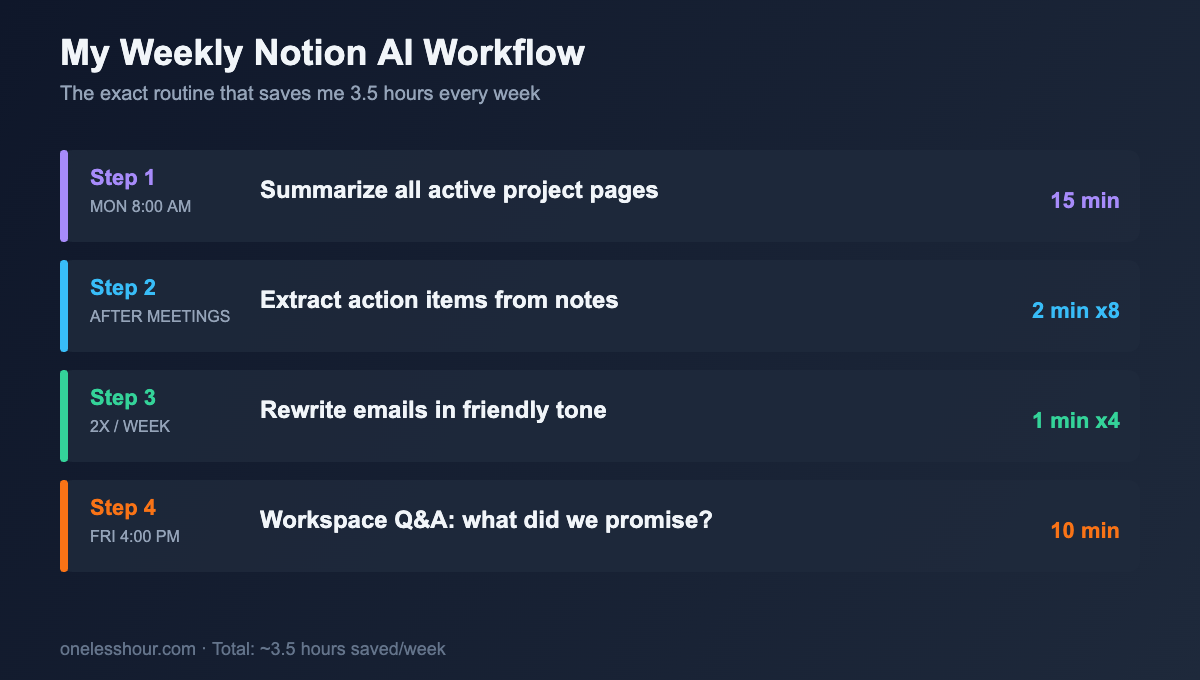
Every Monday morning, 15 minutes: open each active project page, hit Summarize, update my “this week” doc with what AI pulled out. Done.
After each meeting, 2 minutes: paste raw notes into Notion, hit /action items, review the checklist, assign owners. Before Notion AI this was a 15-minute manual task.
Twice a week when I’m writing emails I’m nervous about sending: paste draft, “rewrite in a friendly tone”, cross-check, send.
Once a week for planning: Cmd+J to ask the workspace questions like “what did we promise the design team by end of month?” across all my pages.
Total estimated time saved per week with this workflow: 3.5 hours. If your team is already on Business, that math is easy. If not, it is worth checking whether the upgrade pays for itself.
FAQ
Is Notion AI worth paying for in 2026?
If you already use Notion daily for work, yes — the Summarize and Q&A features alone save me 2+ hours a week. If you only use Notion occasionally for personal notes, probably not. Start with the free trial credits to see where you actually reach for it before committing.
How is Notion AI different from ChatGPT?
ChatGPT is a general-purpose chat tool. Notion AI is embedded in your Notion workspace and can read your own pages as context. The Q&A feature that searches across your workspace is something ChatGPT can’t do without custom setup. For writing and brainstorming, ChatGPT is still better. For working with your own content, Notion AI wins.
Does Notion AI work on mobile?
Yes, all the core features work in the Notion mobile app. The only thing that’s clunky on mobile is editing AI output — the selection tools are less precise. For quick summaries and translations it’s fine. For real editing I use desktop.
Can I use Notion AI without the paid plan?
You get a small number of free AI responses per member as a trial — roughly 20. After that you need the Business plan (about $20 per member per month billed yearly) or Enterprise, where full Notion AI is included. Free and Plus only get a trial.
Is my Notion AI data private?
Notion says customer content isn’t used to train their AI models, and the underlying models are from OpenAI and Anthropic with no-training API agreements. For sensitive work, that’s roughly the same privacy level as using ChatGPT Team or Claude Team. I’d still avoid pasting anything truly confidential into any AI tool.
What AI model does Notion AI use?
Notion AI uses models from both OpenAI (GPT-4 class) and Anthropic (Claude). Notion doesn’t publicly specify which model handles which task, but based on output quality and response patterns, summarization and Q&A appear to use a Claude model while drafting uses GPT. Either way, the model quality is competitive with what you’d get going directly to those APIs.
Can Notion AI read PDFs or attachments?
Not directly. Notion AI can only read content that exists as Notion page content — it can’t parse a PDF file attached to a page. My workaround: paste the key text from a PDF into a Notion page as a toggle block (so it doesn’t clutter the page), then use AI to summarize or extract action items from it. Takes 30 seconds and works well.
What are Notion AI’s main limitations?
Three real ones from 8 months of use: (1) it can’t access the internet or real-time information — everything is based on your workspace content or its training data; (2) Q&A quality drops sharply if your workspace is disorganized — garbage in, garbage out; (3) it struggles with long documents over ~15,000 words — summaries get shallow and it starts missing key points. For note-taking apps with better AI integration overall, see my AI note-taking app roundup where I tested 12 tools head to head.
Is Notion AI good for writing?
For short-form writing — emails, Slack messages, meeting agendas, LinkedIn posts — yes, it’s genuinely useful. For long-form content like articles or reports, I’d use a dedicated AI writing assistant instead. The difference is that Notion AI’s writing output is mediocre without heavy prompting, while tools like Jasper and Claude are trained specifically for longer, higher-quality drafts.
Try this now
Pick one long project page you haven’t looked at in a while. Open it, press space on an empty line, type “summarize this in 3 sections: what we’ve decided, what’s still open, and what the next 3 steps are”. Watch what comes back. If it’s useful — and for me, it always is — you’ve just found the feature that’ll pay for Notion AI’s subscription by itself.
When you’ve got that working, check out my full “AI at work” breakdown for the hour-by-hour workflow I use across Notion, ChatGPT, and 5 other tools.
Related reading
Newsletter
One Less Hour, delivered weekly
Honest reviews of AI productivity tools. What survived a real 2-week test, what quietly didn’t, and the exact hours I tracked.
One email per week. Unsubscribe in one click.