
Last month I tracked every task I did for a full week. The result was depressing: 5 hours and 12 minutes spent on things that were repetitive, predictable, and required zero creative thinking. Endless emails, constant scheduling back-and-forth, tedious data entry, and the same report formatting every week. That’s when I decided to figure out how to automate tasks with AI — and it turned out to be much easier than I expected.
Transparency note: This article contains no affiliate links, and no company paid for or reviewed it. I pay for most of the AI tools I use myself — see how I test.
As a result, I spent a weekend setting up AI automations to handle as much of it as possible. Four weeks later, I’ve clawed back about 5 hours per week — and the setup was dramatically easier than I expected. No coding, no technical background, and mostly free tools. If you’ve been wondering how to automate tasks with AI at your own job, this is the exact system I used.
Here’s exactly what I automated, which tools I used, and how to automate tasks with AI at your own job — step by step.
Step 1: Find Out Where Your Time Goes (Before You Automate Tasks With AI)
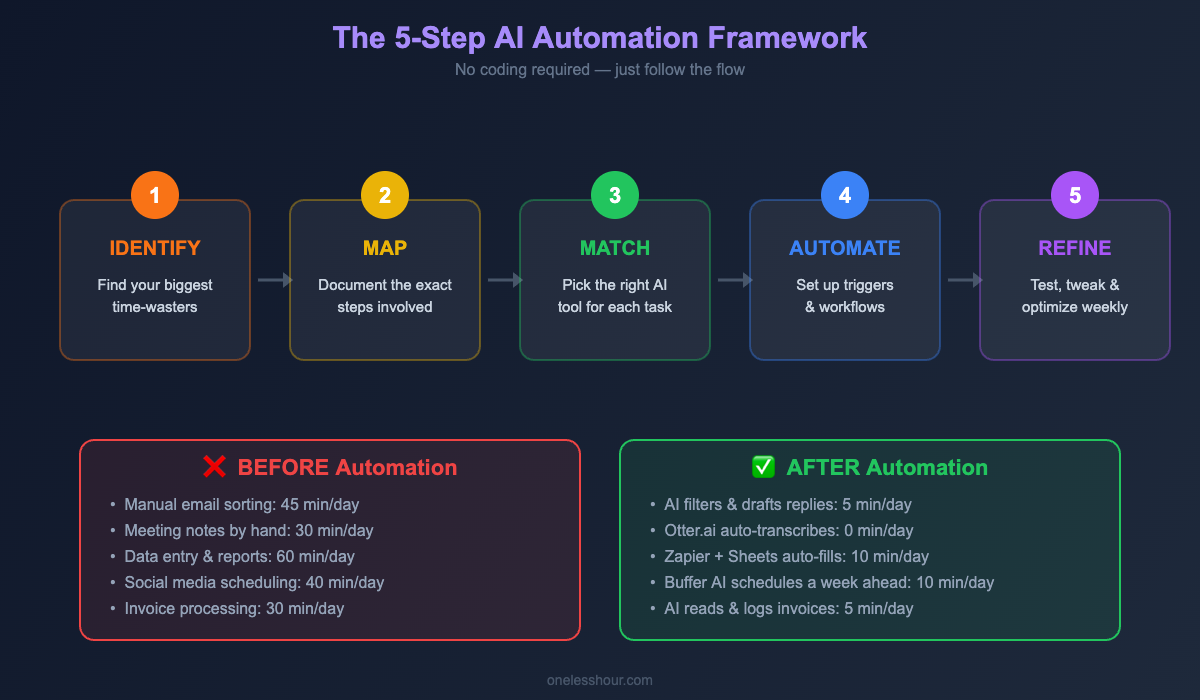
First of all, you can’t automate what you haven’t identified. I used a dead-simple method: for five workdays, every time I switched tasks, I wrote down what I just finished and roughly how long it took. No fancy time-tracking app — just a note on my phone.
By Friday, patterns jumped out immediately. Here’s what my top 5 time-wasters looked like:
| Task | Time/Week | Automatable? |
|---|---|---|
| Responding to routine emails | 1.5 hours | Mostly yes |
| Scheduling meetings | 45 minutes | Completely |
| Organizing files and notes after meetings | 1 hour | Mostly yes |
| Weekly status report formatting | 45 minutes | Completely |
| Social media content creation | 1.5 hours | Partially |
Of course, your list will look different than mine. The point is: track first, automate second. Most people skip this step and try to automate tasks with AI before knowing where their time actually goes.
Step 2: Automate Tasks With AI for Email (Time Saved: ~1 Hour/Week)
In my case, about 60% of my emails fall into 4-5 categories that get similar responses every time: meeting confirmations, project update requests, introduction emails, and “can you send me that document?” messages. Here’s the two-layer system I set up to automate tasks with AI.
Layer 1 — Gmail filters for auto-sorting. I created filters that automatically label incoming emails by type. Newsletters go to a “Read Later” label. Emails with “invoice” or “receipt” go to “Finance.” Emails from my top 5 clients get their own labels. This alone cut my inbox processing time because I stopped reading things in the order they arrived and started batching by category.
Layer 2 — ChatGPT templates for responses. For each email category that needs a response, I created a prompt template. For meeting requests: “Draft a friendly confirmation for [day/time], mention I’ll send an agenda beforehand, and ask if they have any specific topics to add. Keep it under 4 sentences.” I keep these templates in a note app and it takes me about 20 seconds per email instead of 3-4 minutes of writing from scratch.
The upgrade (if you want full automation): Zapier can connect Gmail to ChatGPT. You can set it up so that when an email matches certain criteria, Zapier sends it to ChatGPT, gets a draft response, and saves it as a Gmail draft for your approval. I haven’t fully automated this step because I want to review responses before they send — but the draft generation alone saves significant time.
Step 3: Eliminate Scheduling Back-and-Forth (Time Saved: ~45 Min/Week)
Without a doubt, this was the easiest win and I’m genuinely annoyed I didn’t do it sooner. The old way: someone asks to meet, I check my calendar, suggest 3 times, they counter with 2 different times, I check again, we go back and forth 4-5 emails to book a 30-minute call. Absolute madness.
The fix: I set up Reclaim.ai (free tier) connected to my Google Calendar. It does three things: protects my focus time blocks so meetings can’t overwrite them, creates smart scheduling links where people can book time that actually works for me, and automatically reschedules flexible meetings when priorities shift.
Setup took about 15 minutes. Connect your calendar, set your working hours, mark which existing events are flexible vs. fixed, and tell it how much daily focus time you need. Now when someone asks to meet, I send them my scheduling link. Done. No back-and-forth.
Simpler alternative: If Reclaim.ai feels like overkill, even a basic Cal.com or Calendly free account eliminates the scheduling ping-pong. The AI features in Reclaim are a bonus, but the core time savings comes from the scheduling link itself.
Step 4: Auto-Summarize Meetings (Time Saved: ~1 Hour/Week)
Similarly, before automation, my post-meeting routine looked like this: spend 10 minutes reviewing my messy handwritten notes, type up a clean summary, extract action items, email the summary to attendees. For 3-4 meetings a week, that’s roughly an hour of pure administrative work.
The fix: Otter.ai joins my calls automatically, transcribes everything, and generates a summary with action items within minutes of the meeting ending. I skim the summary (2 minutes), make any corrections (1 minute), and share it. What used to take 15 minutes per meeting now takes 3.
Setup: Create an Otter.ai account, connect your Google or Outlook calendar, and enable auto-join. That’s it. The free tier gives you 300 minutes per month — enough for about 10 thirty-minute meetings.
Pro tip: The transcript is searchable. Two weeks after a meeting, when someone asks “what did we agree on about the budget?”, you can search the transcript instead of relying on your memory. This has saved me from at least two miscommunications that would’ve been costly.
Step 5: Generate Weekly Reports Automatically (Time Saved: ~45 Min/Week)
For example, every Friday I send a status update to my team. It used to mean: open my project management tool, review what happened this week, open a doc, write the update, format it, send it. 45 minutes of work that nobody enjoys writing and few people enjoy reading.
The fix (using Zapier + ChatGPT): I created a Zap that runs every Friday at 2 PM. It pulls my completed tasks from Todoist for the current week, sends the list to ChatGPT with this prompt: “Turn these completed tasks into a concise weekly status update. Group by project. Highlight any blockers or items that need attention next week. Keep it under 200 words.” The formatted report lands in my email as a draft. I review it, make any tweaks, and send. Total time: 5 minutes.
No-code alternative: If Zapier feels complicated, you can do a simpler version manually. At the end of each day, spend 30 seconds adding your key accomplishments to a running note. On Friday, paste the full week’s notes into ChatGPT with the prompt above. Still way faster than writing the report from scratch.
Step 6: Batch Social Media Content (Time Saved: ~1 Hour/Week)
I used to create social media posts one at a time, each one taking 10-15 minutes of staring at a blank screen. Now I batch a full week in one sitting using a system that takes about 30 minutes total.
The system: On Monday morning, I give ChatGPT a prompt: “I need 5 LinkedIn posts for this week about [my topics]. For each post: write a hook under 15 words, 2-3 short paragraphs with a practical insight, and a closing question. Keep each post under 200 words. Make them conversational, not corporate.” I review and edit the outputs — this is important, don’t post AI content without putting your voice into it. Then I schedule all 5 in Buffer’s free plan.
For visual content: Canva’s Magic Design can generate matching graphics. Describe the post topic and it produces several layout options. Pick one, customize the text, export. The whole batch — 5 posts with graphics — takes about 30 minutes instead of the 75+ minutes it used to take doing them individually.
The Free Tools I Used to Automate Tasks With AI
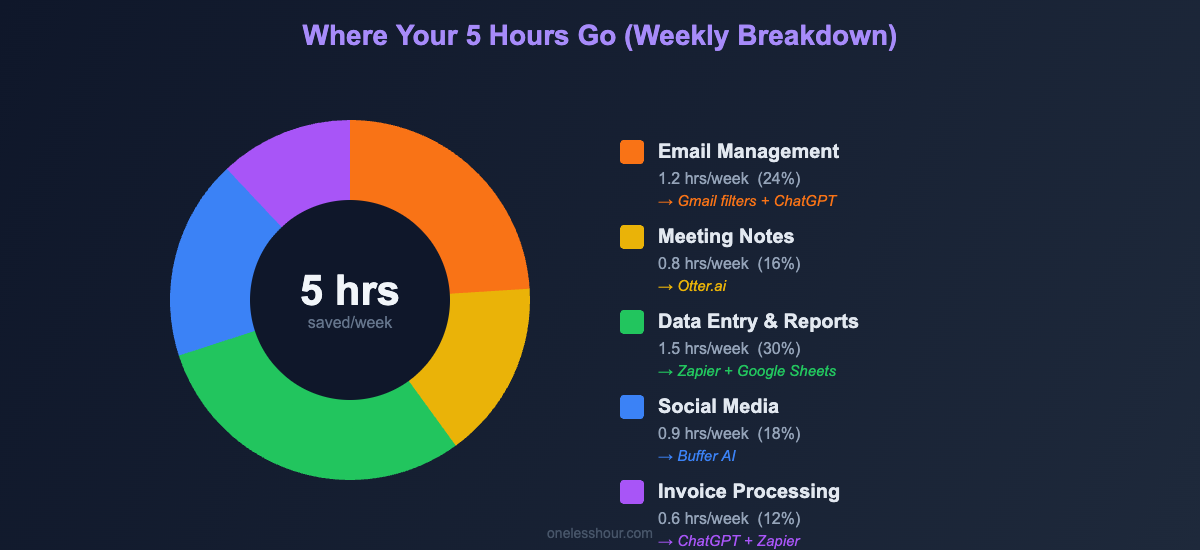
Here’s the complete stack I use to automate tasks with AI. Total cost: $0. Most of these tools, including ChatGPT and Otter.ai, offer generous free tiers.
| Tool | What It Automates | Free Tier Limit |
|---|---|---|
| ChatGPT | Email drafts, report writing, content creation | Daily message cap on GPT-4o |
| Zapier | Connecting apps, triggering workflows | 100 tasks/month |
| Reclaim.ai | Smart scheduling, focus time protection | 1 calendar, core features |
| Otter.ai | Meeting transcription and summaries | 300 min/month |
| Buffer | Social media scheduling | 3 channels, 10 posts/channel |
| Canva | Graphic design for social posts | 50 Magic Write uses/month |
| Gmail Filters | Email auto-sorting | Unlimited (built into Gmail) |
If you want to explore more free AI tools in depth, check out our full review of the 7 best free AI productivity apps. For a deeper look at automation workflows specifically, Zapier’s automation guide is also worth bookmarking.
What I’d Do Differently When Starting to Automate Tasks With AI
In hindsight, three things. First, I’d start with just the scheduling automation. It’s the fastest to set up (15 minutes) and the most immediately satisfying — the very next time someone asks to meet, you just send a link. Instant dopamine hit. Second, I’d spend more time refining my ChatGPT templates before moving on to Zapier integrations. Good templates are the foundation everything else builds on. Third, I’d track my time savings from week one. I didn’t start measuring until week 3, and I wish I had the data from the beginning to see the real impact curve.
Common Mistakes That Kill Your Automation
Above all, the biggest mistake is automating something that should actually change. If an email annoys you every week, maybe the answer isn’t automating your response — maybe it’s having a conversation about why that email exists in the first place. Automation locks in a process, so make sure it’s a process worth keeping.
Additionally, the second mistake: not testing with real scenarios. I built a Zapier workflow for processing client feedback that worked perfectly with test data and completely mangled the first real submission because the actual format was slightly different. Always test with real data before relying on any automation.
Furthermore, abandoning automations after they break. Every automation will break eventually — an app updates, a format changes, a connection expires. Check your automations monthly. It takes 5 minutes and prevents the slow decay where your automations quietly stop working without you noticing.
Frequently Asked Questions
How long does it take to set up all of these automations?
I spent about 4-5 hours total over a weekend. But you don’t need to do them all at once. The scheduling setup takes 15 minutes. Email templates take 30 minutes. Each Zapier workflow takes 20-30 minutes. Consequently, I’d recommend starting with one and adding more as you see results.
Do I need any technical skills or coding knowledge?
Zero. Every tool mentioned uses a visual interface or plain English. Zapier’s workflow builder is drag-and-drop. ChatGPT prompts are just regular sentences. If I can do this — and my technical skills peak at “can create a decent spreadsheet” — you can do this.
What if I use Microsoft tools instead of Google?
Swap Reclaim.ai for Microsoft Bookings (built into Microsoft 365). Replace Gmail filters with Outlook rules. Everything else — ChatGPT, Zapier, Otter.ai, Buffer, Canva — works regardless of whether you’re a Google or Microsoft user. Zapier actually connects with both ecosystems equally well.
How much can I automate tasks with AI using free tools?
I automated approximately 80% of my target tasks using only free tiers. The main limitation is Zapier’s 100 tasks/month cap — if you have high-volume workflows, you’ll hit that limit. But for most people starting out, the free tiers are more than enough to save several hours per week.
Want better results from your AI tools? Our guide to ChatGPT prompting techniques covers the exact methods that make the email and content automation above work so well.
Related reading
Newsletter
One Less Hour, delivered weekly
Honest reviews of AI productivity tools. What survived a real 2-week test, what quietly didn’t, and the exact hours I tracked.
One email per week. Unsubscribe in one click.