
Transparency note: This article contains no affiliate links, and no company paid for or reviewed it. I pay for most of the AI tools I use myself.
The average office worker spends over two hours a day in email. Two hours. Most of it isn’t hard thinking — it’s the friction of turning a quick thought into a polite, professional message.
That friction is exactly what ChatGPT for email removes. You don’t need a paid plugin or a separate ChatGPT email generator — the free chatbot plus the five prompts below will draft, reply, soften, and summarize faster than you can find the right words yourself.
The catch is tone. Used lazily, it makes you sound like a robot. Used well, it just sounds like you on a good day. Here’s how to get the second one.
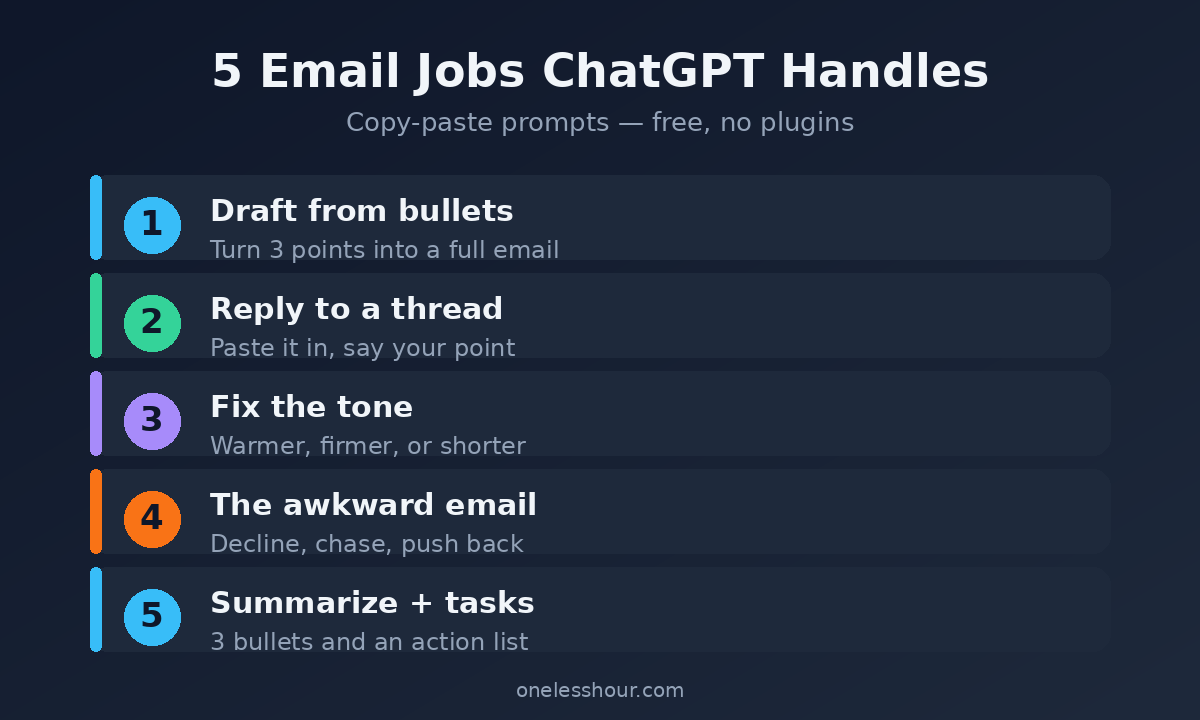
1. Draft a full email from a few bullets
The blank compose window is where time disappears. Instead of writing from scratch, give ChatGPT the raw points and let it assemble the message.
Write a short, friendly-but-professional email based on these points: [BULLET 1, BULLET 2, BULLET 3]. Keep it under 120 words, get to the point in the first line, and don’t use corporate filler.
Try this now: take the next email you’re dreading, jot three bullets of what you actually need to say, and run that prompt. You’ll have a solid draft before you’d have finished the greeting.
2. Reply to a thread in seconds
This is the big time-saver. Paste the email you received, tell ChatGPT what you want to say back, and let it handle the wording.
Here’s an email I received: [PASTE]. Write a reply that says [YOUR KEY POINT], stays warm and professional, and keeps it brief. Match the sender’s level of formality.
That last line matters. “Match the sender’s formality” stops you firing a stiff, formal reply at someone who wrote you two casual sentences.
3. Fix the tone of something you already wrote
Sometimes you’ve written the email but it lands wrong — too blunt, too soft, too rambling. This is ChatGPT at its best, because you’re supplying the substance and it’s only adjusting the delivery.
Rewrite this email to sound [warmer / firmer / more concise] while keeping my meaning exactly. Don’t add flattery or buzzwords. Here it is: [PASTE]
Pro tip: ask for the firmer version even when you plan to send the warm one. Seeing both ends of the tone range helps you land on the right middle.
4. Write the email you’ve been avoiding
Chasing a late invoice, saying no to a request, pushing back on a deadline — the awkward emails are the ones that sit in your drafts for three days. ChatGPT is a fast way to break the seal.
Help me write a polite but firm email to [decline this request / chase this overdue payment / push back on this deadline]. Context: [DETAILS, no confidential info]. Keep it calm, professional, and under 100 words.
5. Summarize a long thread and pull out the tasks
Long, tangled reply chains are their own kind of time sink. Instead of re-reading 14 messages, let ChatGPT do it.
Summarize this email thread in 3 bullets, then list any action items with who owns each one. Here’s the thread: [PASTE]
You get the gist and your to-do list in one shot. This one alone has saved me from missing buried “can you send me X by Friday” requests more than once.
The five prompts at a glance
| Prompt | Use it when |
|---|---|
| 1. Draft from bullets | Starting an email from scratch |
| 2. Reply to a thread | Answering something in your inbox |
| 3. Fix the tone | Your draft lands wrong |
| 4. The awkward email | Declining, chasing, pushing back |
| 5. Summarize + extract tasks | A long thread you don’t want to re-read |
See it in action: three bullets to a real email
Here’s prompt 1 in practice. The input is three scrappy fragments:
can’t make Thursday’s call · propose Friday 10am · need the deck first
And the draft that comes back, ready in seconds:
“Hi Priya — I can’t make Thursday’s call, unfortunately. Could we do Friday at 10am instead? If you’re able to send the deck beforehand, I’ll come with notes ready. Thanks!”
Three fragments in, a sendable email out. Ten seconds of editing — swap the name, drop in your usual sign-off — and it’s done.
Keep it sounding like you
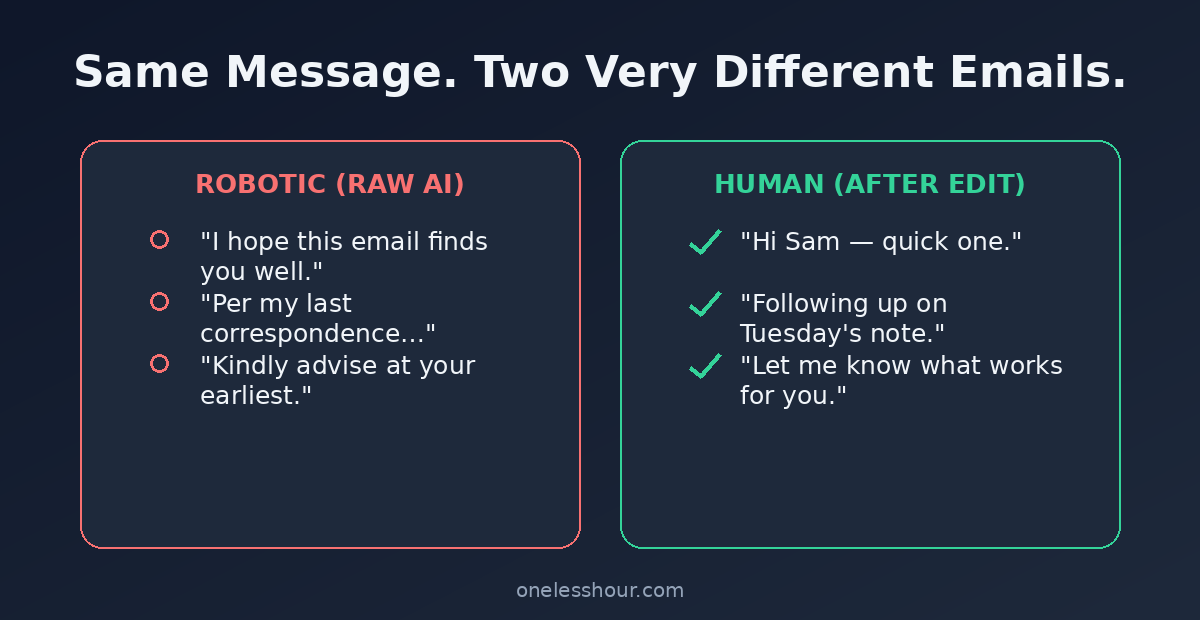
The one habit that separates “written with ChatGPT” from “obviously ChatGPT”: always do a quick human pass. Cut the one line that sounds too formal, add your usual sign-off, fix the phrase you’d never actually say. Ten seconds, and it’s your email again.
Pro tip: when a prompt nails your tone, save it. Keep a note with your three or four best email prompts — your reply prompt, your “say no” prompt, your summarize prompt — and paste them in as needed. After a week you’ll have a personal email toolkit that turns most messages into a 30-second job.
The downside: never send a ChatGPT draft blind. It occasionally invents a detail — a date, a name, a commitment you didn’t make — and email is exactly where that bites you. Read every draft, and never paste confidential company or client information into a free AI tool.
A 2-minute inbox routine
Once these click, string them into a quick daily pass:
- Summarize any long thread first (prompt 5) so you know what actually needs a reply.
- Knock out the quick replies with prompt 2, matching each sender’s tone.
- Draft the one dreaded email with prompt 4 now, instead of letting it rot in your drafts for three days.
The whole point is to stop your inbox from quietly eating the best hours of your day.
Bonus: teach it your voice once
Want every draft to sound more like you and less like a template? At the start of a session, paste in two or three real emails you’ve written and add this:
Here are a few emails I’ve written: [PASTE]. Learn my tone — how formal I am, how I open and sign off, how long my sentences run. For the rest of this chat, write in that voice.
Now every prompt in this guide inherits your style automatically. It’s the single biggest upgrade to AI-written email, and it takes about a minute to set up.
Frequently asked questions
Can I use ChatGPT for email for free?
Yes. The free version of ChatGPT runs every prompt here. You don’t need ChatGPT Plus or a paid email plugin — the free chatbot plus copy-and-paste does the job for everyday email.
Is there a ChatGPT email generator built into Gmail or Outlook?
There are browser extensions and add-ons that put ChatGPT-style drafting inside your inbox, and both Gmail and Outlook now have their own built-in AI. But you don’t need any of them — copy-pasting into the free ChatGPT app works fine and keeps you in control of what you send.
Will people know my email was written by ChatGPT?
Only if you skip the human pass. Generic, over-formal phrasing is the giveaway. Match the recipient’s tone, cut the buzzwords, and add one personal line, and it reads like you wrote it.
Is it safe to paste work emails into ChatGPT?
Be careful. Don’t paste confidential, personal, or client-sensitive information into any free AI tool. For routine, non-sensitive messages it’s fine — just strip out names and specifics you wouldn’t want stored.
What’s the best ChatGPT prompt for writing emails?
The reply prompt (number 2) is the biggest time-saver, because most email is responding, not composing from scratch. Paste the message, state your point, and add “match the sender’s formality” — that one line does most of the work.
Start with your worst inbox habit
Pick the email task you procrastinate on most — for me it’s the awkward “no” — and use prompt 4 on the very next one. Momentum from clearing one dreaded message is what turns these prompts into a habit.
Better prompts make all of this sharper, so it’s worth learning the fundamentals in my ChatGPT prompting techniques. And if you want AI that lives inside your inbox instead of copy-paste, here are the best AI email assistants I’ve tested.