
Last tested: April 2026
Transparency note: This article contains no affiliate links, and no company paid for or reviewed it. I pay for most of the AI tools I use myself — see how I test.
Last Tuesday at 2pm, I had 847 unread emails. Not spam — actual messages from clients, newsletters I’d subscribed to, project updates, and a few “quick questions” that needed 20-minute answers. I was spending close to 2 hours a day just triaging my inbox. Something had to change.
So I did what I always do: I tested everything. I spent the last month finding the best AI email assistant by installing, configuring, and using 12 different tools across both Gmail and Outlook. Some cost $30/month. Some were free. A few were brilliant. Most were… fine.
Here’s what I found after 30 days of real testing — the 5 tools that actually cut my email time in half, and the ones I’d skip entirely. I tracked my daily email time with Toggl throughout the experiment so the numbers aren’t guesses.
How I Tested These AI Email Assistants
Before I get into the picks, here’s my setup. I manage two inboxes: a primary Gmail account (personal + freelance, ~80 emails/day) and an Outlook account (corporate, ~120 emails/day). I tested each tool for at least 3 full workdays, tracking three things: time spent on email per day, number of emails that needed manual re-writing after AI drafts, and how many important messages got buried or missed.
I also tested each tool’s free tier first. If the free version was too limited to judge fairly, I upgraded to the cheapest paid plan. Total cost of this experiment: about $165 in trial subscriptions. Worth it so you don’t have to.
Pro tip: Most AI email tools offer 7-14 day free trials. Stack them — test one per week instead of signing up for all of them at once. You’ll get a much clearer comparison when each tool gets your full attention.
The 5 Best AI Email Assistants (Ranked by Time Saved)
I’m ranking these by the metric that matters most: how many minutes per day each one actually saved me. Not features. Not marketing claims. Actual time back in my day.
1. Superhuman — Best Overall AI Email Assistant ($30/month)
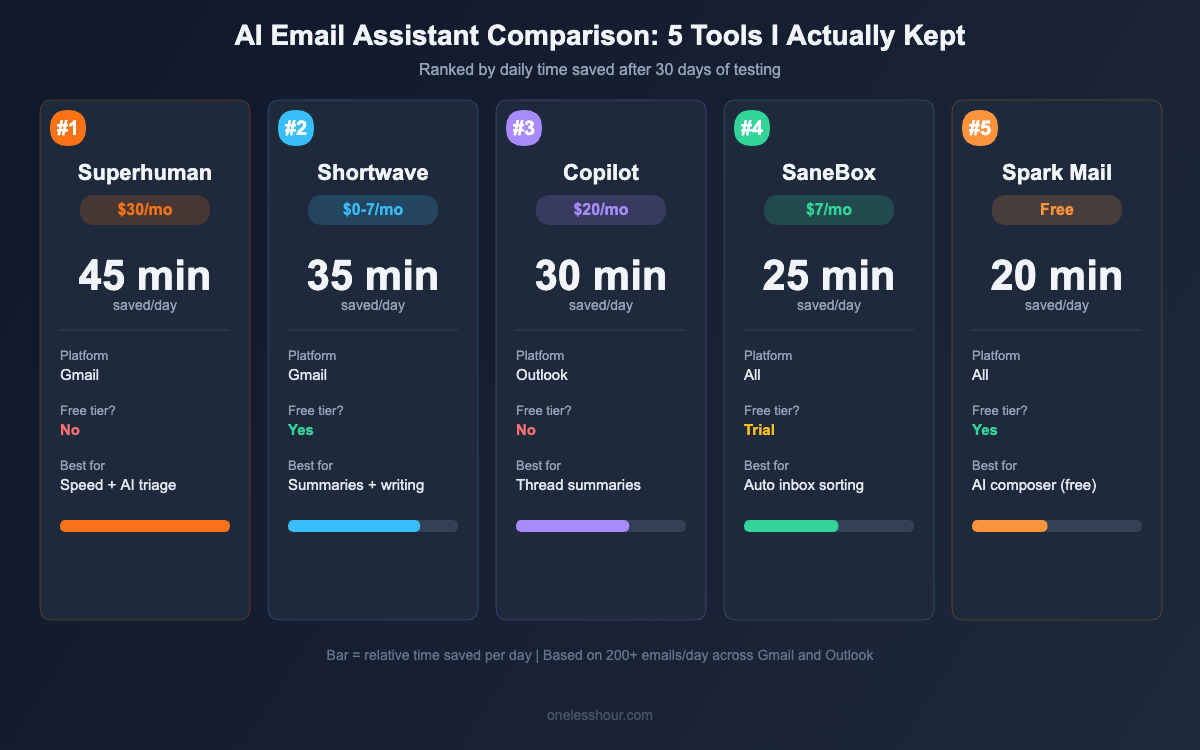
I’ll be upfront: Superhuman is expensive. At $30/month, it’s the priciest tool on this list by far. But it saved me more time than anything else I tested — roughly 45 minutes per day on my Gmail account.
The AI features that moved the needle: “Instant Reply” generates draft responses that actually sound like me (not generic corporate-speak), and the AI triage automatically sorts incoming mail by urgency. After three days of training on my sent messages, it nailed my tone about 80% of the time. I’d tweak a word or two and hit send.
What I didn’t expect was how much the keyboard shortcuts would speed things up. Superhuman is built for speed — you can process your entire inbox without touching your mouse. After the first week, I was triaging 80+ emails in about 15 minutes flat.
Pro tip: Turn on “Auto-summarize” for long threads. Instead of reading a 14-message chain from a client, you get a 3-line summary with action items pulled out. This alone saved me ~10 minutes a day.
The downside: $30/month is hard to justify unless email is a major part of your job. The free tier doesn’t exist — there’s only a 14-day trial. And the AI writing only works well after it’s learned from your sent folder, so day one feels underwhelming.
Best for: Professionals who spend 2+ hours/day in email and can expense the subscription. If email is your biggest time sink, the ROI is real.
Time saved: ~45 min/day · Price: $30/month · Works with: Gmail only
2. Shortwave — Best Free AI Email App for Gmail ($0-$7/month)
Shortwave surprised me. It’s a full Gmail replacement — not a plugin, an entirely new email client — and the free tier is shockingly good. AI thread summaries, smart bundling that groups related emails together, and natural language search that actually works (“find that invoice from Sarah last month” returns the right result).
The feature I used most was “AI Summary.” Click it on any thread and you get a bullet-point summary with action items highlighted. For those 20-message project threads that accumulate while you’re in meetings, it’s a lifesaver. I went from spending 5+ minutes reading long chains to 30 seconds scanning the summary.
Shortwave also introduced “Ghostwriter” — an AI that learns your writing style from your sent emails and drafts replies that match your voice. It took about a week to train properly, but once it clicked, about 70% of its drafts needed only minor edits.
Free tier reality check: You get AI summaries, smart inbox bundling, and natural language search on the free plan. The $7/month plan adds Ghostwriter (AI writing), automation workflows, and priority support. Honestly, the free tier covers 80% of what most people need.
Skip it if: You use Outlook. Shortwave is Gmail-only. Also, if you rely heavily on Gmail labels and filters you’ve built over years, switching to Shortwave means rebuilding some of that organization.
Time saved: ~35 min/day · Price: Free (paid: $7/month) · Works with: Gmail only
3. SaneBox — Best for Inbox Triage on a Budget ($7/month)
SaneBox doesn’t write emails for you. It doesn’t summarize threads. What it does — better than anything else I tested — is sort your incoming mail so the important stuff is on top and everything else disappears into folders you check once a day.
Here’s how it works: SaneBox analyzes your email history to learn which senders and subjects matter to you, then automatically routes low-priority messages to a “SaneLater” folder. Newsletters go to “SaneNews.” Emails where you’re just CC’d go to “SaneCC.” Your main inbox only shows what actually needs your attention.
Within 48 hours of setup, my primary inbox went from 80+ messages a day to about 25. The rest weren’t deleted — they were just waiting in the right folder for when I had time. I check SaneLater once before lunch and once at end of day. That’s it.
Pro tip: Drag any misclassified email to the correct SaneBox folder, and it learns. After a week of occasional corrections, it was 95%+ accurate for me. The “SaneBlackHole” folder is my favorite — drag an email there and you’ll never hear from that sender again. No unsubscribe link needed.
What this won’t do: SaneBox doesn’t help you write faster or summarize threads. It only handles sorting and triage. If your problem is drafting replies, pair it with something like Shortwave or Superhuman. If your problem is inbox overload, SaneBox alone might be enough.
Time saved: ~25 min/day · Price: $7/month · Works with: Gmail, Outlook, and basically every email provider
4. Spark Mail — Best Completely Free AI Email Assistant ($0)
If you want AI email help and don’t want to spend a dime, Spark is your best bet. It’s a standalone email client (like Shortwave) that works with Gmail, Outlook, iCloud, and most IMAP providers. The AI writing assistant is included on the free plan — no trial period, no credit card.
Spark’s AI composer lets you type a one-line instruction like “Reply saying I’m available Thursday afternoon but not Friday” and generates a polished, professional email in seconds. You can adjust the tone (friendly, professional, formal) and length. I found it especially useful for those “I need to say no politely” situations where I’d normally agonize over wording for 10 minutes.
The thread summarization isn’t as sharp as Shortwave’s — it sometimes misses nuance in complex discussions. But for basic project updates and scheduling threads — like “Can we meet Thursday?” or “Here’s the updated timeline” — it does the job.
Free tier reality check: Spark’s free plan includes AI writing (with a daily usage cap — I hit it about twice in a month of normal use), smart inbox sorting, email scheduling, and snooze. The $5/month Premium plan lifts the AI cap and adds team features. For personal use, free is plenty.
Pro tip: Use Spark’s “Quick Replies” for messages that need a one-line response. Tap the suggested reply, review it, and send. I handled about 15 emails per day this way — took maybe 3 minutes total instead of 20.
Time saved: ~20 min/day · Price: Free (Premium: $5/month) · Works with: Gmail, Outlook, iCloud, IMAP
5. Microsoft Copilot for Outlook — Best for Outlook Power Users ($20/month with Microsoft 365 Copilot)
If your company already pays for Microsoft 365, Copilot might be your fastest path to AI email. It lives right inside Outlook — no new app to install, no learning curve for the interface. You already know where everything is.
What impressed me most was the “Draft with Copilot” feature. Highlight a received email, click the Copilot icon, and it generates a reply based on the full thread context. For my corporate Outlook inbox with a lot of meeting follow-ups and project updates, the drafts were better than what I’d write on autopilot at 4pm on a Friday. Saved me from writing those “per my last email” responses entirely.
The email summarization is solid too. Long threads get condensed into a “Summary by Copilot” panel that shows key decisions, open questions, and action items. If you’re the kind of person who gets added to email threads 15 messages deep, this is a lifesaver.
The catch: Microsoft 365 Copilot costs $20/month per user on top of your existing Microsoft 365 subscription. That’s expensive for individuals. But if your employer covers it (many enterprise plans include it now), it’s a no-brainer upgrade.
Skip it if: You use Gmail. Copilot only works in Outlook. Also skip it if you’re paying out of pocket — Shortwave or SaneBox offer better value for personal use.
Time saved: ~30 min/day · Price: $20/month (with M365 Copilot add-on) · Works with: Outlook only
The AI Email Tools I Tested and Wouldn’t Recommend
Not everything I tried was worth the setup time. Here are a few that didn’t make the cut — and why.
Gemini in Gmail (free with Google Workspace): Google’s built-in AI can draft replies and summarize threads, but the quality was inconsistent. About half the drafts needed heavy rewriting, and it sometimes hallucinated details that weren’t in the original thread. Free is nice, but “free and wrong” costs more time than it saves. Tested for 5 days, gave up on day 4.
Lindy ($50/month): Lindy is powerful but it’s built for automation workflows, not daily email management. If you want to auto-reply to certain email types or route messages to Slack, it’s incredible. For everyday “help me respond to this email faster,” it’s overkill and overpriced.
WriteMail.ai (free): A Chrome extension that adds AI drafting to Gmail. The writing quality was acceptable for short replies but struggled with anything longer than 3 sentences. Formatting often broke, and it doesn’t learn your style. Fine as a free supplement, but not a primary tool.
MailMaestro ($15/month): Solid AI writing quality, especially for professional/formal tone. But it only handles composing — no inbox triage, no summaries, no sorting. At $15/month for just writing assistance, the value doesn’t hold up against Spark (free) or Shortwave ($7/month) which do writing plus everything else.
My Actual Email Setup After Testing (What I Kept)
After a month of testing, here’s what I actually kept installed and use daily. It’s not the most expensive combination — it’s what worked best for how I use email.
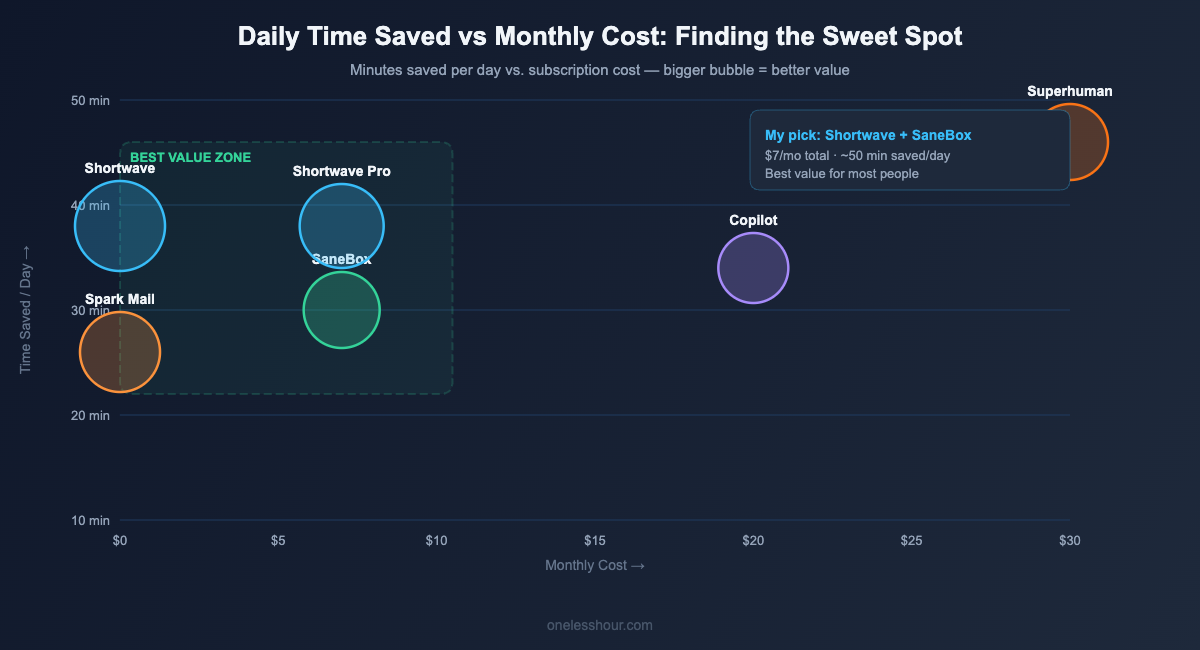
For Gmail: Shortwave (free plan) + SaneBox ($7/month). Shortwave handles the interface, AI summaries, and quick replies. SaneBox sorts everything before it hits my inbox. Total cost: $7/month. Time saved: ~50 minutes/day combined.
For Outlook: Copilot (covered by my company’s M365 plan). It’s already there, it works, and the drafts are surprisingly good for corporate communication. Time saved: ~30 minutes/day.
Before this experiment, I spent about 2 hours daily on email across both accounts. Now I’m at about 45 minutes. That’s over an hour back — every single day.
If you want a deeper look at how I structure my daily AI workflow, I wrote about my full routine in How I Actually Use AI at Work.
What I’d Do Differently (Mistakes I Made)
A few things I got wrong during this experiment that you can learn from.
Mistake #1: Testing tools on a light email day. I started testing Superhuman on a Saturday when I got maybe 15 emails. That told me nothing. The real test is a Monday morning with 60+ messages waiting. Always test AI email tools during your busiest email periods.
Mistake #2: Not giving AI writing tools enough training time. Both Superhuman and Shortwave need about a week of sent emails to learn your voice. I almost dismissed Shortwave’s Ghostwriter after day 2 because the drafts sounded generic. By day 7, they sounded like me. Give these tools at least a full work week before judging the writing quality.
Mistake #3: Trying to automate everything at once. I set up SaneBox, Shortwave, AND an automation tool simultaneously, and my inbox became a confusing mess with conflicting rules. Start with one tool. Get comfortable. Then layer on the next. I cover this layered approach in my guide on how to automate daily tasks with AI.
Mistake #4: Ignoring the privacy settings. Some AI email tools read your entire inbox to provide features. Before installing anything, check what data it accesses and whether it stores your email content. SaneBox only reads metadata (sender, subject, timestamps) — it never sees the email body. Superhuman and Shortwave do read content but process it locally. Know what you’re signing up for.
Best AI Email Assistant Comparison Table
| Tool | Price | Works With | Best Feature | Time Saved/Day | Free Tier? |
|---|---|---|---|---|---|
| Superhuman | $30/mo | Gmail | AI triage + speed | ~45 min | No (14-day trial) |
| Shortwave | $0-$7/mo | Gmail | AI summaries + Ghostwriter | ~35 min | Yes (very usable) |
| SaneBox | $7/mo | All providers | Auto inbox sorting | ~25 min | No (14-day trial) |
| Spark Mail | $0-$5/mo | Gmail, Outlook, iCloud | AI composer (free) | ~20 min | Yes (full AI access) |
| Copilot for Outlook | $20/mo | Outlook | Thread summaries + drafts | ~30 min | No (enterprise trials) |
Frequently Asked Questions
What is the best free AI email assistant?
Spark Mail is the best completely free AI email assistant. It includes AI-powered email drafting, smart inbox sorting, and quick reply suggestions — all without paying anything. Shortwave’s free tier is a close second, with excellent AI thread summaries and natural language search, though its AI writing feature requires the $7/month plan.
Can AI email assistants really save you time?
Yes, but the amount depends on your email volume. In my testing across 200+ emails per day, the best tools saved 20-45 minutes daily. The biggest time savings came from AI inbox sorting (not reading low-priority mail) and AI draft replies (not writing routine responses from scratch). If you get fewer than 20 emails a day, the time savings will be smaller.
Are AI email assistants safe to use?
It depends on the tool. SaneBox only reads email metadata (sender, subject line, timestamps) and never accesses the actual content of your messages. Superhuman, Shortwave, and Spark do read email content to provide summaries and writing assistance, but they process data with varying privacy approaches. Always check each tool’s privacy policy before connecting your work email — especially if you handle sensitive client data.
Which AI email assistant works with both Gmail and Outlook?
SaneBox works with virtually every email provider, including both Gmail and Outlook. Spark Mail also supports both, plus iCloud and any IMAP provider. Most other tools on this list are locked to one platform — Superhuman and Shortwave are Gmail-only, while Copilot is Outlook-only. Check compatibility before committing to a trial.
Is Superhuman worth $30 a month?
If you handle 100+ emails daily and email is central to your job, yes. I saved roughly 45 minutes per day with Superhuman — that’s about 15 hours per month. At $30/month, that’s $2/hour for time back. For freelancers and executives who bill by the hour, the math works. For casual email users, Shortwave or Spark offer 70-80% of the benefit at a fraction of the cost (or free).
Start Here: Pick Your First AI Email Assistant Today
Don’t overthink this. Here’s my quick decision framework based on a month of testing.
If you use Gmail and want the best free option: install Shortwave right now. The free tier gives you AI summaries and smart inbox sorting — you’ll feel the difference within an hour.
If your biggest problem is inbox overload (too many emails, not enough time): start with SaneBox. The 14-day trial is enough to see if automatic sorting fixes your workflow.
If you’re on Outlook and your company offers it: turn on Copilot. It’s already built in — you’re leaving time on the table by not using it.
And if you want more ways to save time with AI beyond email, check out my list of the best free AI productivity apps I tested this year — several of them pair perfectly with the email tools above.
Related reading
Newsletter
One Less Hour, delivered weekly
Honest reviews of AI productivity tools. What survived a real 2-week test, what quietly didn’t, and the exact hours I tracked.
One email per week. Unsubscribe in one click.