
Last tested: May 2026
Transparency note: This article contains no affiliate links, and no company paid for or reviewed it. I pay for most of the AI tools I use myself — see how I test.
I had a real Canva vs Figma decision last month during a Black Friday push for one of my side sites. I needed a 6-post Instagram set, a partner pitch deck, and a landing page mockup the developer could rebuild from. I tried to do it all in Canva because I already had the subscription. Ninety minutes in on the landing page mockup, I gave up and opened Figma. It took 22 minutes there.
That experience kicked off a stupidly nerdy six-week test. I built the same six design projects in both Canva and Figma, tracked every session in Toggl, and noted every time one tool either saved me time or cost me time. The result is the by-task scoreboard below — and the answer to the question almost every “vs” article skips: if you’re a solo operator or a tiny team that does both marketing graphics AND product design, which $15/mo is actually worth it?
Short answer: Canva won 4 of 6 tasks, Figma won the other 2 — but the margins are not equal, and “use both” is the right answer if you can swing it. Long answer below.
Canva vs Figma: what I found
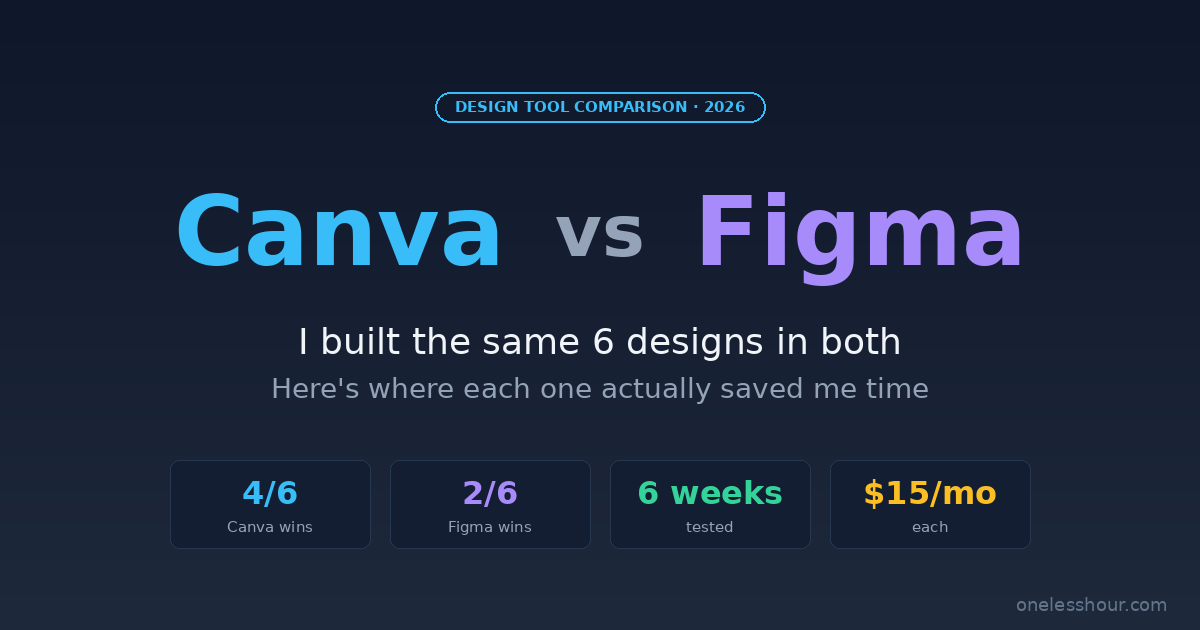
- I built the same 6 design projects in both tools and tracked completion time in Toggl. Canva won 4/6, Figma won 2/6 — and the win margins are wildly different.
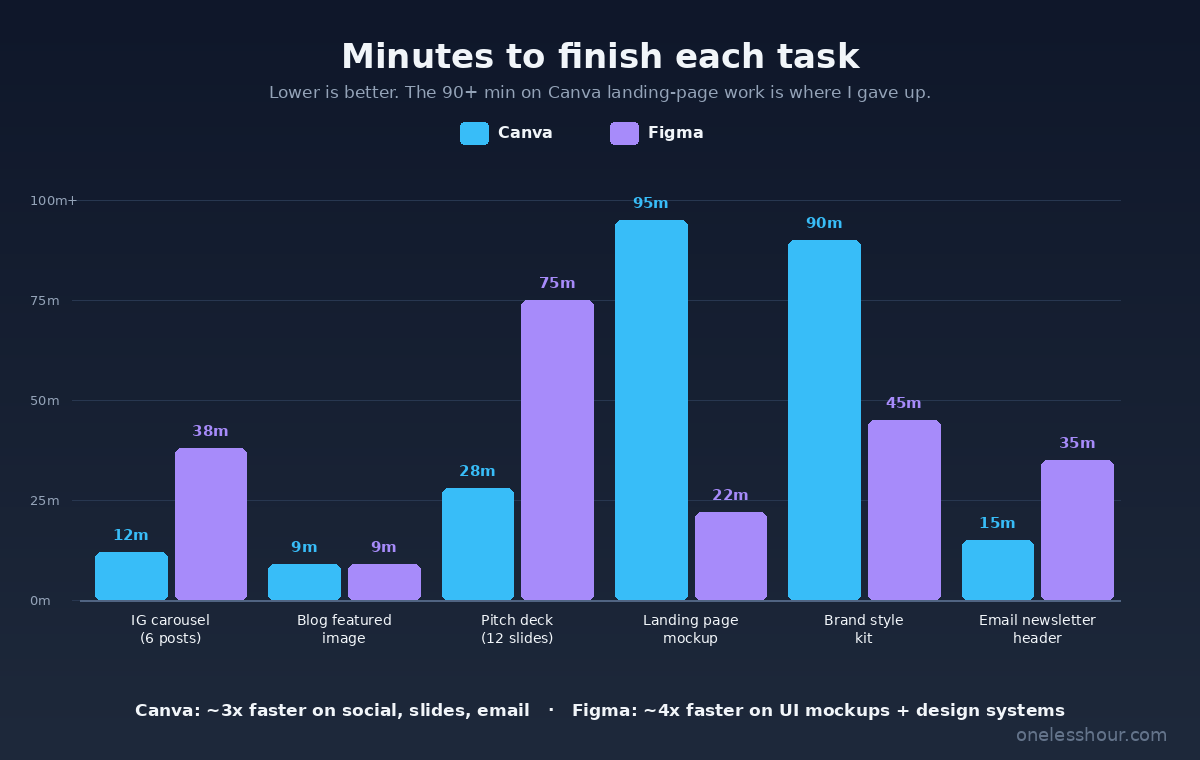
- Canva crushed me on social posts and slide presentations (3-5x faster than Figma). Figma was 4x faster for landing page mockups and a reusable brand system.
- The free tiers cover roughly 80% of solo work in either tool. I only pay $15/mo for Canva Pro because Magic Resize and Brand Kit pay for themselves in 2 hours/month.
- I tried to build a landing page mockup in Canva for 90+ minutes before giving up. Figma finished the same mockup in 22 minutes.
- If I had to pick ONE for my OneLessHour stack, it’d be Canva — because 80% of my weekly output is social and blog graphics, not product design.
Canva vs Figma: how I tested it (the real methodology)
I picked six design projects I actually need to make every month for OneLessHour and a side e-commerce site, then built each one twice — once in Canva, once in Figma — using only the in-tool capabilities (no external assets, no AI handoff). I used Toggl to track every session including setup, search-for-template time, and the “where is that menu again” moments. Each task was built fresh from scratch, in the same week, alternating which tool I started with so fatigue didn’t bias the result.
The six projects: a 6-post Instagram carousel set, a blog featured image, a 12-slide partner pitch deck, a single-page landing page mockup, a complete brand style kit (logo placement, colors, type scale, button states), and an email newsletter header.
I wasn’t being precious about polish — every output had to be “publish-ready or send-to-developer-ready,” not pixel-perfect for a portfolio. That’s how I actually use these tools.
Task 1: Six-post Instagram carousel — Canva 12 min vs Figma 38 min
Canva’s template library is the unfair advantage here. I searched “Black Friday carousel,” picked a set, swapped the colors to my brand palette using Brand Kit, and replaced the headlines. Twelve minutes, six on-brand posts, exported as a zip.
Figma took 38 minutes for the same six slides, and that’s with me starting from a community template. The pain wasn’t the design — Figma’s frame and auto-layout are great — it was that nothing was sized for Instagram by default, the export-as-PNG step had to be done six times (or set up via the Export panel), and I burned five minutes trying to find a font I had in Canva by default.
Verdict: Canva wins for batch social content. Not even close. Best for anyone producing more than 3-4 social posts a week.
Task 2: Blog featured image (1200×630) — tied, with a twist
Both tools finished in 9 minutes. Canva had me start from a template and swap the photo. Figma had me set up a frame at 1200×630 and place a stock photo via the Unsplash plugin. The output looked equally professional.
The twist: in Figma, I now had a reusable component I could duplicate across 20 future blog posts in 30 seconds each. In Canva, I’d duplicated a template and lost the reuse advantage unless I saved my own template (an extra step I usually skip).
Verdict: Tied on first use. Figma wins on the second through twentieth use. If you publish 1-2 blog posts a week (like I do), Canva is fine. If you publish 5+, set up a Figma component and never look back.
Task 3: 12-slide partner pitch deck — Canva 28 min vs Figma 75 min
Canva again. Slide presentation is what Canva was built for. I used a template, dropped in 12 slides of content, customized the chart on slide 7 with Canva’s data input, and exported a PDF. 28 minutes start to finish.
Figma took 75 minutes for the same 12 slides because there’s no native slide flow — you build frames, you have to manually number them, and the Figma Slides feature is still less mature than Canva’s Presentations even after the 2025 launch. The frames looked sharp but the export-to-PDF needed me to multi-select all 12 frames in the right order.
Verdict: Canva wins for slide decks. Big margin. If you’re doing slides regularly, also see my AI presentation maker roundup — Canva’s on that list, but there are AI-first options that beat both for first-draft speed.
Task 4: Landing page mockup — Figma 22 min vs Canva 90+ min (gave up)
This is the task that started this whole test. I needed a single-page landing page mockup with a hero section, three feature blocks, a pricing table, social proof, and a footer — the kind of thing your developer rebuilds in code.
Figma did it in 22 minutes using a free community wireframe kit and auto-layout. The handoff to my developer took another 30 seconds because Figma exports HTML/CSS specs natively in Dev Mode.
Canva took 90+ minutes and I never finished. The fundamental problem: Canva is a static document tool, not a UI design tool. You can build something that LOOKS like a landing page, but you can’t constrain spacing the way auto-layout does in Figma, you can’t easily build reusable section components, and your developer can’t inspect anything.
Verdict: Figma wins by a country mile for any UI/UX/web mockup work. This isn’t close. If you ever hand designs to a developer, Canva is the wrong tool.
Task 5: Reusable brand style kit — Figma 45 min vs Canva 90 min
I needed a one-page document with logo placements, color swatches with hex codes, a type scale, button states, and spacing guidelines. The kind of thing you send to a freelancer so they don’t email you asking for the brand colors.
Figma took 45 minutes. I built it as design tokens and components, which means when I update the primary brand color in one place, every other instance updates automatically. That’s huge for living brand systems.
Canva took 90 minutes for the same artifact, and the colors aren’t connected — change the primary color and you have to manually update it in 14 places. Canva’s Brand Kit feature handles this for templates, but not within a free-form layout.
Verdict: Figma wins for any reusable design system. The Brand Kit in Canva Pro is great for keeping social templates on-brand, but it’s not a substitute for component-based design tokens.
Task 6: Email newsletter header — Canva 15 min vs Figma 35 min
A 600×200 banner with my logo, a hero illustration, and a tagline. Canva had a template I customized in 15 minutes. Figma took 35 minutes because I had to set up the frame, import an illustration, and figure out the text alignment manually.
Verdict: Canva wins for one-off email graphics. Especially if you don’t already have a Figma component library set up.
The scoreboard, end-to-end
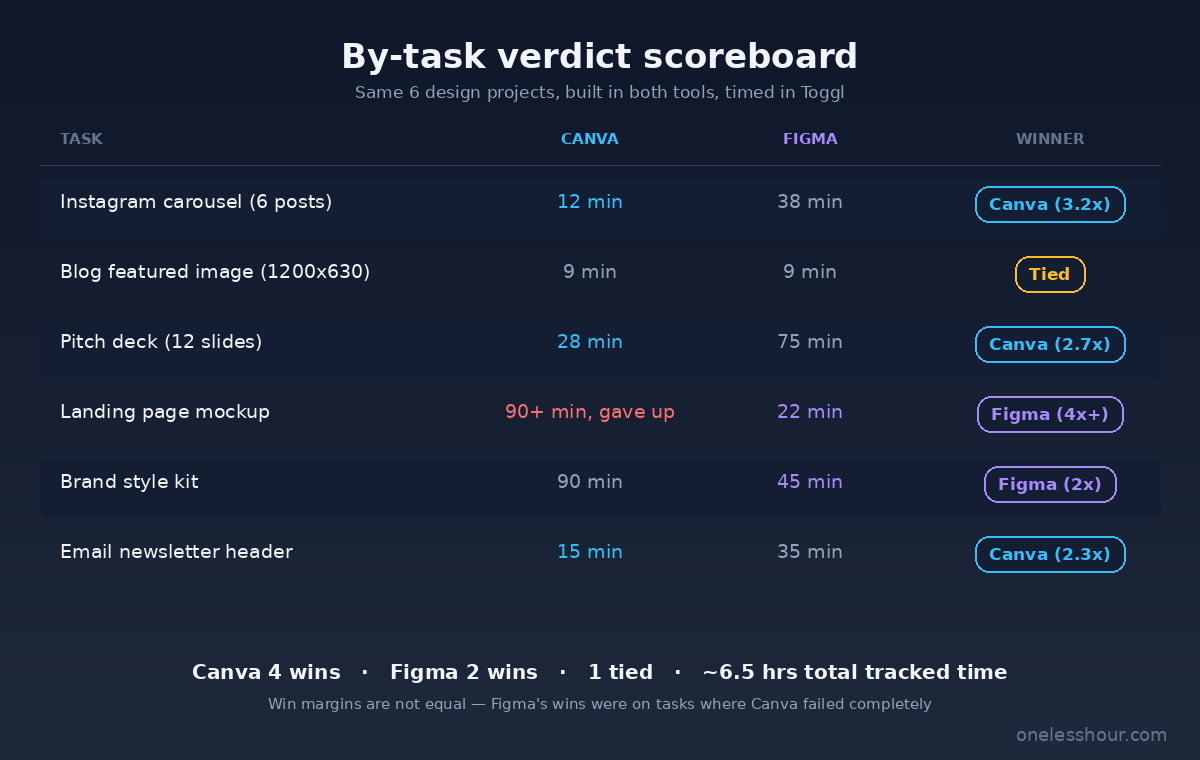
After 6 tasks and roughly 6.5 hours of total tracked time, here’s where each tool landed:
| Task | Canva | Figma | Winner |
|---|---|---|---|
| Instagram carousel (6 posts) | 12 min | 38 min | Canva (3.2x) |
| Blog featured image (1200×630) | 9 min | 9 min | Tied (Figma on reuse) |
| Pitch deck (12 slides) | 28 min | 75 min | Canva (2.7x) |
| Landing page mockup | 90+ min, gave up | 22 min | Figma (~4x+) |
| Brand style kit | 90 min | 45 min | Figma (2x) |
| Email newsletter header | 15 min | 35 min | Canva (2.3x) |
Canva won 4 of 6 tasks. Figma won 2. But Figma’s wins were on the tasks where Canva failed catastrophically (90+ minutes vs 22), while Canva’s wins were on tasks Figma can technically do but takes 2-3x longer.
What is each one actually bad at?
Most “vs” articles skip this. Both tools have failure modes, and knowing them up front saves real money.
What Canva is bad at:
- Anything with strict spacing requirements (no auto-layout, no constraints)
- Multi-page UI flows (each page is a static design, not a connected screen)
- Developer handoff (no inspect mode, no code spec export)
- Complex vector editing (the pen tool is better than it used to be but still painful)
What Figma is bad at:
- Quick, template-driven content (no native template browser like Canva’s)
- Slide presentations (Figma Slides exists but is less polished than Canva)
- Animation and video editing (Canva has a basic but usable video editor; Figma doesn’t)
- “Just make me a graphic” speed for non-designers (the learning curve is real)
If you find yourself fighting either tool for more than 10-15 minutes on a task, you’re probably using the wrong one for that job.
How generous are the free tiers, really?
Both free tiers are surprisingly generous, but the limits are very different.
Canva Free gets you the full editor, most templates, basic photo editing, 5GB cloud storage, and a 1GB asset upload limit. What’s locked behind Pro: the Brand Kit (your saved colors/fonts), Magic Resize (one-click resizing across formats), most premium templates and stock photos, the background remover, and 100GB storage.
Figma Free is even better for solo work — you get unlimited personal/draft files, 3 collaborative team files, all the design and prototyping features, and access to most plugins. What’s locked behind paid: more team files (you hit the 3-file limit fast on real projects), shared libraries (the brand-system feature), and Dev Mode.
Real verdict: Figma’s free tier is more useful for a solo person than Canva’s free tier is. But Canva Pro pays for itself faster for marketing-heavy users because Magic Resize alone saves me about 90 minutes per month versus manually re-laying out for each format.
Is either one worth $15 a month?
Both are $15/user/mo on the entry paid plan as of mid-2026. Here’s my actual cost-vs-hours math:
For Canva Pro, I save roughly 8-10 hours/month thanks to Magic Resize (~90 min), Brand Kit (~60 min), premium templates (~3-4 hours), and the background remover (~30 min on photo work). At any reasonable hourly value, $15 is trivially worth it.
For Figma Professional, I save maybe 3-4 hours/month — but those hours are on high-stakes work (developer handoff, brand system updates) where every saved hour avoids a downstream mistake. The free tier covers most of my actual usage, so I personally use Figma Free and only pay when I need shared libraries on a client project.
Verdict: If your output is mostly marketing/content, pay for Canva Pro. If your output is mostly product/UI work, pay for Figma Professional. If you do both, pay for Canva Pro and stay on Figma Free until you hit the 3-file limit.
For more on which paid tools actually earn their monthly fee, see my under-$10/mo AI tools roundup.
Should you just use both? (Yes — here’s how I route work)
The most useful framing I landed on: Canva is the WHAT, Figma is the HOW. Canva makes the thing your audience sees. Figma makes the thing your developer or designer builds from.
My routing rules now, after the test:
- Social posts, blog graphics, slide decks, email headers, ads → Canva
- Landing page mockups, app/UI design, brand systems, design handoff to a dev → Figma
- Anything with reusable components I’ll touch 20+ times → Figma (even if it’s marketing)
- Anything one-off and disposable → Canva (even if it’s “design-y”)
For OneLessHour specifically, that means I’m in Canva ~80% of the time (every blog featured image, every social post, every email banner) and in Figma ~20% (landing pages for opt-ins, the brand system file I update quarterly). For more on the full content stack I run, see my tested AI tools for content creation.
What I’d do differently
Five things I got wrong in the first three weeks of this test:
- I tried to do landing page mockups in Canva because I already had the subscription open. This cost me ~5 hours over the first three weeks before I gave up and switched. Lesson: pick the right tool for the task type, not the tool you happen to have open.
- I didn’t set up Canva Brand Kit until week 4. Brand Kit is the single feature most worth the Pro upgrade. Setting it up takes 20 minutes and saves about an hour a week from then on.
- I built one-off Figma frames instead of reusable components. When I went back to update the brand color, I had to change it in 14 places. If I’d built it as a design token, it would have been one change.
- I didn’t try Figma Slides for the deck task until late. It’s gotten better. Still not as polished as Canva for a pitch deck, but it’s no longer embarrassing.
- I assumed “all designers use Figma” meant Figma was always faster. It’s not. For the things I actually do most weeks, Canva is dramatically faster.
FAQ
Is Canva better than Figma for beginners?
Yes, by a wide margin. Canva’s interface is built for people who don’t know design jargon. Figma assumes you already understand frames, auto-layout, constraints, and the difference between groups and components. If you’ve never used a design tool, start with Canva.
Can Figma replace Canva for marketing graphics?
Technically yes, practically no. Figma can produce any marketing graphic Canva can, but you’ll spend 2-3x longer on each one because you don’t get the template library and pre-sized formats. Use Figma for marketing only if you’re a designer who already lives in Figma all day.
Which is better for collaboration?
Both are excellent. Figma was built for real-time multi-cursor collaboration with engineers and designers commenting in-line; that’s still its core strength. Canva supports multi-user editing and commenting too, and it’s better for non-designers (your CEO can leave a comment without learning a new tool). For marketing teams, Canva. For product teams, Figma.
Do I need both?
If you do any UI/web work and any marketing content, yes. If you only do one or the other, no — pick the right one and skip the other entirely.
Can I export Figma designs and edit them in Canva (or vice versa)?
Sort of. Both export PNG/PDF/SVG, so you can move static outputs between them, but you lose all the editability. There are third-party plugins (e.g., Figma-to-Canva, html.to.design) that move semi-editable layers across, but they’re rough. If you’re switching tools frequently, just rebuild — it’s faster.
The bottom line
The “Canva is for marketing, Figma is for product” framing is technically right and practically useless if you’re a solo operator. What actually matters is which tasks you do most often. After 6 weeks of side-by-side testing across 6 real projects, my answer is: pay for Canva Pro if your output is content, stay on Figma Free until you need shared libraries, and route every single task to the right tool based on what it is, not what subscription you happen to have.
If you take one thing from this and start tomorrow: open both, build the same one design in both (a social post or a blog featured image works), and time yourself in Toggl. You’ll feel the difference within a week — and that’s the moment you stop fighting the wrong tool for every task.
For more on building a tool stack that actually saves time (vs. just adding to your monthly bill), see my best AI productivity tools rundown.
Related reading on OneLessHour
- How to Build a Presentation With AI in Under 20 Minutes — the AI-first slide tools that beat both Canva and Figma for first drafts
- The 8 Best AI Tools for Content Creation in 2026 — my full content stack including which design tools I actually keep
- The 8 Best AI Tools for Bloggers in 2026 — the rest of the blogger toolkit Canva slots into
Get the AI tools that actually save time
One short email a week with the tested workflows and tool reviews behind OneLessHour. No fluff.
Subscribe →