
Transparency note: This article contains no affiliate links, and no company paid for or reviewed it. I pay for most of the AI tools I use myself — see how I test.
Last October I watched a colleague spend her entire Sunday building lesson materials she’d use for exactly one class on Tuesday. Three hours, gone. I asked if she’d tried any AI tools for it. She had — she’d tried one, found it confusing, and given up after 20 minutes.
That’s the real problem with most “AI tools for teachers” lists: they tell you what exists, not what actually works with a real class schedule, a real prep period, and a real budget of zero dollars.
So I spent two months testing 10 free AI tools specifically on teacher tasks — lesson planning, differentiation, grading feedback, parent communication, and quiz creation. Seven made the cut. Three didn’t. Here’s the breakdown, ranked by how much time each one actually saves in a typical week.
These free AI tools for teachers are the exact ones I would start with on a zero budget. If you only try one workflow this week, use these free AI tools for teachers for lesson prep and feedback first.
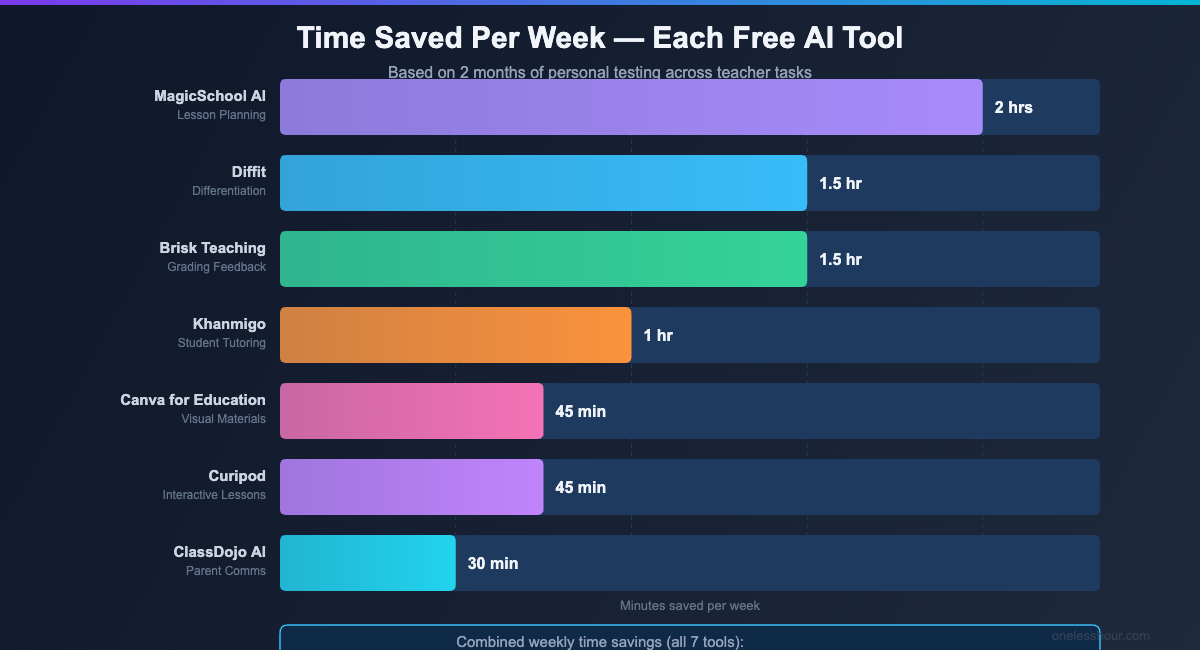
Quick numbers: Across the seven tools below, the average teacher saves 6–8 hours per week — but only if you use them for the right tasks. The specific breakdown is in each section.
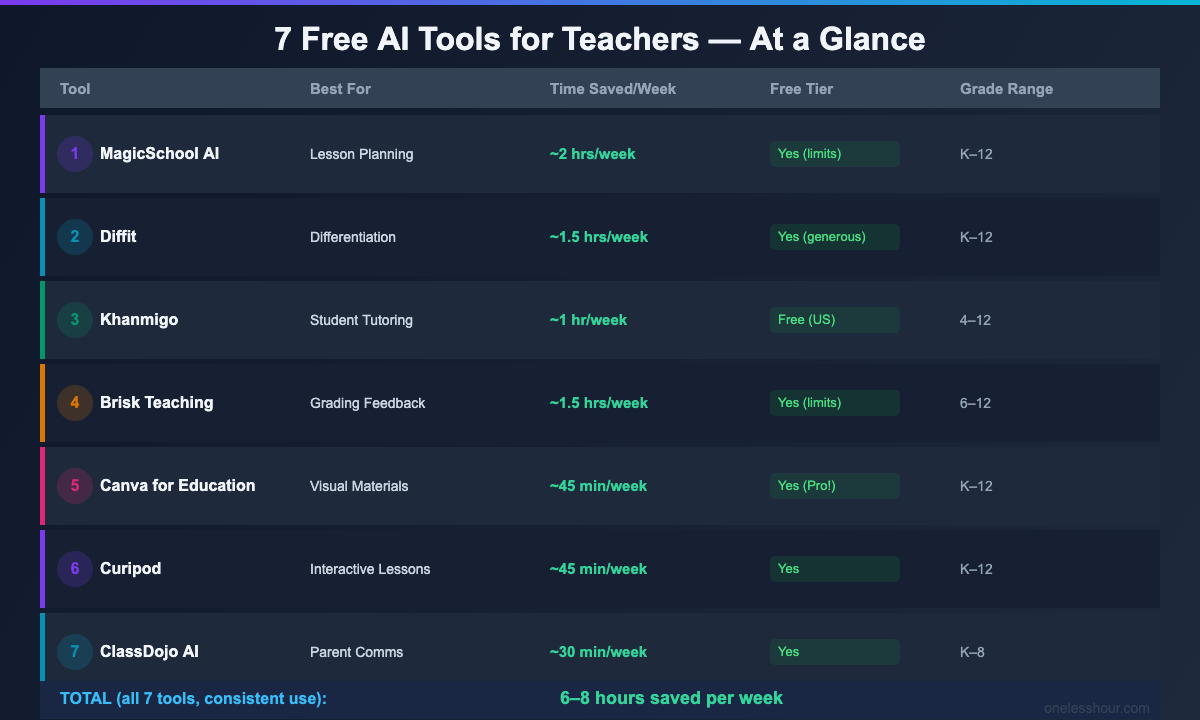
1. MagicSchool AI — Best for Lesson Planning (Saves ~2 hrs/week)
MagicSchool AI is the closest thing to having a teaching assistant who never sleeps. It’s built specifically for K-12 educators — not adapted from a general-purpose tool — and that specificity shows immediately.
I tested it on the task teachers hate most: building a full lesson plan from scratch. With MagicSchool, I gave it a learning objective (“Students will understand photosynthesis at a 6th grade level”), a time limit (45 minutes), and the format I wanted (direct instruction + group activity + exit ticket). It generated a complete, usable lesson plan in about 90 seconds. The same plan took me 35 minutes to write manually.
What it covers: 80+ tools in one interface — lesson plans, rubric generators, IEP draft support, parent email drafts, differentiated reading passage creation, discussion questions, and more. The rubric builder alone is worth installing for.
Pro tip: The “Text Leveler” is underrated. Paste any article or passage, tell it the reading level you need (grade 2 through 12), and it rewrites it accordingly. I used this to differentiate a single science text into three reading levels in under 5 minutes — a task that used to take 45+ minutes manually.
Free tier reality check: The free plan gives you access to most tools but has monthly generation limits — typically around 30–50 outputs per month depending on tool type. That’s enough for one teacher testing it, but a heavy user (daily lesson planning, constant rubrics) will hit the ceiling within 2 weeks. Paid starts at $10/month.
Limitation worth knowing: MagicSchool doesn’t integrate directly with your LMS. Everything is generated in the browser — you copy-paste into Google Docs, Canvas, or wherever you work. That friction adds a minute or two per use.
Best for: Middle and high school teachers who do most of their prep from scratch. Elementary teachers benefit slightly less because the default outputs often skew older.
Skip it if: You’re already happy with your lesson planning workflow and just need grading support — there are better tools for that specifically.
2. Diffit — Best for Differentiation (Saves ~1.5 hrs/week)
Differentiation is one of the most time-consuming parts of teaching — creating the same content at three or four reading levels for the same lesson. Diffit solves exactly this, and it does it better than anything else I tested.
The workflow is simple: paste any text (a news article, a chapter excerpt, anything), tell it the original reading level and the target level, and Diffit rewrites it. It also auto-generates comprehension questions, vocabulary lists, and a translated version if needed — all at once.
I tested it on a 400-word excerpt from a history textbook. I asked for versions at 3rd grade, 5th grade, and 8th grade reading levels, plus comprehension questions for each. Total time: 4 minutes. The manual version of that same task had previously taken me around 70 minutes across three separate sittings.
Pro tip: Use Diffit’s URL import instead of copy-pasting. Drop in a link to any webpage and it pulls the text automatically. I use this with news articles from Newsela and CommonLit when I need a fresh current-events passage — it saves another 5 minutes of formatting work.
Free tier reality check: Surprisingly generous. The free version lets you create adapted texts and question sets without a strict output cap in casual use. The paid plan ($12/month) unlocks bulk processing and Google Classroom integration, which is nice but not essential to start.
Limitation worth knowing: Diffit’s quality drops with highly technical content (chemistry equations, advanced math proofs). It also occasionally oversimplifies nuanced historical arguments when leveling down. Always read the output before handing it to students.
Best for: ELA, social studies, and science teachers working with mixed-ability classes or ELL students. Elementary teachers with wide reading level ranges get the most value.
3. Khanmigo — Best Free AI Tutor for Students (Saves ~1 hr/week)
Most AI tutoring tools do your students’ homework for them. Khanmigo deliberately doesn’t — it uses a Socratic approach, asking guiding questions instead of giving answers. That one design choice makes it the only student-facing AI tool I’d actually trust unsupervised in a classroom.
It’s now free for US K-12 educators (it used to cost $4/month per student). You get a teacher dashboard where you can assign Khanmigo conversations by topic, monitor student sessions, and see where students are getting stuck.
I had a group of 8th graders use it for a 30-minute independent practice session on fractions. Afterward, I reviewed the session logs — Khanmigo asked follow-up questions when students were stuck, redirected off-topic conversations, and flagged one student who kept guessing randomly instead of engaging with the hints. That last feature alone saved me the time of monitoring the room continuously.
What it saves: Not lesson prep time directly — it saves the time you’d spend doing 1-on-1 re-explanation with students who missed a concept in class. If you regularly spend 20–30 minutes per week doing individual catch-up explanations, Khanmigo handles a good chunk of that.
Pro tip: Use Khanmigo’s “Teach a Lesson” feature before introducing a new unit. Ask it to simulate student misconceptions for a given topic — it’ll generate the most common wrong answers and confused questions you’re likely to hear. That takes 3 minutes and can sharpen your intro lesson significantly.
Limitation worth knowing: Khanmigo works best within Khan Academy’s existing content library. For niche electives, AP Art History, or certain vocational subjects, it’s less useful as a student tutor.
Best for: Math and science teachers, grades 4–12. The student-facing tutor is most effective in subjects with clear right/wrong answers where Socratic nudges make sense.
4. Brisk Teaching — Best for Grading Feedback (Saves ~1.5 hrs/week)
Brisk is a Chrome extension that lives inside Google Docs and Google Slides. When a student submits work, you open it, click the Brisk icon, and it generates inline feedback comments based on the rubric you provide. You review, edit, and post — instead of writing every comment from scratch.
I tested it on a set of 22 student essays for a 9th grade English class. Generating first-pass feedback for all 22 docs took about 18 minutes total. Reviewing and personalizing the comments took another 25 minutes. Total: 43 minutes. My previous workflow without any AI: 2.5–3 hours for the same batch.
The feedback quality is solid — not perfect, but it catches the obvious structural issues, thesis clarity problems, and evidence-analysis gaps that take the most time to note. Where it falls short is nuanced literary analysis feedback, which still needs a human touch.
Pro tip: Before running Brisk on a new assignment type, spend 5 minutes writing a detailed rubric in plain English and pasting it into Brisk’s rubric field. The more specific your rubric, the more targeted the feedback — vague rubrics produce generic comments.
Free tier reality check: Brisk’s free plan covers basic feedback features for Google Docs and Slides. More advanced features (voice comments, full rubric creation within Brisk, larger batch sizes) require a paid plan. The free version is functional for most individual teachers.
Limitation worth knowing: Brisk only works in Google Workspace. If your school uses Microsoft 365 or Canvas assignments submitted as PDFs, Brisk won’t help you directly. There’s a limited Microsoft Word integration, but it’s clunkier.
Best for: ELA, social studies, and any teacher who assigns writing and uses Google Classroom. Absolute must-have if you’re giving written feedback on 15+ documents per week.
5. Canva for Education — Best for Visual Materials (Saves ~45 min/week)
Canva isn’t new, but the free education tier is far better than most teachers realize. With a verified school email, you get access to Canva Pro features — including the AI “Magic Write” text generator, background remover, and the full premium template library — at no cost.
I use it for three specific teacher tasks: creating slides that don’t look like default PowerPoint, building visual vocabulary posters, and generating infographic-style study guides. Before Canva, I’d spend 30–45 minutes fighting with formatting in Google Slides. With Canva templates, that’s now 10–15 minutes.
The AI features are actually useful: Magic Write can draft slide content from a bullet list, the “Bulk Create” feature generates personalized certificates or worksheets for every student at once (paste a spreadsheet, get 30 personalized docs), and the new AI image generator produces classroom-appropriate illustrations on demand.
Pro tip: Use Canva’s “Present and Record” feature to create async video walkthroughs of new lessons. Record yourself presenting a Canva deck, and it automatically stitches the recording with your slides into a shareable video. Takes about 15 minutes to make a 5-minute explainer — much faster than screen-recording with separate software.
Free tier reality check: Legitimately free for K-12 teachers and students. Verify with your school email at canva.com/education. The verification takes 1–2 business days. You get full Pro access, not a trial.
Limitation worth knowing: Canva’s AI features are useful but not deep. Magic Write is good for short content blocks, not full lesson plans. And if you’re already comfortable in Google Slides, the Canva learning curve (especially for exporting back to Google) may eat up the time it saves initially.
Best for: Any teacher who creates visual content — slides, posters, handouts. Elementary and arts teachers get especially strong mileage from the template library.
6. Curipod — Best for Interactive Lessons (Saves ~45 min/week)
Curipod generates interactive lesson slides — the kind with live polls, word clouds, open-ended responses, and exit tickets — from a simple topic prompt. Type “photosynthesis for grade 6,” hit generate, and within 30 seconds you have a 10-slide interactive presentation you can run live in class.
I tested the quality against what I’d build manually using Google Slides + Mentimeter. The Curipod output needed about 10 minutes of editing to match my class’s specific curriculum context — swapping examples, adjusting a few questions — but the underlying structure was solid. What used to take 45–60 minutes to build from scratch now takes 10–15.
The student engagement piece is real. Open-ended responses appear live on screen as students submit them, which generates actual discussion instead of silent wait time. Exit tickets are automatically collected and visible in your dashboard after class.
Pro tip: Don’t use Curipod for your main instructional lesson — use it for review days or warm-up activities. The interactive format works best when students already have some background knowledge and you want to surface misconceptions, not introduce new content for the first time.
Free tier reality check: Free for teachers with a school email. You get unlimited slide generation and student participation. The paid plan adds features like custom branding and advanced analytics, but the free tier is fully functional for classroom use.
Limitation worth knowing: Curipod works best for concept-review slides, not for highly sequential or technical content (proofs, programming, lab procedures). It also doesn’t integrate with most gradebooks, so exit ticket data stays inside Curipod.
Best for: Teachers who want more student interaction during lessons without building Kahoot-style games from scratch. Works for all grade levels and subjects.
7. ClassDojo AI — Best for Parent Communication (Saves ~30 min/week)
Parent communication is the invisible time sink. ClassDojo’s AI features help you draft behavior summaries, weekly classroom updates, and individual student progress notes faster than typing them from scratch.
The AI behavior summary feature is the most useful: at the end of the week, it auto-generates a personalized note for each student based on your logged behavior points and notes during the week. You review, add a personal line, and send. What used to take 20–25 minutes on Friday afternoon takes about 5.
I used it for a 6-week stretch with an elementary class of 24 students. The summaries are accurate, warm in tone, and appropriately specific — they don’t feel AI-generated to parents because they’re grounded in your actual logged observations. Two parents specifically mentioned they appreciated how personal the updates felt.
Pro tip: Log brief behavior notes during the day using ClassDojo’s mobile app (even just keywords like “great partner work” or “off-task during independent reading”). The AI summaries are only as good as your logged data — 2-minute daily logging unlocks much better weekly summaries than trying to recall everything on Friday.
Free tier reality check: ClassDojo’s core features — behavior tracking, parent messaging, class story — are free with no cap. AI features like behavior summaries are included in the free tier for most users, though some advanced AI features may require the school subscription tier.
Limitation worth knowing: ClassDojo is strongest for K-8. High school teachers often find the behavior-point system doesn’t match their classroom culture. The parent communication tools still work, but the full ecosystem is designed for younger grades.
Best for: Elementary and middle school teachers who already use (or want to start using) ClassDojo for behavior tracking. The AI features amplify value from data you’re already collecting.
The Complete Free AI Teacher Toolkit (How These Work Together)
You don’t need all seven. Here’s how I’d build a stack based on what takes the most time in your week:
| Your Biggest Time Drain | Start With | Add Next |
|---|---|---|
| Lesson planning | MagicSchool AI | Curipod for interactive delivery |
| Grading and feedback | Brisk Teaching | MagicSchool AI for rubric creation |
| Differentiation | Diffit | Canva for visual materials |
| Student support / tutoring | Khanmigo | Curipod for review sessions |
| Parent communication | ClassDojo AI | MagicSchool AI for email drafts |
My personal daily stack: MagicSchool AI for weekly lesson planning (Sunday, 30 minutes), Brisk for grading batches (rolling through the week), and Diffit whenever I need to adapt a text for different reading levels. Those three alone account for about 5 hours saved per week on a consistent basis.
Everything above stays free forever. If you’ve outgrown the free caps and want the full picture — all 14 tools I tested, including the paid tiers and which upgrades are actually worth it — see my complete AI tools for teachers roundup.
3 Tools I Tested and Left Off This List
In the interest of honesty: not everything I tested earned a spot.
Eduaide.Ai — good breadth (100+ generators) but the output quality is noticeably lower than MagicSchool AI for comparable tasks. The lesson plans felt generic and needed more editing than they saved.
SchoolAI — an interesting concept (supervised student AI with teacher dashboards), but the setup complexity is significant. It’s better suited for a school-wide rollout than a single teacher experimenting individually.
Quizlet AI — the auto-generated flashcard sets from pasted text are convenient, but the free tier is now severely limited. Most useful features require a paid plan, and better free alternatives exist for most use cases.
Frequently Asked Questions
What is the best free AI tool for teachers right now?
MagicSchool AI is the best all-around free tool for K-12 teachers in 2026. It covers the widest range of teacher tasks — lesson planning, rubric creation, differentiation, IEP support, and parent communication — with output quality that beats most general-purpose AI tools for education-specific tasks. The free plan has monthly limits, but for most individual teachers it’s enough to evaluate whether it fits your workflow.
Are free AI tools for teachers actually useful, or are they just stripped-down trials?
It depends on the tool. Diffit, Curipod, Khanmigo, and Canva for Education are actually free with no meaningful feature restrictions for individual classroom use. MagicSchool AI and Brisk Teaching have real free tiers but will hit limits for heavy daily use — those are worth evaluating on free and paying for if they stick. Avoid tools that label themselves “free” but require a credit card for anything useful.
How much time can AI really save teachers each week?
In my testing across these seven tools, consistent use saves 5–8 hours per week — but only on the tasks each tool is actually good at. The biggest gains come from lesson planning (MagicSchool AI, ~2 hrs/week), differentiation (Diffit, ~1.5 hrs/week), and grading feedback (Brisk, ~1.5 hrs/week). You won’t see those numbers by using AI occasionally — the savings compound when you build it into a regular workflow.
Are these AI tools safe to use with student data?
All seven tools in this list are FERPA-compliant and designed for K-12 use. Khanmigo, MagicSchool AI, ClassDojo, and Canva for Education are widely adopted in US public schools with existing district agreements. Avoid entering individual student names, IDs, or identifying details into any AI tool unless you’ve confirmed your school has a data processing agreement with that vendor. Generate and adapt — don’t upload personal student files.
Do I need admin approval to use these tools at school?
For tools you’re using personally (generating your own lesson plans, creating materials), most schools don’t require approval. For any tool that involves student interaction or student data — Khanmigo, ClassDojo, SchoolAI — check your school or district’s AI policy first. Many districts are actively updating these policies in 2026, and it’s faster to ask your tech coordinator than to get a tool revoked mid-semester.
Where to Start Tomorrow
Don’t install all seven at once. Pick the task that eats the most time in your week and start there:
If it’s lesson planning: Sign up for MagicSchool AI, open the “Lesson Plan” tool, and give it your next lesson objective. You’ll have a draft in 90 seconds. Spend 10 minutes editing it to match your class. That’s your introduction to AI-assisted planning — one lesson, one Sunday morning, zero commitment beyond that.
If it’s differentiation: Go to Diffit.me right now. No account required to try it. Paste a text you’ve already been planning to use, set the reading levels, and see what it generates. It takes 3 minutes to see the value.
If it’s grading feedback: Install the Brisk Chrome extension, open one student essay in Google Docs, and run it. That first demo is all you need to decide if it belongs in your workflow.
The teachers I know who’ve made these tools stick didn’t start with a grand AI strategy. They started with one annoying task, found a tool that handled it faster, and went from there. That’s the whole playbook.
Related: How I Automated 5 Hours of Weekly Busywork Using AI — the same approach, applied to non-teaching tasks.
Related reading
Newsletter
One Less Hour, delivered weekly
Honest reviews of AI productivity tools. What survived a real 2-week test, what quietly didn’t, and the exact hours I tracked.
One email per week. Unsubscribe in one click.