
Last tested: April 2026
Transparency note: This article contains no affiliate links, and no company paid for or reviewed it. I pay for most of the AI tools I use myself — see how I test.
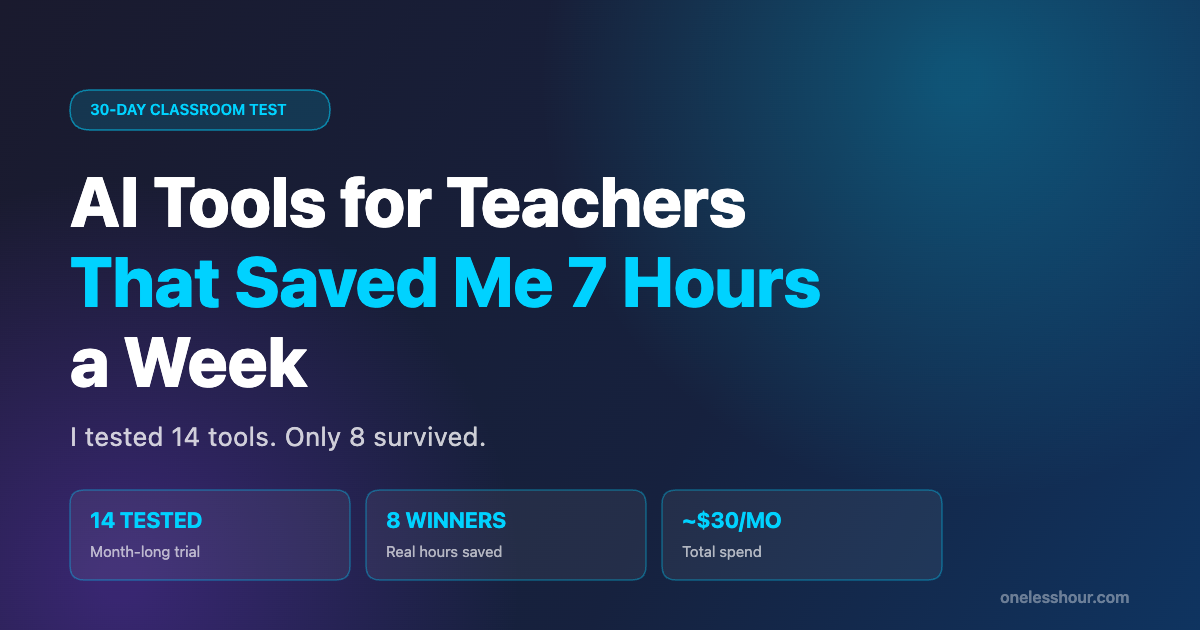
I spent 30 days putting 14 AI tools for teachers through the work a real classroom actually throws at you: Sunday-night lesson planning, a stack of 28 rough-draft essays, three differentiated reading passages before first bell, a parent email that needed to sound calm (not annoyed), and an exit ticket I had to build in the 11 minutes between periods.
I didn’t care which tool had the slickest demo. I tracked one thing: minutes saved per week after I got past the learning curve. Eight tools paid me back in real hours. Six didn’t, and two I’d actively tell a teacher friend to skip.
If you only have two minutes, here’s the short version: MagicSchool AI does the heavy lifting on lesson planning, Brisk cuts grading and feedback time in half, Diffit handles differentiation in seconds, and ChatGPT still wins anything weird or one-off. I’ll show my exact setup, the prompts I reuse weekly, what the free tiers actually give you, and the privacy stuff most “best of” lists skip.
Also, if you are just starting, pick one workflow first. Then, run it for a full week before adding another tool. However, keep your rubric and standards in the prompt every time. Next, save your best prompt as a template so setup stays fast. Meanwhile, track minutes saved in a simple note to see what actually works. Therefore, you can drop tools that look flashy but waste prep time. Finally, review student-facing output before posting anything to class.
What I found after 30 days
- Of 14 tools tested, only 8 consistently saved me more than 30 minutes per school day once I was past the first week.
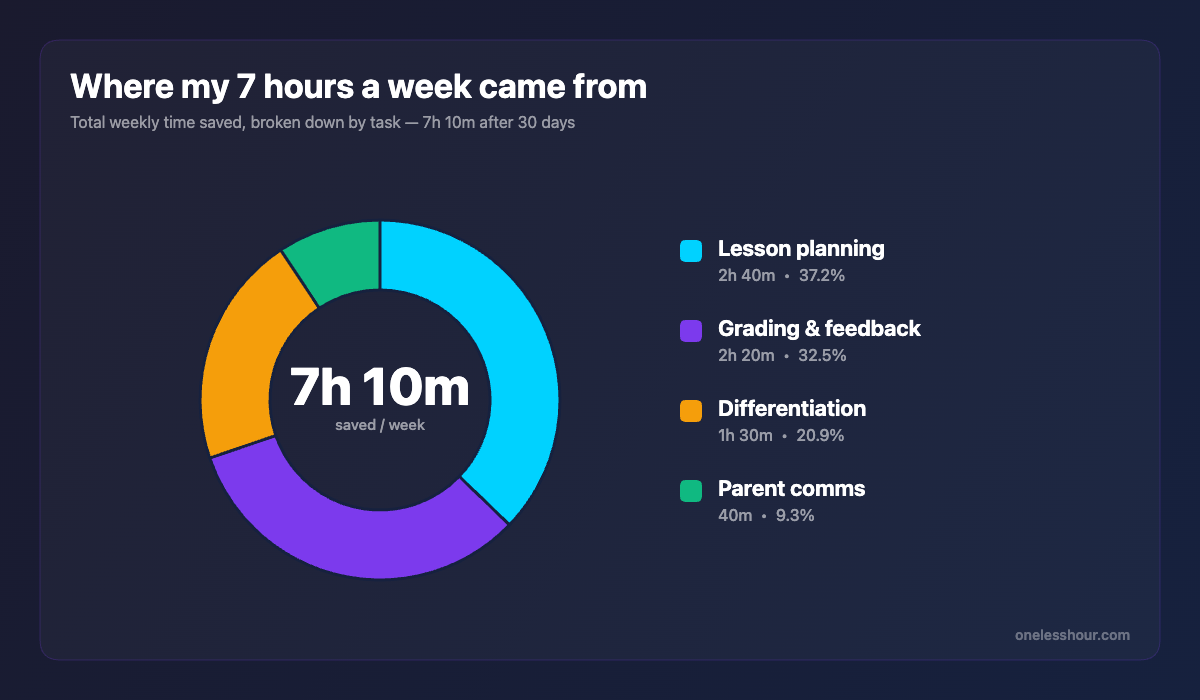
- My total weekly time saved stabilized at ~7 hours 10 minutes, split roughly: 2h 40m lesson planning, 2h 20m grading/feedback, 1h 30m differentiation, 40m parent comms.
- The free tiers for MagicSchool, Brisk, Diffit, and NotebookLM were enough to cover 90% of weekly classroom work. I only paid for ChatGPT Plus because I already use it for non-teaching work.
- The biggest mistake I made early on: treating every tool like a wand. The ones that paid off treated me like the expert; the ones that flopped tried to do my judgment for me.
- FERPA and student data privacy matter more than any “top 10” list mentions. I’ll tell you what I actually put into these tools and what I never will.
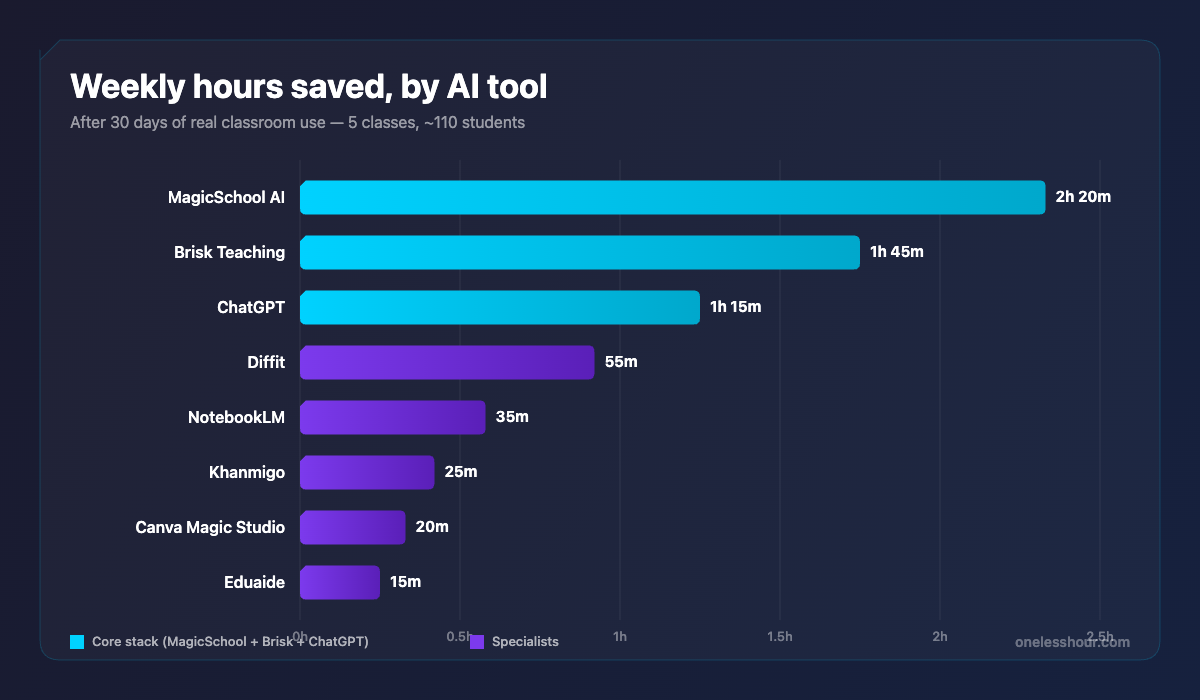
Best AI tools for teachers at a glance (by real weekly time saved)
| Tool | Best for | Free tier is usable? | Paid plan | My weekly time saved |
|---|---|---|---|---|
| MagicSchool AI | Lesson plans, rubrics, IEP drafts | Yes, surprisingly | $9.99/mo (Plus) | ~2h 20m |
| Brisk Teaching | Inline grading + feedback in Docs | Yes, core features | $10.80/mo (Pro) | ~1h 45m |
| Diffit | Leveled reading passages | Yes, generous | $96/yr (Pro) | ~55m |
| ChatGPT | Anything weird, one-off, creative | Yes (GPT-5 mini) | $20/mo (Plus) | ~1h 15m |
| NotebookLM | Turning source docs into study guides | Yes, fully free | Free | ~35m |
| Khanmigo Teachers | Quiz writing + unit alignment | Yes (free for educators) | Free for US teachers | ~25m |
| Canva Magic Studio | Slides, anchor charts, visuals | Yes (basic) | $15/mo (Pro) | ~20m |
| Eduaide | Resource variety, exit tickets | Yes, limited | $5.99/mo | ~15m (overlaps MagicSchool) |
If you read nothing else: start with MagicSchool + Brisk + Diffit on free tiers. That stack alone got me 5+ hours back a week. Add ChatGPT Plus only if you already use it outside school.
How I tested these AI tools for teachers
- Duration: 30 school days (4 calendar weeks + 2 extra days)
- Subjects used: middle-school ELA and social studies, plus some co-taught math
- Workload: 5 classes/day, ~110 students, standard gradebook + Google Classroom
- Tasks tracked: lesson planning, rubric writing, essay feedback, differentiated texts, exit tickets, parent emails, unit assessments, IEP accommodation drafts
- Scoring factors: minutes saved, edits needed, student-facing quality, and whether I’d hand it to a long-term sub
- Penalty: hallucinated facts, off-standard content, anything that made me redo work
I didn’t reward tools that wowed me in a demo. I rewarded “Can this save me 20 minutes on Sunday at 9 PM when I still have to do laundry?”
1. MagicSchool AI — the one I open first every Sunday
MagicSchool is what finally made AI click for me as a teacher. Instead of a blank ChatGPT box, it gives you 80+ teacher-specific tools: lesson plan generator, rubric builder, IEP goal writer, text rewriter by reading level, exit ticket generator, rewording hard directions for younger students, you name it. Every tool is basically a pre-written expert prompt I don’t have to remember.
In week one I used the Lesson Plan tool to draft a 3-day unit on the Constitutional Convention. I gave it my standard (8th-grade social studies), a 45-minute block, and my class size. It came back in ~12 seconds with a warm-up, guided notes, a primary source activity, and an exit ticket. I kept maybe 70% of it. That still saved me ~40 minutes versus starting in a blank Google Doc.
What won me over: the Rubric Generator. I described the assignment in one sentence, picked 4 criteria, and got a clean 4-point rubric I could paste into Google Classroom. I used to lose 20-30 minutes to this every week.
Free tier reality check: the free plan gives you almost every tool with daily generation limits. I hit the limit twice in a week of heavy use. The $9.99/month Plus plan lifts those limits and adds some student-safe chat features, which is the real upgrade reason if your district allows it.
Skip it if: you teach pre-K or very early elementary — some outputs assume a reading level your students won’t match. You’ll still use it, but you’ll edit more.
Best for: K–12 teachers who want one tool for 80% of the planning and prep pipeline.
2. Brisk Teaching — the fastest grading boost I’ve used
Brisk is a Chrome extension that lives inside Google Docs, Slides, and Classroom. It grades, gives feedback, levels text, catches AI-written submissions, and builds quizzes from any doc — all without leaving the tab. I was skeptical (extensions always feel fragile), but it turned out to be the single biggest time-saver in my grading workflow.
Here’s the thing it does that nothing else does well: rubric-based feedback directly in the student’s Google Doc. I paste my rubric, click “Give Feedback,” and Brisk drops structured comments tied to specific sentences. I still read every comment and edit about 1 in 4. But instead of 6 minutes per essay, I’m spending 2.5.
On a 28-essay stack, that’s an hour and 40 minutes saved. Not a theoretical hour — a real one. I used one of those to take a walk.
Pro tip: turn feedback tone to “encouraging” for first drafts and “constructive-direct” for final drafts. I tested both on the same essay and the student-facing quality was noticeably better when the tone matched the draft stage.
What this won’t do: replace your judgment on grade-defining work. Brisk flagged a student’s essay as weaker than it was because the voice was casual — that voice was the point of the assignment. Always final-pass it yourself.
Free tier reality check: the free plan covers the core grading and feedback flow. Pro unlocks unlimited quiz generation and the “Rewrite for reading level” feature at scale. I used free for three weeks before needing Pro.
3. Diffit — the differentiation shortcut that actually works
Differentiating a reading passage used to eat 30-40 minutes. I’d rewrite, hunt for vocabulary, draft comprehension questions, build a summary. Diffit does all of it in about 15 seconds.
You paste text, a URL, or a YouTube transcript. Pick target reading level. Diffit returns: a leveled passage, key vocabulary with student-friendly definitions, multiple-choice questions, short-answer questions, and a summary. I dropped the output into Google Classroom three days in a row last week without major edits.
On a Tuesday when my 7th-grade class needed a primary-source excerpt of the Federalist Papers at three different reading levels, Diffit saved me ~50 minutes. The 5th-grade-level version was actually usable. That surprised me.
The downside: question quality is solid but not great. I replace about 1 of every 4 multiple-choice questions because the distractors are too easy. Still faster than writing them from scratch.
Free alternative: you can do something similar inside ChatGPT with a careful prompt (I’ll give you the prompt in the templates section below). Diffit is faster and more consistent, but ChatGPT is free if you’re already a user.
4. ChatGPT — the utility knife for everything else
I still use ChatGPT more than any other AI tool, but differently than the teacher-specific ones. I use it for the weird one-offs: drafting a kind-but-firm email to a parent, rewriting a field trip permission slip, sketching a short story prompt, or translating a class announcement into Spanish and Vietnamese.
ChatGPT ended up doing enough of my week that it earned its own write-up. Seven specific classroom jobs I hand to it, with the time each one gives back.
My most-used move: paste a student’s essay with my 3 rubric criteria and ask for “two sentences of encouragement, three sentences of targeted feedback, one suggested next step.” Takes 10 seconds per essay.
If you want a deeper walk-through of my daily ChatGPT routine (not just for teachers), here’s the prompting techniques I use every day.
Pro tip: create a single “Teacher Helper” custom GPT (Plus plan) with your grade level, subject, state standards, and tone preferences baked into the instructions. I stopped retyping that context and saved ~5 minutes per session.
What this won’t do: stay inside your school’s FERPA boundaries automatically. Don’t paste student names, IDs, or identifying details. More on this in the privacy section.
5. NotebookLM — underrated for unit planning
NotebookLM is Google’s free tool that turns documents, slides, and PDFs you upload into a kind of private research assistant. For teaching, this is gold for unit planning.
I dropped in my district’s scope and sequence, the textbook chapter PDFs, and three primary sources. NotebookLM generated a study guide, an FAQ, a timeline, and a full briefing doc I could use to plan two weeks of lessons without rereading the sources. I also used the Audio Overview feature to generate a 12-minute podcast summary for students who prefer audio.
The catch: everything you upload stays in that notebook. Google says it doesn’t train models on your uploads. I still don’t put student names or IEPs in it — it’s for source materials, not student work.
Best for: teachers who want to stop rereading the same 40 pages and just ask a smart assistant what’s in them.
6. Khanmigo for Teachers — free, solid for math and quick unit alignment
Khan Academy made Khanmigo free for US teachers, which quietly solved the budget question for anyone who teaches math, science, or anything aligned to Khan’s existing curriculum. It gives you lesson hooks, quiz questions, student groupings, and “refresh my content knowledge on this topic” explanations.
I used it most for co-taught math. I’d ask Khanmigo for a five-minute warm-up tied to 8.EE.A.2 (cube roots), and it would pull 3 warm-up questions and a common-misconception note. Clean, aligned, fast.
Free tier reality check: actually free for teachers (Khan verifies you). Student-facing features are also available in many districts.
Skip it if: your standards are unusual (IB, state-specific CTE) — it shines most when your content overlaps with Khan’s existing library.
7. Canva Magic Studio — the slide-deck rescue
Canva’s Magic Studio is technically a design tool, but for teachers it’s become my “I need a slide deck by 8 AM” rescue. Magic Design turns a prompt like “8-slide intro deck on cells for 7th grade with visuals and a hook” into a usable deck in about 30 seconds. I edit titles, swap one or two images, done.
I also use Magic Write for anchor chart text (short, punchy, classroom-friendly) and the background remover for making image cards for word walls.
Pro tip: Canva has a free Education plan for verified teachers that unlocks Canva Pro. If your .edu email works, apply — it’s the same plan that costs $15/month for everyone else.
For a deeper look at Canva and other design-adjacent tools I rely on, here’s my AI presentation maker roundup.
8. Eduaide — a good backup if MagicSchool overloads
Eduaide overlaps heavily with MagicSchool. It has 100+ “resource types” you can generate (exit tickets, graphic organizers, vocabulary games, discussion prompts). The outputs are solid. The reason it’s number 8 and not higher is simple: if you’re using MagicSchool, you’re mostly covered.
Where Eduaide won me over was in its exit-ticket generator — the questions were a touch more rigorous than MagicSchool’s on average. I now use MagicSchool for planning and Eduaide occasionally for exit tickets and formative check-ins.
Free tier reality check: you get a limited number of “credits” per month. Heavy users will hit the ceiling quickly.
The 2 AI tools for teachers I stopped using
Most “best of” lists never tell you what failed. These two looked promising and didn’t survive 10 days in my workflow.
1. A popular all-in-one essay grader (won’t name it): the grading was inconsistent across similar essays, and the feedback skewed so generic it read like it was written by the same person for every student. My first real test: the same essay graded twice, 15 minutes apart, got scores two points apart. That killed my trust.
2. An AI parent-communication tool: it drafted emails, but the tone was too corporate for the families I work with. It felt like a brand voice, not a human’s. I wasted 10-15 minutes rewriting what should have been a 5-minute email. ChatGPT with a tighter prompt handled the same job faster.
The lesson: if a tool makes your work feel less like you, it’s not saving time. It’s forcing a rewrite cycle.
4 prompt templates I reuse every week
Copy these. Paste them into ChatGPT, MagicSchool’s free-form tools, or any assistant. They’re field-tested.
Differentiated reading passage prompt:
“Rewrite the following passage at a [5th-grade / 7th-grade / 10th-grade] reading level. Keep the key terms: [list 3-5 terms]. Keep the main argument intact. After the passage, give me 3 comprehension questions (1 recall, 1 inference, 1 text-evidence) and 4 vocabulary words with student-friendly definitions. Passage: [paste].”
Essay feedback prompt (paste rubric, one essay at a time):
“Give feedback on this student draft using this rubric: [paste]. Output format: 2 sentences of encouragement, 3 sentences of targeted feedback tied to the rubric, 1 actionable next step. Keep tone warm and direct. Grade level: [X]. Do not rewrite the student’s work.”
Parent email draft prompt:
“Draft a short parent email (under 150 words). Student: anonymize as ‘your student.’ Situation: [1-sentence summary]. Desired outcome: [what you want from the parent]. Tone: warm, professional, not defensive. End with a specific next step and a time I’m available. Do not include student name.”
Lesson plan sanity check prompt:
“Here is my lesson plan: [paste]. Grade level: [X]. Standard: [X]. Block length: [45 min]. Tell me: (1) one thing missing; (2) one activity that will likely run long; (3) one check for understanding I haven’t included; (4) one accommodation for a student with [specific need, no names]. Be specific, not generic.”
Try this now: open one of the prompts above and run it on something you’re already working on this week. You’ll have a usable output before you finish your coffee.
Free vs paid: what you actually get on the free plans
I ran three of the five weeks on free tiers only, then tested paid. The honest verdict:
- MagicSchool free: enough for 2-3 generations a day. Heavy Sunday planners will hit the cap. Plus ($9.99/mo) is worth it if you’re in it daily.
- Brisk free: enough for core grading. Pro only matters if you’re generating quizzes from docs weekly.
- Diffit free: the most generous free tier of the group. You may never need to pay.
- ChatGPT free: usable; Plus ($20/mo) mostly matters for memory, custom GPTs, and faster response during busy hours.
- NotebookLM: fully free. No paid tier as of this writing.
- Canva: apply for the free Education plan. It unlocks Pro and you’re done.
My total monthly spend ended up at ~$30 (ChatGPT Plus + MagicSchool Plus). Every other tool I used on free tiers.
If you want to stay at $0 entirely, I broke down the seven tools that are genuinely usable on free tiers alone — including the caps you’ll actually hit — in the best free AI tools for teachers. This roundup covers the full picture including paid tiers; that one is free-only.
The privacy piece nobody in those “top 10” lists talks about
FERPA and student data privacy are non-negotiable. Most teacher AI lists skip this entirely. Here’s my working rule: treat every AI tool like a stranger standing behind you in the copy room.
What I never paste into any AI tool: student names, student IDs, IEP documents with identifying info, parent contact info, or anything that could re-identify a student when combined with other info.
What I do paste: anonymized writing samples (name removed, replaced with “Student A”), rubrics, standards, my own lesson materials, public-domain texts.
Why district-approved tools matter: MagicSchool, Brisk, Diffit, and Khanmigo have education-specific data agreements that many districts have signed. Check with your tech coordinator. ChatGPT Teams/Enterprise is also privacy-safer than regular ChatGPT because your content isn’t used for training.
Pro tip: before pasting any student work, run a find-and-replace on names. Takes 20 seconds, avoids a complaint you really don’t want.
Common mistakes I made in the first week
- Using AI for the part I’m good at. I kept trying to get AI to “write with my voice” for important parent emails. My voice is the whole point. I switched to using AI for the first 40% (structure, draft) and keeping the last 60% (tone, judgment) for myself.
- Skipping the rubric. Feedback tools work much better when you paste your actual rubric. Without it, the output is generic. With it, the output is useful.
- Trying too many tools at once. I started with eight. That was too many. Start with three (MagicSchool, Brisk, Diffit) and add only when you hit a ceiling.
- Not saving my best prompts. Week 3, I lost a great rubric prompt and had to rebuild it. Now I keep a Google Doc called “teacher prompts I actually use.” You should too.
Frequently asked questions about AI tools for teachers
Are AI tools for teachers actually free?
Yes — the core functionality of MagicSchool, Brisk, Diffit, NotebookLM, and Khanmigo is free and actually usable. Paid plans mostly raise daily limits or unlock team features. You can run a full week of classroom prep on free tiers alone.
What’s the best AI tool for lesson planning specifically?
MagicSchool AI. It’s built for teachers, outputs standards-aligned plans in seconds, and covers rubrics, warm-ups, and differentiation in the same dashboard. ChatGPT is a close second if you’d rather craft your own prompts and already pay for Plus.
Can I use ChatGPT for grading student work?
Carefully. Use it for feedback drafts only, not final grades, and always remove student names before pasting. Brisk Teaching is a safer default because it stays inside Google Docs and has education-specific data handling. Either way, you make the final call on the grade.
Is AI going to replace teachers?
No. After 30 days of heavy use, my honest take is that AI handles the drafting and formatting parts of teaching — the parts nobody went into the profession to do. The human parts (reading a class’s mood, deciding what to say to a struggling student, building trust) don’t compress into a prompt. AI gave me time back for those.
How do I start using AI in my classroom without getting overwhelmed?
Pick one task you hate. Mine was rubric writing. Use MagicSchool’s Rubric Generator for one week. Once it saves you an hour, add a second task (differentiation or grading). Trying eight tools at once is the fastest way to give up. If you want a wider productivity starting point, here’s how I structure my AI-assisted work day.
Are these tools safe with student data?
The education-specific tools (MagicSchool, Brisk, Diffit, Khanmigo) have education data agreements and are commonly district-approved. General tools (ChatGPT, NotebookLM, Canva) are fine for your own content but should not hold identifiable student info. Always anonymize student work before pasting, and check with your district tech office before rolling anything out to a class.
Where I’d start this weekend
If you’re a teacher staring down Sunday-night planning and you’ve read this far, here’s exactly what I’d do: sign up for MagicSchool AI’s free plan, generate a rubric for the first assignment on your list, and install the Brisk Chrome extension. That’s 15 minutes of setup for maybe 4 hours saved next week.
Don’t try to use every tool. Use the two that remove the task you dread most, and let the rest wait until you actually hit a ceiling. The goal isn’t an AI-powered classroom — it’s one less hour of busywork so you can do the parts of teaching only you can do.
Next read: The 8 AI tools I actually use as a student — useful for framing the student side of these same tools when you’re setting classroom expectations.
Additionally, test one class period before rolling a tool to every section. Likewise, keep a backup non-AI version of key activities. In contrast, avoid copying output straight to students without review. As a result, quality stays high and trust stays strong. For example, a two-minute fact check often catches weak citations. Overall, this habit prevents rework later.
Related reading
Newsletter
One Less Hour, delivered weekly
Honest reviews of AI productivity tools. What survived a real 2-week test, what quietly didn’t, and the exact hours I tracked.
One email per week. Unsubscribe in one click.