
Transparency note: This article contains no affiliate links, and no company paid for or reviewed it. I pay for most of the AI tools I use myself — see how I test.
Last semester I had a 40-page lit review due, two group projects, and a part-time job. I finished everything. Not because I’m some kind of productivity wizard — I’m not. I just quietly leaned on a stack of AI tools that do the boring parts faster than I can.
So this isn’t another “15 amazing AI tools for students!” listicle written by someone who opened each app once. I’ve been running these tools through real coursework — reading, writing, note-taking, research, scheduling — for months. The eight below are the ones I’d actually pay for if my student license disappeared tomorrow. The rest got uninstalled.
Each tool below comes with: what it does, my exact workflow, the time it saves me in a typical week, and — importantly — a free-tier reality check so you’re not surprised at checkout.
How I picked these AI tools for students
Three rules. First, the tool has to solve a specific student pain point — not “boost productivity” in the abstract. Second, it has to work on a realistic student budget (free tier usable, or under $10/month). Third, it has to survive a month of daily use without me rage-quitting.
I started with a list of about 23 apps pulled from Reddit threads, r/GetStudying recommendations, and my classmates’ suggestions. After a month, only eight stuck. The rest either cost too much, were thin wrappers around ChatGPT, or broke on long PDFs (a surprising amount of “study AI” tools choke on anything over 50 pages).
Quick note: I’m not including ChatGPT or Claude as standalone entries because at this point they’re the operating system underneath half these tools. If you want a deep dive into those two specifically, I wrote The Busy Person’s Guide to ChatGPT — that covers the general-purpose workflows I use daily.
1. NotebookLM — my research sidekick
NotebookLM (Google’s free tool) is the one I’d miss most. You upload PDFs, slide decks, articles, even YouTube video URLs, and it builds a notebook that can only answer from those sources. Ask “what does Smith argue about attention spans in chapter 3?” and it cites the exact paragraph.
My workflow: dump every reading for a course into one notebook at the start of the semester. When I sit down to write an essay, I ask it to pull quotes and citations for my thesis. It doesn’t hallucinate sources because it can’t — it only has the PDFs I gave it. This alone killed 90% of my citation anxiety.
Pro tip: Use the Audio Overview feature to generate a podcast-style summary of all your readings for the week. I listen to it while commuting and it’s genuinely how I’ve retained more from dense theory texts.
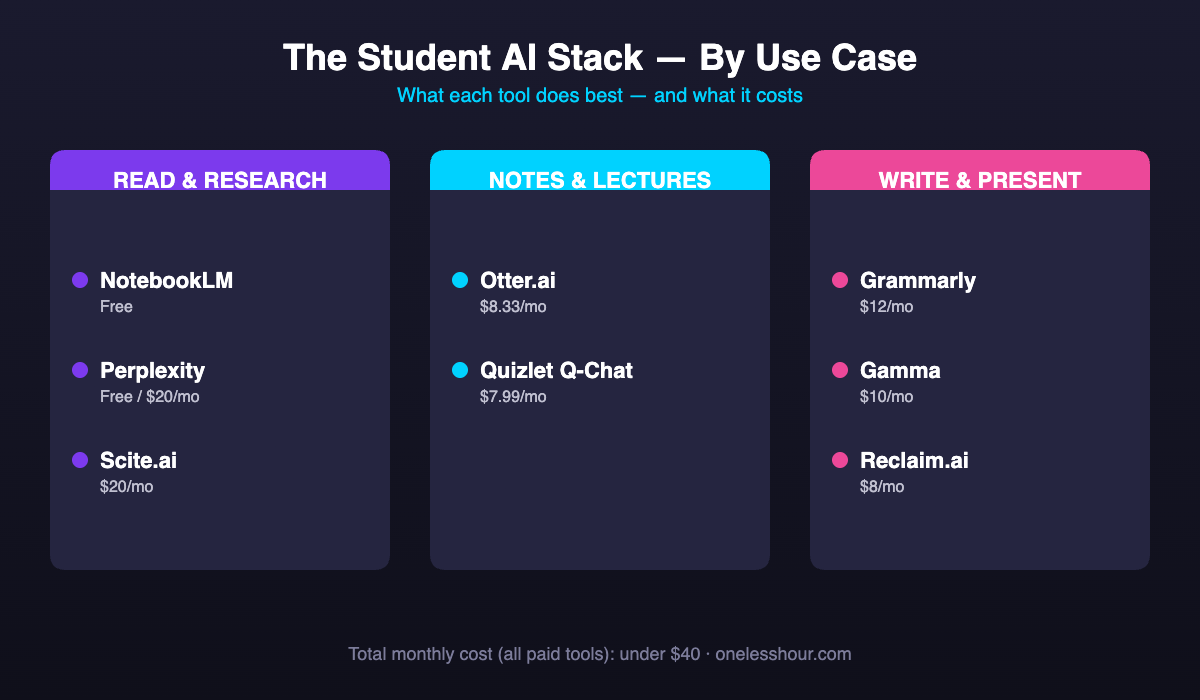
Price: Free (with very generous limits). NotebookLM Plus is $20/month if you want more sources per notebook.
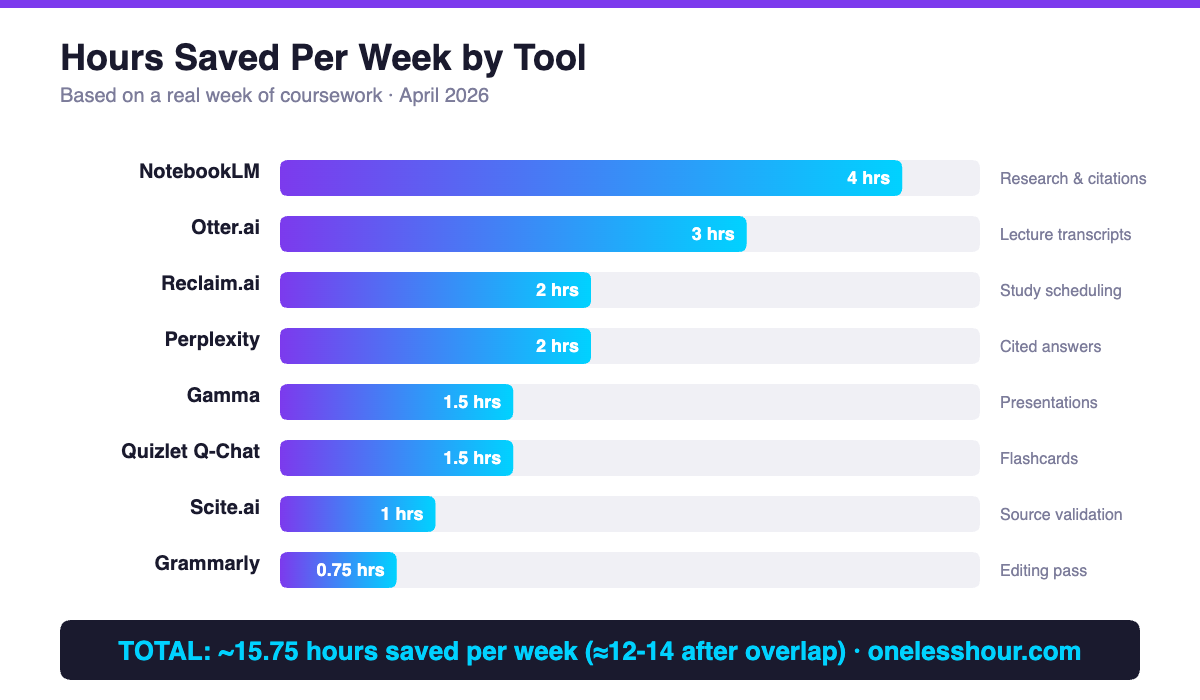
Time saved: ~4 hours/week on finding quotes and citations.
Skip it if: Your work is entirely from web sources you’d rather search live. It’s best for readings you own as files.
2. Otter.ai — lecture notes that write themselves
If you take notes in lectures, you’re splitting attention between listening and writing. I stopped doing that last October. Otter runs in the background on my phone, records the lecture, and hands me a searchable transcript with speaker labels and a summary.
My actual workflow: I keep a small notebook for diagrams and formulas (things Otter can’t capture), and let Otter handle the words. After class I skim the summary, highlight what matters, and move on. For the first time in three years I actually understand what happened in my 8am stats class.
Pro tip: Ask permission before recording in any class. Most professors are fine with it; a few aren’t. Also: Otter’s auto-summary misses nuance on highly technical lectures, so you still want to review the full transcript.
Price: Free plan gives you 300 minutes/month. Pro at $8.33/month (billed annually) gives you 1,200 minutes plus advanced summaries. I’m on Pro.
Time saved: ~3 hours/week, and — more importantly — I retain more because I’m actually listening.
The downside: Accuracy drops for heavy accents or noisy rooms. Budget 10 minutes of cleanup for a 60-minute lecture.
If you want to see how Otter compares to other note-taking tools, I did a full head-to-head in this breakdown of 12 AI note-taking apps.
3. Grammarly — the last-mile editor
Grammarly is the least exciting tool on this list and also the one I open most. Every email, every discussion post, every draft essay runs through it before I submit. It catches the things I’m too tired to notice at midnight — comma splices, tense shifts, the word “however” used three times in a paragraph.
Worth knowing before you submit anything: AI detectors flag human writing more often than most universities admit. I ran 200 texts through eight of them to measure the false-positive rate.
I don’t use Grammarly’s AI to rewrite entire paragraphs — that’s how you end up with sanitized, voiceless prose. I use it as a final pass to clean mechanics. Think of it as a spellchecker with opinions, not a co-writer.
Pro tip: Turn off the “tone suggestions” feature. It will flag your writing as “sounding angry” when you’re just being direct, and chasing those warnings makes your prose mushy.
Price: Free tier is useful for mechanics. Premium is $12/month. Many universities have a free Premium deal through their writing center — check before paying.
Time saved: ~45 minutes/week of proofreading.
What this won’t do: Fix a weak argument. It cleans sentences; the thinking still has to be yours.
4. Perplexity — my “first Google search” replacement
For any research question where I need a cited answer fast, I go to Perplexity before Google. It answers in plain English and attaches the sources it pulled from so I can verify or dig deeper. When I’m triaging whether a topic is worth pursuing, this saves me from the 15-tab research spiral.
The big difference from ChatGPT: Perplexity actually browses live sources for every answer, so it’s rarely out of date. Great for current events, recent studies, and anything where accuracy matters more than creativity.
Pro tip: Use the “Academic” focus mode for literature searches. It filters to peer-reviewed sources. Not perfect, but much better than generic web mode for coursework.
Price: Free tier handles casual use. Pro is $20/month but there’s often a student discount. I’m on the free tier and it’s plenty.
Time saved: ~2 hours/week of rabbit-hole searching.
Honest limitation: It can still pull from low-quality sources if you don’t use Academic mode. Always click through to verify before citing.
5. Quizlet (with Q-Chat) — spaced repetition on autopilot
Quizlet has been around forever but the Q-Chat feature turned it into something new. I paste my lecture notes or a textbook chapter, and it generates flashcards automatically. Then I drill them on my phone during dead time — commute, waiting for coffee, whatever.
This tool earned its spot because of what happened with my anatomy final. I had three weeks to memorize 400+ terms. I generated the decks from my notes in about 15 minutes and drilled them in 10-minute sessions, three times a day. I went from 63% to 91% on practice tests. That’s not normal for me.
Pro tip: Q-Chat will also quiz you Socratically — asking you “why” instead of just definitions. Use this for concept-heavy subjects where memorization alone won’t save you.
Price: Free tier is usable but pushy on ads. Plus is $7.99/month. I pay for Plus because the ads got in the way during study sessions.
Time saved: ~90 minutes/week on flashcard creation I used to do manually.
Skip it if: You’re in a field where memorization isn’t the bottleneck. For philosophy or high-level math, it’s less useful.
6. Scite.ai — smarter citation checking
Scite is a more niche pick, but if you’re writing a research paper it’ll change how you treat sources. Paste a citation and Scite tells you whether other papers supported, contrasted, or just mentioned the finding. Suddenly you can see which “well-established” claims are actually contested.
I use it in two places: during research, to filter for sources that have been validated by later work, and during writing, to double-check I’m not cherry-picking a result that’s been contradicted since publication.
Pro tip: Check if your university library already has a Scite institutional subscription — many do. Mine does and I didn’t know until I asked.
Price: Free plan gives 3 searches a day. Individual plan is $20/month.
Time saved: This one’s less about time, more about credibility — probably an hour per paper spent hunting rebuttals.
What this won’t do: Replace reading the source. Scite flags the signal; you still have to check the context.
7. Reclaim.ai — schedule protection for students who work
This one’s for anyone juggling school with a job or heavy commitments. Reclaim plugs into your Google Calendar and defends blocks of study time against meeting requests. It also reschedules your study sessions automatically when something urgent pops up.
My actual setup: I have four “study habits” in Reclaim — one per class. Each gets 90 minutes, 4-5 times a week, scheduled around my job shifts and my real sleep schedule. When my manager drops a last-minute shift on me, Reclaim finds the next best slot for my missed study session instead of just deleting it.
Pro tip: Set your “habits” with a priority level. High-priority habits will displace lower ones when conflicts happen, so your bar-exam prep doesn’t get bumped for a study session on an elective.
Price: Free plan covers the basics. Starter is $8/month, which is what I pay.
Time saved: Roughly 2 hours/week I used to spend rescheduling things manually — plus a real reduction in the “I forgot to study” panic.
Skip it if: Your schedule is already regular and predictable. This tool shines when chaos is the default.
8. Gamma — last-minute presentation generator
Group project due tomorrow and someone forgot the slides? Gamma is my emergency button. I paste a one-paragraph prompt — topic, audience, key points — and it generates a full deck with images, layout, and consistent styling in about 90 seconds. I then spend 10-15 minutes editing, not 2 hours building from scratch.
The output isn’t perfect. The default templates lean a bit startup-pitch-y and the image generation sometimes misses context. But as a starting point it’s dramatically faster than any alternative, and the slides are usable for 80% of student presentations without heavy rework.
Pro tip: Write your prompt like a brief: “audience = professor and 20 classmates, goal = explain Bayesian inference in 7 slides, tone = educational not corporate.” The specificity changes the output quality a lot.
Price: Free tier gives you 400 credits to start, enough for a few full decks. Plus is $10/month.
Time saved: Easily 90 minutes per presentation, sometimes more.
The downside: You still need to edit. If you submit the raw output, it’ll look like the raw output.
I also cover Gamma and five other presentation tools in my guide to AI presentation makers if you want to compare it with alternatives.
Total time saved in a typical week
Adding up the numbers above: roughly 12-14 hours a week back from tools that cost under $40/month combined. That’s not magic — it’s just the result of letting software handle the parts that don’t require thinking (flashcard creation, transcription, first-pass grammar cleanup) so I can spend more time on the parts that do.
For context, I also wrote a separate piece on saving 3 hours a day with only free AI tools if you can’t spend anything right now. You can absolutely build a student workflow for $0 — it just takes a bit more patience with quota limits.
What I’d do differently if I were starting again
Three mistakes I made that I wish I hadn’t:
Mistake 1: Paying for too many tools at once. I subscribed to four premium plans in the first month because I was excited. Two I barely used. Start on free tiers, wait 2-3 weeks, then only upgrade the one that’s genuinely bottlenecked by its limits.
Mistake 2: Letting AI write for me. Early on I used ChatGPT to draft a discussion post, cleaned it up, and submitted it. It got flagged. Now I use AI to pressure-test my arguments (“what would a skeptical reader ask here?”) but I write the actual sentences. Your professor can tell more than you think.
Mistake 3: Not reading AI outputs critically. Every tool on this list hallucinates occasionally. I caught NotebookLM attributing a quote to the wrong author once. Always click through to the source before you cite anything. This habit alone will save you from an academic integrity meeting.
Frequently asked questions
What are the best AI tools for students in 2026?
After testing 20+ options, my top picks are NotebookLM for research, Otter.ai for lectures, Grammarly for editing, Perplexity for citations, Quizlet Q-Chat for memorization, Scite for source validation, Reclaim for schedule protection, and Gamma for presentations. The mix matters more than any single app.
Are AI tools for students free?
Many have usable free tiers. NotebookLM is fully free with generous limits. Perplexity, Otter, Grammarly, Quizlet, and Gamma all offer functional free plans with monthly quotas. You can build a complete AI student stack for $0 if you’re patient with limits.
Is using AI tools considered cheating in university?
It depends on your school and how you use them. Using AI to summarize a reading, generate flashcards, or proofread grammar is usually fine. Using AI to write your essay or answer an exam is almost always cheating. Check your university’s academic integrity policy before any assignment — most now have specific AI clauses.
Are AI tools for students with ADHD helpful?
In my experience, yes — especially transcription tools like Otter (so you don’t lose focus between listening and writing) and schedule tools like Reclaim (which handle task-switching overhead). The key is picking tools that reduce decisions, not add more apps to manage.
How do I know if an AI tool is trustworthy for academic research?
Three checks: does it cite its sources, can you click through to the original, and is the source peer-reviewed or at least credible. Perplexity Academic mode and Scite both pass these tests. Generic ChatGPT answers do not — always verify before you cite.
Start with one tool this week
Don’t install all eight at once — you’ll drown. Pick the one that matches your biggest pain right now. Struggling to get through readings? NotebookLM. Falling behind on lectures? Otter. Can’t keep track of when to study? Reclaim. Use it for a week, decide if it earned its place, and only then add a second.
And if you want to see how I use AI tools outside of school — for actual work — I wrote an hour-by-hour breakdown of my AI workflow at work. Same philosophy, different context.
Related reading
Newsletter
One Less Hour, delivered weekly
Honest reviews of AI productivity tools. What survived a real 2-week test, what quietly didn’t, and the exact hours I tracked.
One email per week. Unsubscribe in one click.