
Last tested: April 2026
Transparency note: This article contains no affiliate links, and no company paid for or reviewed it. I pay for most of the AI tools I use myself — see how I test.
Last month, my Chrome browser had 23 AI extensions installed. My laptop fan sounded like a jet engine, half the extensions were fighting over the same right-click menu, and I honestly couldn’t tell which ones were doing anything useful. So I did what any reasonable person would do: I disabled all of them and added them back one at a time, tracking exactly how much time each one saved me over two weeks.
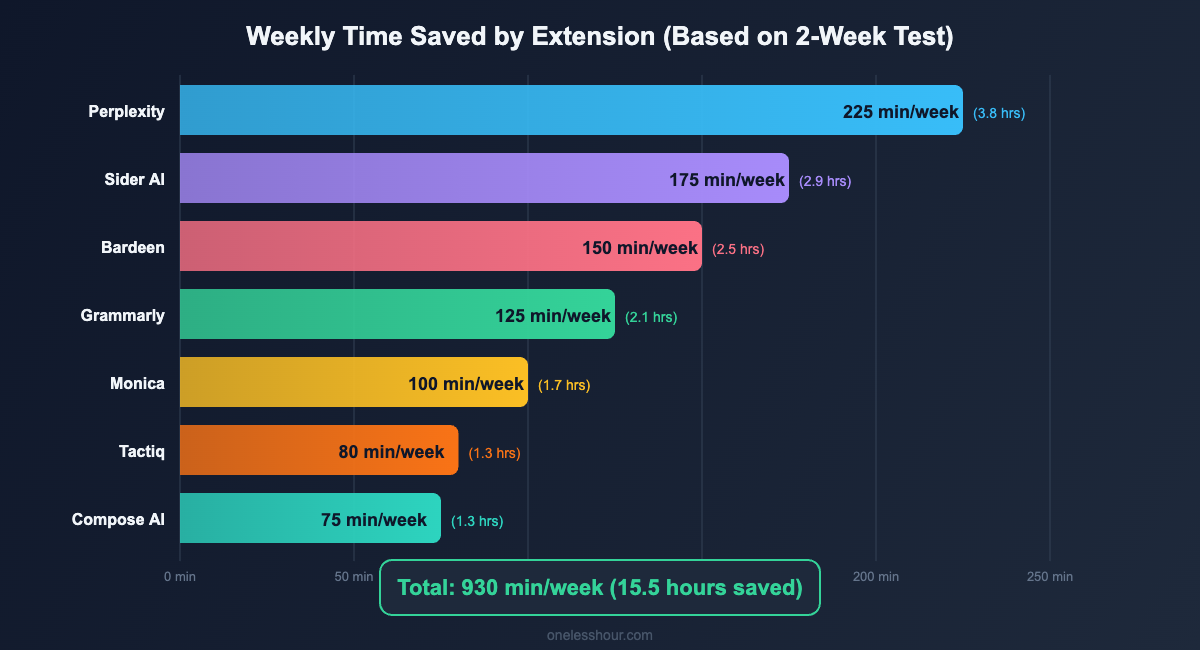
The result? Seven extensions earned a permanent spot. The rest got uninstalled — including a few that every “best AI extensions” list seems to recommend. Here’s what actually worked, what didn’t, and how I use three of them together in a daily workflow that saves me roughly 5 hours a week.
Quick note: I tested these as someone who writes, researches, and handles a lot of email. If your work looks different, your mileage will vary — but the free tier breakdowns should help you decide without spending a dime.
The 7 Best AI Chrome Extensions (Ranked by Time Saved)
I ranked these by how many minutes they saved me per day during my two-week test. Every extension below has a free tier that’s actually usable — not one of those “free for 3 days” traps.
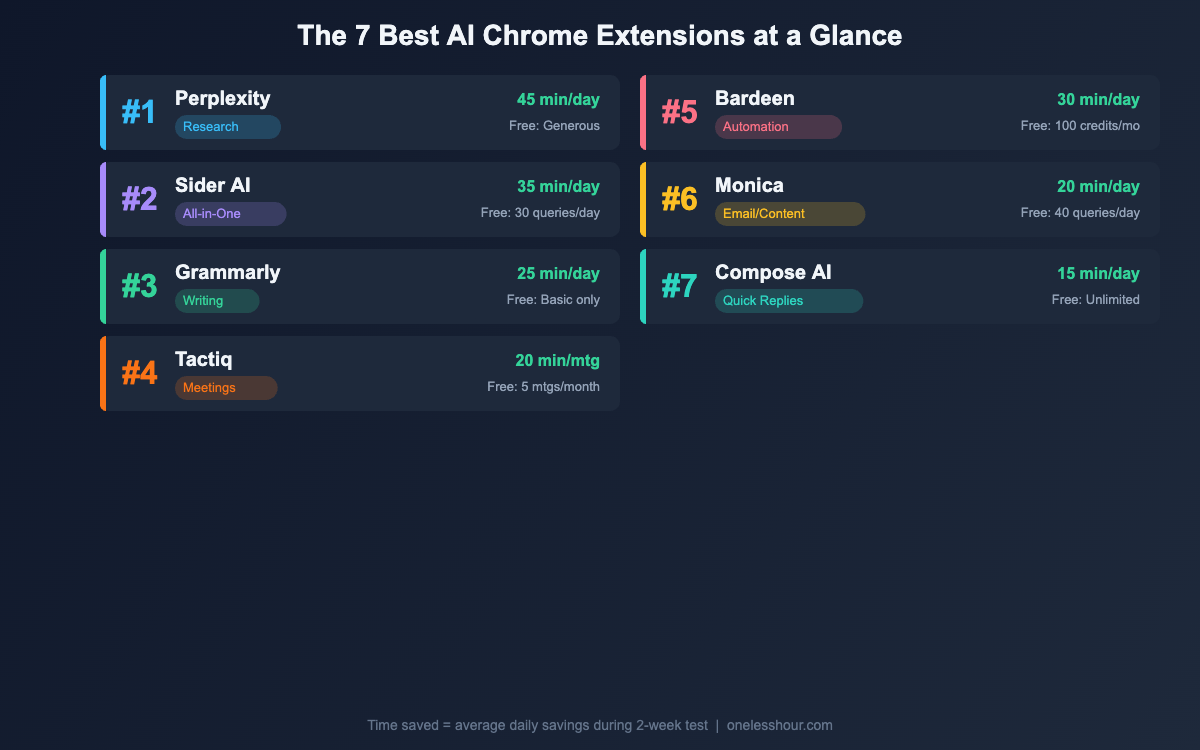
1. Perplexity — Best for Research (Saved ~45 min/day)
Perplexity’s Chrome extension replaced about 80% of my Google searches during the test. Instead of opening a search, scanning ten blue links, clicking through three articles, and piecing together an answer, I highlight text or hit the keyboard shortcut, and Perplexity gives me a sourced summary in seconds.
The killer feature is the “quick search” popup. Select any text on a page, right-click, and you get an AI-powered answer with citations right there — no tab switching. I used it constantly for fact-checking while writing, looking up competitor pricing, and understanding technical concepts I stumbled on during research.
Free tier reality check: You get 5 Pro searches per day (which use stronger models like GPT-4o and Claude) and unlimited basic searches. For most people, the free tier is enough. I hit the Pro limit maybe twice in two weeks.
Best for: Writers, researchers, students, or anyone who Googles more than 10 things a day.
2. Sider AI — Best All-in-One Sidebar (Saved ~35 min/day)
Sider is the Swiss Army knife of AI extensions. It lives in a sidebar that you can open on any webpage, and it handles summarizing, translating, rewriting, explaining, and chatting — all without leaving the page. What sets it apart from similar tools is model switching: you can toggle between ChatGPT, Claude, and Gemini depending on the task.
I used Sider mostly for summarizing long articles (it handles 10,000+ word pages without choking), rewriting awkward paragraphs in my drafts, and translating foreign-language sources. The “explain this” feature is surprisingly good for breaking down dense technical writing into plain English.
Free tier reality check: 30 queries per day across all features. That sounds limited, but I averaged about 20 queries per day during heavy use. The free tier doesn’t include GPT-4o or Claude Opus — you’re limited to GPT-4o-mini and Claude Sonnet, which are still solid for most tasks.
Best for: People who want one extension to handle most AI tasks instead of juggling five separate tools.
3. Grammarly — Best for Writing (Saved ~25 min/day)
Yes, Grammarly has been around forever. But their AI rewrite feature — added in the last year — turned it from a spell-checker into a genuine writing assistant. The extension now catches not just typos but weak phrasing, overly complex sentences, and tone mismatches. When I write emails that sound too formal or blog intros that ramble, Grammarly suggests specific rewrites that are actually good.
The time savings came mostly from email. I write 30-40 emails a day, and Grammarly’s AI suggestions cut my editing time from about 2 minutes per email to roughly 30 seconds. That adds up fast.
Free tier reality check: The free version catches grammar, spelling, and punctuation errors. The AI rewriting and tone detection features require Premium ($12/month). If you only need basic corrections, free Grammarly still saves meaningful time.
Best for: Anyone who writes emails, documents, or content as part of their job.
4. Tactiq — Best for Meetings (Saved ~20 min/meeting)
Tactiq transcribes Google Meet, Zoom, and Microsoft Teams meetings in real time and generates AI summaries with action items when the call ends. Before Tactiq, I spent 15-20 minutes after every meeting writing up notes and pulling out to-dos. Now the extension does it automatically, and the summaries are about 90% accurate out of the box.
The feature I didn’t expect to love: mid-meeting highlights. You can click a button during the call to flag a specific moment, and Tactiq includes those flagged moments in the summary. It’s like bookmarking the important parts of a conversation as it happens.
Free tier reality check: 5 meeting transcriptions per month. That’s tight if you have daily standups, but it’s enough to test whether the tool works for you. The Pro plan ($12/month) gives unlimited transcriptions.
Best for: Anyone in 3+ meetings per week who’s tired of scribbling notes they can never read later.
5. Bardeen — Best for Automation (Saved ~30 min/day)
Bardeen is the sleeper pick on this list. It connects your browser to apps like Notion, Google Sheets, Slack, and LinkedIn, then automates repetitive workflows with AI-powered “playbooks.” For example, I built a playbook that scrapes article headlines from competitor blogs, summarizes each one, and drops the summaries into a Google Sheet — all with one click.
The learning curve is steeper than other extensions on this list (maybe 30 minutes to build your first playbook), but once it’s set up, the automation runs in seconds. I saved the most time on lead research, data entry, and content monitoring tasks that used to eat up my mornings.
Free tier reality check: 100 automation credits per month. Each playbook run costs 1-5 credits depending on complexity. For light use, free is fine. Heavy automation users will burn through credits in a week.
Best for: Anyone doing repetitive browser-based tasks like data scraping, form filling, or cross-app workflows.
6. Monica — Best for Email and Content (Saved ~20 min/day)
Monica sits in a sidebar (like Sider) but shines specifically in two areas: drafting emails and generating content. When you’re in Gmail, Monica adds a compose button that generates full email replies based on the thread context. It reads the conversation, understands the tone, and writes a reply that you usually only need to tweak slightly.
I also used Monica’s article summarizer daily. Give it any URL and it produces a tight summary with key takeaways in under 10 seconds. The summaries are more structured than what I got from Sider — they include bullet points and highlight quotes.
Free tier reality check: 40 queries per day, which is generous. You get access to GPT-4o-mini for free, with GPT-4o and Claude available on the paid plan ($9.90/month). The free tier handles email drafting and summarization without issues.
Best for: Heavy email users who want AI-drafted replies that actually sound human.
7. Compose AI — Best for Quick Replies (Saved ~15 min/day)
Compose AI takes a different approach than the others: it works like autocomplete for everything you type in Chrome. Start typing a sentence in any text field — Gmail, Slack, Google Docs, a CMS — and Compose AI suggests the rest. Hit Tab to accept, or keep typing to ignore it. Think of it like GitHub Copilot but for regular writing.
It’s most useful for repetitive messages. After a few days, Compose AI learned my typical email patterns and started suggesting entire sentences that were eerily close to what I would have written. The autocompletion saved me the most time in Slack, where I send dozens of quick messages that follow the same patterns.
Free tier reality check: Completely free with unlimited autocompletions. There’s a premium tier ($9.99/month) for features like personalized writing styles and longer-form generation, but the free autocomplete alone is worth installing.
Best for: Anyone who types a lot of repetitive messages and wants autocomplete that actually works.
My Daily Stack: How I Use 3 Extensions Together
You don’t need all seven. After the testing period, I settled on a daily stack of three extensions that cover 90% of my needs without slowing down Chrome: Perplexity for research, Compose AI for writing speed, and Tactiq for meetings.
Here’s what a typical morning looks like. I start by checking email — Compose AI autocompletes my replies, cutting my inbox time from 30 minutes to about 15. Then I shift to writing, where Perplexity handles all my research without leaving the tab. If I have a meeting, Tactiq runs in the background and delivers a summary within 60 seconds of the call ending. The three extensions don’t conflict with each other, they use minimal memory together (under 150MB combined), and they cover research, writing, and meetings — the three activities that eat most of my work time.
If I had to pick just one? Perplexity. The research time savings alone justify installing it.
3 Popular AI Chrome Extensions I’d Skip
Every “best AI extensions” article recommends these, but after testing them, I don’t think they’re worth the install for most people.
ChatGPT’s official extension: It’s basically a shortcut to open ChatGPT in a sidebar. You can already pin ChatGPT as a tab — the extension doesn’t add enough functionality to justify running in the background. Sider or Monica give you the same chat capability plus page-aware context.
Merlin: Heavily marketed as a “ChatGPT for Chrome” but the free tier is extremely limited (51 queries per day that reset inconsistently), and it tries to upsell you on every click. The quality of its responses didn’t noticeably exceed what Sider offers with a cleaner interface.
MaxAI: Similar concept to Sider and Monica, but the extension was noticeably slower in my testing — responses took 3-5 seconds longer on average. It also consumed more memory (around 120MB by itself) compared to alternatives. Unless MaxAI offers something specific to your workflow, Sider does the same job better.
What I’d Do Differently
After running this experiment, here are the mistakes I’d avoid if I started over.
Don’t install more than 3-4 AI extensions at once. Multiple sidebar-style extensions (Sider, Monica, Merlin, MaxAI) fight for the same screen space and keyboard shortcuts. Pick one sidebar tool and stick with it. I wasted the first week troubleshooting conflicts that disappeared once I committed to Sider.
Check what your browser already does. Chrome now has built-in AI features like Tab Organizer and “Help me write” in Gmail. Before installing an extension for summarization or writing help, check if Chrome or your Google Workspace subscription already covers it. I installed three extensions that duplicated features I already had.
Start with one extension for a full week before adding another. When I installed 10 extensions on day one, I couldn’t tell which ones were actually useful. Adding them one at a time made the value of each extension obvious within a few days.
Frequently Asked Questions
Do AI Chrome extensions slow down your browser?
Individual AI extensions use between 30-120MB of memory. Running 2-3 extensions is typically unnoticeable on modern machines. I saw slowdowns only when running 8+ extensions simultaneously, especially sidebar-style ones that inject UI into every page. Stick to 3-4 active extensions and you’ll be fine.
Are free AI Chrome extensions safe to use?
The extensions on this list are from established companies with clear privacy policies. However, any AI extension that processes your text sends that data to external servers. Avoid using AI extensions on pages with sensitive information like banking or medical records. Check the permissions each extension requests before installing — if a summarizer asks for access to your browsing history, that’s a red flag.
Can I use AI Chrome extensions on other browsers?
Most Chromium-based browsers (Edge, Brave, Arc, Opera) support Chrome extensions from the Chrome Web Store. All seven extensions on this list worked on Edge and Brave in my testing. Firefox has its own extension ecosystem and supports fewer of these tools — Grammarly and Perplexity are the main ones with dedicated Firefox versions.
Which AI Chrome extension is best for students?
Perplexity for research and Compose AI for writing are the best free combo for students. Perplexity gives you cited answers that work for academic research, and Compose AI speeds up essay writing without generating content for you — it just autocompletes based on what you’re already typing, so you’re still doing the actual writing.
Start With One, Not Seven
If you take one thing from this article: install Perplexity right now, use it for a week, and see how much research time it saves you. That single extension changed how I browse the web more than any tool I’ve tried in the last year. Once you’re comfortable with that, add Compose AI for writing speed. Two extensions, zero conflicts, and you’ll probably save 30+ minutes a day. The rest of the list is here when you need it — but those two will cover most people.
Already using AI Chrome extensions? I’d love to hear which ones made your cut — and which ones you uninstalled. If you want more tested productivity tools, check out our guide to the best free AI productivity apps in 2026 and our ChatGPT prompting techniques that save 2+ hours a day.
Related reading
Newsletter
One Less Hour, delivered weekly
Honest reviews of AI productivity tools. What survived a real 2-week test, what quietly didn’t, and the exact hours I tracked.
One email per week. Unsubscribe in one click.