
Last tested: April 2026
Transparency note: This article contains no affiliate links, and no company paid for or reviewed it. I pay for most of the AI tools I use myself — see how I test.
I had 47 open tasks spread across three different apps. None of them were getting done.
The problem wasn’t motivation — it was that every app I tried was just a fancy to-do list. Sure, they could store tasks. But they couldn’t tell me which one to do first, block time on my calendar for it, or reschedule everything when my afternoon got wrecked by an urgent call.
That changed when I started testing AI task managers — tools that don’t just hold your list but actually help you work through it. I spent eight weeks bouncing between eight apps, tracking which ones saved real time and which ones were just slapping “AI” on a basic feature.
Here’s what I found, organized by who each tool is actually for.
What Actually Makes an AI Task Manager “AI”?
Most productivity apps now have “AI” in the marketing copy. A lot of it is not impressive. Adding a due date suggestion based on keywords isn’t AI-powered task management — it’s a slightly smarter autocomplete.
Real AI task management means at least one of these:
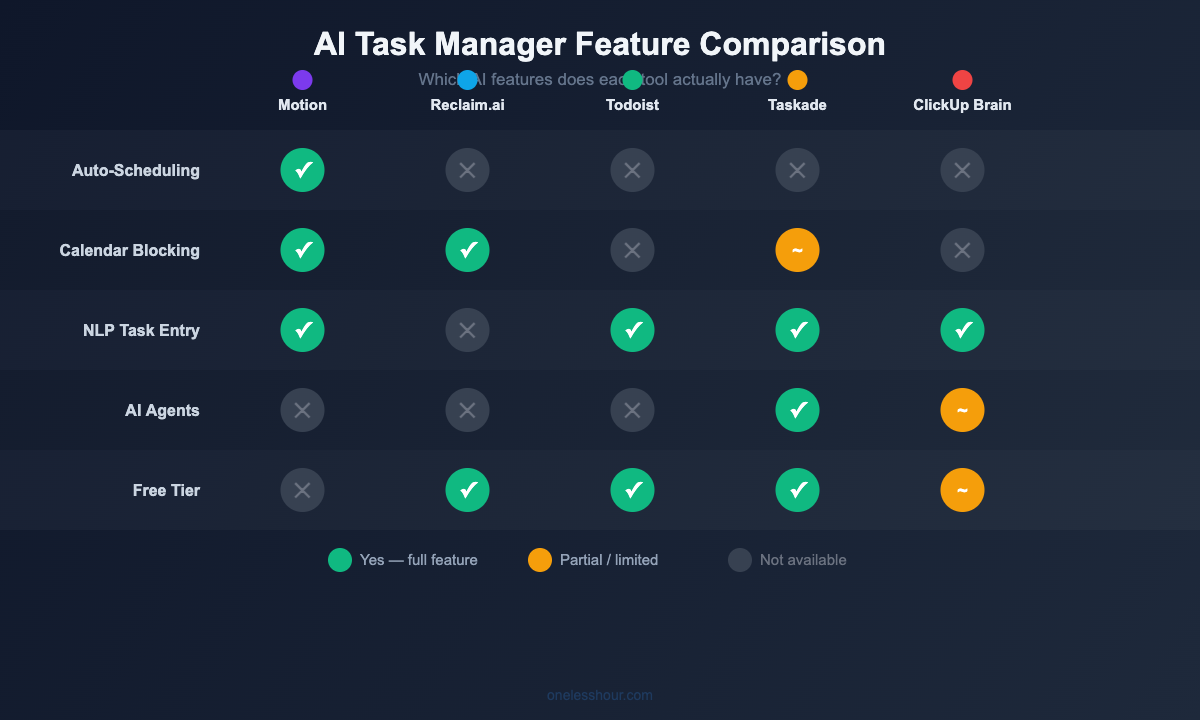
- Auto-scheduling: the app reads your calendar, estimates task duration, and blocks time automatically
- Priority intelligence: it shuffles your task order based on deadlines, energy, and context — not just what you manually labeled “urgent”
- Natural language capture: you type “call dentist Tuesday at 3” and it creates the task, adds it to your calendar, and sets a reminder
- Continuous rescheduling: when something bumps your plan, it rebuilds the day in real time
Most tools only do one or two of these well. A few do all four. That difference separates “has AI features” from “is an actual AI task manager.”
The 5 Best AI Task Managers (Ranked by Who They’re For)
1. Motion — Best Overall for Calendar-Driven Workers
Motion is the most AI-powered tool I tested. You put in your tasks with deadlines and estimated durations, and Motion blocks them into your calendar automatically — reshuffling in real time if meetings run long or priorities shift.
I used it for three weeks on my actual workload. What impressed me most wasn’t the scheduling — it was the rescheduling. When a 2-hour meeting landed unexpectedly in my afternoon, Motion rebuilt my entire day in about 30 seconds. Every task moved. Nothing fell off the list. I didn’t have to touch anything.
Tested: 3 weeks, ~40 tasks/week · Time saved: ~45 min/day not manually rearranging my schedule · Biggest win: Zero mental overhead on “what should I do next?”
| Details | |
|---|---|
| What it does | AI task auto-scheduling + real-time calendar rebuilding |
| What it won’t do | Team resource management, cross-project dependencies |
| Free tier | No free plan — 7-day trial only |
| Pricing | $19/month individual, $12/user/month teams (annual) |
| Best for | Solopreneurs, executives, anyone with a packed calendar |
| Skip it if | You want a free option or primarily manage tasks for a team |
Pro tip: Set your “working hours” and “minimum task chunk” settings on Day 1. If you skip this, Motion will try to schedule 12-minute deep work blocks between meetings — technically possible, practically useless.
2. Reclaim.ai — Best Free Option With Real AI
Reclaim takes a different approach. Rather than managing your entire task list, it focuses on protecting habits, routines, and focus time on your Google Calendar. Connect it to Todoist, Asana, or ClickUp, and Reclaim automatically blocks time for those tasks based on your real availability.
I used Reclaim to protect a daily “deep work” block (9–11am) for four weeks. It moved my block exactly twice — both times my calendar had no other option. Everything else stayed where I set it. That consistency is harder to achieve than it sounds.
Tested: 4 weeks, deep work protection + Todoist sync · Time saved: ~1.5 focused hours/day recovered · Biggest win: Stopped losing morning focus time to calendar drift
| Details | |
|---|---|
| What it does | Smart time blocking, habit scheduling, task sync (Todoist/Asana/ClickUp) |
| What it won’t do | Full standalone task management — needs a companion app |
| Free tier | Solid free plan — habit scheduling + task blocking included |
| Pricing | Free | $10/month Starter | $15/month Business |
| Best for | Google Calendar users, remote workers, people losing focus time to meetings |
| Skip it if | You don’t use Google Calendar or want a fully standalone task manager |
Pro tip: Set your “minimum gap” to 30 minutes in Reclaim’s settings. Without it, the app schedules 15-minute tasks in windows between back-to-back meetings — gaps where you’d never actually get anything done.
3. Todoist (With AI Features) — Best for People Who Want a Smart List
Todoist isn’t a full AI task manager — and that’s fine. Its AI layer is actually useful: natural language task entry, AI task breakdown (turn “launch newsletter” into 6 subtasks in 3 seconds), and smart scheduling suggestions based on your patterns.
What Todoist doesn’t do: auto-schedule or block calendar time. You still decide when you’ll do things. But if you want a clean, fast task manager that’s gotten meaningfully smarter without becoming complicated, Todoist is hard to beat — especially at $5/month for Pro.
| Details | |
|---|---|
| What it does | NLP task entry, AI task breakdown, smart scheduling suggestions |
| What it won’t do | Auto-schedule tasks or block calendar time automatically |
| Free tier | Real and usable — 5 projects, all core task features included |
| Pricing | Free | $5/month Pro | $8/user/month Business |
| Best for | Solopreneurs wanting simplicity, anyone migrating from paper lists |
| Skip it if | You want actual calendar integration or AI auto-scheduling |
Pro tip: Use the AI “breakdown” feature on any vague task like “update website.” It splits it into 5–8 concrete steps almost instantly — faster than planning it yourself and usually more complete too.
4. Taskade — Best for Small Teams Using AI Agents
Taskade has been rebuilding itself around AI agents — custom bots that can research, draft, and complete tasks inside your workspace. For teams doing creative or knowledge work, this is a meaningfully different category from the other tools on this list.
I set up a custom agent to draft weekly status summaries from task completion data. It saved about 40 minutes per week. The agent occasionally missed context from Slack threads, but it’s still the best free option for teams I tested — and the agent capability alone makes it worth a look.
| Details | |
|---|---|
| What it does | AI agents, multi-view project management, real-time team collaboration |
| What it won’t do | Auto-schedule to your personal calendar the way Motion does |
| Free tier | Generous — AI features included on free plan (rare in this category) |
| Pricing | Free | $8/month Starter | $16/month Plus |
| Best for | Small teams doing content, design, or knowledge work |
| Skip it if | You work solo and just need personal task management |
Pro tip: Build one agent before you try to build five. Get a single workflow running well — like meeting notes → action items — before adding complexity. The power is real, but so is the setup time.
5. ClickUp Brain — Best for Power Users Already in ClickUp
If you’re already in ClickUp, Brain is the obvious addition. Ask it questions about your workspace (“what’s overdue this week?”), generate tasks from a doc, auto-summarize threads, or have it write project briefs. The AI is embedded across docs, tasks, and the inbox — which is its biggest edge over standalone AI tools.
If you’re NOT already a ClickUp user, I wouldn’t start here just for the AI. The onboarding is steep and the interface has more options than most individuals need. It’s a team tool first, an AI tool second.
| Details | |
|---|---|
| What it does | AI across the full ClickUp suite — docs, tasks, automations, chat |
| What it won’t do | Auto-schedule your calendar the way Motion does |
| Free tier | ClickUp is free; Brain is $7/member/month add-on |
| Pricing | ClickUp Free + $7/member/month for Brain |
| Best for | Teams already on ClickUp, power users who want AI across docs + tasks |
| Skip it if | You’re not already a ClickUp user — the learning curve isn’t worth it just for AI |
Pro tip: Use ClickUp Brain’s “ask your workspace” feature before weekly standups. “What tasks are due this week that are stuck?” surfaces blockers you might have missed and saves a 10-minute manual triage.
How to Choose the Right AI Task Manager (60-Second Decision)
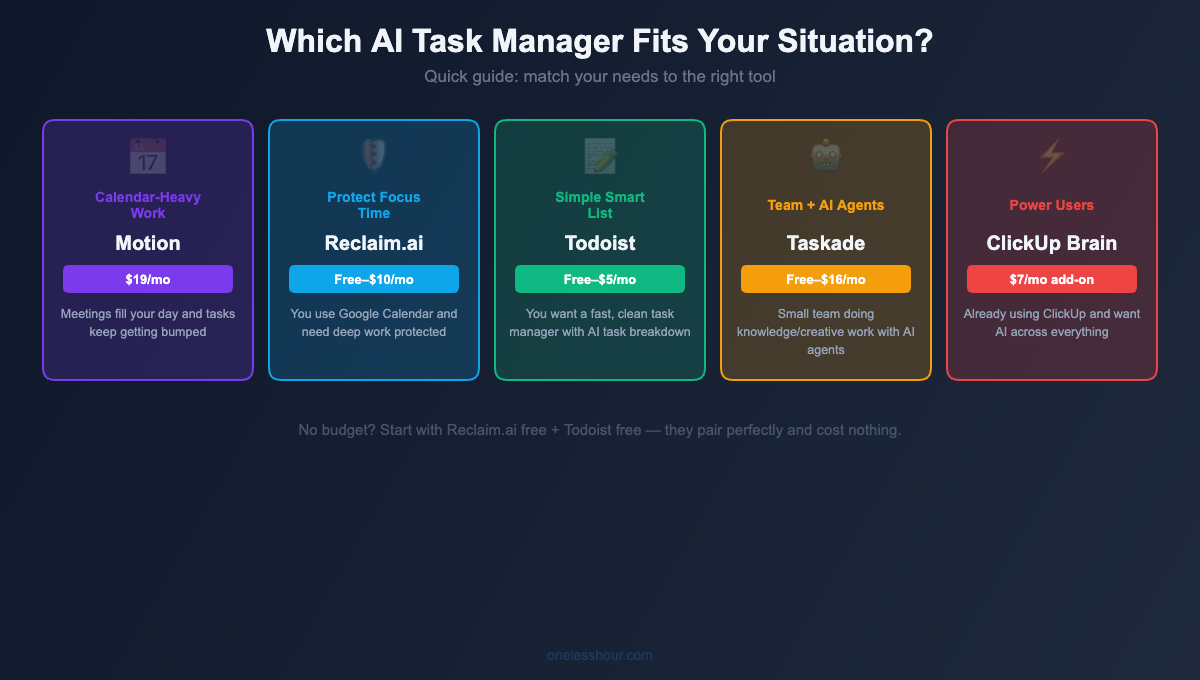
The most common question: “Which one should I just start with?” Here’s how I think about it:
- No budget? Start with Reclaim.ai free + Todoist free. They pair well and cost nothing.
- Solo, calendar-heavy work? Motion is worth $19/month if meetings regularly eat your productive time.
- Working with a small team? Taskade’s free tier is the most generous in this category.
- Already using ClickUp? Add Brain. It integrates with your existing setup and doesn’t require a new workflow.
- Just want a better to-do list? Todoist Pro at $5/month is still one of the best values in productivity software.
One thing I’d add: don’t try to migrate everything at once. Start by only putting new tasks into whichever tool you pick. That gives you two weeks of real data before committing fully.
Mistakes I Made (So You Don’t Have To)
I tested multiple tools at the same time. Switching between Motion and Reclaim and Taskade in the same week made it impossible to judge any of them fairly. Each tool needs at least two weeks of consistent use before you can tell if it’s actually helping. I had to restart my tests twice because of this.
I skipped the calendar permissions setup. Every AI task manager needs permission to read and write your calendar. Setting this up properly on Day 1 — specifying which calendars to include and which to exclude — makes a bigger difference than any feature setting. I didn’t do this carefully with Motion and spent a week confused about why it was scheduling tasks I’d already handled.
I expected the AI to figure out my priorities. These tools are better at scheduling than prioritizing. They know when you have time — they don’t know which task matters most to your actual goals. Once I started going in each morning and marking 2–3 tasks as “high priority,” the auto-scheduling got dramatically more useful.
Frequently Asked Questions
What’s the best free AI task manager?
Reclaim.ai has the best free tier for real AI features — habit protection, auto time-blocking, and task sync with Todoist or Asana. Taskade is close if you need team features. Todoist’s free plan is excellent for personal use, though more limited on the AI side.
Is Motion worth the $19/month?
If your work is calendar-heavy and meetings regularly eat your productive time, yes — the auto-scheduling and real-time rescheduling save most users 30–60 minutes of daily planning. If you mostly work from lists with no hard calendar commitments, it’s probably overkill. Take the 7-day trial seriously before committing.
Can an AI task manager replace a project manager?
Not yet. These tools are excellent at personal time management and task organization, but they don’t understand stakeholder dynamics, resource constraints, or complex project dependencies. Think of them as a capable personal assistant, not a replacement for actual project management.
Do AI task managers work with Apple Calendar?
Motion and Reclaim are primarily built for Google Calendar and Outlook. Apple Calendar support is limited — Reclaim doesn’t support it directly, Motion has partial support. If you’re fully in Apple’s ecosystem, Akiflow is worth looking at as an alternative.
How long does setup actually take?
Realistically: 30–45 minutes for initial setup of any of these tools — connecting your calendar, setting working hours, and entering your first batch of tasks. The AI gets noticeably smarter after 1–2 weeks as it learns your patterns.
Where to Start Today
If I were starting over with zero budget: I’d open Reclaim.ai’s free plan, connect it to a free Todoist account, and spend 20 minutes setting up one time-blocked habit — probably “deep work, 9–11am.” That costs nothing and usually recovers 1–2 hours of focused time within the first week.
If budget isn’t the issue: Motion is my pick for anyone serious about AI-driven scheduling. Use the 7-day trial to build your first week’s task list inside it — that’s the fastest way to feel whether the auto-scheduling fits how you actually work.
Once you’ve got task management sorted, the next piece is your calendar. Check out the AI scheduling assistants I tested — several of them pair well with the task managers on this list and handle the meeting-booking side automatically.
Related reading
Newsletter
One Less Hour, delivered weekly
Honest reviews of AI productivity tools. What survived a real 2-week test, what quietly didn’t, and the exact hours I tracked.
One email per week. Unsubscribe in one click.