

Transparency note: This article contains no affiliate links, and no company paid for or reviewed it. I pay for most of the AI tools I use myself — see how I test.
I moved my main AI from ChatGPT to Claude in February 2026, and after three months of daily use I’ve turned it into 9 specific workflows that save me roughly 9 hours every week. Most “how to use Claude AI” guides walk you through signup and then dump a list of features. That’s fine if you’ve never opened the app, but it doesn’t tell you the only thing that actually matters: what do you give Claude on a Tuesday morning, and how much faster does your day go?
This is that guide. I’ll cover the basics fast (where to access it, free vs Pro), then walk through the 9 real tasks I route to Claude every week, with the exact prompt patterns and time saved on each. I’ll also tell you the three things Claude is bad at — because nobody else seems to want to write that part.
If you’re trying to decide between Claude and another model, I have a separate write-up where I tested ChatGPT and Claude side-by-side for 30 days. This article assumes you’ve already picked Claude (or want to try it) and just want to use it well.
Where can you actually use Claude AI?
Claude is available in five places, and the one you pick changes how you’ll use it day to day.
- claude.ai — the web app. This is where I spend 80% of my Claude time. Free tier works on the latest Sonnet model with a rolling 5-hour message window.
- Desktop app (Mac/Windows) — same as the web but with a global keyboard shortcut. Useful if you want Claude one keypress away from any app.
- Mobile app (iOS/Android) — for voice dictation and quick on-the-go questions. I use this for “what’s the polite way to phrase X” emails while walking.
- Claude API — for developers building Claude into their own products. Skip this unless you’re coding.
- Inside other apps — Claude shows up in Notion, Quora’s Poe, Brave Leo, DuckDuckGo’s AI Chat, Cursor, and Windsurf. Handy if you already live in one of those tools.
For everything below, I’m using the web app at claude.ai on the Pro plan ($20/month) unless I note otherwise. The free tier handles 6 of the 9 workflows fine — I’ll flag which ones really need Pro.
What’s the fastest way to get good answers out of Claude?
Three habits made the biggest difference for me, and they’re all things I learned the hard way after weeks of mediocre output.
1. Tell Claude who it’s writing for. Adding “this is for a [skeptical CFO / busy parent / engineering manager]” to the start of any prompt cuts the back-and-forth in half. Claude calibrates tone, depth, and word choice off that one line.
2. Paste in real source material. Don’t describe a document — paste the document. I drop in PDFs, transcripts, emails, even screenshots of dashboards. Claude works with what you give it, and “describing what’s in the document” wastes both of your tokens.
3. Ask for the format you want. “Give me a 5-bullet summary, then a 2-paragraph version, then 3 follow-up questions I should ask” gets you something usable on the first reply. Open-ended “summarize this” gets you something generic that needs another round.
My default prompt opener: “I’m [role]. I’m working on [thing]. The reader is [audience]. Give me [specific format] in [length]. Here’s the source material:” — then I paste the doc. That alone saved me about 2 hours in week one.
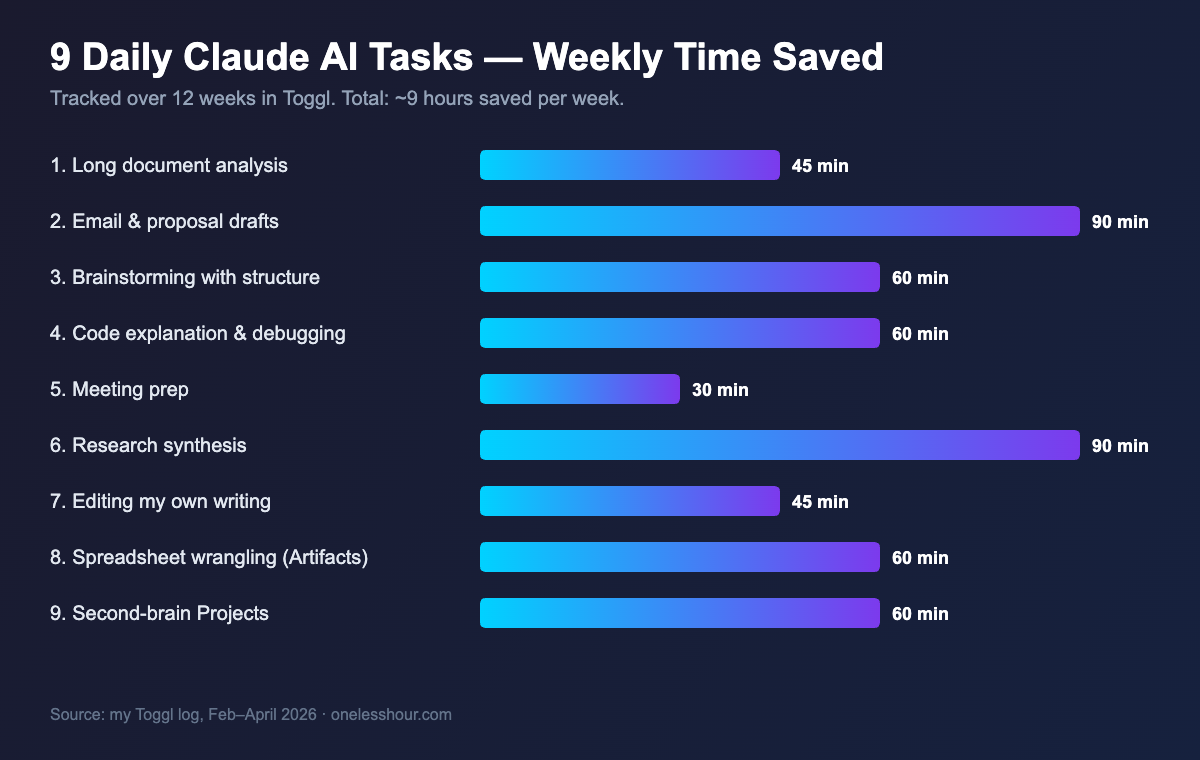
The 9 real tasks I use Claude AI for every week
I tracked these in Toggl for 12 weeks. The “time saved” numbers are the gap between how long the task used to take me and how long it takes now. Your numbers will be different — but the workflow patterns will translate.
1. Long document analysis (~45 min saved per week)
I drop 30-50 page PDFs — vendor proposals, board decks, research reports — into Claude and ask three questions: what does this say, what does it skip, and what should I push back on. Claude’s 200K-token context window handles books-worth of input in a single message, which ChatGPT’s free tier can’t match.
My prompt: “You’re reviewing this for me before a meeting. Give me (1) a 5-bullet exec summary, (2) the three claims I should verify, and (3) the question that, if asked, would make the author uncomfortable.” That last one is the one nobody else asks for, and it’s where Claude earns its keep.
2. First drafts of emails and proposals (~90 min saved per week)
This is the highest-volume Claude use case for me. I dump bullet points and a one-line goal into Claude, get a first draft back in 15 seconds, and edit from there. The trick is to never accept the first draft as-is — Claude’s default “professional” voice is too smooth and too long. I always cut 30-40% before sending.
For repetitive email types (status updates, vendor follow-ups, quote requests) I save the prompt as a Project, so Claude already knows my tone. Projects is a Pro-only feature and the single biggest reason I upgraded.
3. Brainstorming with structure (~60 min saved per week)
“Brainstorming” with most AI tools is just a list of bullet points. Claude does that, but if I ask for structured output it organizes ideas into categories I wouldn’t have thought of. My favorite prompt: “Give me 20 ideas, then group them into 4-5 themes, then tell me which theme is overrated and which is underrated.”
The “overrated/underrated” line forces Claude past the obvious answers. About a third of my best blog post ideas now start with this exact prompt.
4. Code explanation and debugging (~60 min saved per week)
I’m not a full-time engineer but I write enough Python and SQL that bugs are a regular tax. I paste the broken code, the error message, and one line of context (“this is supposed to do X”). Claude beats Stack Overflow on speed and beats ChatGPT on actually reading the surrounding code instead of pattern-matching to a generic answer.
Claude Code (the CLI version) is even faster for repo-level work, but for one-off bug hunts the web app is plenty.
5. Meeting prep in 5 minutes (~30 min saved per week)
Before a meeting I paste in: the calendar invite, the last email thread with that person, and any relevant doc. Then: “Brief me. What’s the goal of this meeting from their perspective, what are three questions they’re likely to ask, and what’s the one thing I should not say?”
That last bit (“what should I not say”) is gold for high-stakes calls. Claude is unusually willing to flag things like “don’t mention the timeline because their last email shows they’re already nervous about it.”
6. Research synthesis (~90 min saved per week)
Claude has built-in web search now. I’ll ask it to research a topic, then paste 4-5 sources I’ve collected myself and ask it to reconcile them: “What do these sources agree on? Where do they conflict? What’s the one thing none of them mention?” The contradiction-spotting alone saves me half an hour per topic.
For pure web search I still prefer Perplexity (my Perplexity workflow is here) because of better citations. Claude is better at the “make sense of all this” step that comes after.
7. Editing my own writing (~45 min saved per week)
I paste a draft and ask Claude to do three passes: a clarity pass (what’s confusing?), a cut pass (what’s redundant?), and a tone pass (where do I sound stiff?). The trick is asking for those passes separately in three messages. If you ask for “feedback” you get a generic critique. If you ask for one specific pass at a time, the suggestions are sharper.
I never let Claude rewrite my drafts in its own voice — I just take the suggestions and apply them by hand. That keeps my voice mine.
8. Spreadsheet and data wrangling with Artifacts (~60 min saved per week)
This is the workflow that surprised me most. I paste messy CSV data into Claude, ask it to clean and pivot it, and Artifacts spits out an interactive table I can sort, filter, and copy from. I’ve replaced about half my “fight with Excel” time with this.
Common tasks: dedupe a contact list, convert a vertical table to horizontal, calculate weighted averages across rows with missing data, build a quick chart for a Slack message. Artifacts handles all of these in seconds.
9. Building a second brain with Projects (~60 min saved per week)
Projects let you give Claude persistent context — a folder of docs and a custom instructions block — that every conversation in that project starts with. I have one Project per major work area: a client account, the OneLessHour blog, a personal finance tracker, and a “what I’ve been reading” knowledge base.
The compounding benefit: every conversation gets smarter as the Project grows. After a month, my “OneLessHour” Project knows my voice, my publishing schedule, and which keywords I’ve already covered, so it stops pitching me articles I’ve written.
Three things Claude is genuinely bad at
Most “how to use Claude” guides leave this part out. I’ll put it in.
Agentic setups cover some of these gaps better than a chat window does, though the hype runs well ahead of what actually works today. These are the three agent tools I would actually start with.
Real-time information. Claude’s web search is fine for the kind of question Google could answer, but for “what just happened” queries it’s slower and less reliable than Perplexity or Gemini. My Gemini vs ChatGPT comparison covers this in detail.
Image generation. Claude doesn’t generate images at all. If you want AI-generated visuals you need a separate tool. I covered which ones actually work in my AI image generator review.
Long-running agentic tasks. Claude is great at one well-scoped task per turn. It is not yet great at “go off for an hour and finish this project for me” — at least not in the consumer chat interface. The API and Claude Code have agentic capabilities, but they’re not what most readers of this article are looking for.
Is Claude Pro worth $20 a month?
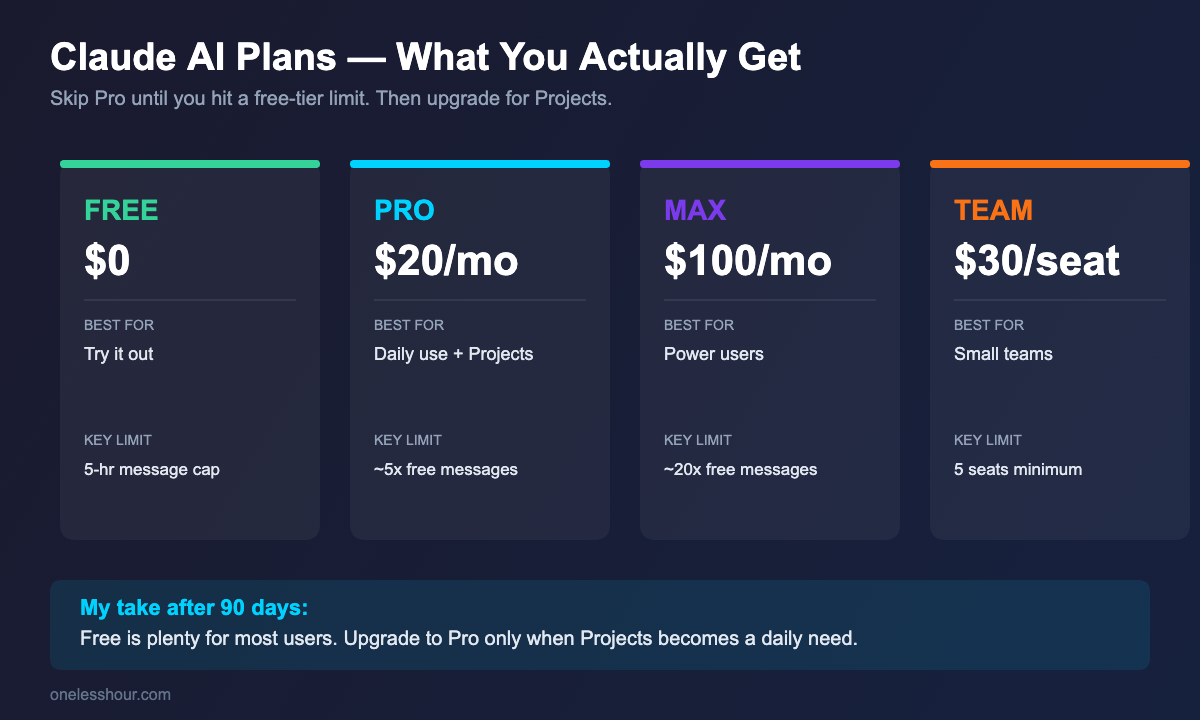
For me, yes — but only because I use Projects and hit the free tier’s message limit at least twice a week. If you’d be a casual user (a few messages a day, no document uploads), the free plan is a great place to start and you can always upgrade when you hit a wall.
| Plan | Cost | Best for | Key limit |
|---|---|---|---|
| Free | $0 | Trying it out, light use | 5-hour rolling message cap |
| Pro | $20/mo | Daily use, Projects, longer chats | ~5x free tier messages |
| Max | $100/mo | Power users, heavy document work | ~20x free tier messages |
| Team | $30/seat | Small teams, shared Projects | Min 5 seats |