
Last updated: November 2026
Transparency note: This article contains no affiliate links, and no company paid for or reviewed it. It’s research-based, written from Anthropic’s official Claude Code documentation and pricing page (checked November 3, 2026). See how I research tools.
If you want to learn how to use Claude Code, start with what it is: Anthropic’s coding agent. You give it a task in plain language, and it reads your project, edits files, runs commands and can commit the result to git. That’s a lot more than a chatbot that pastes code into a reply, which is why the first hour can feel confusing.
This guide walks through how to use Claude Code from install to your first commit, using Anthropic’s own quickstart and docs. I haven’t tested it hands-on for this article. Every step below comes from the official documentation, with links so you can check the details yourself.
What Claude Code is (and what it isn’t)
Anthropic describes Claude Code as “an agentic coding tool that reads your codebase, edits files, runs commands, and integrates with your development tools.” The key word is agentic: instead of answering one question, it works through a task in steps, looking at files and running commands as it goes.
It runs in several places, and they all share the same engine, so your project settings carry over:
- Terminal (CLI): the full-featured version, and the one the quickstart uses
- VS Code and Cursor: an extension with inline diffs and plan review
- JetBrains IDEs: a plugin that needs the CLI installed separately
- Desktop app: the Code tab in the Claude app (paid plans only)
- Web: claude.ai/code, for running tasks in the cloud with no local setup
If you mostly want an autocomplete-style assistant inside your editor, compare it with the options in my guide to AI coding assistants and Cursor vs Copilot first.
What you need to use Claude Code
According to the quickstart, you need three things: a terminal, a code project to work in, and an account that includes Claude Code. That last part trips people up, because the Free Claude plan does not include it.
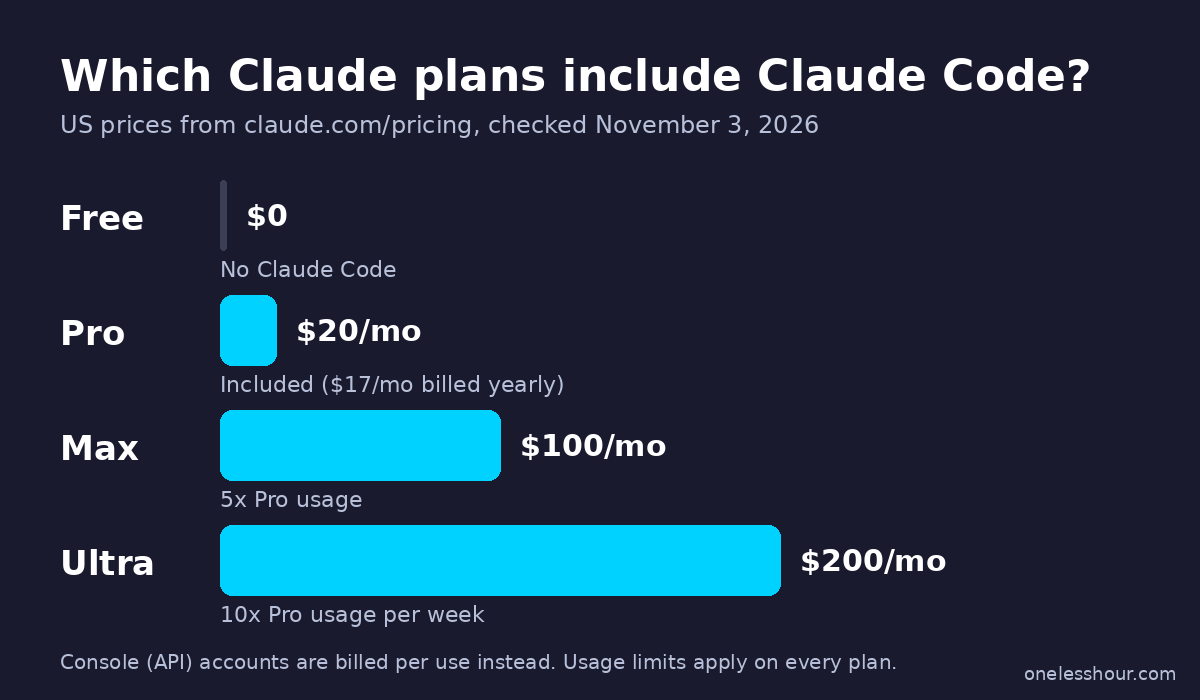
- Pro: $20 a month, or $17 a month billed yearly ($200 up front). Includes Claude Code.
- Max: $100 a month, with 5x Pro usage.
- Ultra: $200 a month, with 10x Pro usage per week and no 5-hour limit for verified accounts.
- Team and Enterprise: also supported.
- Claude Console (API): pay per use with prepaid credits. Anthropic says the average enterprise cost is around $13 per developer per active day.
All subscription plans have usage limits that reset every 5 hours and every week. How fast you hit them depends on the model, the length of the session and the size of your files.
Step 1: Install Claude Code
Anthropic recommends the native installer, which updates itself in the background. On macOS, Linux or WSL, open a terminal and run:
curl -fsSL https://claude.ai/install.sh | bashOn Windows PowerShell:
irm https://claude.ai/install.ps1 | iexPrefer a package manager? brew install --cask claude-code on a Mac or winget install Anthropic.ClaudeCode on Windows both work, but those installs don’t auto-update, so you’ll need to upgrade them yourself. When the installer finishes, open a new terminal window and check it:
claude --versionIf your shell says claude isn’t found, the install folder isn’t on your PATH yet. The docs have a “Fix your PATH” section for exactly this.
Step 2: Start a session and sign in
To use Claude Code, move into a project folder and start it:
cd your-project
claude
On first run it asks you to log in through your browser. Once you’re signed in, your credentials are stored, so you won’t need to do it again. Type /help to see the available commands, or /login later if you want to switch accounts.
Step 3: Use Claude Code to ask questions before changing anything
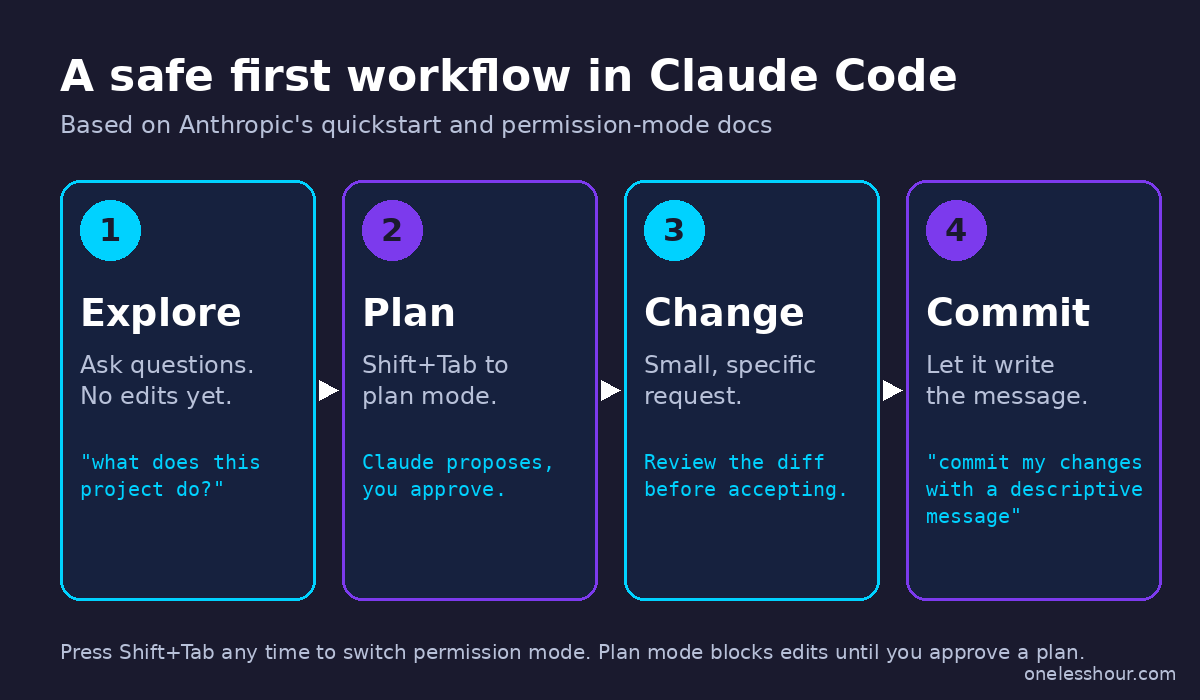
The quickstart’s advice is to let Claude explore first. You don’t need to paste in files; Claude Code reads what it needs. Good first prompts:
what does this project do?
where is the main entry point?
explain the folder structure
This is the cheapest way to learn how it thinks about your code, and nothing gets edited.
Step 4: Pick a permission mode
This is the most important setting to understand. The permission mode decides what Claude can do without asking you first, and you can cycle through the modes at any time with Shift+Tab.
- Manual (default): only reads run without asking. Best when you want to review every action.
- Accept edits: file edits and common file commands run without asking. Good when you’ll review the changes in git afterwards.
- Plan: Claude researches and writes a plan, but edits stay blocked until you approve it. Start here for anything bigger than a one-line fix.
- Auto: a separate classifier model reviews actions instead of you. In current versions it’s the built-in starting mode for terminal and VS Code sessions.
- Bypass permissions: everything runs. Anthropic says to use it only in isolated containers or VMs.
One thing worth knowing: Anthropic’s docs say auto mode “reduces permission prompts but does not guarantee safety.” If you’re new, switching to Manual or Plan mode for your first sessions is the conservative choice. You can also start in plan mode directly with claude --permission-mode plan.
Step 5: Use Claude Code to make your first change
Keep the first task small and specific. The docs contrast a vague request (“fix the bug”) with a useful one (“fix the login bug where users see a blank screen after entering wrong credentials”). For bigger work, break it into numbered steps in one prompt.
add input validation to the user registration formClaude Code finds the right file and shows you the change. If it asks for approval, read the diff before you say yes. If something goes wrong, /rewind takes the conversation or the code back to an earlier checkpoint.
Step 6: Commit with git
Claude Code works directly with git, so you can ask in plain language:
what files have I changed?
commit my changes with a descriptive message
create a new branch called feature/quickstart
It can also open pull requests and help resolve merge conflicts.
Set up CLAUDE.md so you repeat yourself less
CLAUDE.md is a markdown file in your project that Claude Code reads at the start of every session. Put your build and test commands, coding standards and project rules in it. You don’t have to write it from scratch: run /init and Claude analyzes the codebase and drafts one, which you then edit. For personal preferences across all projects, there’s also ~/.claude/CLAUDE.md.
Commands worth learning when you first use Claude Code
| Command | What it does |
|---|---|
claude | Start an interactive session |
claude "task" | Start with a first prompt |
claude -p "query" | Run one request and exit (good for scripts) |
claude -c | Continue the last conversation in this folder |
/init | Generate a starting CLAUDE.md |
/compact | Summarize the conversation to free up context |
/model | Switch model |
/usage | See plan usage and session cost |
/rewind | Go back to an earlier checkpoint |
/clear | Clear the conversation |
When to use Claude Code, and when not to
Based on the docs, the best time to use Claude Code is on jobs that span many files or many steps: writing tests, fixing lint errors across a project, updating dependencies, tracing a bug to its cause, or running in CI with GitHub Actions. It can also connect to tools like Jira, Slack or Google Drive through MCP, and run on a schedule.
It’s a weaker fit if you just want quick suggestions while you type, or if you can’t review the code it writes. It also costs money from day one, unlike the free tiers of some editor assistants. If you’re still choosing between Anthropic and OpenAI for everyday work, ChatGPT vs Claude covers the general chat side.
FAQ
Is Claude Code free?
No. The Free Claude plan doesn’t include Claude Code. You need a paid plan (Pro at $20 a month, or $17 a month billed yearly, Max at $100, Ultra at $200, or Team and Enterprise), a Claude Console account billed per use through the API, or access through a supported cloud provider such as Amazon Bedrock.
Do I need to know how to code to use Claude Code?
It helps, but it isn’t required to get started. Anthropic’s docs include a terminal guide for people who have never opened one. You describe what you want in plain language, and Claude Code reads the files and proposes changes. You still need to judge whether the changes are right, so some coding knowledge makes it much safer.
How do I install Claude Code?
On macOS, Linux or WSL, run curl -fsSL https://claude.ai/install.sh | bash in a terminal. On Windows PowerShell, run irm https://claude.ai/install.ps1 | iex. Homebrew (brew install –cask claude-code) and WinGet (winget install Anthropic.ClaudeCode) work too. Then run claude –version to check it worked.
Can I use Claude Code without the terminal?
Yes. There’s a VS Code extension (it also works in Cursor), a JetBrains plugin, a desktop app with a Code tab, and a web version at claude.ai/code. The desktop app needs a paid subscription.
What is CLAUDE.md?
A markdown file in your project that Claude Code reads at the start of every session. You use it for coding standards, build and test commands, and project rules. Running /init inside Claude Code generates a starting version for you.
Is it safe to let Claude Code run commands?
It depends on the permission mode. Manual mode asks before most edits and commands. Plan mode blocks edits until you approve a plan. Auto mode uses a separate classifier model to review actions, and Anthropic says plainly that it reduces prompts but doesn’t guarantee safety. The bypassPermissions mode is meant only for isolated containers and VMs.
Sources
- Claude Code overview (Anthropic docs)
- Claude Code quickstart
- Choose a permission mode
- CLAUDE.md and memory
- Commands reference
- Manage costs
- Claude pricing (checked November 3, 2026)