
Last updated: November 2026
Transparency note: This article contains no affiliate links, and no company paid for or reviewed it. It’s research-based, written from Anthropic’s official Claude Design and Artifacts documentation (checked November 8, 2026). See how I research tools.
If you want to learn how to use Claude Design, start with what it is: Anthropic’s design canvas inside Claude. You describe a visual, and Claude builds a working design beside the conversation. You then refine it through chat, inline comments or direct edits on the canvas. That’s more than a chatbot that pastes layout ideas into a reply.
This guide walks through how to use Claude Design from your first chat to export, using Anthropic’s own help articles. I haven’t tested it hands-on for this article. Every step below comes from the official documentation, with links so you can check the details yourself.
If I were starting today, I’d start in a regular Claude chat, not at claude.ai/design, because the standalone site closes on December 14, 2026.
What Claude Design is (and what it isn’t)
According to Anthropic’s Get started with Claude Design article, Claude Design lets you create designs, interactive prototypes, one-pagers and other visual work by chatting with Claude. It’s one of the templates you can start an artifact from, so you can use it in any chat, in Claude Code and from the Artifacts tab, with on-canvas editing and your design system included.
An artifact is anything Claude makes that you’d put in front of someone: a design, a deck, a document, a dashboard or a small interactive tool. It opens beside the conversation. Design sits alongside Docs, Slides, Dashboards (beta) and Motion (beta).
What it isn’t: a text-only reply with layout suggestions, and it isn’t a separate product you have to visit at a special URL. Claude Design now lives inside Claude. The standalone site at claude.ai/design still works until December 14, 2026. It also isn’t a full substitute for a multiplayer design tool. Anthropic says multi-person editing is still basic, and there is no version history yet. When a design is ready to become software, the intended next step is a handoff to Claude Code, not another round of screenshots.
What you need before you start
Claude Design is available on Free, Pro, Max, Ultra, Team and Enterprise plans, and it’s on by default. On Enterprise plans, it turns on by default on October 15, 2026, and owners can turn it on before then in Organization settings > Artifacts.
There is one setting that matters before anything else. Artifacts require Cloud code execution and file creation (called Create and edit files in the updated Settings layout) to be turned on in Settings > Capabilities on Free, Pro, Max and Ultra, or in Organization settings > Capabilities on Team and Enterprise. If you ask for a design and Claude only returns text, this is the first thing to check, along with choosing Output > Design in the message box.
You don’t need a separate Claude Design account. Design is included on the Free plan. Organization owners who want to confirm their team can create designs should look under Organization settings > Artifacts.
Where you can use Claude Design
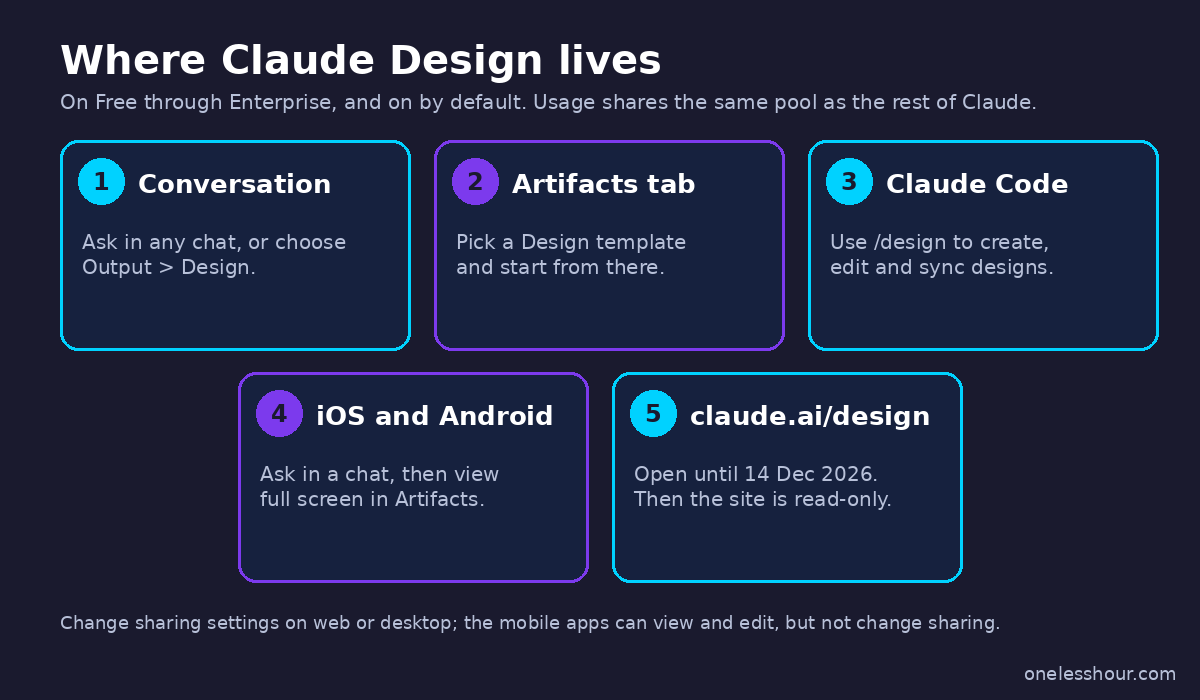
Anthropic lists five places:
- In a conversation: ask Claude for a design, or select Output > Design in the message box. Official examples: “Make a one-pager from this proposal” or “Mock up the onboarding flow we just discussed.” Claude builds it beside the conversation, and you refine it there.
- In the Artifacts tab: pick a Design template.
- In Claude Code: ask Claude to turn your idea into a design, or use
/designto create, edit and sync designs, on desktop or in the terminal. - In the Claude app for iOS and Android: ask for a design in any conversation and check back later, then view it full screen in Artifacts. You can also edit a design. To change sharing settings, use Claude on web or desktop.
- At claude.ai/design: the standalone version keeps working until it closes on December 14, 2026. Existing projects stay there until then, and moving them to Claude is rolling out gradually to paid plans. Move your design systems before it closes.
If you already chat with Claude on the web, that’s enough to begin. You don’t have to learn Claude Code first, and you don’t have to visit claude.ai/design.
How to make your first design
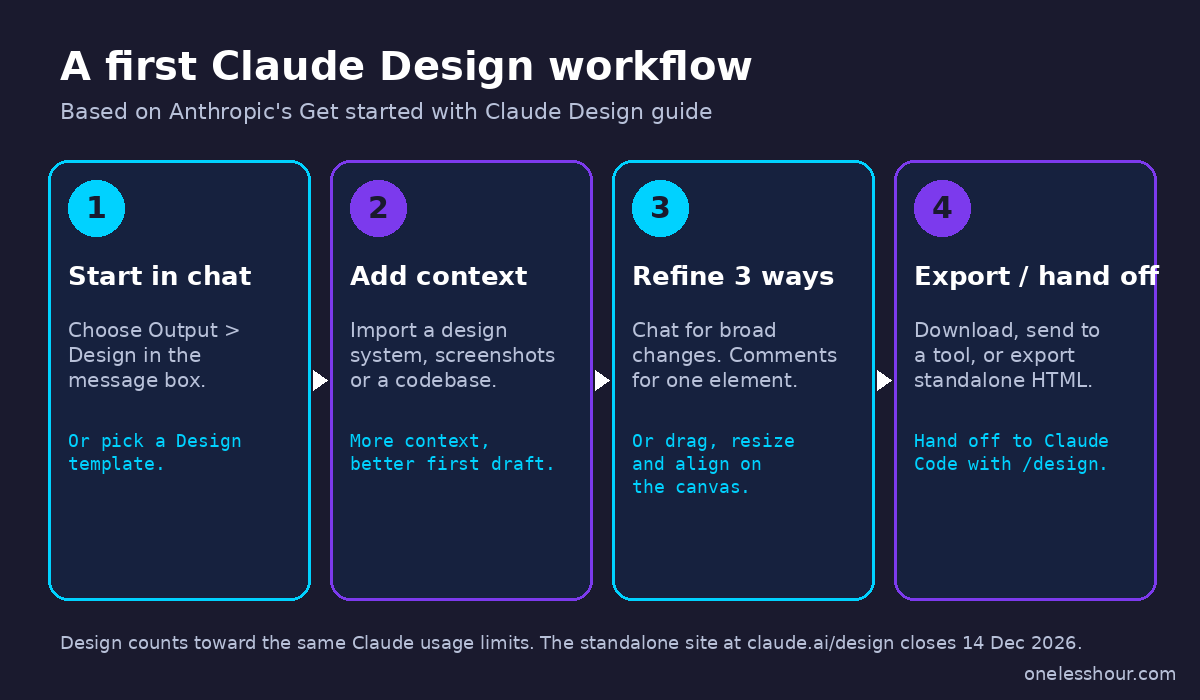
Anthropic’s typical flow is: start from a conversation or the Artifacts tab, attach or import a design system, add context such as screenshots or a codebase, describe what you want, review the canvas, refine the result, then export or share it.
- Start a chat and choose Design. Open Claude on the web or desktop. Select Output > Design in the message box, or ask for a design in plain language. You can also pick a Design template in the Artifacts tab. If Claude replies with paragraphs instead of opening a canvas, check the Capabilities setting above.
- Attach a design system, then add context. Bring a system from a GitHub repo, design files, raw uploads or your local codebase with
/design-syncin Claude Code. Anthropic says Claude then builds with your real components, checks its output against that system and makes corrections before you see them. You can also upload screenshots, wireframes, visual inspiration, a slide deck or document whose style you want to follow, or link a code repository. Reference material can be attached at any point, not only at the start. - Describe what you want. Include the goal, the layout, the content and the audience. You don’t need design skills for this. Anthropic notes that you don’t need to be a designer to get good results, and that Claude will ask clarifying questions if it needs more information.
- Review the canvas, then refine through chat, inline comments or direct edits (drag, resize and align). Treat the first pass as a starting point.
- Export or share when it’s ready. Designs start private.
How to write a prompt that works
Anthropic’s formula is the goal (what you’re building), the layout (how things should be arranged), the content (what information to display) and the audience (who will use it). If you’re designing a website-style landing page, say that up front, along with the sections you need and whether it has to work on mobile.
These are the official example prompts, quoted as they appear in the help article:
- “Create a dashboard showing monthly revenue with filters for region and product line.”
- “Design a mobile app onboarding flow with 4 screens that walks users through our core features.”
- “Build a landing page for our new API product with a hero section, code examples, and pricing.”
- “Create a form for collecting customer feedback with conditional questions based on category.”
- “Design an internal tool for our ops team to review and approve content submissions.”
The same help article also lists habits that improve the result: import a complete design system (styles, fonts and components); start with the core layout and content, then add interactions and polish; give specific feedback (“Tighten the spacing between form fields to 8px” works better than “This doesn’t look right”); reference components by name, such as “Use the Primary Button component”; mention responsiveness early; ask for 2-3 options when you’re unsure about a direction; and ask Claude to review accessibility, contrast, information hierarchy and usability.
Three ways to refine a design
The first generation is a draft. Anthropic describes three ways to iterate, and they are good at different jobs.
- Chat, for broad changes. Official examples include making the color scheme darker and more minimal, rearranging a dashboard so metrics sit in the top row and the chart sits below, adding a settings panel on the right, or showing 2-3 alternative layouts. You can also ask Claude to explain its decisions, suggest improvements or review the design for accessibility.
- Inline comments, for one element. Click a specific part of the canvas and request a targeted change. Official examples: “Make this button padding larger.” “Change this to a dropdown instead of radio buttons.” “Use the primary brand color here.” “Make this section collapsible.” If comments aren’t being picked up, paste the feedback into chat instead. Anthropic flags this as a known workaround for an intermittent issue where comments can disappear before Claude reads them.
- Direct canvas edits, for quick visual tweaks. You can drag, resize and align elements. Anthropic’s product page also mentions editing text directly and using adjustment sliders that Claude creates to tune spacing and color.
The help article’s rule of thumb: use comments for targeted, component-level changes (“fix this button,” “adjust this spacing”), use chat for structural changes, new sections or anything that needs explanation, and edit directly for quick visual and aesthetic changes.
Claude Design doesn’t have version history yet. To explore another direction without losing the current work, tell Claude: “Save what we have and try a completely different approach.” Claude saves the current project and confirms where it’s saved, so you can refer to earlier iterations in the conversation.
If you use a keyboard
A design is a canvas of artboards. Each artboard holds layers such as text, shapes and images, and a layer can hold other layers. Anthropic documents a full shortcut table in the Get started article. These are the ones that matter first:
| Action | Mac | Windows |
|---|---|---|
| Next or previous area (top bar, canvas, properties panel) | F6 or Cmd+F6 / Shift+F6 | F6 or Ctrl+F6 / Shift+F6 |
| Move to an artboard’s title (named like “artboard 1 of 7”) | Tab | Tab |
| Select the artboard / go inside it | Space / Return | Space / Enter |
| Move between layers / go up one level | Tab or arrows / Shift+Return | Tab or arrows / Shift+Enter |
| Leave the artboard | Escape | Escape |
| Move the selected artboard | Arrows (Shift for 10 pixels) | Arrows (Shift for 10 pixels) |
| Move or reorder the layer you’re on | Option+arrows | Alt+arrows |
| Duplicate / delete / undo | Cmd+D / Delete / Cmd+Z | Ctrl+D / Delete / Ctrl+Z |
| Open or close the properties panel | Cmd+\ | Ctrl+\ |
| Zoom in, zoom out, fit to the window | Cmd+Plus, Cmd+Minus, Cmd+0 | Ctrl+Plus, Ctrl+Minus, Ctrl+0 |
Two keyboard caveats are easy to miss. In the properties panel’s list of layers, Delete, Backspace and cut act on whatever is selected on the canvas, not the row you moved to, so press Return on the row first. And you can’t place a new text layer, artboard, shape or note with only a keyboard; ask Claude to add it, or use a mouse or trackpad.
Design systems and handing off to Claude Code
A design system is how you keep Claude Design on brand. You can import one or several from a GitHub repo, design files, raw uploads or your local codebase. In Claude Code, /design-sync pulls in that system so new work starts from your existing components.
When a design is ready to become software, hand it off to Claude Code instead of starting over from a screenshot. From Claude Code, /design can import a design into your codebase, export your code as a live prototype or let Claude build the whole thing from start to finish. You can move between the two while keeping the work synced.
If you’re new to Claude Code, those commands assume it’s already installed and signed in. The setup steps, permission modes and first-session workflow are in the guide to how to use Claude Code. For a wider look at coding assistants, see the AI coding assistant guide. Large codebases are a weaker fit for a browser upload; Anthropic suggests linking them from Claude Code and using /design-sync to avoid lag or browser issues.
How to export and share a design
When you’re viewing a project, the Export button in the upper right is where Anthropic lists the ways out. I haven’t exported a design to each of these tools for this article. The official list is:
- Download as .zip
- Export as PDF
- Export as PPTX
- Export to Google Slides
- Export as standalone HTML
- Send to Adobe Experience Manager, Adobe for Creativity, Adobe Journey Optimizer, Base44, Canva, Gamma, HubSpot, Hyperframes, Lovable, Miro, Netlify, Replit, v0, Vercel and Wix
- Handoff to Claude Code
- Send to local coding agent
- Send to Claude Code Web
Standalone HTML is the most direct way to take a website-style page out of Claude and open it on its own. The send-to list matters if your team already finishes work in one of those tools. Treat it as the official menu, not as a review of each integration.
Designs start private to you. Click Share to choose who can open a design and whether they can view, comment or edit it. Sharing settings can’t be changed in the iOS or Android apps; use web or desktop for that.
Usage and limits
Claude Design counts toward the same usage limits as the rest of Claude, including Claude Code. There is no separate Claude Design allowance to track. It previously had its own weekly allowance; that separate pool is gone. Complex projects with large codebases or many iterations consume more usage.
If you reach your limits, Claude Design is unavailable until they reset. If you’ve enabled usage credits, you can keep working after you hit the included amount. Anthropic doesn’t publish a fixed per-design quota in the help article, so a long back-and-forth on a complex canvas draws from the same pool as your chats and Claude Code sessions.
If you already used claude.ai/design
The standalone site at claude.ai/design closes on December 14, 2026. After that date it’s read-only, and you can’t start new projects there. New designs, design systems or slide decks you create in Claude are artifacts. Anthropic’s advice is to move your design systems now. Moving projects to Claude, where they become artifacts, is rolling out gradually to paid plans.
When you move a design system, the original stays in the standalone version. Chats and comments cannot move. Design systems that have already moved become read-only in the standalone version as soon as Move to Claude is available to your organization. If you kept editing a system there after that point, those later edits did not move.
To start a design-system move, open the Artifacts page in Claude and click “Move team design systems” in the banner. If you’ve closed the banner, open the Claude Design menu with the “…” button on the Design tile (or at the top right of the page if there’s no Design tile) and choose the same action. Click Move to confirm. On individual plans there’s no confirmation step, and the move starts right away. When it finishes, the results list each moved system.
- Empty design systems aren’t moved, and neither are ones made from a built-in starter theme, even if you’ve edited them.
- Published design systems that aren’t private will be shared with everyone in your organization after the move. On individual plans, nothing is shared.
- Chats with Claude, and comments on projects and design systems, stay in the standalone version and will be deleted some time after it closes. Save anything you still need from those chats and comments before December 14, 2026.
- Public standalone links will stop working after the site closes.
- You can download a project as a .zip from Share > Project HTML. Keep “Project archive” selected and click Export. Anthropic says that download is free and doesn’t count toward usage limits.
- Organizations with the HIPAA-ready configuration can’t move projects right now. Organizations with zero data retention (ZDR) can’t move projects or turn on artifacts, so they should download their work before the standalone site closes.
Team and Enterprise owners should confirm that artifacts and design systems are turned on under Organization settings > Artifacts. If artifacts are off, people can’t create designs in Claude or move anything over.
Known limitations
These are the limits Anthropic lists in the Get started article:
- Comment persistence: inline comments occasionally don’t appear on the page, but you can still see them by opening the comments view. If Claude doesn’t pick them up, paste the note into chat.
- Large codebases: link very large repositories from Claude Code, and use
/design-syncto sync a design system, to avoid lag or browser issues. - Chat errors: if you hit a “chat upstream error,” start a new chat tab within the same project.
- Mobile: you can’t change sharing settings in the iOS or Android apps.
- Multi-person editing: two or more people editing the same design at the same time is still basic and may not work reliably.
- Design system import: the import is only as good as its source. A messy codebase or an incomplete file will show up in the output.
- No version history yet. Ask Claude to save what you have before a big change of direction.
- Layers list: Delete, Backspace and cut act on the canvas selection, not the highlighted row, unless you press Return on the row first.
- Adding with a keyboard: placing a new text layer, artboard, shape or note needs a mouse or trackpad, or a request to Claude.
Related reading
If you want the coding-agent side of this workflow, start with how to use Claude Code. For everyday Claude chat, see how to use Claude AI. If you’re still choosing between Anthropic and OpenAI for general work, ChatGPT vs Claude covers that comparison.
Get the next guide in your inbox
Research-based guides to AI productivity tools: what each one costs, what the free plan really includes, and who it’s worth paying for.
FAQ
Is Claude Design available on the Free plan?
Yes. Anthropic’s help center says Claude Design is available on Free, Pro, Max, Ultra, Team and Enterprise plans, and that it’s on by default. On Enterprise plans it turns on by default on October 15, 2026, and owners can turn it on earlier in Organization settings > Artifacts. Design work counts toward the same usage limits as the rest of Claude, so a Free account can still run out of usage.
Why does Claude only return text when I ask for a design?
Artifacts need Cloud code execution and file creation (called Create and edit files in the updated Settings layout) turned on in Settings > Capabilities on Free, Pro, Max and Ultra, or in Organization settings > Capabilities on Team and Enterprise. If that setting is off, or you haven’t chosen Output > Design in the message box, Claude may reply with text instead of opening a design canvas.
Should I still start at claude.ai/design?
Only if you already have work there that you need to move or download. The standalone site closes on December 14, 2026. After that it’s read-only and you can’t start new projects there. New designs in Claude are created as artifacts, so a regular chat (with Output > Design) or the Artifacts tab is the better place to start.
How does Claude Design work with Claude Code?
In Claude Code, on desktop or in the terminal, ask Claude to turn your idea into a design, or use /design to create, edit and sync designs. /design-sync pulls in your design system so new work starts from your existing components. When a design is ready to become software, hand it off to Claude Code. From Claude Code, /design can import a design into your codebase, export your code as a live prototype, or let Claude build the whole thing.
What can I export from Claude Design?
The help article lists these Export options: download as a .zip, export as PDF, export as PPTX, export to Google Slides, export as standalone HTML, send to Adobe Experience Manager, Adobe for Creativity, Adobe Journey Optimizer, Base44, Canva, Gamma, HubSpot, Hyperframes, Lovable, Miro, Netlify, Replit, v0, Vercel and Wix, hand off to Claude Code, send to a local coding agent, or send to Claude Code Web. Designs start private. The Share button chooses who can view, comment or edit.
Does Claude Design have version history?
Not yet. The help article says Claude Design doesn’t have version history. To explore another direction without losing your current work, tell Claude: “Save what we have and try a completely different approach.” Claude saves the current project and confirms where it’s saved, so you can refer back to earlier iterations in the conversation.
Sources
- Get started with Claude Design (Anthropic Help Center, checked November 8, 2026)
- What are artifacts, and how to use them (Anthropic Help Center, checked November 8, 2026)
- Move from standalone Claude Design to Claude (Anthropic Help Center, checked November 8, 2026)
- Claude Design product page (claude.com/product/design, checked November 8, 2026)