
Last updated: November 2026
Transparency note: This article contains no affiliate links, and no company paid for or reviewed it. It’s research-based, written from Anthropic’s official product page, help center articles, Claude Code documentation and the Chrome Web Store listing (checked November 22, 2026). Features and plans change often, so check the linked pages before you decide. See how I research tools.
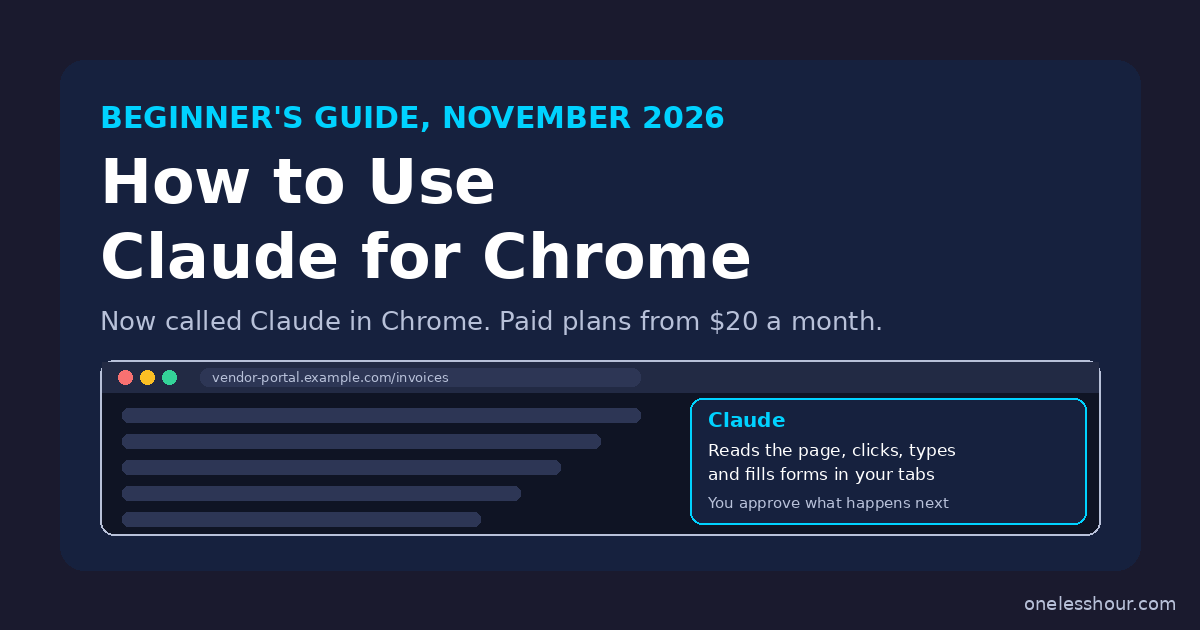
Claude for Chrome is Anthropic’s browser extension that lets Claude work inside the Chrome tabs you already have open. It reads the page you’re on, then clicks, types, navigates and fills in forms while you watch and decide what happens next. It works on sites you’re already signed in to, which is the point: a lot of work lives behind a login, on a page with no export button and no API.
This guide shows how to use Claude for Chrome from scratch: which plans include it, how to install the extension, which permissions it asks for, how to run your first task, how the three permission modes work, and where Anthropic says you should not use it. I haven’t tested it hands-on for this article. Everything below comes from Anthropic’s Claude in Chrome product page, its help center, the Claude Code docs and the Chrome Web Store listing, checked November 22, 2026. Where Anthropic’s own pages disagree, I say so.
What Claude for Chrome is (and why it’s now called Claude in Chrome)
Anthropic first announced the extension in August 2025 as a research preview for a small group of trusted testers. That announcement still lives at a claude-for-chrome address, which is why so many people search for “Claude for Chrome”. Today, Anthropic’s product page, help center and store listing all use the name Claude in Chrome. Same extension, new name. If you see someone call it the Claude Chrome plugin, they mean this extension too.
On August 26, 2026, Anthropic announced that Claude in Chrome is generally available on every paid Claude plan. The same announcement added the option to let Claude act without approving every step, with a safety classifier that checks each action before it runs. The help center describes the extension in one line: it “allows Claude to read, click, and navigate websites alongside you.”
In practice, the Claude Chrome extension does three kinds of work:
- Reading: summarizing a page, comparing what’s open across several tabs, or pulling details off a page into a note, doc or form.
- Acting: clicking buttons, typing, navigating between pages and filling in forms on sites where you’re logged in.
- Running workflows: multi-step jobs across tabs, saved shortcuts you can reuse, and scheduled tasks that repeat on a timetable.
It’s a different idea from an AI browser that replaces Chrome: you keep your browser and logins and add an agent in a side panel.
Claude in Chrome at a glance
| Question | Answer (from Anthropic’s pages, November 22, 2026) |
|---|---|
| Who can use it | Paid Claude plans only: Pro, Max, Ultra, Team and Enterprise |
| Extra cost | None beyond your plan. Usage counts against the same limits as the rest of Claude |
| Browser | Google Chrome on desktop. Not supported on other Chromium browsers or on mobile |
| Where you start tasks | The Chrome side panel, Claude Desktop (chat and Cowork), or Claude Code |
| Permission modes | Manually approve, Automatically approve (default in the Cowork side panel), Skip all approvals |
| Always blocked | Purchases, creating accounts, card or ID data, trades, bypassing CAPTCHAs |
| Admin controls | Team and Enterprise owners can switch it on or off and set site allowlists and blocklists |
What you need before you start
Four things, according to the getting started article and the store listing:
- A paid Claude plan. Pro, Max, Ultra, Team or Enterprise. The extension won’t work on the Free plan.
- Google Chrome on a computer. The help center says Claude in Chrome “is not supported on other Chromium-based web browsers or mobile devices.”
- Your Claude login. You sign in to the extension with the same account you use on claude.ai.
- On Team or Enterprise, your admin’s OK. Owners control whether the extension is enabled. Anthropic’s admin article says it’s on by default for Team plans and on by default for Enterprise unless an owner turned it off. In organizations with HIPAA enabled, it stays off until an owner turns it on.
You don’t need Claude Desktop for side panel tasks on the page in front of you. The help center notes that tasks needing your local files, your computer, or Claude driving Chrome from another surface still need the desktop app open and connected.
How much Claude for Chrome costs
There’s no separate price. Claude’s pricing page lists Claude in Chrome as a feature row: “No” on Free, “Yes” on Pro, Max and Ultra, and it’s included in Team and Enterprise.
| Plan | Price (claude.com/pricing, November 22, 2026) | Claude in Chrome |
|---|---|---|
| Free | $0 | Not included |
| Pro | $20/month, or $200/year up front (shown as $17/month) | Included |
| Max | $100/month, 5x Pro usage | Included |
| Ultra | $200/month, 10x Pro usage per week, no 5-hour limit for verified accounts | Included |
| Team | Standard seat $20 (annual) or $25 (monthly); Premium seat $100 or $125, per seat per month, 2 to 150 people | Included, admin can turn it off |
| Enterprise | US$20 per seat per month billed annually, 20-seat minimum, plus usage at API rates | Included, admin controls access |
The catch is usage. The troubleshooting article says browser use counts against the same plan limits as Claude and Claude Code, that browser interactions are “more compute-intensive than regular chats”, and that long-running workflows can use more of your allowance. On paid plans, limits reset every five hours and every week, per the usage limits article. If you expect to run long browser jobs every day, my Claude Cowork pricing guide explains how Pro, Max and Ultra differ, since the same pool covers Cowork and browser work.
How to install the Claude Chrome extension
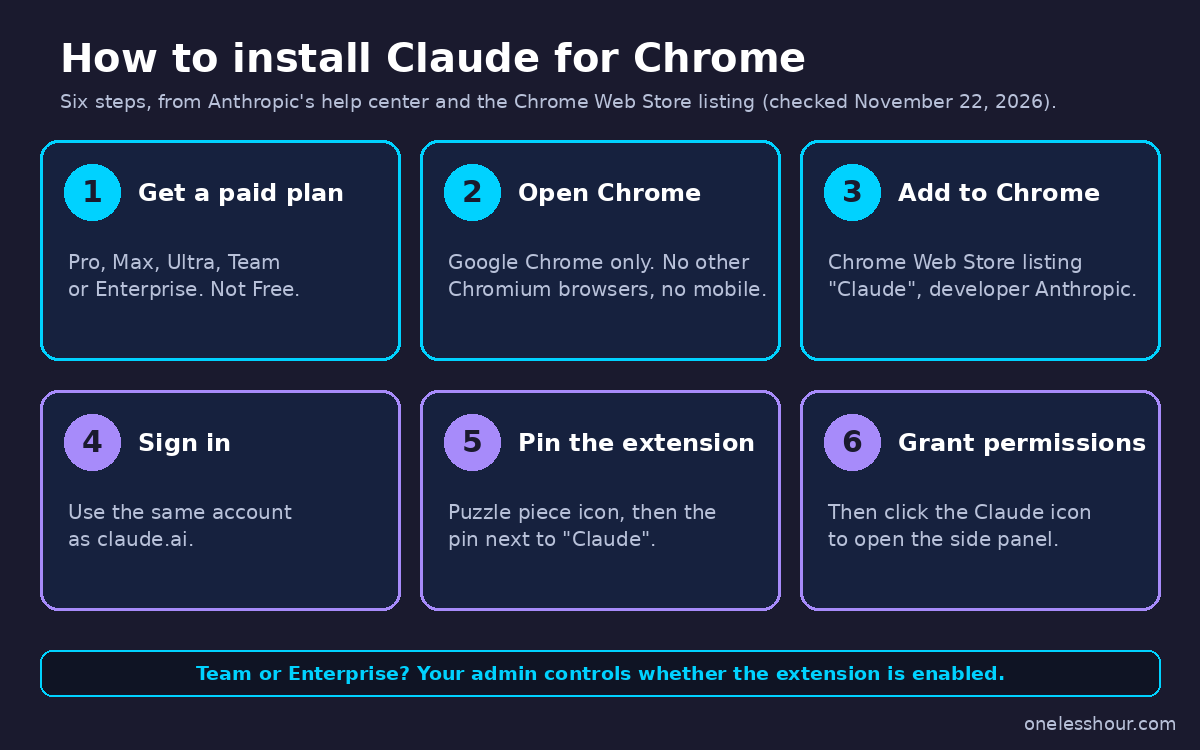
These are the steps from Anthropic’s help center and the store listing. Check that the listing shows Anthropic as the developer before you install, since the store has many look-alike AI extensions.
- Open Google Chrome on your computer.
- Go to the Claude listing in the Chrome Web Store. You can also click “Add to Chrome” on claude.com/chrome.
- Click Add to Chrome to install the Claude for Chrome extension.
- Sign in with your Claude account when prompted.
- Pin it: click the puzzle piece icon in the toolbar, then the pin next to “Claude”.
- Grant the permissions Claude asks for, then click the Claude icon to open the side panel.
On November 22, 2026, the listing showed version 1.0.107 (updated November 12), about 24 million users and a 3.6 out of 5 rating from around 2,000 ratings. Treat those numbers as a snapshot.
To connect the extension to Claude Desktop as well, the help center gives this path: click your initials in the lower left, open Settings, go to Customize, then Connectors, find Claude in Chrome, click Configure and turn the connector on. It’s off by default in each chat, so you enable it per conversation from the Connectors menu.
What the permissions mean
The install asks for a long list of Chrome permissions, and the help center explains each one. These are the ones worth understanding before you click allow:
| Permission | What Anthropic says it’s for |
|---|---|
| debugger | Lets Claude actually control the browser: clicking buttons, typing text and taking screenshots |
| scripting | Lets Claude read text on web pages |
| tabs and tabGroups | Open, close and switch tabs, and keep Claude’s tabs in a separate colored group |
| downloads | Download files and open them when a workflow needs it |
| alarms and notifications | Run scheduled tasks and alert you when Claude finishes or needs you |
| webNavigation | Lets Claude step in if it detects a high-risk website |
| nativeMessaging | Connects the extension to Claude Desktop or Claude Code on your computer |
| sidePanel and storage | Show Claude in a side panel and remember your preferences |
The store listing’s privacy section says the extension handles personal information, communications, location, web history, user activity and website content, and declares that this data isn’t sold to third parties.
How to use Claude for Chrome: your first task
Click the Claude icon in your toolbar to open the side panel. It stays open while you browse, and it reads the tab you’re on with no extra setup. Then describe what you want in plain language, the way you’d brief a colleague.
Anthropic’s getting started article suggests the side panel for “in-the-moment browsing tasks” such as:
- Summarizing or comparing what’s open across your tabs.
- Pulling details off a page into a note, doc or form.
- Walking through a task on a site step by step while you watch.
Anthropic suggests starting with simple tasks like research or form filling, with specific prompts. A good first prompt names the page, the output and the limits, for example: “Read this pricing page and list each plan’s monthly price and seat limit in a table. Don’t click any sign-up buttons.”
The new Cowork side panel vs the classic one
The side panel changed in late 2026. On Max, Ultra and Team plans, on Pro as the rollout reaches you, and on Enterprise where an admin has enabled it, the side panel now runs as a Claude Cowork session. The help center lists what that means: conversations are saved to your history, sessions move with you to the web, Claude Desktop and Claude Mobile, and your skills, plugins and connectors work in the panel. If Cowork itself is new to you, start with how to use Claude Cowork.
You can switch back to the old version at any time: open the side panel, click the three dots in the upper right corner and choose “Switch back to classic”. One reason to do that: recorded workflows are only available in the classic side panel. Because sessions are saved and sync, Anthropic also suggests not opening the panel on pages you don’t want stored with the session.
Choose a permission mode
This is the most important setting in the extension. In the side panel or Claude Desktop, a drop-down on the chat input lets you pick one of three modes, as described in the permissions guide:
- Manually approve (Manual). Formerly “Ask before acting”. Claude asks before each action. In the Cowork side panel you choose Allow all for this website, Allow this time only, or Deny. In the classic panel, Claude first shows a plan listing the sites it will visit, and you approve the plan.
- Automatically approve (Auto). Claude keeps working, and a safety check reviews each action (for example for data exfiltration or prompt injection) and blocks anything it judges unsafe. If Claude keeps hitting blocks, it switches back to asking for each step. This is the default in the Cowork side panel.
- Skip all approvals (Skip). Formerly “Act without asking”. Claude doesn’t pause and nothing checks its actions automatically. Anthropic says to use it only when you completely trust every action, connector, file and app involved.
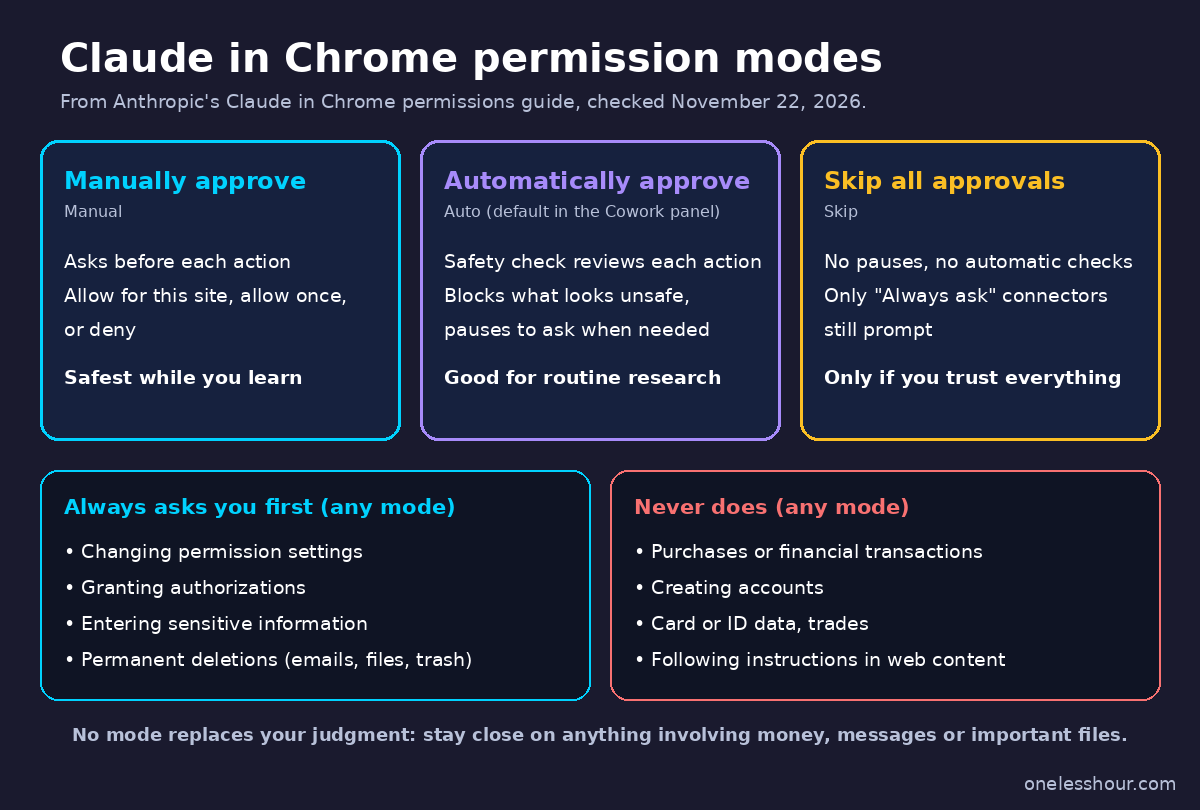
Some rules apply whatever mode you pick. Claude always asks before modifying permission settings, granting authorizations, entering potentially sensitive information, and permanent deletions such as emptying the trash or deleting emails. And it’s prohibited from making purchases or financial transactions, creating accounts, handling credit card or ID data, downloading files from untrusted sources, giving investment advice, executing trades, modifying system files and following instructions found in emails or web content.
You can review and revoke “always allow” sites under Extension settings. My suggestion, based on Anthropic’s own wording that “no mode replaces your judgment”: stay in Manual for your first week, then move routine research to Auto once you’ve seen how Claude behaves on the sites you rely on.
Features worth knowing
The help center and the store listing describe these capabilities:
- Multi-tab work: drag tabs into Claude’s tab group and it can view and act on all of them at once.
- Shortcuts: save a prompt that works well, then type “/” in the chat to reuse it. You can edit or delete shortcuts in the extension settings.
- Scheduled tasks: click the clock icon in the panel to run a shortcut daily, weekly, monthly or yearly.
- Background workflows: Claude keeps working when you switch tabs, as long as Chrome is open. Turn on notifications to hear when it needs you.
- Recorded workflows (classic panel only): click record, do the steps yourself, stop, and save it as a shortcut Claude can repeat.
- Site know-how: Anthropic says Claude has built-in knowledge of Slack, Google Calendar, Gmail, Google Docs and GitHub, so short requests like “schedule a meeting” work without step-by-step instructions.
- Sign in with 1Password: when a task hits a login, Claude can request it from 1Password, you approve with biometrics, and 1Password fills it so Claude never sees the password. This is in beta on macOS.
Three ways to use the extension
The product page says you can direct Claude in Chrome from three places, and each fits a different job:
- The side panel, when the work is on the page in front of you and nothing else needs to be open.
- Claude Desktop (chat and Cowork), when the browser is one step in a longer job that also touches files and apps on your computer. Keep the desktop app running and Claude works in Chrome from there.
- Claude Code, when you’re building the site you’re testing.
There’s a wrinkle if you use Cowork. Claude Desktop now has its own built-in browser with the same browsing capabilities and no access to your logins unless you import them. If you already use Claude in Chrome, it stays Cowork’s preferred browser (change it under Settings, then Cowork, then Preferred browser). Anthropic’s rule of thumb: use Chrome when the work is on a page in front of you, and the built-in browser when you want to hand off the web part of a task and keep working.
Claude for Chrome with Claude Code
For developers, the Claude Code docs explain the setup. Start Claude Code with claude --chrome, or run /chrome in a session to check the connection, manage permissions or turn Chrome on by default. You need extension version 1.0.36 or later, a direct Anthropic plan, and a /login sign-in; the integration stays off if you sign in with an API key, and it isn’t available through Amazon Bedrock, Google Cloud or Microsoft Foundry. Anthropic’s examples include testing a local web app, reading console errors and filling a CRM from a CSV file. My guides on how to use Claude Code and Claude Cowork vs Claude Code cover where Claude Code fits.
Example tasks from Anthropic’s own pages
These come from the product page and store listing. They’re Anthropic’s examples, not results I’ve measured:
- Google Drive cleanup: build a folder structure, move files and flag duplicates and old files for you to review before anything changes.
- Meeting prep: read your calendar, pull context from email threads and flag which meetings need preparation, run every evening.
- Competitor research: visit competitor sites, collect pricing and features and compile a PowerPoint comparison.
- CRM logging: match calendar attendees to Salesforce contacts and draft activity logs that you approve before they’re created.
- Vendor portals: the store listing’s example is six invoices on six vendor portals, with Claude pulling the numbers into a spreadsheet.
Notice the pattern: Claude prepares and you approve, a sensible default for anything that sends, deletes or changes data. For OpenAI’s approach, see what replaced ChatGPT agent mode.
Is Claude for Chrome safe?
Anthropic is unusually direct about this. Its safety article calls prompt injection “the biggest risk facing browser-using AI tools”: instructions hidden in a web page, email or document that trick Claude into doing something you didn’t ask, such as sharing your bank statements. Classifiers screen incoming content and check each action before it runs, on top of model training and blocked site categories. Anthropic’s prompt injection research explains these defenses in more depth. Even so, the safety article says plainly that “the risk is not zero.”
There’s a second risk that’s easy to miss. To see a page, Claude takes screenshots of the tabs it’s working in, and whatever is visible becomes part of the conversation. In Automatically approve mode, Anthropic says it can keep a copy of the latest screenshot as part of its record of the safety check.
Anthropic’s own advice, condensed:
- Avoid using it for financial accounts, legal documents, medical information, work accounts with sensitive data, or sites with other people’s personal information.
- Use a separate Chrome profile without access to banking, healthcare or government accounts.
- Read each permission request, especially on new sites.
- Stop the task if Claude starts discussing unrelated topics, visiting unexpected sites or asking for sensitive information.
Claude can’t open adult or pirated content sites and asks before visiting financial sites. You also stay responsible for everything Claude does on your behalf, including messages sent, data changed and respecting each site’s terms on automated access.
For Team and Enterprise admins
Owners manage the extension under Organization settings, then Claude in Chrome, per the admin controls article. They can turn it on or off for the whole organization and set site allowlists and blocklists, and Anthropic recommends starting with a restrictive allowlist and a small pilot group. Claude in Chrome doesn’t support zero data retention (ZDR), and with HIPAA enabled it’s off by default and not covered by the Business Associate Agreement.
Limitations to know
- Chrome on desktop only. No other Chromium browsers and no mobile, per the help center. Claude Code’s integration is broader (Chrome and Edge, with detection in Brave, Arc, Vivaldi and Opera).
- Chrome must stay open for background workflows to keep running.
- Recorded workflows are only in the classic side panel.
- Local files need Claude Desktop. The GA announcement says you still need the desktop app to work with files on your computer or other apps.
- Anthropic’s pages don’t fully agree on status. The product page and GA announcement say generally available, while the safety article still describes the Chrome side panel as “in beta”.
Related reading
If you want Claude to handle whole tasks beyond the browser, start with how to use Claude Cowork, and my Claude Cowork pricing guide goes deeper on plan limits. For coding work, compare Claude Cowork vs Claude Code.
Get the next guide in your inbox
Research-based guides to AI productivity tools: what each one costs, what the free plan really includes, and who it’s worth paying for.
FAQ
Is Claude for Chrome free?
No. The extension itself is free to install from the Chrome Web Store, but it only works with a paid Claude plan. Claude’s pricing page lists Claude in Chrome as not included on Free and included on Pro ($20 a month, or $200 a year up front), Max ($100 a month), Ultra ($200 a month), Team and Enterprise (checked November 22, 2026). There’s no separate fee for the extension, but browser tasks count against your normal plan limits.
Is Claude for Chrome the same as Claude in Chrome?
Yes. Anthropic piloted the extension in August 2025, and the original announcement address still says claude-for-chrome. Anthropic’s current product page, help center and Chrome Web Store listing all call it Claude in Chrome. People also search for it as the Claude Chrome extension or the Claude Chrome plugin. It’s all the same extension, published by Anthropic.
Does Claude for Chrome work in Edge, Brave or Safari?
The help center says Claude in Chrome isn’t supported on other Chromium-based browsers or on mobile devices, so the side panel is a Google Chrome desktop feature. Safari isn’t supported. The one exception in Anthropic’s docs is Claude Code: its Chrome integration page says it works with Google Chrome and Microsoft Edge and can detect the extension in Brave, Arc, Vivaldi and Opera.
Can Claude in Chrome make purchases or fill in my passwords?
No to purchases: Anthropic’s permissions guide lists making purchases, creating accounts, handling credit card or ID data and executing trades as prohibited in every mode. For sign-ins, Claude stops at login pages unless you set up 1Password for Claude, a macOS beta where 1Password fills the login after you approve it with biometrics, so Claude never sees the password or one-time code.
Does Claude for Chrome keep working if I switch tabs?
Yes, as long as Chrome stays open. The help center says Claude keeps working on multi-step workflows in the background when you switch tabs, and you can turn on notifications so Chrome alerts you when Claude needs permission or finishes. Scheduled tasks can also run recurring browser work daily, weekly, monthly or yearly.
Is it safe to use Claude in Chrome?
It’s safer than it was at launch, but Anthropic says the risk is not zero. Prompt injection, meaning instructions hidden in a web page or email, is the main danger. Anthropic uses trained models, content classifiers, a safety check on each action in Automatically approve mode and blocked site categories. It still advises against using the extension for banking, medical, legal or sensitive work accounts, and suggests a separate Chrome profile.
Sources
- Claude in Chrome product page (including FAQ) (claude.com, checked November 22, 2026)
- Claude extension listing (Chrome Web Store, checked November 22, 2026)
- Plans and pricing (claude.com, checked November 22, 2026)
- Get started with Claude in Chrome (Anthropic Help Center, checked November 22, 2026)
- Claude in Chrome permissions guide (Anthropic Help Center, checked November 22, 2026)
- Use Claude in Chrome safely (Anthropic Help Center, checked November 22, 2026)
- Claude in Chrome troubleshooting (Anthropic Help Center, checked November 22, 2026)
- Claude in Chrome admin controls (Anthropic Help Center, checked November 22, 2026)
- Use the built-in browser in Claude Cowork (Anthropic Help Center, checked November 22, 2026)
- How do usage and length limits work? (Anthropic Help Center, checked November 22, 2026)
- Use Claude Code with Chrome (Claude Code Docs, checked November 22, 2026)
- Claude in Chrome is generally available (Anthropic, August 26, 2026, checked November 22, 2026)
- Piloting Claude in Chrome (Anthropic, August 25, 2025, checked November 22, 2026)
- Mitigating the risk of prompt injections in browser use (Anthropic, checked November 22, 2026)