
Last month I had $20 to spend on an AI subscription, so I ran my own ChatGPT vs Copilot test. I could either keep ChatGPT Plus or switch to Copilot Pro. I spent three weeks testing both head-to-head on my actual work tasks before deciding — and the answer surprised me.
Transparency note: Some links in this article are affiliate links. If you sign up through them, I may earn a small commission at no extra cost to you. I only recommend tools I actually use and test myself — see how I test.
Most ChatGPT vs Copilot comparisons are written for developers or IT managers. This one isn’t. It’s for people who write emails, sit through meetings, draft documents, and want to claw back a few hours each week. I’ll tell you exactly where each tool saved me time, where it didn’t, and which one you should actually pay for.
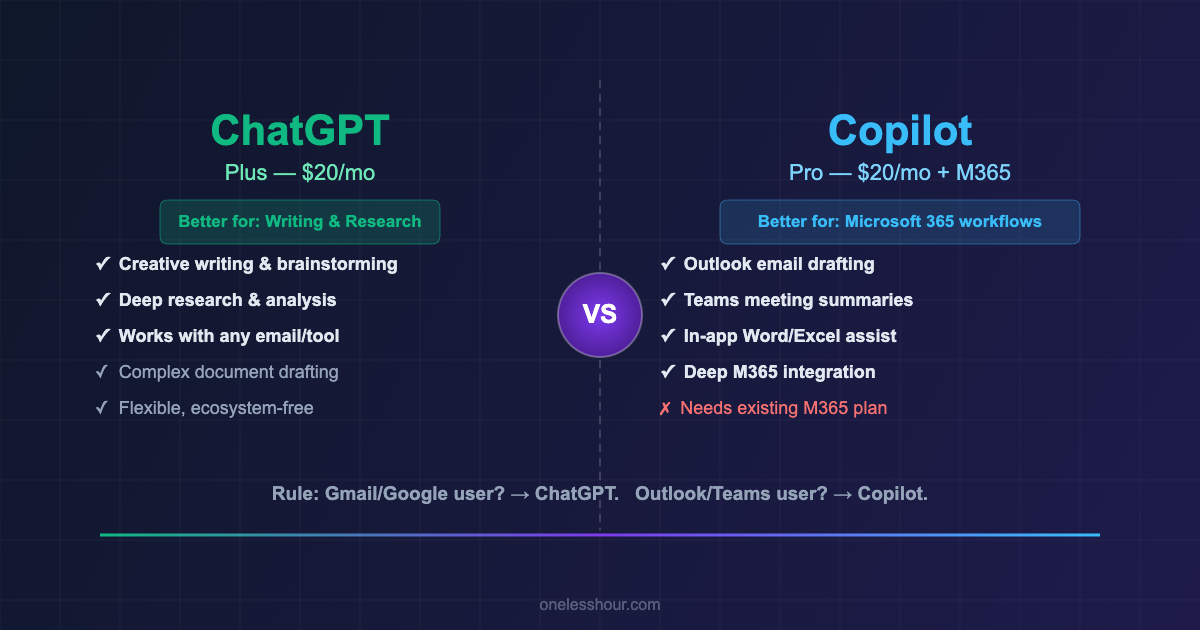
Quick answer: when comparing ChatGPT vs Copilot, it depends almost entirely on which apps you already live in. But the details matter — so read on.
ChatGPT vs Copilot: What You Actually Get With Each Tool
Before the head-to-head, a quick framing point that most articles skip: ChatGPT and Microsoft Copilot are architecturally different, and that changes everything about when to use them.
ChatGPT is a standalone AI you talk to. It has no idea what’s in your inbox, your calendar, or your company docs. You bring the context — copy-paste your email draft, paste in meeting notes, describe the document you’re working on. The upside: it’s completely flexible. The downside: every session starts from scratch.
Microsoft Copilot is an AI layer embedded inside Microsoft 365. It can read your actual emails in Outlook, summarize your real Teams meetings, and pull from your OneDrive documents. You don’t have to paste anything. The downside: it only works if you’re inside the Microsoft ecosystem.
That single difference explains roughly 80% of when to use which.
ChatGPT vs Copilot Head-to-Head: 5 Real Work Tasks
In the ChatGPT vs Copilot free tier comparison, ChatGPT Free gives you access to GPT-4o mini plus limited GPT-4o usage. The limits reset daily, but during busy hours you’ll frequently hit the cap and get bumped to the slower model. Good for occasional use. Not reliable for daily work.
Copilot Free is available in Windows 11, Bing, and Edge. You get solid responses (it also runs on GPT-4o), but the Office app integrations — the whole reason to use Copilot — require a paid Copilot Pro or Microsoft 365 Copilot subscription. The free version is basically a chatbot in a sidebar.
Bottom line on free tiers: ChatGPT Free is more useful day-to-day than Copilot Free. If you’re evaluating whether either is worth paying for, run ChatGPT Free for a week first — it’ll show you what’s possible. Copilot Free won’t give you a fair picture of what the paid version does.
Head-to-Head: 5 Real Work Tasks
I ran the same tasks through both tools over three weeks. Here’s what I found for each one.
Task 1: Writing and replying to emails
This is where things get interesting. With ChatGPT, I paste in the email I’m replying to, describe what I want to say, and get a draft. Takes about 45 seconds total. Good output. But I’m doing the copying and pasting.
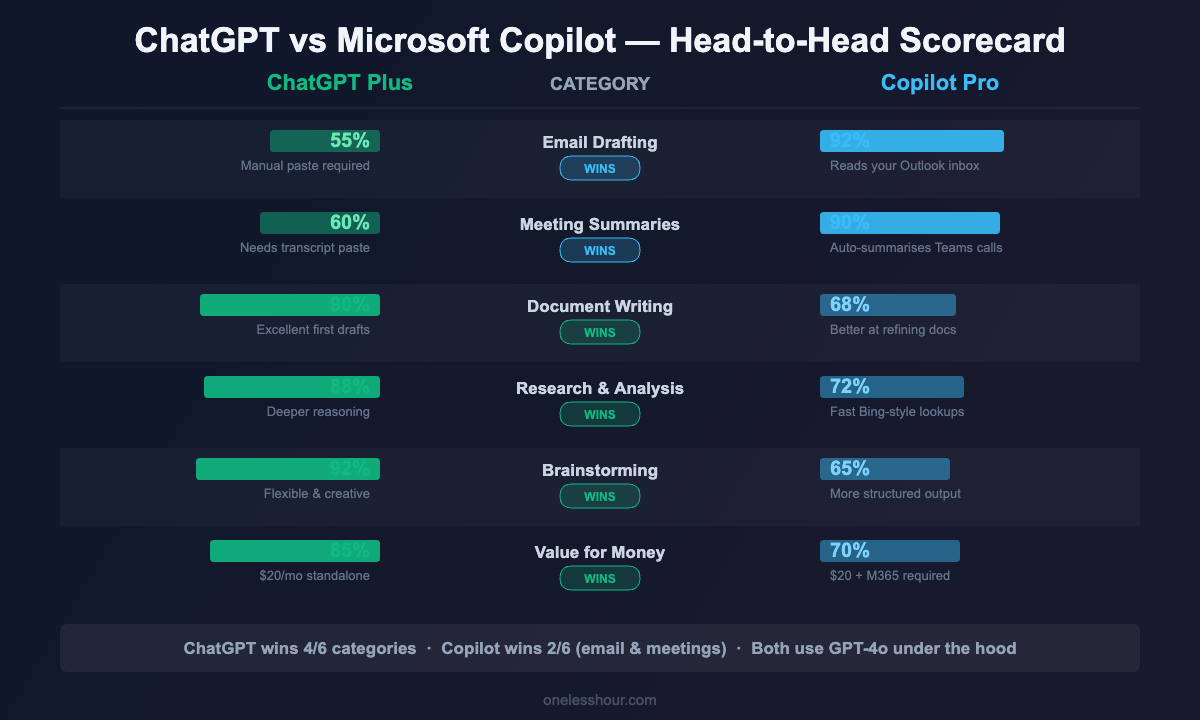
With Copilot in Outlook, I click “Draft with Copilot,” describe the email in plain English, and it pulls in context from my previous conversations with that person. No copy-pasting. Output in about 20 seconds. For high-volume email days, the time difference stacks up fast — I saved roughly 25 minutes on a day where I had 40+ emails to handle.
Winner: Copilot — but only if you use Outlook. Gmail users get zero benefit here.
Pro tip: If you’re on Gmail and want a similar experience, pair ChatGPT with a prompt template like this: "I received this email: [paste]. Draft a reply that [tone/goal]. Keep it under 100 words." Takes 10 seconds once you have the template saved.
Task 2: Meeting prep and summaries
Copilot in Teams is genuinely impressive here. After a Teams call ends, it generates a summary, lists action items by owner, and flags decisions made — all from your actual meeting transcript. I don’t have to do anything. That’s saved me 15–20 minutes per meeting that previously went to note-taking and recap emails.
ChatGPT can summarize meetings too, but you have to feed it the transcript first. If your company uses a transcription tool like Otter.ai or Fireflies (both export transcripts), this works well. If not, you’re stuck copy-pasting notes.
Winner: Copilot — for Teams users. If you’re on Zoom or Google Meet, check out my article on the best AI meeting assistants — there are dedicated tools that do this better than either.
Task 3: Drafting documents and reports
Here’s where ChatGPT starts pulling ahead. Copilot in Word is good, but it’s better at expanding existing content than creating from scratch. When I asked it to write a 5-section project proposal with no context, it gave me a generic template that needed heavy editing.
ChatGPT handled the same prompt with more nuance. I gave it a brief description of the project, the audience, and the goal — and got a solid first draft in about 90 seconds. I still edited it, but I was editing rather than writing from scratch. That alone saves me 30–45 minutes on a typical report.
Winner: ChatGPT — for complex, original writing. Copilot is better at refining things you’ve already started.
Pro tip: For long documents in ChatGPT, use this structure: "Write a [type] document for [audience]. Goal: [one sentence]. Sections needed: [list]. Tone: [descriptor]. Length: ~[X] words." The more specific you are upfront, the less back-and-forth you’ll need.
Task 4: Research and fact-checking
Both tools now have web search built in, but the experience is different. ChatGPT’s web search (with Plus) pulls from real-time sources and cites them. It handles nuanced research questions well — things like “what’s the current consensus on [topic]” or “find conflicting perspectives on [issue].”
Copilot’s web search is powered by Bing and is faster for simple lookups. But for deep research tasks, I’ve found ChatGPT synthesizes and reasons about information better. Copilot tends to list facts; ChatGPT tends to analyze them.
One caveat: neither tool should be trusted for precise statistics without checking the source. I’ve caught both of them presenting outdated numbers confidently. Always click through.
Winner: ChatGPT — for anything requiring analysis. Copilot for quick Bing-style lookups.
Task 5: Brainstorming and creative work
No contest. ChatGPT is better at open-ended creative tasks — brainstorming campaign names, generating 10 angles for a presentation, riffing on ideas. It feels more conversational and builds on your responses in a way Copilot doesn’t quite match.
Copilot’s brainstorming is competent but more structured — it tends to give you tidy lists rather than exploring ideas freely. Fine for some tasks, limiting for others.
Winner: ChatGPT — and it’s not close.
ChatGPT vs Copilot Pricing: What You Actually Pay
| Plan | Price/month | What you actually get | Best for |
|---|---|---|---|
| ChatGPT Free | $0 | GPT-4o mini, limited GPT-4o, basic features | Occasional use, testing |
| ChatGPT Plus | $20 | Unlimited GPT-4o, web search, file uploads, image gen, memory | Daily use, writing, research |
| Copilot Free | $0 | Chatbot in Windows/Edge/Bing — no Office integration | Quick web searches |
| Copilot Pro | $20 | Copilot in Word, Outlook, Excel, Teams, PowerPoint | Microsoft 365 power users |
| M365 Copilot | $30 | Everything in Pro + org-wide data, SharePoint | Enterprise teams |
One thing that trips people up: Copilot Pro ($20/month) requires you to already have a Microsoft 365 subscription (~$7–$13/month) to use the Office integrations. The all-in cost is more like $27–$33/month. For individuals, that’s worth knowing before you sign up expecting the full Outlook/Teams/Word experience.
ChatGPT Plus at $20/month is a standalone subscription — no additional software required.
The Simple Decision Rule
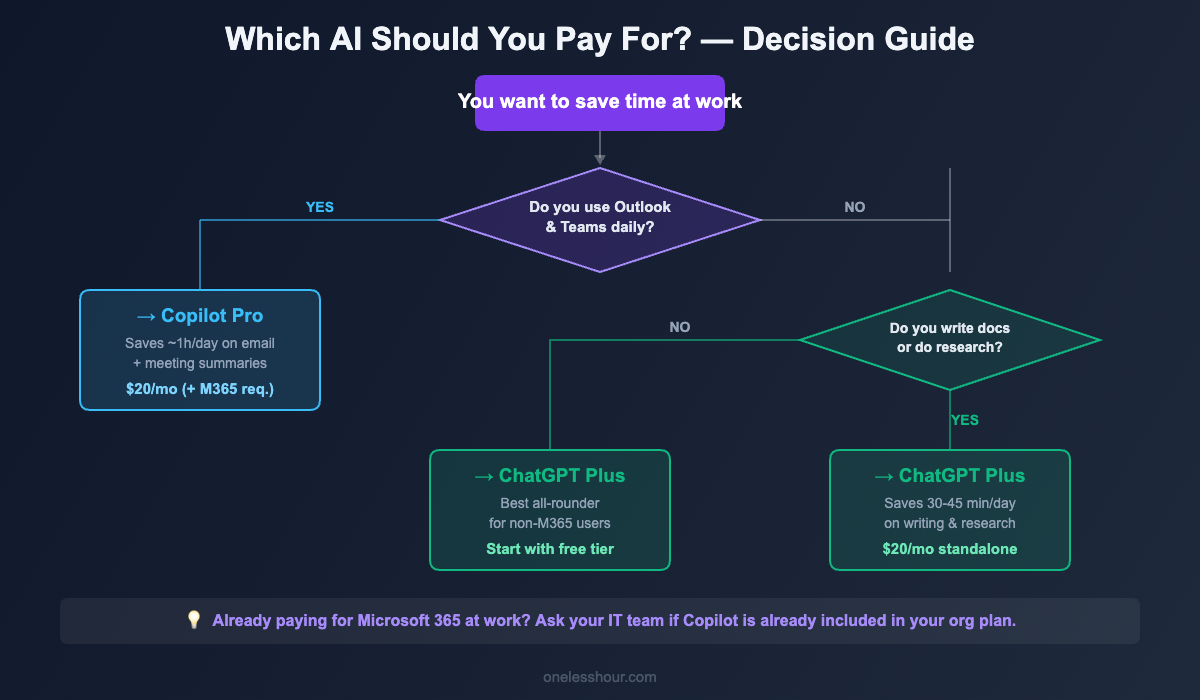
After three weeks of testing ChatGPT vs Copilot side by side, I landed on this: your email client is the deciding factor.
If you live in Outlook, Teams, and Word all day: Copilot Pro is likely worth it. The meeting summaries, email drafting, and document workflows are deeply integrated and save real time. Expect to save 45 minutes to 1.5 hours daily once you’re using it consistently.
If you use Gmail, Google Docs, Zoom, or a mix of tools: ChatGPT Plus is the better pick. It’s more flexible, handles a wider range of tasks, and doesn’t require you to be inside any specific ecosystem. For me personally (Gmail + Google Docs + Zoom), ChatGPT Plus was the clear winner.
If you do a lot of writing, research, or creative work: ChatGPT Plus, regardless of your email setup. It’s simply better at those tasks.
If you’re on a company Microsoft 365 plan already: Check whether your IT team has enabled Copilot for your org — it might already be available. Worth asking before paying for Pro personally.
When to Use Both (And When That’s Overkill)
Some people run both. I did for a week. Honestly? It was confusing more than helpful — I kept second-guessing which tool to open for each task.
The one scenario where it makes sense: you’re a heavy Microsoft 365 user and you have significant writing, research, or creative needs outside of those apps. In that case, Copilot Pro handles your Office workflows and ChatGPT Plus handles everything else. That’s $40/month total — reasonable if it genuinely saves you an hour or two a day.
For most people, though, pick one. The cognitive overhead of managing two AI tools cancels out a chunk of the time savings.
Mistakes I Made (That You Can Skip)
Expecting Copilot to work without the right M365 plan. I initially signed up for Copilot Pro thinking I’d get the full Outlook and Teams integration — but my Microsoft 365 plan didn’t include Teams. Had to upgrade to get the meeting features. Check what your current plan includes before paying for Pro.
Treating ChatGPT like Google. The biggest waste of time with ChatGPT is using it for simple factual lookups. It’s overkill for “what’s the capital of France.” Where it shines is complex, multi-step tasks: draft this, analyze that, brainstorm X options for Y scenario.
Not saving my prompts. Both tools forget your conversation history eventually. If you find a prompt that consistently gives you great results, save it somewhere. I built a personal prompt library over two months and it saves me roughly 30 minutes a week. I covered the exact prompts I use most in my ChatGPT prompting guide.
Assuming Copilot’s summaries are complete. Copilot’s meeting summaries are good, but they miss things — especially side conversations in chat, anything said while someone was muted, and nuance. Treat them as a starting point, not a complete record.
Frequently Asked Questions
Is Copilot the same as ChatGPT?
No, though they’re related. Both use OpenAI’s GPT-4o model under the hood, but they’re different products. ChatGPT is a standalone AI assistant made by OpenAI. Microsoft Copilot is built by Microsoft using OpenAI’s models, and its key feature is deep integration with Microsoft 365 apps like Outlook, Teams, Word, and Excel. Same engine, very different car.
Is Copilot better than ChatGPT for work?
Based on my ChatGPT vs Copilot testing, it depends on where you work. If you’re inside Microsoft 365 all day, Copilot’s integrations are genuinely better for day-to-day tasks like email and meetings. If you use Google Workspace, Zoom, or a mix of tools, ChatGPT is more useful because it isn’t locked to any ecosystem. For writing quality, research depth, and creative tasks, ChatGPT Plus generally produces better output.
How much does Microsoft Copilot Pro actually cost?
Copilot Pro is $20/month per person, but to use it in Office apps you need an active Microsoft 365 Personal or Family subscription (from ~$7/month). So the realistic all-in cost is $27–$33/month. Enterprise plans (Microsoft 365 Copilot) are $30/user/month on top of an existing M365 Business subscription.
Can I use both ChatGPT and Copilot at the same time?
Yes, and some people do — using Copilot for Microsoft 365 workflows and ChatGPT for everything else. Whether it’s worth the combined ~$40/month depends on how much you’d use both. For most solo professionals, picking the one that fits their workflow better is more efficient.
Does ChatGPT Plus include web browsing?
Yes. ChatGPT Plus includes web search so it can pull current information rather than relying only on its training data. The free tier also has limited web search, but Plus users get priority access and more consistent results.
The Verdict
If I could only keep one: I’d keep ChatGPT Plus. My work spans Gmail, Google Docs, Zoom, and various web tools — Copilot’s Microsoft-specific integrations don’t do much for me. ChatGPT handles drafting, research, brainstorming, and complex writing tasks better, and it works everywhere.
But if you’re a Microsoft 365 shop — Outlook as your email, Teams for meetings, Word for documents — Copilot Pro is probably worth it. The meeting summaries alone could justify the cost if you’re in back-to-back calls all day.
Start this week: open whichever tool matches your setup and run the same task you did manually yesterday through it. Not something hypothetical — your actual task. That first real time-save is usually the moment it clicks.
If you’re newer to AI tools, my Busy Person’s Guide to ChatGPT covers the fundamentals. And for a broader look at where AI fits into a full workday, here’s how I actually use AI at work — hour by hour.
Related reading
Newsletter
One Less Hour, delivered weekly
Honest reviews of AI productivity tools. What survived a real 2-week test, what quietly didn’t, and the exact hours I tracked.
One email per week. Unsubscribe in one click.