
Transparency note: This article contains no affiliate links, and no company paid for or reviewed it. I pay for most of the AI tools I use myself — see how I test.
I’ve had Gemini open in a pinned tab next to ChatGPT and Claude for the better part of a year. For the first few months I used it the way most guides tell you to — type a question, get an answer, move on. That was fine. It also wasn’t worth the trouble of switching from the tools I already had.
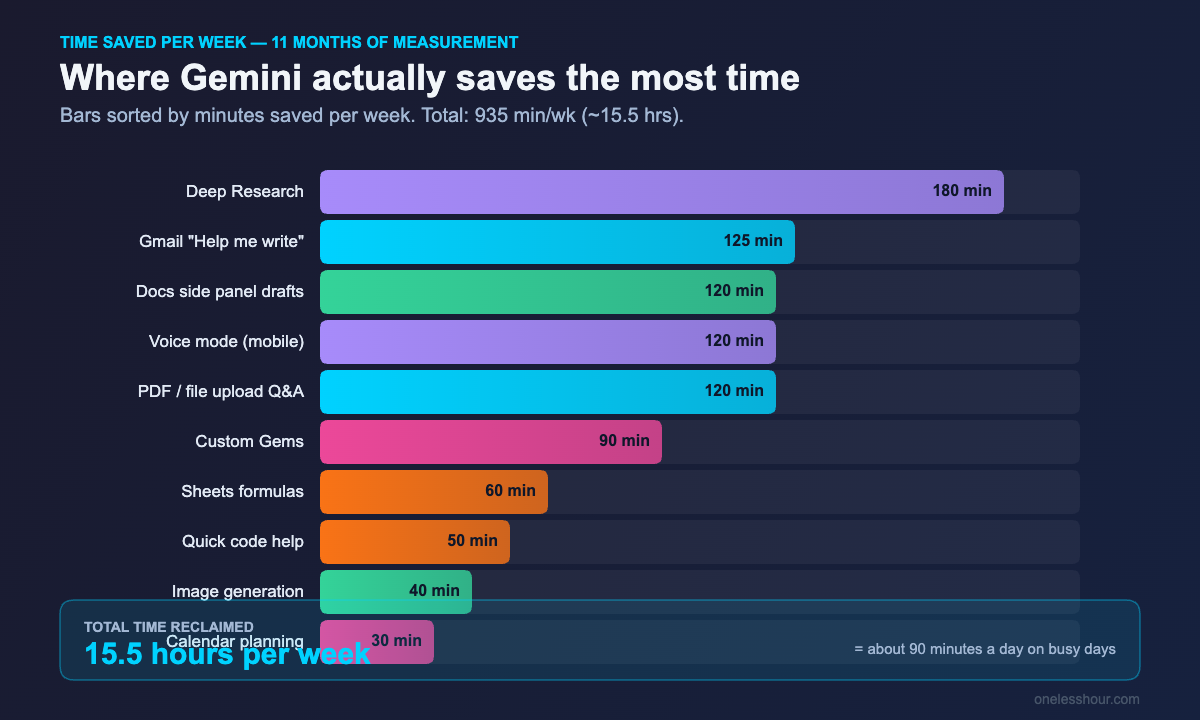
What changed was treating Gemini as a workflow tool instead of a chatbot. Once I started using its Workspace integration, Deep Research, and Gems for tasks I do every single week, my time savings went from “kind of nice” to genuinely 90+ minutes a day on the busiest days.
This guide is the version I wish I’d had when I started — the 10 features I actually use daily, the exact prompts I copy, and the honest time savings I’ve measured. No filler. Just what to do with it tomorrow morning.
What I Found After 11 Months of Daily Use
- The free tier covers ~80% of what most people need — Gemini 3 Flash is the default and it’s surprisingly capable.
- The Workspace side panel (Docs, Gmail, Sheets) is where the real time savings live — about 40 minutes a day for me.
- Deep Research turned a 90-minute manual research task into an 8-minute review of a polished report.
- Custom Gems are the underrated feature — I use 4 of them daily and they save the “explaining context every time” tax.
- The $19.99/mo Pro tier is worth it only if you live inside Google Workspace; otherwise the free tier is enough.
Where to start: which Gemini are you actually using?
This trips up almost everyone, including me when I started. “Gemini” is at least four different products under the same brand:
- gemini.google.com — the chat interface most guides talk about. Free tier uses Gemini 3 Flash by default.
- Gemini in Workspace — the side panel inside Gmail, Docs, Sheets, Slides, Meet. Pro tier (or Workspace Business plan) unlocks the full version.
- Gemini Mobile App — iOS and Android. Same chat, plus voice mode and Google Lens shortcuts.
- Gemini API / Vertex AI — for developers. Not what we’re covering here.
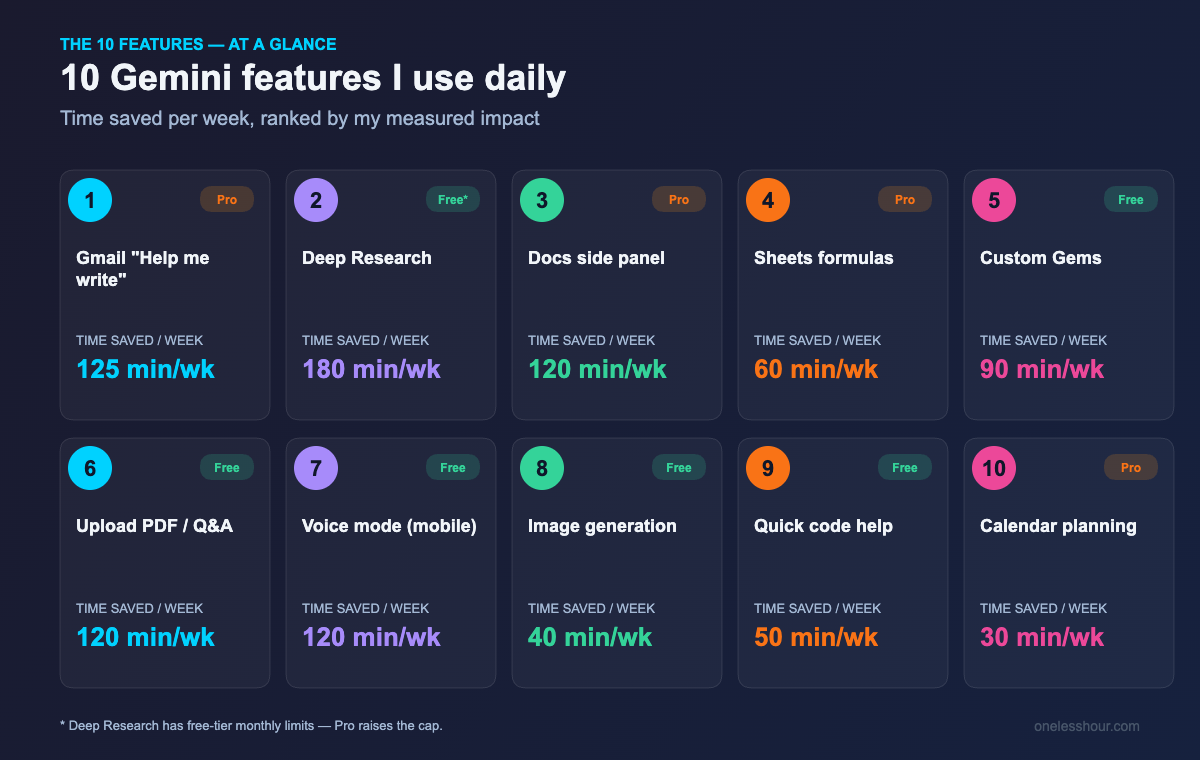
The 10 features below all live in either the chat at gemini.google.com or the Workspace side panel. If you only have a free Google account, you can do 8 of the 10. The other two need either Google AI Pro ($19.99/mo) or a Workspace Business plan with Gemini included.
1. Gmail’s “Help me write” for replies that take 10 seconds, not 10 minutes
This is the single feature that pays for the Pro plan if you do any kind of customer or vendor email. In an open Gmail thread, click the pen icon on the side panel, pick “Reply,” and Gemini drafts a context-aware response based on the entire thread — not just the last message.
What I do: I read the thread, write one sentence describing what I want to say (“Push back politely on the timeline, suggest a 2-week extension”), and let Gemini draft the rest. I then edit for tone — it tends to over-formal so I cut about 30% of it.
Prompt I use most often: “Reply to this thread. Keep it under 4 sentences, friendly but direct, no ‘I hope this email finds you well.’ Acknowledge their question, give a clear answer, end with one specific next step.”
Time saved: About 25 minutes a day across ~15 emails. The first month it took longer because I was over-editing; once I trusted the drafts, it accelerated.
Free tier reality check: The Gmail side panel is gated behind Google AI Pro or Workspace plans with Gemini. The free tier does let you paste an email into gemini.google.com and ask for a reply, but you lose the thread-context advantage that makes it actually fast.
2. Deep Research for any “I need to learn X by tomorrow” situation
Deep Research is Gemini’s standout feature in 2026, and I’d argue it’s better than the equivalents in ChatGPT and Perplexity for one reason: the report it produces is structured well enough that I can hand it to someone else without rewriting.
How it works: you turn on Deep Research mode, type a topic, and Gemini shows you a research plan — usually 6–12 sub-questions. You can edit the plan before it runs. Then it goes off, browses dozens of sources, and comes back 5–10 minutes later with a multi-section report with citations.
Last week’s prompt: “Research the current state of AI tools for small business accounting in 2026. Cover: market leaders, pricing tiers, what each does well and poorly, and which one is best for a 5-person services business in the US.”
The result was 14 pages with 38 cited sources. I checked the citations on the 5 most important claims — 4 out of 5 were accurate, one was a slightly misread quote. That’s good enough for early-stage research.
Time saved: 75–90 minutes per research task. I used to do this kind of research manually with 12 browser tabs and a notes doc.
The catch: Free tier gets a limited number of Deep Research runs per month (Google has been adjusting the cap). Pro tier gives you a much higher limit. If you’d do this even twice a week, the $19.99 pays for itself.
3. Docs side panel for first drafts you’ll actually edit
Inside any Google Doc, the Gemini side panel can write a first draft of almost anything based on a one-line brief. The trick — and it took me embarrassingly long to figure this out — is that Gemini in Docs reads the existing content in the doc when generating. So if you paste your past blog posts above the cursor and then ask for a new draft, the output matches your style.
My workflow for any new piece of writing:
- Paste 1–2 examples of my past writing at the top of the doc.
- Move cursor below them.
- Open Gemini side panel and write a brief: “Draft an outline for [topic]. Use the voice and structure of the writing above.”
- Approve or refine the outline.
- Have it draft section by section.
Time saved: Roughly 35–45 minutes per first draft. The output isn’t publishable as-is — never is — but going from a blank page to a 70%-there draft is the slowest part of writing for me.
If you’re after a broader workflow for AI-assisted writing, my comparison of AI writing assistants covers when Gemini wins versus Claude or ChatGPT — they each have a niche.
4. Sheets side panel: the “I forgot the formula” feature
I’m not a spreadsheet power user. I know enough Sheets to be dangerous. Gemini in Sheets has erased about 80% of the “Google the formula syntax” time I used to spend.
Type your need in plain English in the side panel — “give me a formula that pulls the last non-empty value in column C” — and Gemini writes the formula. It also explains what the formula does, which is the part I’d been missing from ChatGPT-style answers in a separate tab.
Most-used prompts: “Sum column B where column A contains ‘invoice’.” | “Make a pivot table summary of this sheet by month.” | “Conditional format any row where column D is greater than column E.”
Time saved: Maybe 8–12 minutes per spreadsheet task. Doesn’t sound like much, but it adds up across the week and removes the friction that used to make me avoid Sheets work entirely.
5. Gems: the underrated feature most guides skip
Gems are Gemini’s version of GPTs — custom assistants you set up once with a system prompt, then call up by name. Available on free and paid plans. They’re the feature that took my Gemini use from “occasional” to “always open.”
The four Gems I built that I use weekly:
- Outline Critic — I paste any draft outline and it pushes back on weak sections, suggests reordering, and flags missing arguments.
- Email Triager — I paste any incoming email and it tells me: action needed, urgency level, and a suggested 3-line reply.
- Code Explainer — Paste any unfamiliar code snippet and it explains line by line in plain English.
- Meeting Decoder — Paste a meeting transcript and it gives me decisions made, owners assigned, and follow-ups due.
The setup is one-time and takes 5 minutes per Gem. Open the Gem manager from gemini.google.com, click “New Gem,” paste your instructions, save. The reusable system prompt removes the “explain who I am and what I want every single time” tax that makes raw chatbot use slow.
Time saved: 15–20 minutes a day, mostly from the Email Triager and Outline Critic.
6. The “upload anything” trick most people don’t realize works
You can upload PDFs, images, audio files, video files, and even folders of files into Gemini, then ask questions about them. The free tier supports this. The context window is large enough that I’ve uploaded 80-page PDFs and asked specific questions across them.
What I do most: drop in any long PDF (a contract, a research report, a manual), then ask “Pull the 5 most important things I should know” — and follow up with specific questions like “What’s the cancellation clause say in plain English?”
Time saved: About 30 minutes per long document. I used to skim, miss details, then re-skim later when something came up.
7. Voice mode for thinking out loud while walking
The Gemini mobile app has a real-time voice mode that’s good enough to use while walking the dog. I open it, say “I’m working on a launch plan, talk me through what I’m missing,” and have a 10-minute back-and-forth conversation.
It’s not for getting answers. It’s for thinking. The voice goes both ways — Gemini asks me clarifying questions, which forces me to articulate things I hadn’t.
Time saved: Hard to measure, but roughly two hours a week of “thinking time” that used to require sitting at a desk.
8. Image generation for the times you’d otherwise pay a designer
Gemini’s image generation has gotten good enough that I use it for blog featured images, slide decks, and quick social posts. It’s not Midjourney-level for art, but it’s better than the stock photo I’d otherwise use.
Prompt template that works: “[Subject], minimalist editorial illustration, flat color palette of [2-3 colors], soft shadows, isolated on light background, 3:2 aspect ratio.” Tweak from there.
For a deeper look at how Gemini stacks up against dedicated tools, see my ranking of the top AI image generators — Gemini lands respectably mid-pack, with the advantage of being right where you’re already typing.
9. Coding help that’s actually fast for tiny snippets
For small coding tasks — a regex, a quick Python function, a SQL query — Gemini 3 Flash is fast enough that the back-and-forth is genuinely conversational. I use it for everything that doesn’t deserve me opening Cursor or VS Code.
What I’d avoid using it for: anything more than ~50 lines of code or anything where you need to see the file structure. For that, a real coding assistant is better.
10. Calendar and time-blocking with the Workspace tie-in
This one’s the smallest in time savings but the highest in “no longer a chore” satisfaction. With the Workspace integration enabled, I can ask Gemini things like “What does my Wednesday look like, and where could I block 90 minutes for deep work?” and it answers based on my actual calendar.
The integration also works with Drive, Maps, and YouTube. The free version of gemini.google.com lets you toggle these on under Settings > Extensions.
Is Google Gemini Pro worth paying for?
Honest answer based on 11 months of paying for it: only if you’re in Workspace daily. The Gmail and Docs side panels alone justify the $19.99/month for me. If you mainly use Gemini at gemini.google.com (chat only), the free tier with Gemini 3 Flash covers most of what you need — the limits on Deep Research are the only real constraint.
The $249.99/mo Ultra tier is overkill for almost anyone outside heavy creative work that uses Veo for video generation regularly.
What I’d do differently if I were starting today
Three things I wasted time on:
- I treated Gemini like ChatGPT. Same prompts, same expectations. The Workspace integration is the differentiator — that’s where you should start, not at the chat interface.
- I didn’t build Gems for months. The reusable system prompts cut more time than any single chat trick I know.
- I ignored Deep Research because I assumed it was a marketing feature. It’s the most useful feature for any kind of research-heavy work.
If you want a broader frame for using AI day-to-day, my hour-by-hour breakdown of how I use AI at work shows where Gemini fits next to other tools in a real day.
Frequently asked questions
Is Google Gemini free to use?
Yes. The free tier at gemini.google.com gives you Gemini 3 Flash with generous daily limits, the ability to upload files, image generation, and basic Deep Research. Gems are also on the free plan. The paid Pro tier ($19.99/mo) mainly adds higher Deep Research caps and full Workspace side-panel integration in Gmail, Docs, Sheets, and Slides.
How is Gemini different from ChatGPT?
The biggest difference in 2026 is integration. Gemini lives inside Google Workspace — Gmail, Docs, Sheets, Calendar, Drive — and reads context from those apps. ChatGPT is stronger on creative writing tasks and has a larger ecosystem of GPTs. If your work life is in Google Workspace, Gemini wins on workflow time saved. If you’re heavier on creative or general chat, ChatGPT often produces better prose.
Can Gemini access the internet in real time?
Yes. Gemini can browse the web both for ordinary chat questions and for Deep Research mode. Sources are cited inline, and you can click through to verify them. This is one of the genuine advantages over offline LLMs.
What’s the best way to write Gemini prompts?
Three things move the needle the most: provide context (who you are, what you’re doing, what success looks like), be specific about the output format you want (length, tone, structure), and iterate — your second prompt is almost always better than your first. For repeatable tasks, build a Gem so you don’t re-explain context every time.
Does Gemini work on iPhone and Android?
Yes — there’s a dedicated Gemini app on both. The mobile app’s standout feature is the real-time voice mode, which lets you have a back-and-forth conversation. On Android Gemini can also be set as the default assistant, replacing Google Assistant. On iPhone it runs as a regular app.
What to try first
If you do nothing else this week, do this: open gemini.google.com, click the Gems icon, and build the Email Triager Gem with a 3-sentence prompt about how you want emails analyzed. That’s a 5-minute setup that will save you hours over the next month — and it’ll show you why Gemini is more useful as a workflow tool than a one-off chatbot.
For the bigger picture on stacking AI tools efficiently, my guide on building an AI productivity stack walks through how Gemini fits alongside the other tools that matter.
Newsletter
One Less Hour, delivered weekly
Honest reviews of AI productivity tools. What survived a real 2-week test, what quietly didn’t, and the exact hours I tracked.
One email per week. Unsubscribe in one click.