
Last updated: November 2026
Transparency note: This article contains no affiliate links, and no company paid for or reviewed it. It’s research-based, written from Anthropic’s official Claude Cowork help articles, product pages and announcements (checked November 11, 2026). See how I research tools.
If you want to learn how to use Claude Cowork, the short version is this: you hand Claude a whole task instead of a question, point it at the files and apps it needs, and come back to a finished document, spreadsheet or deck. Cowork is Anthropic’s agent for everyday knowledge work. It runs on the same agentic architecture as Claude Code, with no terminal required.
This guide walks through how to use Claude Cowork from your first task to scheduled, recurring work, using Anthropic’s own help center. I haven’t tested it hands-on for this article. Every step below comes from the official documentation, with links so you can check the details yourself.
One thing has changed a lot in 2026, and most older tutorials miss it. Cowork launched as a separate tab in the Mac app. Since September 2026, Anthropic has been merging it into regular Claude chat, and since October 6, 2026, new tasks on Pro, Max and Ultra run in the cloud. So the first step is working out which version you’re looking at.
What Claude Cowork is (and what it isn’t)
According to Anthropic’s Get started with Claude Cowork article, Cowork lets Claude take on complex, multi-step tasks and carry them out for you, instead of answering prompts one at a time. You describe an outcome, step away, and come back to finished work: formatted documents, organized files, synthesized research and more. Claude makes a plan, splits big jobs into subtasks, runs code in an isolated environment on Anthropic’s servers, and can coordinate several sub-agents at once.
A few dates help explain the product. Cowork first appeared on January 12, 2026 as a research preview for Max subscribers in the macOS app, as The Verge reported. Engadget noted that Pro subscribers got access a few days later. On September 16, 2026, Anthropic announced that Claude Cowork and chat are now one Claude, rolling out to Pro, Max and Ultra first.
What it isn’t: a coding tool. Anthropic’s Cowork product page says Claude Code is built for software engineering, while Cowork is built for non-coding work such as research, analysis and document creation. For a side-by-side breakdown, see Claude Cowork vs Claude Code. It also isn’t a replacement for chat. Anthropic’s own best-practices article gives a simple rule: use chat when what you want fits in a few exchanges, and use Cowork when you need a deliverable, a file someone will open, or anything that touches several files or apps. If you write software, start with Claude Code instead.
What you need before you start
Cowork is only on paid plans. Here is what Claude’s pricing page listed on November 11, 2026 (prices exclude tax):
| Plan | Price | Cowork notes |
|---|---|---|
| Free | $0 | No Cowork. The Free plan doesn’t include handing off or scheduling tasks. |
| Pro | $20/month, or $17/month billed annually ($200 up front) | Included. Anthropic says Cowork uses limits faster than chat. |
| Max | $100/month | Included, with 5x Pro usage. |
| Ultra | $200/month | Included, with 10x Pro usage per week. |
| Team | $20/seat/month billed annually, $25 monthly (standard seat) | Included on standard and premium seats. Teams of 2 to 150. |
| Enterprise | $20/seat/month billed annually, 20-seat minimum, plus usage at API rates | Included. Web and mobile access needs an owner to turn it on. |
For usage credits, Team and Enterprise billing, and how to pick a plan, see the full Claude Cowork pricing breakdown.
Beyond a paid plan, the help center lists two requirements. You need an active internet connection for the whole session. And for local file access, browser use and computer use, you need the Claude Desktop app for macOS or Windows open and connected. Anthropic says those features need the app even though your session runs in the cloud, because they reach things on your computer.
On Team and Enterprise plans, an owner controls access. Cowork is on by default, but it can be switched off in Organization settings > Cowork, and it’s off by default in organizations that have enabled HIPAA, according to the Team and Enterprise article.
Which version of Cowork do you have?
There are two ways Cowork can look right now, and the steps differ slightly.
- The Chat and Cowork switch. Your message box shows “Chat” and “Cowork” options. Select Cowork, then describe the task. To go back to a regular conversation, select Chat.
- The new Claude experience. There’s no Cowork option to pick. You describe the task in any conversation and Claude decides which tools it needs. Anthropic’s help article on the merge says that what you could previously only do in Cowork is available from any conversation.
The new experience is rolling out gradually to Pro, Max and Ultra, so two accounts on the same plan can see different screens. You don’t need to turn anything on, and once your account moves over you can’t switch back. Your chats, tasks, projects and settings come with you. Anthropic’s blog added that the unified experience became generally available for Claude Enterprise on October 23, 2026. On Team (in beta) and Enterprise, it appears where an admin has turned on Chat and Cowork unified.
Where you can use Claude Cowork
Anthropic’s surfaces article lists four places to start or steer a task:
- Claude Desktop (macOS, Windows, Linux beta): the full experience. It’s the only surface where Claude can work in folders on your computer, use the built-in browser and, in beta on Pro, Max and Ultra, use your computer directly.
- The web at claude.ai: start a task from the Home tab. It works with connectors and files saved to your Claude account.
- Claude for iOS and Android: start, steer and review tasks, answer Claude’s questions, and get a notification when a task finishes or needs you. Update the app if you don’t see Cowork.
- The Claude in Chrome side panel: opening the panel starts a Cowork session straight away, and Claude can read the tab you’re on.
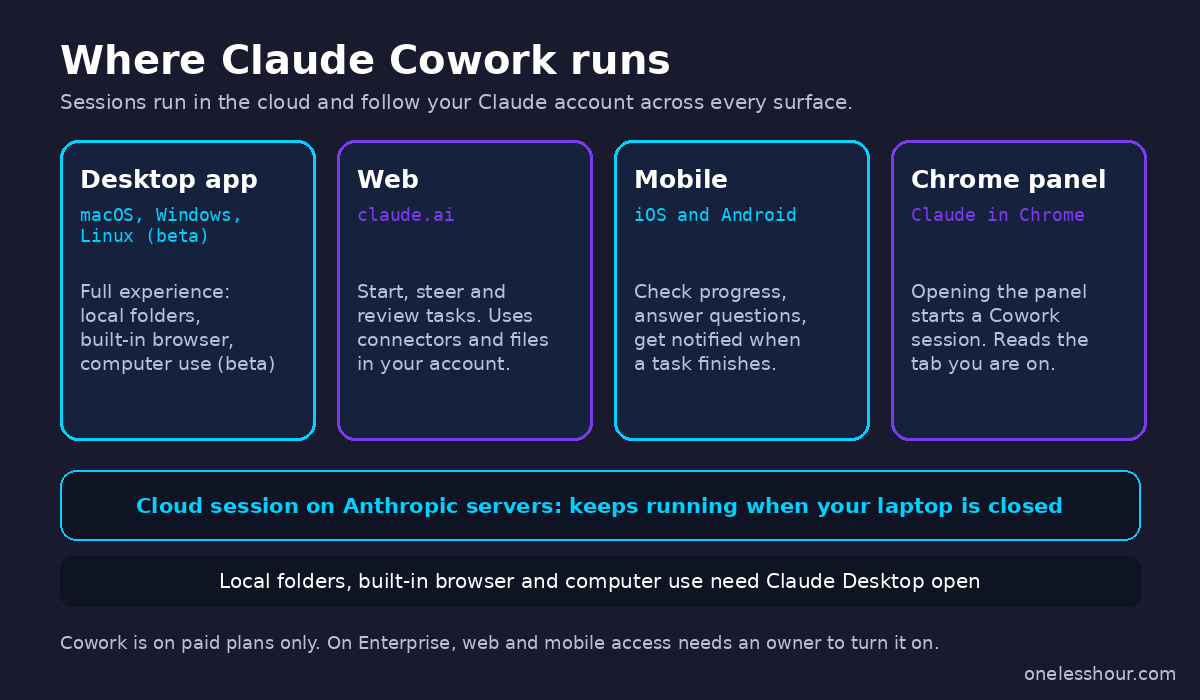
Sessions follow your account. You can start a task at your desk, check it from your phone, and pick up the finished files on the web. The one catch: if a task needs a local folder, the built-in browser or computer use, it can only reach them while Claude Desktop is open on that computer.
How to start your first Cowork task
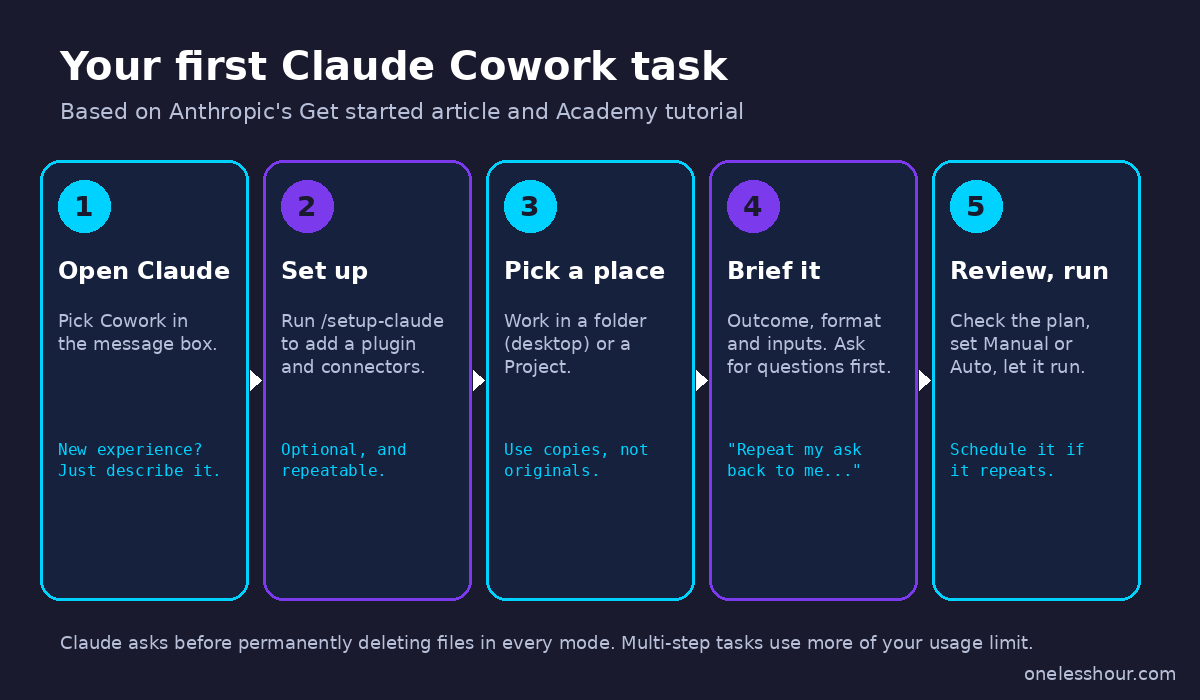
This is the sequence from the help center and Anthropic’s three-step Academy tutorial:
- Open Claude. Use the desktop app if the work involves files on your computer. Otherwise the web or mobile app is fine.
- Select Cowork in the message box, or skip this if you have the new experience and there’s no Cowork option.
- Run the guided setup (optional). Type
/setup-claudein a new conversation. Claude asks for your role, installs a plugin matched to it and helps you connect the tools that plugin uses, such as Slack, Google Workspace or Microsoft 365. New users may see a Set up Cowork banner that starts the same flow. - Give it a place to work. Click “Work in a folder” in the chat bar and pick a folder on your computer (desktop only), or work inside a Project. Claude reads context from there and saves finished files back.
- Describe the task, then review Claude’s approach and let it run. You can watch progress, steer mid-task, or step away.
Anthropic’s starter examples are good first tasks because the result is easy to check: “Turn the research in this folder into a one-page brief,” “Write a status summary from last week’s Slack and Linear activity,” and “Organize my Downloads folder by file type and date.” If I were starting today, I’d pick one of those, using a copy of the files rather than the originals.
How to write a task Claude can finish
The help center says you’ll get better results when you brief Claude the way you’d brief a colleague, with three things:
- The outcome: what you want to end up with, like “a one-page summary” or “a spreadsheet with a tab for each region.”
- The format: a Word document, a slide deck, or a message you can paste into Slack.
- The inputs: the files, links or connected apps Claude should work from.
In the best-practices article, Anthropic’s growth marketing lead Austin Lau adds a habit he calls the single most useful one he has built. End your prompt with: “Before we begin, repeat my ask back to me so we’re aligned, then ask me as many clarifying questions as you have.” He also argues that the gap between a mediocre and a great result is usually context, not wording, so it pays to attach the folder or connect the app rather than describe it.
He lists five signs that a task suits Cowork. You don’t need all five, but a good candidate hits a few:
- More than one thing goes in: several files, a folder, or files plus connected apps.
- A file comes out: a doc, deck, spreadsheet or CSV.
- You’ll do it again, which makes it a candidate for scheduling.
- You already know what good looks like, so you can check the result quickly.
- The middle is the boring part: extracting, compiling, reconciling and reformatting.
These official example tasks show the level of detail that works: “Go through these five interview notes and pull out the top themes, with a quote for each,” and “Turn this analysis into a 10-slide deck I can present on Monday.”
Choose how much Claude checks with you
Cowork has three permission modes, changed from the mode selector in the chat box at any time. Here’s how the help center describes them:
| Mode | What happens | When to use it |
|---|---|---|
| Manually approve (Manual) | Claude pauses and asks before actions. You choose Allow or Deny each time. | Sensitive files, accounts or sites, a tool you’re trying for the first time, or anything hard to undo. |
| Automatically approve (Auto) | Claude keeps working and reviews each action for safety first, blocking anything it judges unsafe. If it keeps hitting blocks, it goes back to asking. | Well-defined, lower-stakes work you want to run without interruptions. |
| Skip all approvals (Skip) | Claude doesn’t pause, and nothing checks its actions automatically. | Only when you fully trust every action, connector, file and app involved. |
In the new Claude experience, the setting offers Auto and Manual. The help center says Auto is the default on Pro, Max, Ultra and Team, and Manual is the default on Enterprise. In every mode, Claude asks for your permission before permanently deleting files. Anthropic’s advice for work with real consequences, such as money, messages sent as you or important files, is to stay close and review what Claude does, or switch back to Manually approve.
Projects, instructions and plugins
Once single tasks work, these three features stop you repeating yourself:
- Instructions: standing preferences, such as tone, output format or background on your role. In the older layout they live in Settings > Cowork > Global instructions. In the new experience they’re part of Instructions for Claude in Settings > Your Claude. Folder instructions add context when you pick a local folder on desktop.
- Projects: workspaces for related tasks, each with its own instructions, scheduled tasks, context (a local folder, a linked chat project or a URL) and memory. What Claude learns in one project doesn’t carry over to other projects. Project sharing with view or edit access is available on Team and Enterprise.
- Plugins: packages that bundle skills, connectors and sub-agents for a role, such as sales, finance, legal or marketing. Add them from Customize > Plugins in the sidebar. Plugins are saved to your account, so they also work in chat and Claude Code. Anthropic warns that some plugins include local servers that run with the same permissions as any program on your computer, so install only from sources you trust.
Cowork also shares memory with chat. To run one task without memory, turn Memory off in the “+” menu before you send the first message; that setting can’t be changed after the task starts.
How to schedule recurring tasks
Scheduled tasks are where Cowork goes beyond a chatbot. According to the scheduling article, they’re available on all paid plans and run in the cloud, so they keep going when your computer is asleep or the desktop app is closed.
- In the new experience: describe the task and how often it should run, for example “Every Monday at 9 AM, summarize last week’s messages in my team’s Slack channels.” Answer Claude’s questions, review the proposed name, schedule and instructions, then click Schedule.
- In Cowork: type
/schedulein any task, or click Scheduled in the left sidebar, then New task. Choose Create with Claude, or Set up manually to enter a name, prompt, approval mode, frequency (hourly, daily, weekly, weekdays or manual), and optionally a model and folder.
From the Scheduled page you can review past and upcoming runs, edit, pause, resume, delete or run a task on demand. Two caveats from the docs: a scheduled task that needs local files or apps will only run locally, and scheduled tasks can’t use accounts linked in Personal Finance. Anthropic’s safety guidance is to start with low-risk jobs like summaries, avoid scheduling anything that sends messages or makes purchases, and check the output after each run.
Browser and computer use
When a task touches a website, Claude can open sites, read pages, click, type and fill forms. On desktop it uses a browser built into the Claude Desktop app by default. That browser is separate from your own, so Claude doesn’t see your logins unless you import them site by site. If you already use Claude in Chrome, Claude works in your Chrome instead; you can switch under Settings > Cowork > Preferred browser.
Computer use goes a step further: Claude clicks, types and navigates apps on your screen. It’s in beta for Pro, Max and Ultra in Claude Desktop for macOS and Windows. Anthropic says Claude tries connectors first, then the browser, and uses your screen only as a last resort, and it asks permission before accessing each application. The safety article warns that computer use has no sandbox between Claude and your screen, so block sensitive apps like banking or healthcare portals. To set up the Chrome extension itself, see my guide on how to use Claude for Chrome.
Safety habits worth copying
Anthropic’s Use Claude Cowork safely article is unusually direct. The main risk it names is prompt injection: instructions hidden in a web page, email or document that try to redirect Claude. Its recommendations boil down to this:
- Connect a dedicated working folder instead of broad access, and keep backups of important files.
- Don’t give Claude access to financial documents, credentials or personal records.
- Be deliberate about which sites you sign in to in the built-in browser; anything you sign in to there is available in future sessions on that computer.
- Watch for unexpected patterns, such as files or sites you didn’t mention, and stop the task if the scope creeps.
- Install only trusted connectors and plugins.
- Match oversight to the stakes: Manually approve for anything that sends, buys or can’t be undone.
Usage limits
Every step Claude takes uses tokens, so multi-step tasks that run code, create files or use connectors and the browser use more of your allowance than a quick question. Anthropic’s product page states that Cowork consumes limits faster than chat. The help center suggests grouping related work into one task, starting a new conversation for unrelated work, telling Claude when you only need a quick answer, and checking Settings > Usage. Anthropic doesn’t publish a fixed number of Cowork tasks per plan.
If you used Cowork before October 6, 2026
On October 6, 2026, new Cowork tasks on Pro, Max and Ultra moved to the cloud, and the “Only on your computer” option in Settings > General was removed. Tasks you’d already started locally stay there until they’re done, and scheduled tasks that already ran on your computer keep running there. Your folders stay on your computer; when a cloud task needs a file, Claude fetches a copy of just that file through the desktop app.
If your work has to stay on your machine, Anthropic now points you to Claude Code in the desktop app. To move a Cowork task, open it, select “Download task data,” unzip it, open the folder in Claude Code and run /port-task-data. To keep a copy of everything, use “Export your Cowork data” on the desktop home card. Team and Enterprise organizations can still run local sessions; on Enterprise, cloud sessions are off until an owner turns them on.
Known limitations
These are the limits Anthropic lists in its help articles as of November 2026:
- No session sharing. You can share artifacts you create, but not the session itself.
- Some features are desktop-only: live artifacts created before August 19, 2026, and plugins that include local servers.
- In the new experience: adding from GitHub isn’t supported, you can’t branch a conversation from an earlier point, search doesn’t include older Cowork tasks (find them by name in Recents), and incognito chats open in the previous experience, so Claude can’t create files or run code there.
- Dispatch isn’t available to new users.
- Desktop must be open for local folders, the built-in browser and computer use, even though the session itself runs in the cloud.
- Team and Enterprise feedback goes through your admin; there’s no in-app feedback button on those plans.
Related reading
If you write code, the sister tool is covered in how to use Claude Code. For visual work, Claude Design now lives in the same conversations; see how to use Claude Design. For everyday Claude chat, see how to use Claude AI, and if you’re new to agents in general, AI agents for beginners explains the basics. Still choosing a chatbot? ChatGPT vs Claude covers that comparison.
Get the next guide in your inbox
Research-based guides to AI productivity tools: what each one costs, what the free plan really includes, and who it’s worth paying for.
FAQ
Is Claude Cowork free?
No. Anthropic’s help center says Claude Cowork is available on paid plans only: Pro, Max, Ultra, Team and Enterprise. On Claude’s pricing page (checked November 11, 2026), Pro is $20 a month billed monthly or $17 a month on an annual plan, Max is $100 a month and Ultra is $200 a month. The Free plan doesn’t include handing off or scheduling tasks.
Do I need the desktop app to use Claude Cowork?
Not for every task. Cowork runs on the web, in the Claude mobile apps, in the Claude Desktop app and in the Claude in Chrome side panel. You need the Claude Desktop app for macOS or Windows open and connected when a task uses local files, the built-in browser or computer use, because those reach things on your own computer.
Why don’t I see a Cowork button in Claude?
You may already have the new Claude experience. Since September 16, 2026, Anthropic has been merging chat and Cowork into one conversation, starting with Pro, Max and Ultra. If your message box no longer shows Chat and Cowork options, you just describe the task in any conversation and Claude decides which tools to use. If you’re on a paid plan and still see neither, update the desktop or mobile app.
Does Claude Cowork keep working when my laptop is closed?
Yes, for sessions in the cloud. On Pro, Max and Ultra plans, new Cowork tasks have run in the cloud since October 6, 2026, so they keep going when you close your laptop. The exception is anything that needs your computer: local folders, the built-in browser and computer use only work while Claude Desktop is open on that machine.
What is the difference between Claude Cowork and Claude Code?
Anthropic describes Claude Code as built for software engineering: writing, debugging and shipping code. Cowork is built for non-coding knowledge work such as research, analysis and document creation. Both use the same agentic approach. If you want tasks that run only on your own computer, Anthropic now points you to Claude Code in the desktop app.
Is Claude Cowork safe to use with my files?
Anthropic lists several protections: an isolated cloud environment for each session, content classifiers that flag prompt injection, safety checks on actions in Automatically approve mode, and a permission prompt before Claude permanently deletes any file. It also says the risk is not zero. Its advice is to connect a dedicated folder instead of broad access, keep backups, avoid sensitive files and sites, and switch to Manually approve when a mistake would be hard to undo.
Sources
- Get started with Claude Cowork (Anthropic Help Center, checked November 11, 2026)
- Claude Cowork and chat are one Claude (Anthropic Help Center, checked November 11, 2026)
- Use Claude Cowork on web, desktop, and mobile (Anthropic Help Center, checked November 11, 2026)
- Schedule recurring tasks in Cowork (Anthropic Help Center, checked November 11, 2026)
- Organize your tasks with projects in Cowork (Anthropic Help Center, checked November 11, 2026)
- Use plugins in Cowork (Anthropic Help Center, checked November 11, 2026)
- Use the built-in browser in Claude Cowork (Anthropic Help Center, checked November 11, 2026)
- Let Claude use your computer in Cowork (Anthropic Help Center, checked November 11, 2026)
- Use Claude Cowork safely (Anthropic Help Center, checked November 11, 2026)
- Use Claude Cowork on Team and Enterprise plans (Anthropic Help Center, checked November 11, 2026)
- Claude Cowork and chat are now one Claude (Anthropic, September 16, 2026, checked November 11, 2026)
- Best practices for getting started with Claude Cowork (Anthropic, June 3, 2026, checked November 11, 2026)
- Get started in Claude Cowork in three steps (Claude Academy, checked November 11, 2026)
- Claude Cowork product page (claude.com, checked November 11, 2026)
- Claude pricing (claude.com, checked November 11, 2026)
- Anthropic wants you to use Claude to ‘Cowork’ (The Verge, January 12, 2026, checked November 11, 2026)
- Anthropic launches Claude Cowork (Engadget, updated January 16, 2026, checked November 11, 2026)